1. Introduction
This manual provides essential information for the proper installation, operation, and maintenance of your Generic 25-foot High-Speed HDMI Cable with Ethernet. This cable is designed to deliver high-quality digital video and audio signals between compatible devices, supporting advanced features such as Ethernet data connectivity, Audio Return Channel (ARC), and 3D content.
2. Features
- High-Speed Data Transfer: Supports high bandwidth for resolutions up to 4K and beyond.
- Ethernet Data Connectivity: Allows for internet connection sharing among compatible devices without a separate Ethernet cable.
- Audio Return Channel (ARC): Enables a TV to send audio data upstream to an A/V receiver or surround sound system, reducing the need for a separate audio cable.
- 3D Support: Compatible with 3D video formats.
- High-Quality Construction: Produced with high-grade materials for reliable performance and durability.
3. Product Overview
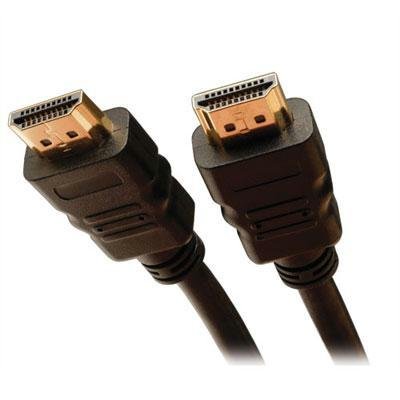
The image above displays the Generic 25-foot High-Speed HDMI Cable with Ethernet. It features standard HDMI Type A connectors on both ends, designed for secure and reliable connections. The cable is constructed to support the latest HDMI specifications, ensuring optimal signal integrity over its 25-foot length.
4. Setup Instructions
Follow these steps to connect your HDMI cable:
- Identify Ports: Locate the HDMI output port on your source device (e.g., Blu-ray player, game console, computer) and the HDMI input port on your display device (e.g., TV, monitor, projector).
- Connect Source: Gently insert one end of the HDMI cable into the HDMI output port of your source device. Ensure it is fully seated.
- Connect Display: Gently insert the other end of the HDMI cable into the HDMI input port of your display device. Ensure it is fully seated.
- Power On Devices: Turn on both your source device and your display device.
- Select Input: On your display device, use the remote control or on-screen menu to select the correct HDMI input source (e.g., HDMI 1, HDMI 2) that corresponds to the port you used.
Note: For optimal performance, ensure both devices are powered off before connecting or disconnecting the cable.
5. Operating Instructions
Once the HDMI cable is correctly connected and the input source is selected on your display device, the cable operates automatically. It will transmit digital video and audio signals from your source device to your display. If your devices support HDMI Ethernet Channel (HEC) and Audio Return Channel (ARC), these features will also function automatically when enabled on your devices.
- Video: The cable supports various video resolutions, including 1080p, 4K, and 3D content, depending on the capabilities of your connected devices.
- Audio: High-quality digital audio, including multi-channel surround sound, will be transmitted.
- Ethernet: If both connected devices support HEC, they can share an internet connection without additional Ethernet cables.
6. Maintenance and Care
To ensure the longevity and optimal performance of your HDMI cable, follow these maintenance guidelines:
- Handle with Care: Avoid bending the cable sharply or putting excessive strain on the connectors.
- Keep Clean: Use a soft, dry cloth to gently wipe the cable and connectors if they become dusty. Do not use liquid cleaners directly on the connectors.
- Proper Storage: When not in use, coil the cable loosely. Avoid tight coiling or kinking, which can damage internal wires.
- Avoid Extreme Conditions: Do not expose the cable to extreme temperatures, direct sunlight for prolonged periods, or excessive moisture.
7. Troubleshooting
If you encounter issues with your HDMI cable, consider the following troubleshooting steps:
- No Picture/Sound:
- Ensure the cable is securely connected to both devices.
- Verify that the correct HDMI input is selected on your display device.
- Try connecting the cable to a different HDMI port on your display device.
- Test the cable with another HDMI-compatible device to rule out issues with the source or display.
- Restart both the source and display devices.
- Poor Picture Quality (Flickering, Static):
- Check for any physical damage to the cable or connectors.
- Ensure the cable is not running near sources of strong electromagnetic interference.
- Reduce the resolution or refresh rate on your source device to see if the issue persists.
- No Ethernet/ARC Functionality:
- Confirm that both connected devices support HDMI Ethernet Channel (HEC) and Audio Return Channel (ARC) and that these features are enabled in their settings.
- Consult the user manuals of your source and display devices for specific instructions on enabling these features.
8. Technical Specifications
| Specification | Detail |
|---|---|
| ASIN | B0F8172RB8 |
| Manufacturer | 212 Main |
| Date First Available | November 8, 2023 |
9. Warranty and Support
For information regarding warranty coverage or technical support for your Generic 25-foot High-Speed HDMI Cable with Ethernet, please refer to the documentation provided at the point of purchase or contact the retailer directly. Specific warranty terms and support procedures may vary.