
VIDVIS CA-SV-TCQSW
VIDVIS WiFi Trail Camera Solar User Manual
Model: CA-SV-TCQSW
Introduction
This user manual provides comprehensive instructions for the setup, operation, and maintenance of your VIDVIS WiFi Trail Camera Solar. Designed for wildlife monitoring, farm and home security, and hunting, this camera captures high-resolution photos and videos with advanced features like night vision and motion activation. Please read this manual thoroughly before using the product to ensure proper functionality and longevity.
Safety Information
- Ensure the camera is securely mounted to prevent falling and potential damage or injury.
- Do not expose the camera to extreme temperatures outside the specified operating range (-5°F to 140°F / -15°C to 60°C).
- Keep the camera away from open flames or excessive heat.
- Do not attempt to disassemble or modify the camera, as this will void the warranty and may cause damage.
- Use only recommended power sources and accessories.
- Keep out of reach of children.
Product Overview
The VIDVIS WiFi Trail Camera Solar is a robust and versatile device equipped with a solar panel for extended battery life, high-resolution imaging, and motion detection capabilities. Below are key components and features.
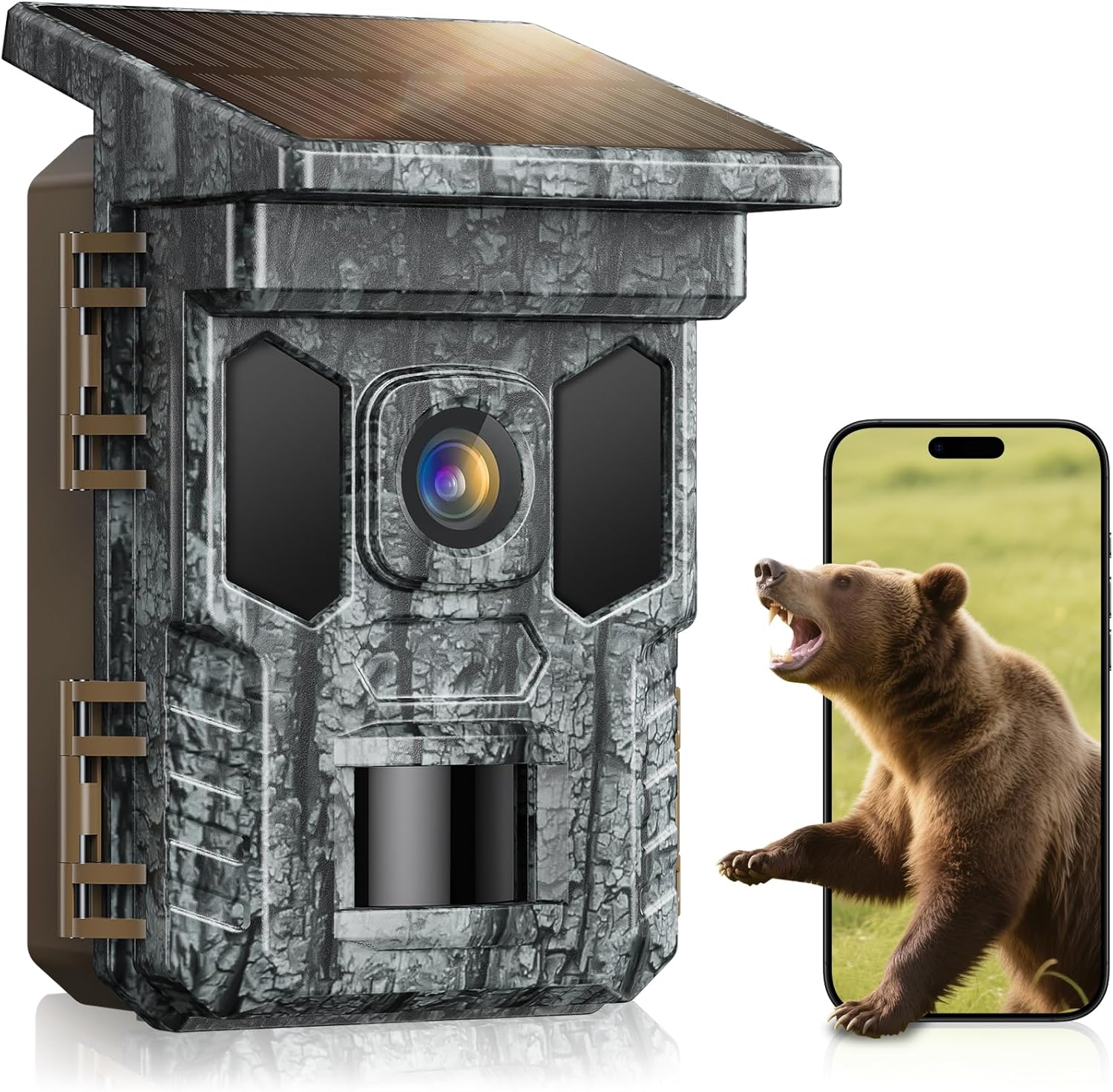
Figure 1: Front view of the VIDVIS WiFi Trail Camera Solar, showcasing its compact design and integrated solar panel. A smartphone screen next to it displays a bear, illustrating the camera's wildlife monitoring capability.

Figure 2: The VIDVIS WiFi Trail Camera Solar mounted on a tree in a forest, with deer in the background, highlighting its intended use for outdoor wildlife observation.
Key Features:
- Solar Power Integration: Built-in solar panel for continuous charging of the internal 2600mAh Li-ion battery.
- Multiple Power Options: Supports solar, Type-C port, 4 AA batteries (not included), and DC 6V/1.5A power supply (not included).
- High Resolution Imaging: Captures 64MP photos and 4K audio video.
- Advanced Night Vision: 850nm low-glow infrared LEDs provide clear night vision up to 65 feet without disturbing animals.
- Fast Trigger Speed: 0.2-second trigger speed with PIR sensors to capture fast-moving subjects.
- WiFi Connectivity & App Control: Connects to the "TrailCam Go" app for direct preview, download, and parameter settings within 49 feet. Note: Does not support home WiFi connection.
- Durable Design: IP66 waterproof rating ensures operation in various weather conditions (-5°F to 140°F).
- Storage: Includes a 32GB Micro SD card, supports up to 256GB, with loop recording functionality.
- 2-Inch Color Screen: Allows direct viewing of recorded photos and videos.
Setup
Follow these steps to prepare your trail camera for use.
1. Powering the Camera
- Solar Power: The integrated solar panel charges the built-in 2600mAh Li-ion battery. Ensure the solar panel is exposed to direct sunlight for optimal charging.
- AA Batteries: For backup or primary power, insert 4 AA batteries (not included) into the battery compartment.
- USB-C Cable Charging: Connect the camera to a power source using the provided Type-C power cable to charge the internal battery.
- DC 6V/1.5A Power Supply: An external DC 6V/1.5A power supply (not included) can also be used.

Figure 3: Illustration of the four available charging methods for the camera, including solar, AA batteries, USB-C, and DC input.
2. Inserting the SD Card
A 32GB Micro SD card is included. The camera supports up to 256GB. Insert the Micro SD card into the designated slot. For first-time use or if experiencing issues, format the SD card within the camera's settings (refer to the "Quick Setup" section for switch positions).
3. Camera Modes (OFF/TEST/ON)
The camera features a three-position switch for different operational modes:
- OFF: Shuts down the camera. Use this mode when the camera will not be used for an extended period.
- TEST: In this mode, you can set camera parameters, view photos/videos, and format the SD card. The screen will be active.
- ON: The camera enters working mode. The screen will turn off, and the camera will begin monitoring based on your settings.

Figure 4: Visual guide to the OFF, TEST, and ON switch positions for camera operation and setup.
Operating Instructions
1. WiFi Connection and App Control
The camera connects to your smartphone via its built-in WiFi for convenient control and media access. Download the "TrailCam Go" app from your device's app store.
- Switch the camera to "ON" mode.
- On your phone, turn on WiFi and Bluetooth.
- Open the "TrailCam Go" app and connect to the camera's WiFi network.
- Once connected, you can set wildlife camera parameters, preview photos/videos, and download media directly to your phone (within 49 feet of the camera).
Important Note: This camera does not support connection to your home WiFi network for remote viewing. Connection is direct between the camera and your smartphone within a limited range.

Figure 5: Visual representation of connecting the camera to a smartphone via WiFi for app control, emphasizing the 49-foot effective range and the note about not supporting home WiFi.

Figure 6: Detailed steps for establishing a WiFi connection between the camera and your mobile device using the dedicated app.
2. Photo and Video Capture
The camera is capable of capturing high-quality images and videos:
- Resolution: Up to 64 MP photos and 4K audio video.
- Trigger Speed: A rapid 0.2-second trigger ensures minimal delay in capturing motion.
- Burst Mode: Configurable for 1-5 shot bursts to capture sequences of movement.
- PIR Detection: High/medium/low PIR sensors detect motion up to 70 feet.

Figure 7: Examples of high-resolution captures, showcasing the camera's ability to record 64MP photos and 4K videos of wildlife.

Figure 8: Demonstration of the camera's fast 0.2-second trigger speed and burst shot capability, capturing dynamic wildlife moments.
3. Night Vision
The camera utilizes 850nm low-glow infrared LEDs for clear night vision up to 65 feet. This technology minimizes disturbance to animals while providing detailed nighttime footage.

Figure 9: Visual comparison demonstrating the effectiveness of the camera's night vision, providing clear images up to 65 feet in low-light conditions.
4. Loop Recording
When the Micro SD card is full, the camera's loop recording feature automatically overwrites the oldest photos or videos to continue recording new content. This ensures continuous operation without manual intervention.
5. Timelapse Video Mode
The Timelapse Video Mode allows the camera to continuously take multiple photos over a set period, which can then be compiled into a video. This is suitable for observing slow processes like plant growth or animal migration. Note that this mode consumes more power.

Figure 10: An example of the Timelapse Video Mode, capturing a series of still images over time to document animal activity.
6. Customize Working Hours
You can set specific working hours for the camera to save power and reduce unnecessary recordings. This feature is useful for monitoring activity during particular times, such as nighttime.

Figure 11: Illustration of customizing working hours, allowing users to set specific times for the camera to be active, such as from 10:00 PM to 4:00 AM.
7. Playback Methods
You can view captured media using several methods:
- Via the Free App: Connect to the camera's WiFi and use the "TrailCam Go" app to browse and download files.
- Via USB-C Cable: Connect the camera directly to a computer using the Type-C cable.
- Via Card Reader: Remove the SD card and insert it into a card reader connected to a computer (card reader not included).
- Via Camera Screen: Use the built-in 2-inch color screen to view photos and videos directly on the camera.

Figure 12: Overview of the four different methods available for reviewing captured photos and videos from the camera.

Figure 13: The camera's 2-inch color screen displaying a captured image, demonstrating the direct viewing capability.

Figure 14: Features of the camera's display and storage, including the 2-inch color LCD screen and the loop recording function.
8. Location Marking
The app allows you to mark the location of your camera on a map. This feature helps you navigate back to the camera's deployment site. Please note that this feature marks the location for navigation purposes only and does not provide real-time tracking of the camera.

Figure 15: The app's feature to mark the camera's location on a map for easy retrieval.
Maintenance
Proper maintenance ensures the longevity and optimal performance of your trail camera.
- Cleaning: Gently wipe the lens and solar panel with a soft, dry cloth to remove dust and debris. Avoid abrasive materials or harsh chemicals.
- Battery Check: Regularly check the battery level via the app or camera screen. Replace AA batteries when low, or ensure the solar panel receives adequate sunlight.
- SD Card Management: Periodically back up important files from the SD card to a computer and format the card to maintain performance.
- Weather Protection: While the camera is IP66 waterproof, ensure all latches are securely closed to prevent water ingress, especially during heavy rain or snow.

Figure 16: The camera operating in various weather conditions, highlighting its IP66 waterproof and temperature resistance from 5°F to 140°F.
Troubleshooting
This section addresses common issues you might encounter with your VIDVIS WiFi Trail Camera Solar.
1. Camera Not Turning On
- Check Battery: Ensure the internal battery is charged or that fresh AA batteries are inserted.
- Power Source: Verify that the solar panel is receiving adequate sunlight or that the USB-C/DC power source is connected correctly.
- Switch Position: Make sure the camera switch is set to "TEST" or "ON".
2. WiFi Connection Issues
- Range: Ensure your smartphone is within 49 feet of the camera.
- Home WiFi: Remember, the camera does not support connection to your home WiFi network. It creates its own local WiFi for direct connection to your phone.
- App Permissions: Check if the "TrailCam Go" app has necessary WiFi and Bluetooth permissions on your phone.
- Restart: Try restarting both the camera and your smartphone.
3. SD Card Not Recognized or Error
- Format: Format the SD card directly in the camera (in "TEST" mode) before first use or if errors occur.
- Compatibility: Ensure the SD card is a Micro SD card and within the supported size (up to 256GB).
- Mac Users: If using a Mac, formatting the SD card on the camera is crucial. Directly formatting on a Mac may render the card unreadable by the camera due to file system differences. If you need to access files on a Mac, use the camera's USB-C connection or a compatible card reader that supports the camera's formatted card.
4. Dark Pictures/Videos
- Night Vision: Ensure the night vision LEDs are not obstructed.
- Placement: Adjust camera placement to ensure adequate lighting during the day and optimal infrared coverage at night.
- Settings: Check camera settings via the app to ensure exposure and other image parameters are appropriate for your environment.
Specifications
| Feature | Specification |
|---|---|
| Model Number | CA-SV-TCQSW |
| Photo Resolution | 64 MP Effective Still Resolution |
| Video Resolution | 4K (Effective Video Resolution: 4) |
| Trigger Speed | 0.2 seconds |
| PIR Detection Range | Up to 70 feet |
| Night Vision Range | Up to 65 feet (850nm Low-Glow IR LEDs) |
| Display Screen | 2-inch Color LCD |
| Storage | Micro SD Card (32GB included, supports up to 256GB) |
| Power Source | Solar, Built-in 2600mAh Li-ion Battery, 4xAA Batteries (not included), Type-C, DC 6V/1.5A |
| Connectivity | Bluetooth, Wi-Fi (direct camera-to-phone) |
| Water Resistance | IP66 Waterproof |
| Operating Temperature | -5°F to 140°F / -15°C to 60°C |
| Dimensions (L x W x H) | 3.5 x 2.9 x 4.9 inches |
| Item Weight | 9.2 ounces (262 Grams) |
| Included Components | Trail Camera, Type-C Power Cable, 32G Micro SD Card, Mounting Accessories, Strap |
What's in the Box
- VIDVIS WiFi Trail Camera Solar
- Type-C Power Cable
- 32GB Micro SD Card
- Mounting Accessories
- Strap
Figure 17: All components included in the product packaging.
Ask a question about this manual
Ask about setup, troubleshooting, compatibility, parts, safety, or missing instructions. Manuals+ will review the question and use this page’s manual context to help answer it.