
1. Introduction
Thank you for choosing the GUSGU SplitFolio Detachable Keyboard Case. This manual provides detailed instructions for setting up, operating, and maintaining your new keyboard case. Designed for versatility and protection, this case enhances your iPad experience, transforming it into a powerful productivity tool or an entertainment hub.
2. Compatibility
The GUSGU SplitFolio Detachable Keyboard Case is compatible with the following iPad models:
- 2024 iPad Air 13-inch (M2)
- 2025 iPad Air 13-inch (M3)
- 2022 iPad Pro 12.9-inch (6th Gen)
- 2021 iPad Pro 12.9-inch (5th Gen)
- 2020 iPad Pro 12.9-inch (4th Gen)
- 2018 iPad Pro 12.9-inch (3rd Gen)
To verify your iPad model number, refer to the back of your device or check your iPad's settings under 'About'.

Figure 2.1: Compatibility chart and guide to verify your iPad model number.
3. Features
3.1 Magnetic Detachable Design
The keyboard attaches magnetically to the case, allowing for seamless transitions between typing and tablet-only use. This design provides stability for typing and can be easily detached when you prefer to use your iPad without the keyboard, reducing bulk.

Figure 3.1: The keyboard detaches magnetically for flexible use.
3.2 Adjustable Kickstand & 360° Rotation
The integrated kickstand and 360° rotatable hinge allow you to find the perfect viewing or working angle. This flexibility supports various activities, including drawing, typing, presenting, or watching media.

Figure 3.2: The adjustable kickstand provides multiple viewing angles.
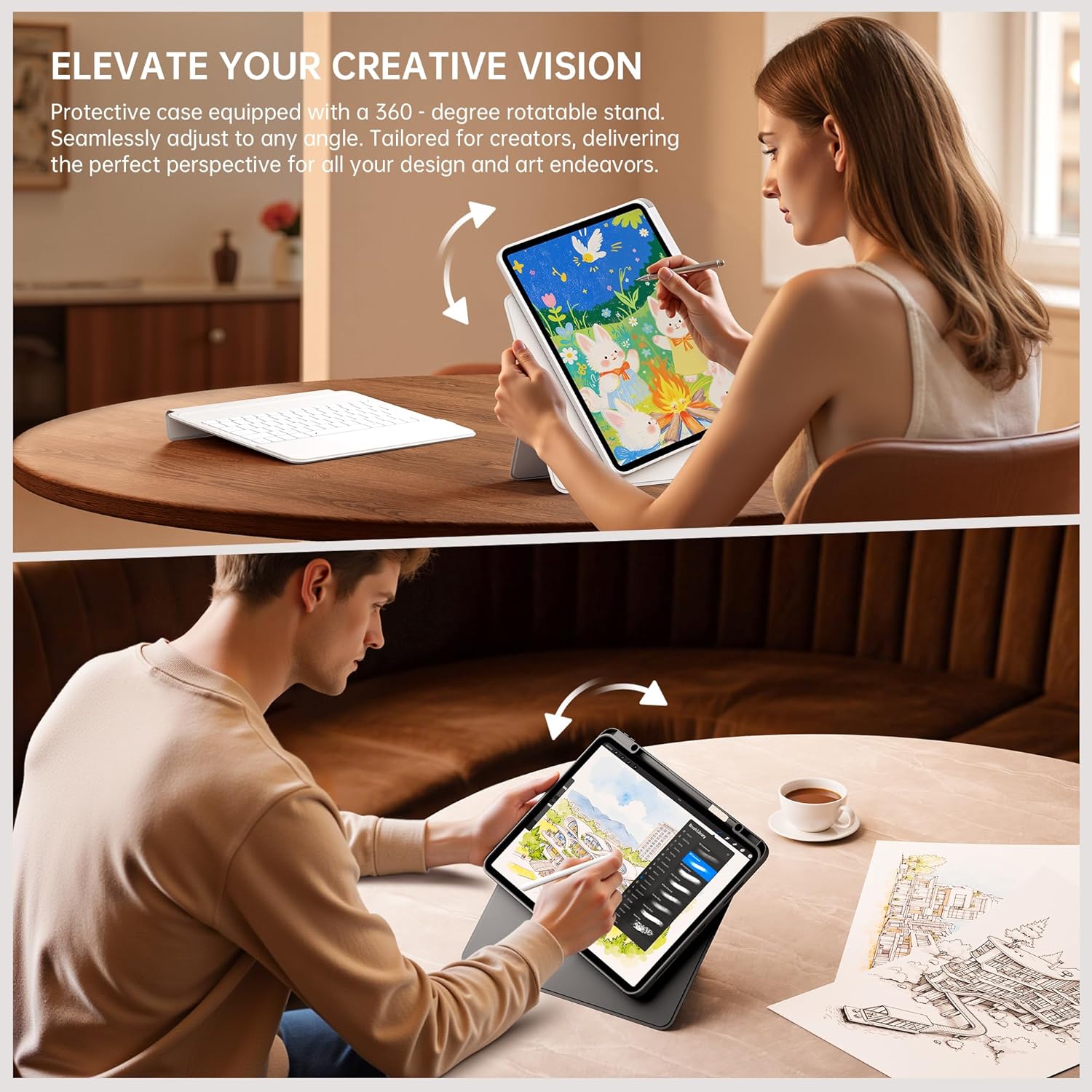
Figure 3.3: The case supports 360° rotation for portrait or landscape orientation.
3.3 Multi-Touch Trackpad with Native Gesture Support
Navigate your iPad with precision using the multi-touch trackpad. It supports native iPadOS gestures, enabling intuitive actions like swiping, scrolling, and switching between applications to enhance your workflow and multitasking efficiency.

Figure 3.4: The trackpad supports native iPadOS gestures for smooth navigation.
3.4 7-Color Backlit Keyboard
The keyboard features 7 adjustable backlight colors, allowing you to customize your typing experience. This is particularly useful in dim environments and adds a personalized touch to your workspace.

Figure 3.5: The keyboard features 7 adjustable backlight colors.
3.5 Secure Form-Fit Protection & Apple Pencil Holder
The case provides secure, form-fit protection for your iPad, safeguarding it from everyday bumps and scratches. It also includes a dedicated slot for your Apple Pencil, ensuring it's always within reach and securely stored.

Figure 3.6: Secure fit and integrated Apple Pencil holder.
4. Setup Instructions
- Insert Your iPad: Gently place your iPad into the protective case, ensuring all edges are securely fitted. The case is designed for a snug fit to prevent accidental dislodgement.
- Charge the Keyboard: Before first use, fully charge the keyboard using the provided USB-C cable. The charging port is typically located on the side of the keyboard. A charging indicator light will show the charging status.
- Power On the Keyboard: Locate the power switch on the keyboard and slide it to the 'ON' position. The indicator light will typically flash, indicating it's ready for pairing.
- Pair via Bluetooth:
- On your iPad, go to Settings > Bluetooth.
- Turn on Bluetooth.
- On the keyboard, press the Connect button (often labeled with a Bluetooth icon or 'Fn + C'). The Bluetooth indicator light will start blinking rapidly.
- On your iPad, look for 'GUSGU Keyboard' or a similar name in the 'Other Devices' list and tap to connect.
- If prompted, enter the pairing code displayed on your iPad using the keyboard and press Enter.
- Once connected, the Bluetooth indicator light on the keyboard will stop blinking and remain solid or turn off.
Video 4.1: Demonstrates the detachable keyboard feature and iPad installation. (Source: GSGDirect)
5. Operating Instructions
- Using the Keyboard: Once paired, the keyboard functions like a standard external keyboard. Type directly into any text field on your iPad.
- Using the Trackpad: The integrated trackpad allows for precise cursor control and supports various iPadOS gestures. Refer to your iPad's settings for a full list of supported gestures. Common gestures include:
- Single-finger tap: Click/select.
- Two-finger scroll: Scroll up/down/left/right.
- Two-finger pinch: Zoom in/out.
- Three-finger swipe up: Go to Home Screen.
- Three-finger swipe left/right: Switch between open apps.
- Adjusting Backlight: Press the Fn key and the light bulb icon key (usually near the arrow keys) to cycle through backlight colors and brightness levels.
- Adjusting Viewing Angle: Utilize the adjustable kickstand to set your preferred viewing angle. The 360° rotation allows you to switch between landscape and portrait modes as needed.
- Detaching the Keyboard: Simply pull the keyboard away from the magnetic connection points on the case to use your iPad in tablet mode.
Video 5.1: Overview of the GUSGU Detachable iPad Keyboard Case features and usage. (Source: GSGDirect)
6. Maintenance
- Cleaning the Case: Wipe the case with a soft, damp cloth. Avoid harsh chemicals or abrasive cleaners.
- Cleaning the Keyboard: Use a soft, dry cloth to clean the keyboard keys. For dust or debris between keys, use compressed air.
- Battery Care: To prolong battery life, avoid fully discharging the keyboard battery frequently. Charge it regularly.
- Storage: When not in use for extended periods, store the keyboard case in a cool, dry place.
7. Troubleshooting
- Keyboard Not Connecting:
- Ensure the keyboard is powered on and fully charged.
- Check that Bluetooth is enabled on your iPad.
- Forget the device in your iPad's Bluetooth settings and attempt to re-pair.
- Restart both your iPad and the keyboard.
- Keys Not Responding:
- Ensure the keyboard is connected via Bluetooth.
- Check for low battery.
- Clean the keyboard for any debris that might be obstructing keys.
- Trackpad Not Working:
- Verify Bluetooth connection.
- Ensure the trackpad is clean and free of obstructions.
- Check iPadOS settings for trackpad functionality.
- Backlight Not Working/Changing:
- Ensure the keyboard is powered on.
- Press Fn + light bulb icon key to activate or change the backlight.
- Check for low battery.
8. Specifications
| Feature | Detail |
|---|---|
| Brand | GUSGU |
| Color | Black |
| Compatible Devices | Tablets (Specific iPad models listed in Compatibility section) |
| Special Features | Magnetic Detachable Design, Multi-Touch Trackpad, Adjustable Kickstand & 360° Rotation, 7-Color Backlight |
| Item Weight | 1.15 Kilograms |
| Manufacturer | GUSGU |
9. Warranty & Support
The GUSGU SplitFolio Detachable Keyboard Case typically comes with a 5-year extended warranty. Please refer to the warranty card included with your product for specific terms and conditions.
For further assistance, technical support, or warranty claims, please visit the official GUSGU store on Amazon or contact GUSGU customer service directly. You can find more information and contact details via the GUSGU Brand Store.