
Introduction
Thank you for choosing the SHARE SUNSHINE Wireless Ergonomic Vertical Mouse. This device is designed to provide a comfortable and natural hand position, reducing wrist strain during extended use. It features adjustable angle, dual-mode connectivity (2.4G wireless and Bluetooth), a removable palm rest, and customizable RGB lighting. This manual provides detailed instructions for setup, operation, maintenance, and troubleshooting to ensure optimal performance and user experience.

Image 1: Overview of the SHARE SUNSHINE Wireless Ergonomic Vertical Mouse.
Package Contents
- 1 x SHARE SUNSHINE Wireless Ergonomic Vertical Mouse
- 1 x USB Receiver (stored in the mouse's battery compartment)
- 1 x USB-C Charging Cable
- 1 x User Manual
Product Features
- Ergonomic Vertical Design: Promotes a natural handshake position to reduce wrist and forearm strain.
- Adjustable Angle Gradient: Customize the mouse angle for personalized comfort.
- Dual Mode Connectivity: Seamlessly switch between 2.4G wireless and Bluetooth modes.
- Removable Palm Rest: Provides additional wrist support and can be detached for preference.
- 6 Programmable Buttons: Includes left/right click, scroll wheel, DPI button, and two side buttons.
- Adjustable DPI: Up to 3600 DPI for precise cursor control.
- Rechargeable Battery: Built-in battery for convenient charging.
- RGB Lighting: Customizable lighting effects for aesthetic appeal.

Image 2: The adjustable angle feature allows users to find their preferred hand position.
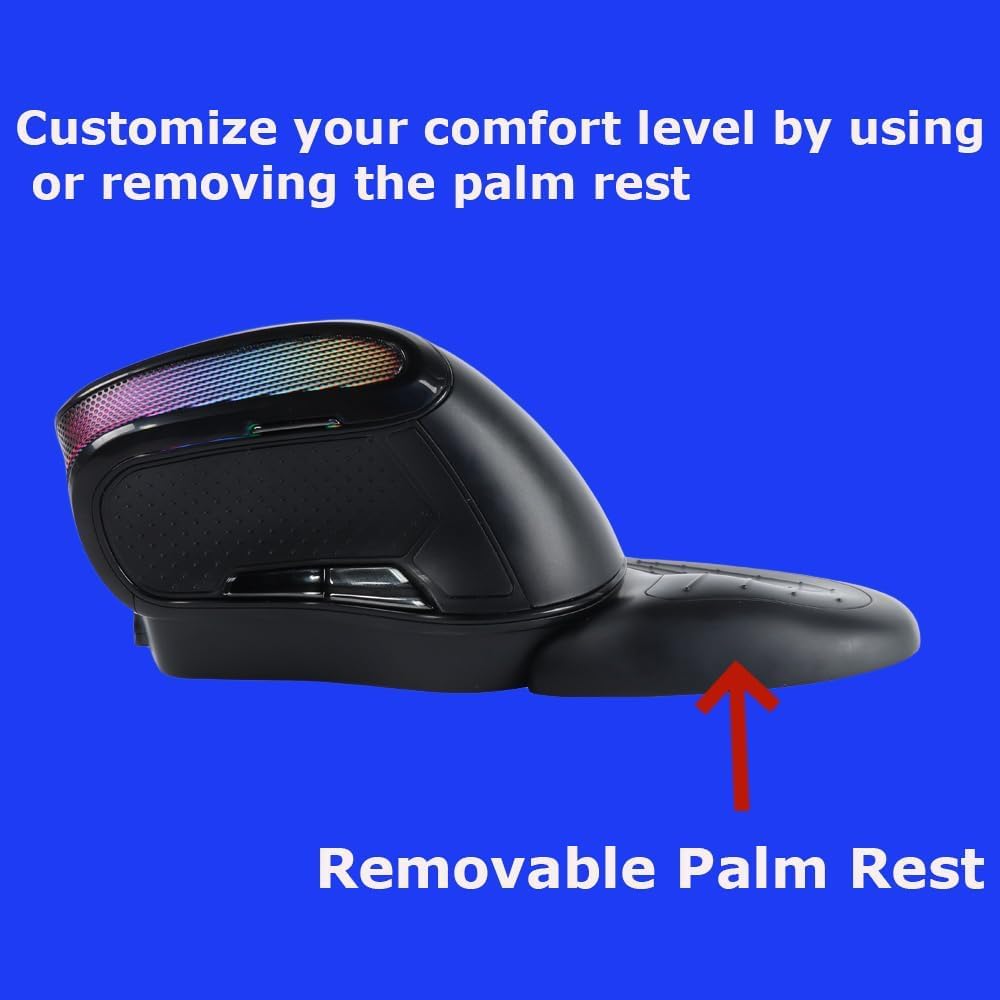
Image 3: The removable palm rest provides additional wrist support.
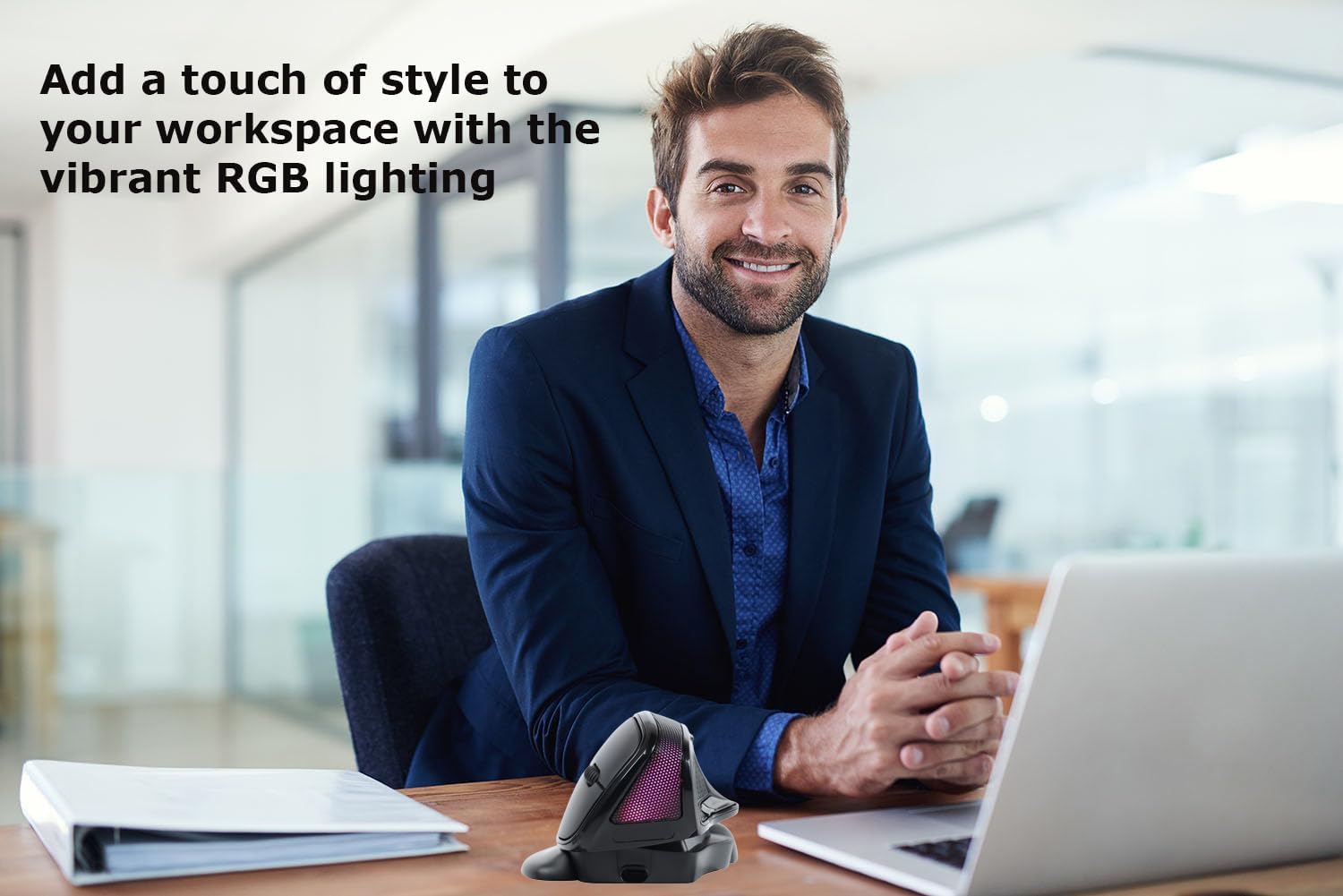
Image 4: The mouse features vibrant RGB lighting.
Setup
1. Charging the Mouse
Before first use, fully charge the mouse. Connect the provided USB-C charging cable to the charging port on the front of the mouse and the other end to a USB power source (e.g., computer USB port, USB wall adapter). The RGB lighting may indicate charging status.
2. 2.4G Wireless Connection
- Locate the USB receiver stored in the compartment at the bottom of the mouse.
- Plug the USB receiver into an available USB port on your computer.
- Turn on the mouse using the power switch located at the bottom.
- The mouse should automatically connect to your computer. If not, try moving the mouse closer to the receiver or restarting your computer.
3. Bluetooth Connection
- Turn on the mouse using the power switch.
- Press the mode switch button (usually on the bottom or top of the mouse) to switch to Bluetooth mode. The indicator light will flash, indicating it's in pairing mode.
- On your computer or device, go to Bluetooth settings.
- Search for new devices and select "SHARE SUNSHINE Mouse" (or similar name) from the list.
- Follow any on-screen prompts to complete the pairing process.
Video 1: A short guide on connecting the mouse to your device.
Operating Instructions
1. Button Functions
- Left Click Button: Standard primary click function.
- Right Click Button: Standard secondary click function.
- Scroll Wheel: Scroll up/down, and middle click.
- DPI Button: Cycles through DPI settings (e.g., 800/1200/1600/2400/3600 DPI).
- Forward Button (Side): Navigates forward in web browsers or file explorers.
- Backward Button (Side): Navigates backward in web browsers or file explorers.
2. DPI Adjustment
Press the DPI button (usually located near the scroll wheel) to cycle through available DPI settings. Each press will change the cursor speed, indicated by a brief change in the RGB lighting or a specific LED indicator. Adjust to your preferred sensitivity.
3. Angle Adjustment
The mouse features an adjustable angle mechanism. Gently rotate the top section of the mouse relative to its base to find the most comfortable angle for your hand and wrist. Ensure it clicks into place securely at your desired position.
4. Removable Palm Rest
The palm rest can be attached or detached based on your comfort preference. To attach, align the palm rest with the grooves on the mouse base and slide it into place until it locks. To remove, gently slide it off.
5. RGB Lighting Control
The RGB lighting typically cycles through various effects automatically. Some models may allow you to turn off the lighting or change modes by pressing a specific button combination (refer to specific product documentation if available, otherwise it's automatic).
Video 2: Demonstrating key operational features of the mouse.
Maintenance
- Cleaning: Use a soft, dry cloth to wipe the mouse surface. For stubborn dirt, slightly dampen the cloth with water or a mild cleaning solution. Avoid harsh chemicals or abrasive materials.
- Storage: When not in use for extended periods, store the mouse in a cool, dry place away from direct sunlight and extreme temperatures.
- Battery Care: To prolong battery life, avoid fully discharging the mouse frequently. Charge it when the low battery indicator appears.
Troubleshooting
| Problem | Solution |
|---|---|
| Mouse not responding |
|
| Cursor erratic or slow |
|
| Bluetooth connection drops frequently |
|
| RGB lighting not working |
|
Specifications
| Model | B0F7XJ9TPF |
| Connectivity | 2.4G Wireless, Bluetooth |
| DPI Settings | Adjustable, up to 3600 DPI |
| Buttons | 6 (Left, Right, Scroll Wheel, DPI, Forward, Backward) |
| Ergonomics | Vertical, Adjustable Angle, Removable Palm Rest |
| Lighting | RGB |
| Power Source | Rechargeable Battery |
| Compatibility | PC, Laptop, Computer, Macbook, Tablet (Windows, macOS, Android, iOS) |
Warranty and Support
The SHARE SUNSHINE Wireless Ergonomic Vertical Mouse comes with a one-year worry-free warranty from the date of purchase. This warranty covers manufacturing defects and ensures reliable performance of your device.
For technical support, warranty claims, or any questions regarding your product, please contact SHARE SUNSHINE customer service through the retailer's platform or visit the official SHARE SUNSHINE store page on Amazon.
Please retain your proof of purchase for warranty purposes.