
Breloom ST9-J
Breloom ST9-J Rugged Tablet User Manual
Model: ST9-J
1. Introduction
This user manual provides comprehensive instructions for the operation, maintenance, and troubleshooting of your Breloom ST9-J Rugged Tablet. Please read this manual thoroughly before using the device to ensure proper functionality and longevity.
1.1 Product Overview
The Breloom ST9-J is an 8-inch rugged industrial tablet designed for demanding environments. It features a 2D barcode scanner, runs on Windows 11 Pro, and is powered by an Intel N5100 processor. With IP65 waterproofing and MIL-STD-810G durability, it is built to withstand harsh conditions in various industrial applications.

Figure 1: Front and back view of the Breloom ST9-J Rugged Tablet, showcasing its robust design and various ports.
1.2 Package Contents
Verify that all items listed below are present in your product package:
- 1 x ST9-J Rugged Tablet
- 1 x DC Charger (12V 4A)
- 1 x Wrist strap
- Screwdriver and screws (for optional module installation)

Figure 2: Included accessories: the ST9-J Rugged Tablet, DC charger, wrist strap, screwdriver, and screws. Note that the docking station is sold separately.
2. Product Features
2.1 Industrial-Grade Scanning Performance
The ST9-J integrates a Newland NLS-N1 scanner, providing fast and accurate decoding of both 1D and 2D barcodes. It can read damaged, crumpled, or low-contrast codes, making it suitable for various industrial applications.

Figure 3: The tablet's integrated Newland N1 scanner supports various barcode types including Code 128, MSI-Plessey, UPC-A, UPC-E, Data Matrix, QR Code, MaxiCode, and Aztec Code.
2.2 Military-Grade Durability & IP65 Certified
Engineered for extreme environments, the ST9-J boasts IP65 waterproof and dustproof certification and MIL-STD-810G military-grade toughness. It operates reliably in temperatures from -20°C to 55°C and resists drops up to 1.2 meters.
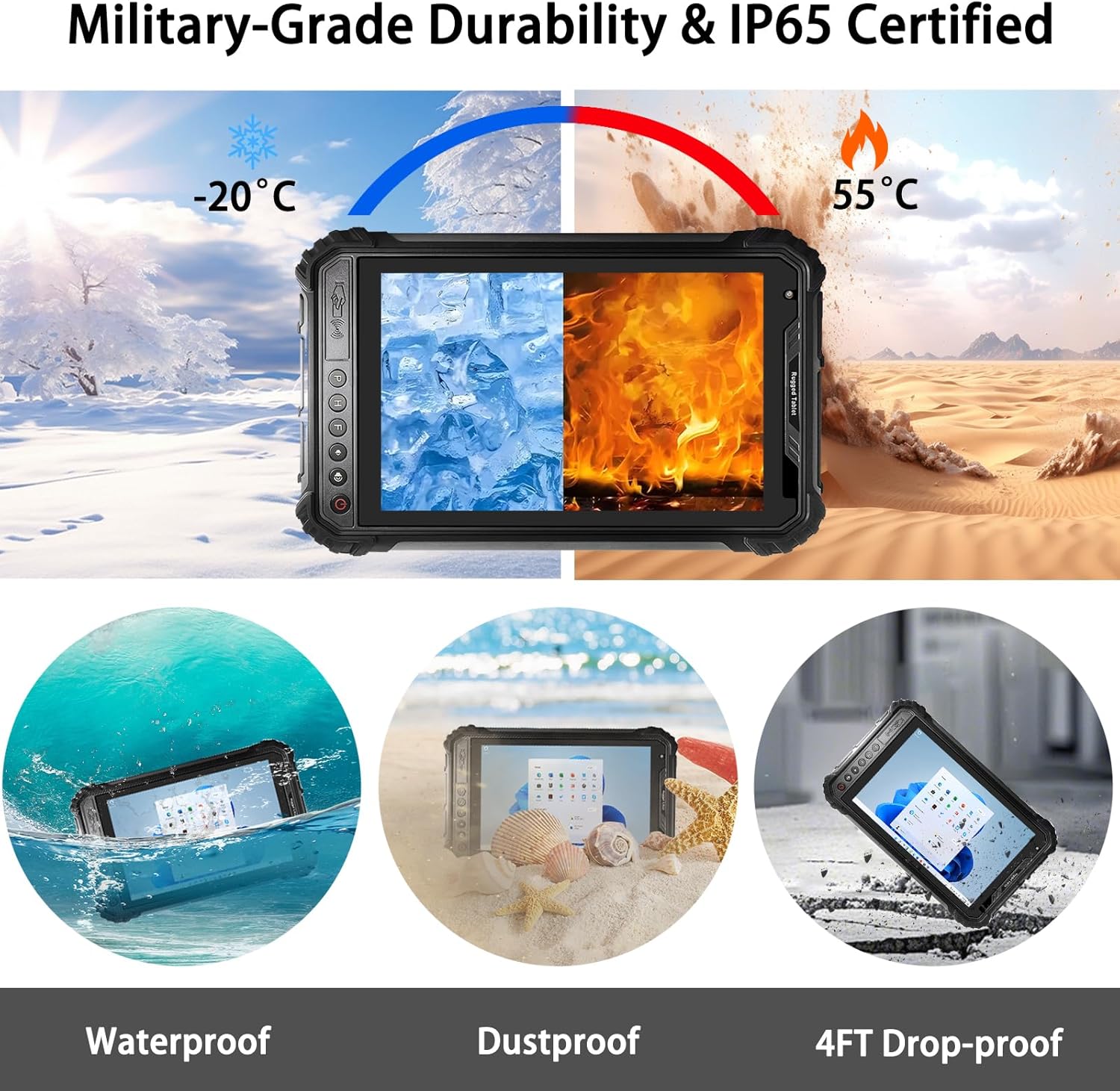
Figure 4: The ST9-J is designed for extreme conditions, demonstrating resistance to cold (-20°C), heat (55°C), water (IP65 waterproof), dust (IP65 dustproof), and drops (4FT drop-proof).
2.3 Quad-Core Performance
Equipped with an Intel Celeron N5100 Quad-Core CPU (up to 2.80GHz Turbo), 8GB RAM, and 256GB ROM, the tablet ensures smooth multitasking and efficient data processing. It runs on Windows 11 Pro.
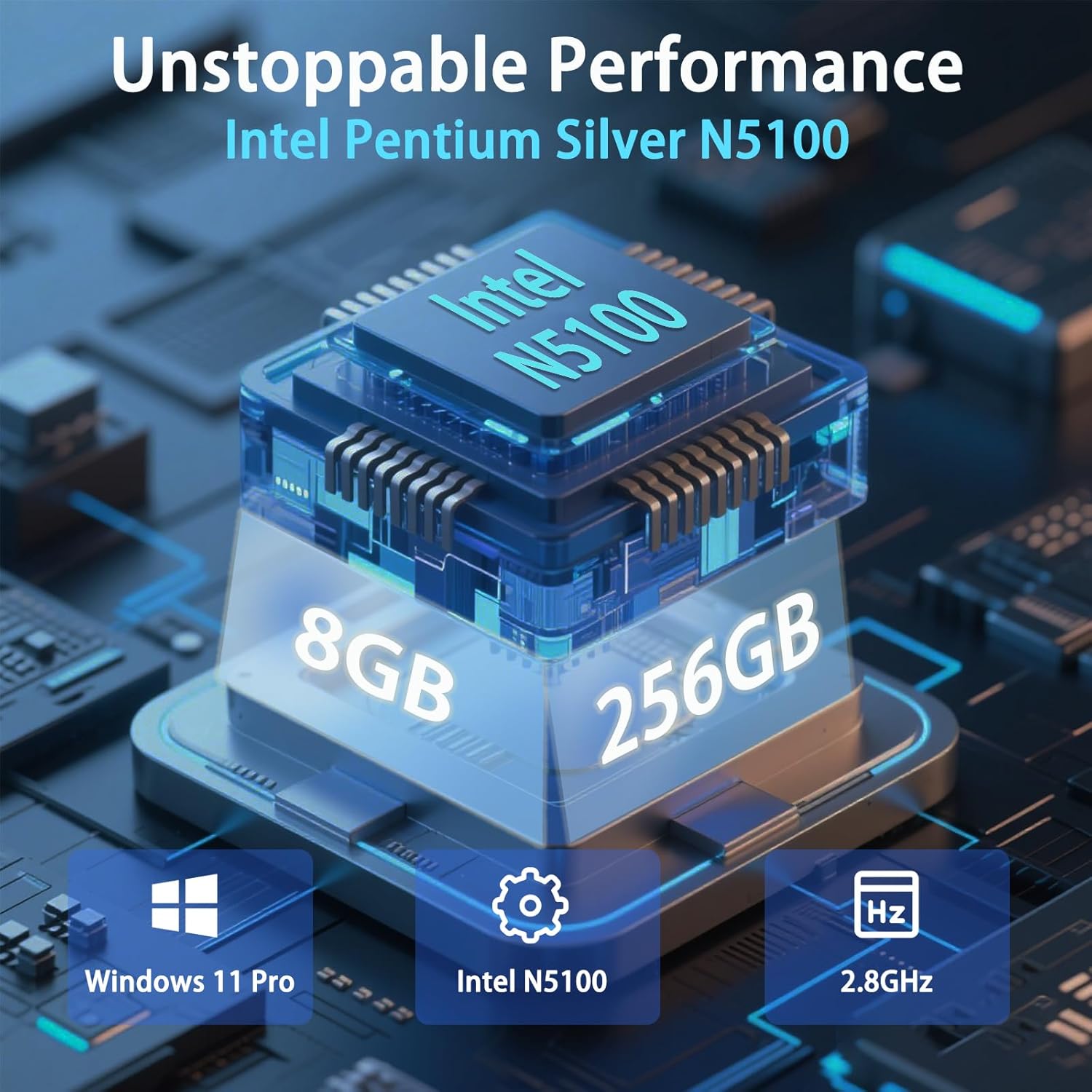
Figure 5: Visual representation of the tablet's core specifications: Intel Pentium Silver N5100 processor, 8GB RAM, 256GB storage, running Windows 11 Pro at 2.8GHz.
2.4 Display and Battery
The 8-inch IPS screen features a 1200x1920 resolution and 400 nits brightness for clear visibility in sunlight. A 5000mAh battery provides up to 7 hours of continuous use, with 12V/4A fast charging.

Figure 6: Key display features: 1200x1920 resolution, 16:10 aspect ratio, 400 Nits brightness, and an 8-inch HD+IPS display.

Figure 7: The tablet features a 5000mAh long-lasting battery with approximately 3 hours charging time. Estimated usage times include 20 hours for music, 10 hours for web browsing, 8 hours for navigation, 7 hours for video playback, and 5 hours for gaming.
2.5 Connectivity and Cameras
Global 4G LTE support, Wi-Fi 6 (802.11ac), Bluetooth 4.2, and triple-mode navigation (GPS/BeiDou/GLONASS) ensure robust connectivity. It includes a 13MP rear camera and a 5MP front camera.
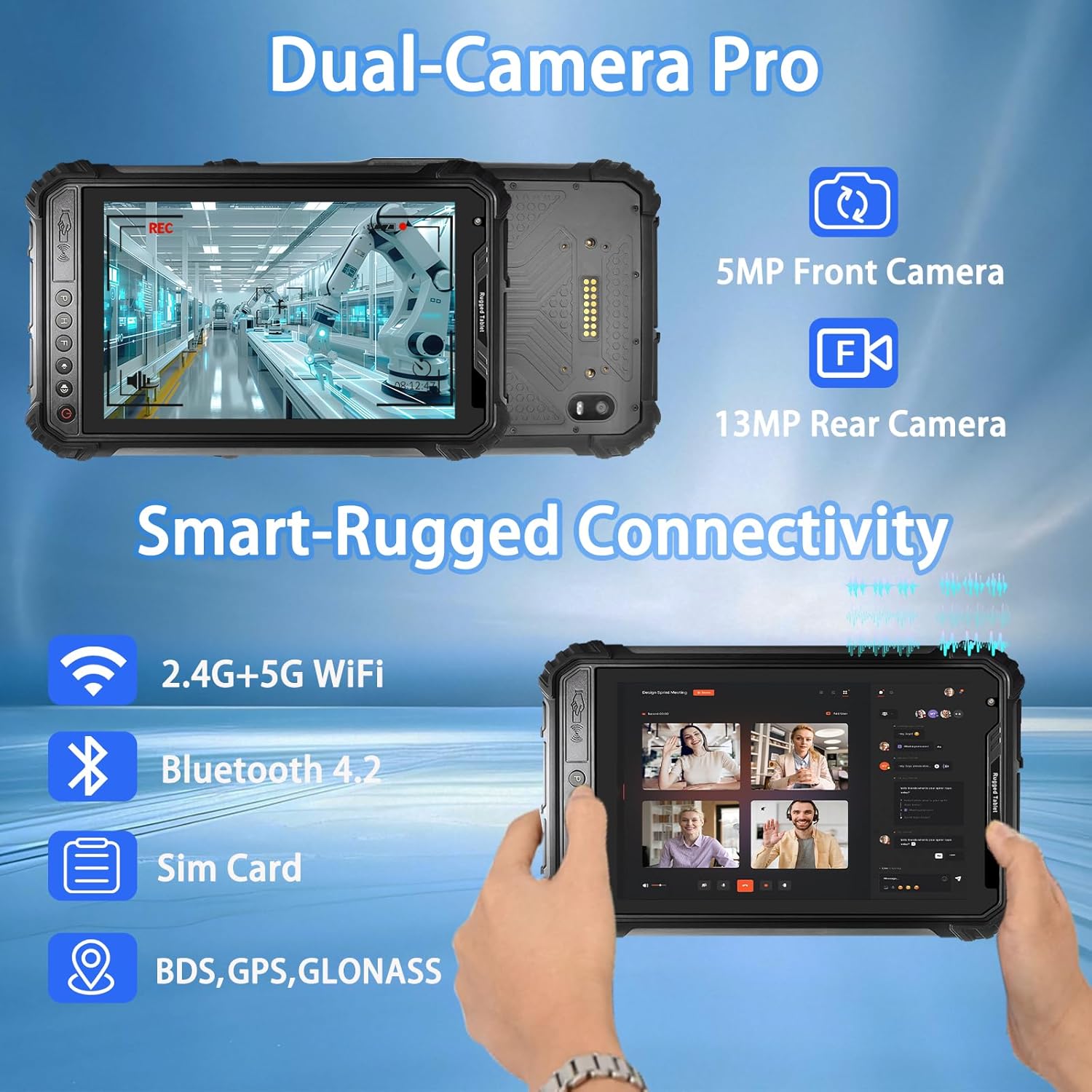
Figure 8: Connectivity options include 2.4G+5G WiFi, Bluetooth 4.2, SIM card support, and BDS, GPS, GLONASS navigation. Camera specifications are 5MP for the front camera and 13MP for the rear camera.
2.6 Industrial-Grade Ports
The tablet features HDMI, RS232, and triple USB 3.0 ports for seamless integration with industrial peripherals. It also supports NFC and optional fingerprint module.

Figure 9: Detailed diagram showing the tablet's dimensions (234mm length, 16.8mm thickness) and port layout, including DC charging port, USB 3.0 ports, HDMI port, microphone, 2D barcode scanner (optional), NFC, headphone jack, SIM card slot, COM interface, speaker, camera and flash, and optional fingerprint module.
3. Setup
3.1 Initial Charging
Before first use, fully charge the tablet using the provided DC Charger (12V 4A). Connect the charger to the DC port on the tablet and plug it into a power outlet. The charging indicator will illuminate.
3.2 Powering On/Off
- To Power On: Press and hold the Power button (usually located on the side) for a few seconds until the Breloom logo appears on the screen.
- To Power Off: Navigate to the Windows Start menu, select the Power icon, and choose "Shut down". Alternatively, press and hold the Power button until the power options appear, then select "Shut down".
3.3 SIM Card Installation (for 4G LTE models)
If your model supports 4G LTE, you can install a SIM card for mobile data connectivity.
- Locate the SIM card slot, typically protected by a waterproof cover on the side or bottom of the tablet.
- Carefully open the cover.
- Insert the SIM card into the designated slot with the gold contacts facing down, ensuring it clicks into place.
- Securely close the waterproof cover to maintain IP65 rating.
4. Operating Instructions
4.1 Basic Navigation (Windows 11 Pro)
The tablet runs on Windows 11 Pro. Use touch gestures or an external mouse/keyboard (via USB ports) for navigation. Familiarize yourself with the Start menu, taskbar, and settings for optimal use.
4.2 Using the Barcode Scanner
The integrated 2D barcode scanner can be activated via a dedicated button or software application. Point the scanner window at the barcode, ensuring it is within the scanner's field of view. A successful scan will typically be indicated by a beep or visual confirmation.
- Activation: Press the dedicated barcode scanner button (if available) or open the scanning application.
- Scanning: Position the barcode within the red aiming beam or scanning area.
- Confirmation: The scanned data will appear in the active input field or application.
4.3 Connectivity (Wi-Fi, Bluetooth, GPS)
- Wi-Fi: Access Wi-Fi settings through the Windows network icon in the taskbar. Select your desired network and enter the password.
- Bluetooth: Enable Bluetooth in Windows settings to pair with external devices like headsets or keyboards.
- GPS/Navigation: Location services can be enabled in Windows settings. Applications requiring GPS will automatically utilize the integrated module for precise positioning.
4.4 Using Cameras
The tablet features a 5MP front camera and a 13MP rear camera. Use the built-in Camera application in Windows to capture photos or record videos. Ensure adequate lighting for best results.
5. Maintenance
5.1 Cleaning the Device
To clean the tablet, use a soft, lint-free cloth slightly dampened with water or a mild, non-abrasive cleaning solution. Avoid using harsh chemicals, solvents, or abrasive materials, as these can damage the screen or casing. Ensure all port covers are securely closed before cleaning to maintain water resistance.
5.2 Battery Care
- Avoid exposing the tablet to extreme temperatures (above 55°C or below -20°C) for prolonged periods, as this can degrade battery life.
- Use only the original DC charger provided with the device.
- For long-term storage, charge the battery to approximately 50% and store the device in a cool, dry place.
5.3 Software Updates
Regularly check for and install Windows updates to ensure optimal performance, security, and compatibility. Go to Settings > Windows Update to check for available updates.
6. Troubleshooting
| Problem | Possible Cause | Solution |
|---|---|---|
| Device does not power on. | Low battery; Power button not pressed long enough; System crash. | Charge the tablet for at least 30 minutes. Press and hold the Power button for 10-15 seconds. If unresponsive, perform a hard reset (refer to advanced troubleshooting if available). |
| Barcode scanner not working. | Scanner application not open; Barcode damaged/unreadable; Scanner window obstructed. | Ensure the scanning application is active. Try scanning a different, known good barcode. Clean the scanner window. |
| No Wi-Fi connection. | Wi-Fi disabled; Incorrect password; Out of range. | Check Wi-Fi settings to ensure it's enabled. Re-enter Wi-Fi password. Move closer to the Wi-Fi router. Restart the tablet and router. |
| Slow performance. | Too many applications running; Low storage space; Outdated drivers/software. | Close unnecessary applications. Free up storage space. Check for and install Windows updates and driver updates. |
If the problem persists after attempting these solutions, please contact Breloom customer support for further assistance.
7. Specifications
| Feature | Detail |
|---|---|
| Model | Breloom ST9-J |
| Operating System | Windows 11 Professional |
| Processor | Intel Celeron N5100 Quad-Core (up to 2.80GHz Turbo) |
| RAM | 8GB |
| Storage | 256GB ROM |
| Display Size | 8 Inches |
| Max Screen Resolution | 1200x1920 IPS |
| Brightness | 400 nits |
| Graphics | Intel UHD Graphics (Integrated) |
| Barcode Scanner | Newland NLS-N1 (1D/2D) |
| Durability | IP65 Waterproof & Dustproof, MIL-STD-810G (1.2m drop) |
| Operating Temperature | -20°C to 55°C |
| Battery | 5000mAh (up to 7 hours video playback) |
| Charging | 12V/4A DC Charger |
| Rear Camera | 13MP |
| Front Camera | 5MP |
| Wireless Connectivity | 4G LTE (multi-band), Wi-Fi 6 (802.11ac), Bluetooth 4.2 |
| Navigation | GPS/BeiDou/GLONASS |
| Ports | HDMI, RS232, 3x USB 3.0, Headphone Jack, SIM Card Slot, DC Charging Port |
| Dimensions (LxWxH) | 9.2 x 5.65 x 0.66 inches (234 x 143.5 x 16.8 mm) |
8. Warranty and Support
For warranty information and technical support, please refer to the documentation provided with your purchase or visit the official Breloom website. Ensure you have your product model (ST9-J) and ASIN (B0F7WW14FC) ready when contacting support.
Breloom Official Store: Visit Breloom Store on Amazon