
Introduction
This manual provides detailed instructions for the installation, operation, and maintenance of your Driauto Single DIN Car Stereo, Model Driauto-113266. Please read this manual thoroughly before using the product to ensure proper function and safety. Keep this manual for future reference.
Safety Information:
- Do not operate the device in a manner that distracts you from driving.
- Ensure all wiring is correctly connected to prevent damage to the unit or vehicle.
- Consult a professional for installation if you are unsure about any steps.
- Avoid exposing the unit to extreme temperatures or moisture.
Setup
Package Contents
Verify that all items are present in the package:
- Driauto Single DIN Car Stereo Unit
- Power Cable
- Horn Cable
- Remote Control
- User Manual
- Backup Camera
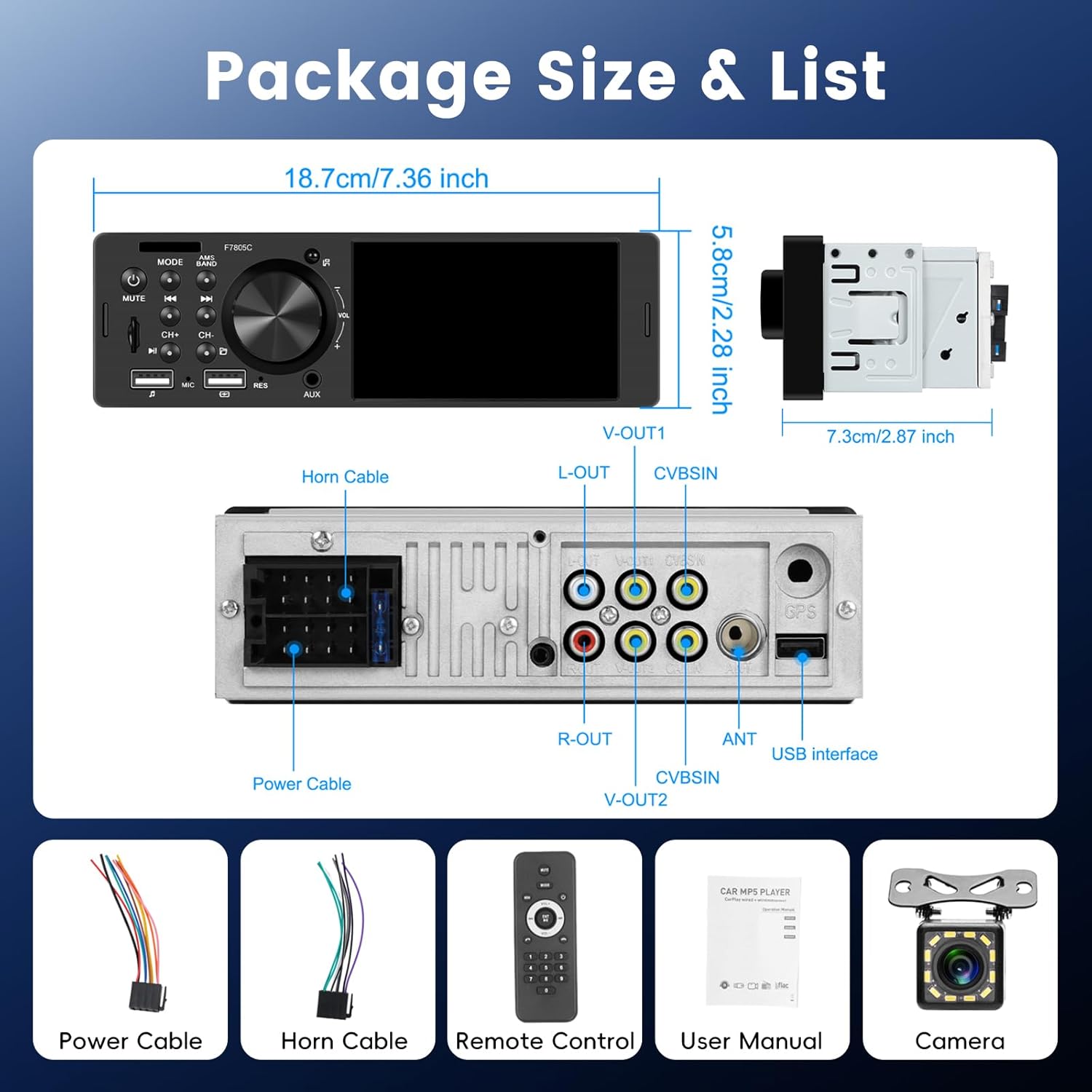
Image: Package contents and dimensions of the Driauto Single DIN Car Stereo.
Installation
The Driauto Single DIN Car Stereo is designed for standard single DIN openings. Ensure your vehicle has adequate space for installation (dimensions: 178mm L x 50mm H x 73mm D).
Wiring Diagram Overview:
- Power Cable: Connect the yellow wire to constant 12V power, the red wire to accessory 12V power (switched with ignition), and the black wire to ground.
- Speaker Wires: Connect the speaker output wires to your vehicle's corresponding speaker wires. Ensure correct polarity.
- Antenna: Connect your vehicle's radio antenna to the ANT port.
- USB Interface: Two USB ports are available for media playback, phone connection, and charging.
- AUX In: For external audio devices.
- Video Outputs (V-OUT1, V-OUT2): For connecting external monitors.
- Video Inputs (CVBSIN): For connecting external video sources.
Image: Rear view of the stereo unit with labeled connection ports.
Backup Camera Connection:
- Connect the backup camera's video output (yellow RCA) to the CVBSIN (Camera) input on the stereo unit.
- Connect the camera's power wire (red) to the vehicle's reversing light positive (+12V).
- Connect the camera's ground wire (black) to a suitable ground point.
- Connect the trigger wire (labeled 'back' or 'reverse') from the stereo's wiring harness to the vehicle's reversing light positive. This signals the stereo to switch to the camera view when reverse gear is engaged.

Image: Backup camera wiring diagram and steering wheel control setup.
Operating Instructions
Basic Controls
The front panel features a 4-inch IPS capacitive HD touch screen and physical buttons for common functions:
- Power/Mode Button: Press to turn on/off, short press to cycle through input modes (Radio, USB, TF, AUX, Bluetooth, CarPlay/Android Auto).
- Volume Knob: Rotate to adjust volume. Press to mute/unmute.
- Mute Button: Mutes audio output.
- CH+/CH- Buttons: For changing radio stations or tracks.
- USB/TF/AUX Ports: For connecting external media devices.
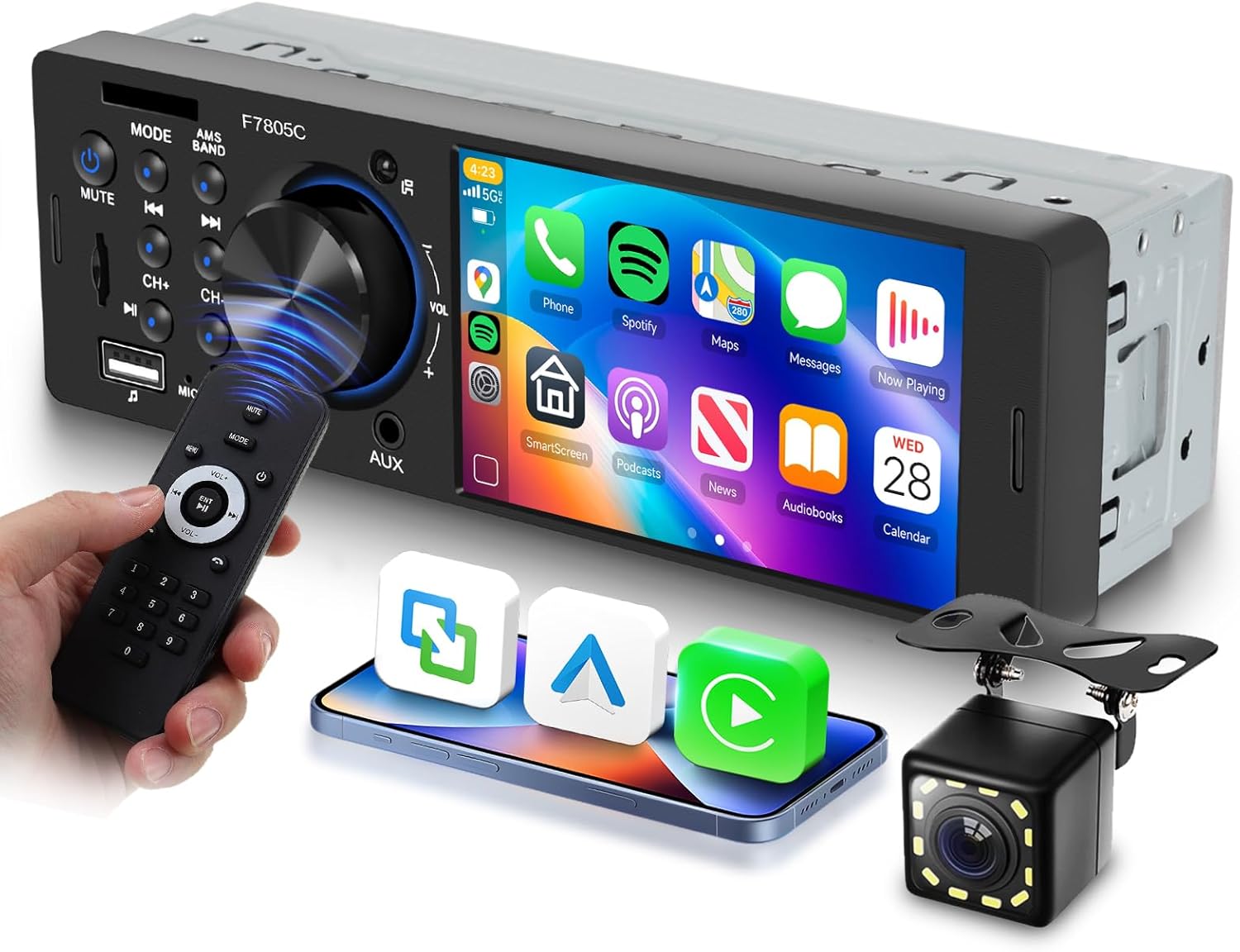
Image: Front view of the stereo unit with remote control and CarPlay interface.
CarPlay & Android Auto
Connect your iOS or Android smartphone via a USB cable to enable CarPlay or Android Auto. This allows access to navigation, music, calls, messages, and other compatible apps directly from the stereo's touch screen.
- Ensure your phone is unlocked and the USB cable is securely connected to the stereo's USB port.
- The stereo screen will mirror your phone's CarPlay or Android Auto interface.
- Use the touch screen or voice commands (e.g., Siri, Google Assistant) for control.

Image: CarPlay and Android Auto functionality with a connected smartphone.
Bluetooth Connectivity
Pair your smartphone with the stereo for hands-free calling and wireless audio streaming.
- Go to the Bluetooth menu on the stereo.
- Enable Bluetooth on your smartphone and search for available devices.
- Select "Driauto-113266" (or similar name) from your phone's list.
- Confirm the pairing code if prompted.
- Once connected, you can make/receive calls and play music wirelessly.

Image: Bluetooth hands-free calling and music streaming features.
FM/RDS Radio
Access FM radio stations and utilize RDS (Radio Data System) features.
- Select the FM radio mode.
- Use the search function (full-automatic or semi-automatic) to find stations.
- Save up to 18 preset stations for quick access.
- RDS provides station information, program type, and traffic announcements where available.

Image: FM Radio interface and Equalizer settings.
Media Playback (USB/TF/AUX)
The stereo supports various media inputs for audio and video playback.
- USB: Insert a USB disk into one of the USB ports for music or video files. Supports fast charging for connected devices.
- TF Card: Insert a TF (MicroSD) card into the designated slot for media playback.
- AUX In: Connect external audio devices (e.g., MP3 players) using a 3.5mm audio cable.

Image: Media input options (USB, AUX, TF Card) and 7-color backlight feature.
Sound Settings (EQ)
Adjust the audio output to your preference using the built-in equalizer.
- Access the EQ settings from the main menu or sound setup.
- Choose from preset sound effects (e.g., Jazz, Classic, Rock, Pop) or customize the 10-segment adjustment control.
Steering Wheel Control (SWC)
If your vehicle supports steering wheel controls, you can configure them to operate the stereo.
- Access the Steering Wheel Control settings in the system menu.
- Follow the on-screen instructions to map your vehicle's steering wheel buttons to the stereo's functions (e.g., volume up/down, track skip, mode).
Image: Steering wheel control interface.
Backlight Color
The unit supports seven-color backlight options for the physical buttons.
- Navigate to the display settings or backlight options in the system menu.
- Choose your preferred color or set it to cycle through the available colors.
Maintenance
To ensure the longevity and optimal performance of your car stereo, follow these maintenance guidelines:
- Screen Cleaning: Use a soft, lint-free cloth to gently wipe the touch screen. For stubborn smudges, slightly dampen the cloth with water or a screen-safe cleaner. Avoid abrasive materials or harsh chemicals.
- General Cleaning: Keep the unit free from dust and debris. Use a soft brush or compressed air to clean around buttons and ports.
- Temperature: Avoid prolonged exposure to direct sunlight or extreme temperatures, which can affect the screen and internal components.
Troubleshooting
If you encounter issues with your Driauto car stereo, refer to the following common problems and solutions:
| Problem | Possible Cause | Solution |
|---|---|---|
| No power | Incorrect wiring; Blown fuse | Check power and ground connections. Inspect vehicle's fuse box and stereo's inline fuse. |
| No sound | Volume too low; Mute activated; Incorrect speaker wiring | Increase volume. Deactivate mute. Verify speaker connections and polarity. |
| Bluetooth not connecting | Bluetooth off; Device not in pairing mode | Ensure Bluetooth is enabled on both devices. Put stereo in pairing mode. Delete previous pairings and try again. |
| CarPlay/Android Auto not starting | Faulty USB cable; Phone not compatible; Software issue | Use a high-quality USB cable. Ensure phone OS is up-to-date. Restart phone and stereo. |
| Backup camera not displaying | Incorrect wiring; Camera power issue | Check camera video input and trigger wire connections. Ensure camera is receiving power. |
Specifications
| Feature | Detail |
|---|---|
| Model Number | Driauto-113266 |
| Display | 4-inch IPS Capacitive HD Touch Screen |
| Connectivity | Auxiliary, Bluetooth, USB |
| Special Features | Android Auto, Apple CarPlay, Built-In Bluetooth, Mirror Link, FM/RDS Radio, Steering Wheel Control, Backup Camera Support, 7-Color Backlight |
| Compatible Devices | Smartphone |
| Audio Output Mode | Stereo |
| Surround Sound Channel Configuration | 5.1 |
| Video Encoding | MKV, AVI, TS, TP, MP4, M4V |
| Output Power | 45 Watts |
| Item Weight | 1.5 pounds |
| Package Dimensions | 9.88 x 6.97 x 3.23 inches |
Warranty and Support
Warranty: This product comes with a 2-year replacement warranty, covering manufacturing defects and malfunctions under normal use.
Customer Support: Driauto is committed to providing excellent customer service. We offer lifetime technical support for our products. For any inquiries or assistance, please contact our support team. We aim to respond to all queries within 18 hours.
For further assistance, please visit the Driauto Store on Amazon.