
1. Product Overview
The Breloom ST9-J Rugged Tablet is an 8-inch industrial-grade device designed for demanding environments. Running on Windows 11 Pro with an Intel N5100 processor, 8GB RAM, and 256GB storage, it offers robust performance for various applications. Its military-grade durability, IP65 waterproof and dustproof rating, and high-precision GPS make it ideal for field operations, logistics, and industrial use.

Figure 1.1: Front view of the Breloom ST9-J Rugged Tablet displaying the Windows 11 Pro desktop.
2. Package Contents
Please verify that all items listed below are included in your package:
- 1 x ST9-J Rugged Tablet
- 1 x DC Charger (12V 4A)
- 1 x Wrist strap

Figure 2.1: Included accessories with the ST9-J Rugged Tablet. Note: Docking Station, Screwdriver, and Screws are sold separately.
3. Specifications
| Feature | Specification |
|---|---|
| Model Name | Breloom ST9-J |
| Operating System | Windows 11 Professional |
| Screen Size | 8 Inches |
| Max Screen Resolution | 1200*1920 |
| Processor | Intel Celeron N5100 Quad-Core (up to 2.80GHz Turbo) |
| RAM | 8GB |
| Storage | 256GB ROM |
| Graphics | Intel UHD Graphics |
| Battery | 5000mAh (up to 7 hours continuous use) |
| Charging | 12V/4A Fast Charging (approx. 3 hours) |
| Front Camera | 5MP |
| Rear Camera | 13MP |
| Connectivity | 4G LTE (multi-band), Wi-Fi 6 (802.11ac), Bluetooth 4.2, NFC |
| GPS | High-Precision GPS/BeiDou/GLONASS triple-mode |
| Ports | HDMI, RS232, 3x USB 3.0, Headphone Jack, SIM card slot |
| Durability | IP65 Waterproof & Dustproof, MIL-STD-810G, 1.2m Drop Resistance |
| Operating Temperature | -20°C to 55°C |
| Dimensions (LxWxH) | 9.2 x 5.65 x 0.66 inches |
4. Initial Setup
4.1 Charging the Tablet
Before first use, fully charge the tablet using the provided 12V/4A DC charger. Connect the charger to the DC port on the tablet and plug it into a power outlet. The charging indicator light will illuminate. A full charge takes approximately 3 hours.
4.2 Powering On/Off
- To Power On: Press and hold the power button (usually located on the side) for a few seconds until the Breloom logo appears on the screen.
- To Power Off: From the Windows desktop, click the Start button, then the Power icon, and select "Shut down." Alternatively, press and hold the power button until the power options appear on screen, then slide to shut down.
4.3 Initial Windows 11 Pro Setup
Upon first power-on, you will be guided through the Windows 11 Pro setup process. Follow the on-screen prompts to configure language, region, network connection, Microsoft account, and other settings. Ensure you have an active internet connection for optimal setup.
5. Operating Instructions
5.1 Navigating Windows 11 Pro
The ST9-J tablet runs Windows 11 Pro, offering a familiar desktop environment. You can interact with the tablet using the touchscreen, an external mouse, or a keyboard (connected via USB or Bluetooth).
- Touch Gestures: Utilize standard Windows touch gestures for navigation, zooming, and scrolling.
- Start Menu: Access applications, settings, and power options from the centered Start Menu.
- Taskbar: Pin frequently used applications to the taskbar for quick access.
5.2 Display Features
The 8-inch IPS display features a 1200x1920 resolution and 400 nits maximum brightness, ensuring crisp visibility even under direct sunlight. Adjust brightness settings via the Windows Action Center for optimal viewing in various lighting conditions.

Figure 5.1: Key features of the 8-inch HD IPS display, highlighting its clarity and brightness.
6. Durability and Environmental Considerations
The Breloom ST9-J is built to withstand harsh conditions, making it suitable for industrial and outdoor use.
- IP65 Certified: This rating ensures the tablet is protected against dust ingress and low-pressure water jets from any direction. While it is waterproof, avoid prolonged submersion.
- MIL-STD-810G: Complies with military standards for shock, vibration, and drop resistance (up to 1.2 meters). Reinforced shock-absorbent edges provide additional protection.
- Temperature Resilience: Operates reliably in extreme temperatures ranging from -20°C to 55°C.

Figure 6.1: The ST9-J's military-grade durability and IP65 certification ensure performance in challenging environments.
7. Performance and Multitasking
Equipped with an Intel Celeron N5100 Quad-Core CPU, 8GB RAM, and 256GB ROM, the ST9-J delivers smooth performance for various tasks.
- Efficient Processing: The N5100 processor handles multitasking, IoT integrations, and real-time data processing with ease.
- Ample Memory: 8GB RAM ensures smooth operation of multiple applications simultaneously.
- Integrated Graphics: Intel UHD Graphics supports HD video playback and graphical applications.
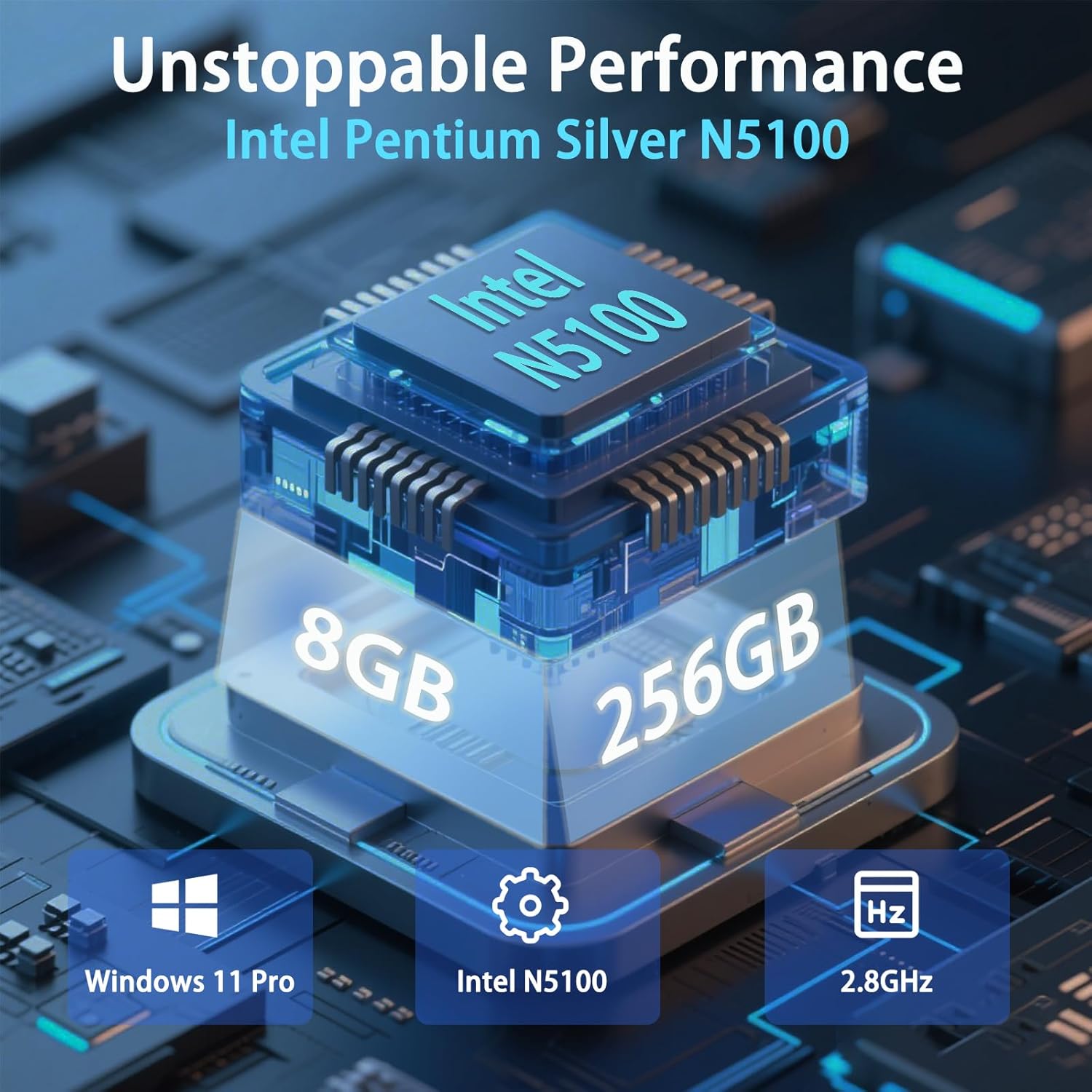
Figure 7.1: The internal components contributing to the tablet's robust performance.
8. Connectivity
The ST9-J offers comprehensive connectivity options to keep you connected in the field.
- 4G LTE: Supports multi-band FDD/TDD 4G LTE with a SIM card slot for global cellular connectivity.
- Wi-Fi 6 (802.11ac): Provides fast and reliable wireless internet access.
- Bluetooth 4.2: For connecting wireless peripherals such as keyboards, mice, and headsets.
- High-Precision GPS: Features GPS/BeiDou/GLONASS triple-mode navigation for centimeter-level accuracy, crucial for mapping and tracking applications.
- NFC: Supports Near Field Communication for short-range wireless interactions (e.g., data transfer, payment).
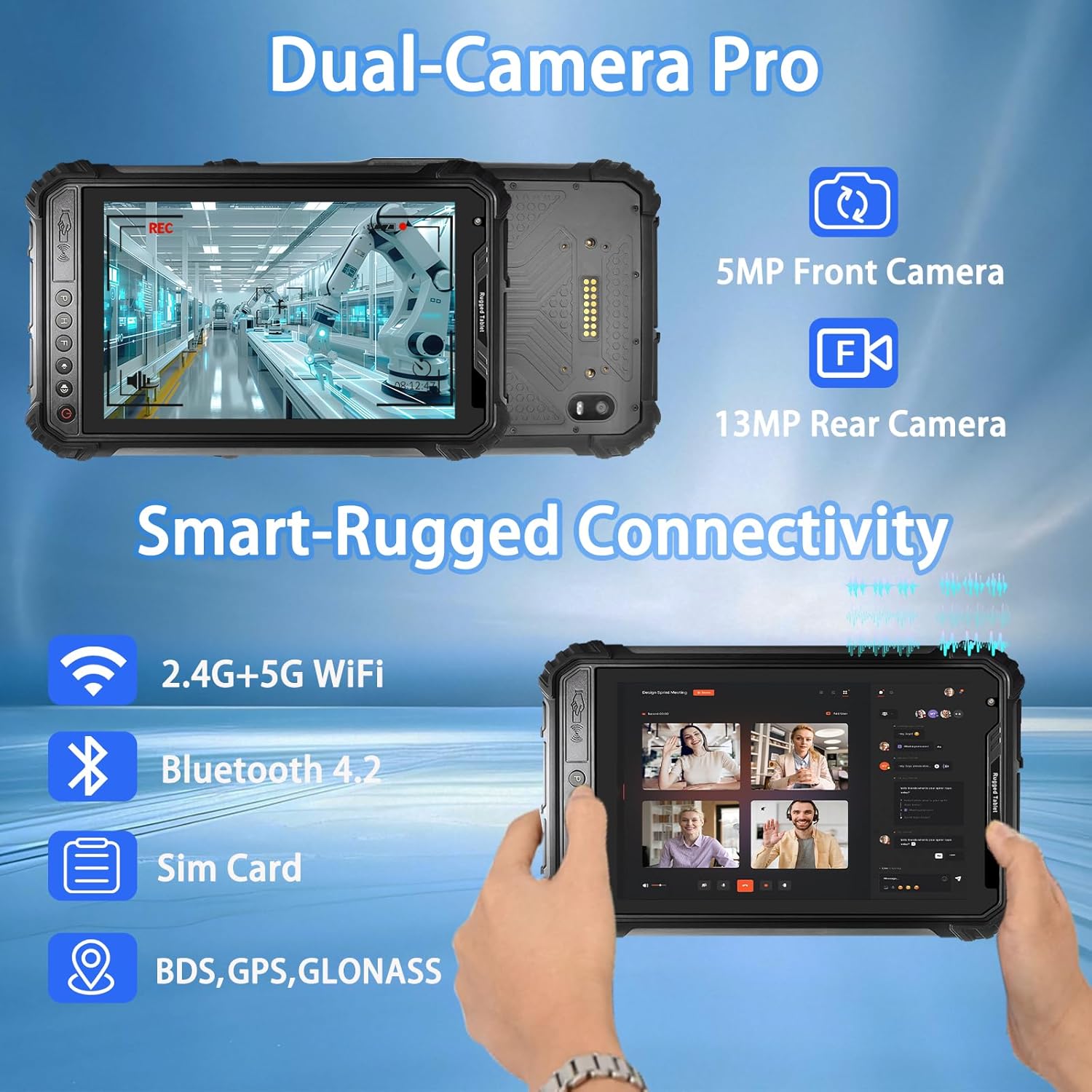
Figure 8.1: Overview of the tablet's wireless connectivity options.
9. Camera Features
The ST9-J is equipped with dual cameras for capturing images and conducting video calls in the field.
- 13MP Rear Camera: Ideal for capturing detailed photos and videos for documentation and inspection purposes.
- 5MP Front Camera: Suitable for video conferencing and remote inspections.

Figure 9.1: Details of the tablet's integrated camera system.
10. Battery Management
The tablet features a high-capacity battery designed for extended use in the field.
- 5000mAh Battery: Provides up to 7 hours of continuous use (based on 50% brightness and video playback). Actual battery life may vary based on usage patterns and settings.
- Fast Charging: The included 12V/4A charger supports fast charging, minimizing downtime.

Figure 10.1: The 5000mAh battery provides extended operational time.
11. Ports and Industrial Adaptability
The ST9-J is equipped with a variety of industrial-grade ports for seamless integration with existing systems and peripherals.
- HDMI Port: For connecting to external displays or projectors.
- RS232 Port: A serial port for connecting to legacy industrial equipment.
- Triple USB 3.0 Ports: For high-speed data transfer and connecting various USB devices (e.g., scanners, printers, external storage).
- Headphone Jack: For audio output.
- Modular Design: Supports optional features like 2D barcode scanning and fingerprint modules (may require specific models or accessories).
- Anti-theft Lock Slots: For securing the device in public or shared environments.
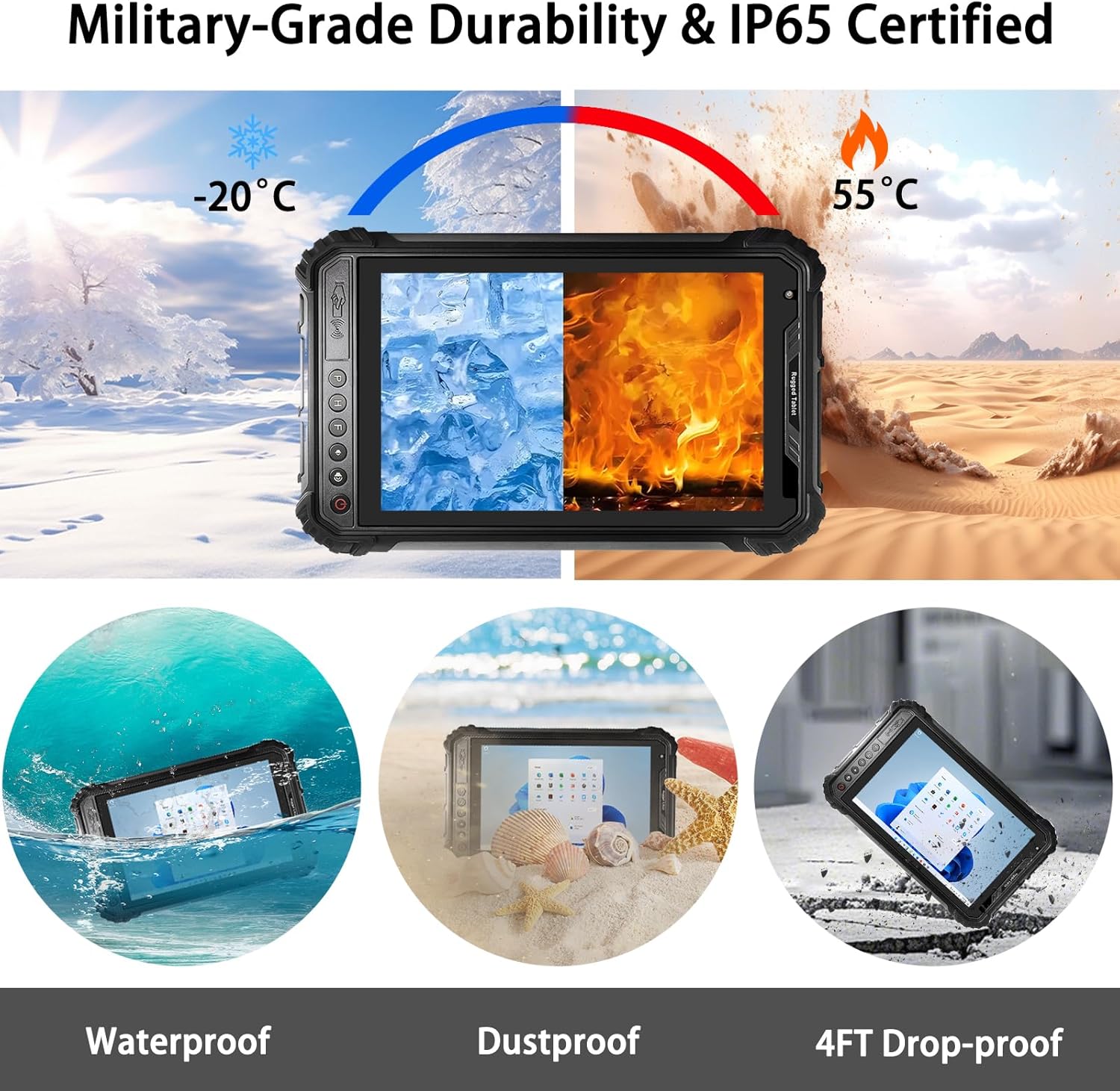
Figure 11.1: Detailed view of the tablet's ports and external features.
12. Maintenance
Proper maintenance ensures the longevity and optimal performance of your ST9-J Rugged Tablet.
- Cleaning: Use a soft, damp cloth to clean the screen and body. Avoid harsh chemicals or abrasive materials. Ensure all port covers are securely closed before cleaning with liquids.
- Software Updates: Regularly check for and install Windows updates to ensure system stability, security, and performance.
- Storage Management: Periodically clear unnecessary files and applications to maintain optimal storage space and system speed.
- Battery Care: Avoid fully discharging the battery frequently. For long-term storage, charge the tablet to about 50-60% and store it in a cool, dry place.
13. Troubleshooting
This section addresses common issues you might encounter with your tablet.
13.1 Tablet Not Powering On
- Ensure the tablet is fully charged. Connect the charger and wait a few minutes before attempting to power on.
- Try holding the power button for a longer duration (10-15 seconds) to force a restart.
13.2 Wi-Fi/Cellular Connectivity Issues
- Check if Wi-Fi or cellular data is enabled in Windows settings.
- Restart the tablet and your Wi-Fi router/modem.
- Ensure the SIM card is correctly inserted and activated by your carrier.
- Update network drivers if available.
13.3 Touchscreen Unresponsive
- Restart the tablet.
- Ensure the screen is clean and free of debris or moisture.
- If the issue persists, contact customer support.
14. Warranty and Support
Breloom is committed to providing reliable products and excellent customer service.
- Warranty: The Breloom ST9-J Rugged Tablet comes with a 12-month warranty from the date of purchase. This warranty covers manufacturing defects and workmanship. It does not cover damage caused by misuse, accidents, unauthorized repairs, or normal wear and tear.
- Technical Support: Breloom offers lifetime technical support for your device.
- Customer Service: For any inquiries, technical assistance, or warranty claims, please contact Breloom's 24/7 multilingual customer service. Refer to the product packaging or Breloom's official website for contact details.