
MICROPACK Digitally Yours K-F01-GY
MicroPack K-F01-GY Foldable Bluetooth Keyboard with Touchpad User Manual
Model: K-F01-GY
1. Introduction
Thank you for choosing the MicroPack K-F01-GY Foldable Bluetooth Keyboard with Touchpad. This ultra-thin, portable keyboard is designed for convenience and efficiency, offering multi-device connectivity and a responsive touchpad. This manual provides detailed instructions for setup, operation, maintenance, and troubleshooting to ensure optimal performance of your device.

Image 1.1: The MicroPack K-F01-GY Foldable Bluetooth Keyboard in use with a tablet, showcasing its compact design and integrated stand.

Image 1.2: The keyboard is suitable for various environments, including office work, travel, and meetings, highlighting its versatility.
2. Package Contents
Please check the package for the following items:
- 1 x MicroPack K-F01 Foldable Keyboard
- 1 x USB-C Cable
- 1 x Instruction Manual

Image 2.1: The complete package contents, showing the keyboard, charging cable, and documentation.
3. Specifications
| Model Number | K-F01-GY |
| Connectivity Technology | Bluetooth 5.0 |
| Battery Capacity | 500mAh Lithium Battery |
| Charging Time | Approximately 2 hours |
| Standby Time | Up to 30 days |
| Continuous Use Time | Up to 80 hours |
| Keyboard Type | Membrane with Scissor-Switch Mechanism |
| Material | PU Leather Cover |
| Folded Dimensions | Approximately 9.8 x 3.5 x 0.6 inches (25 x 9 x 1.5 cm) |
| Item Weight | Approximately 0.8 lbs (360g) |
| Compatible Devices | Tablets, Smartphones, Laptops (iPad Series, iPhone Series, Mac Series, Windows, Android) |
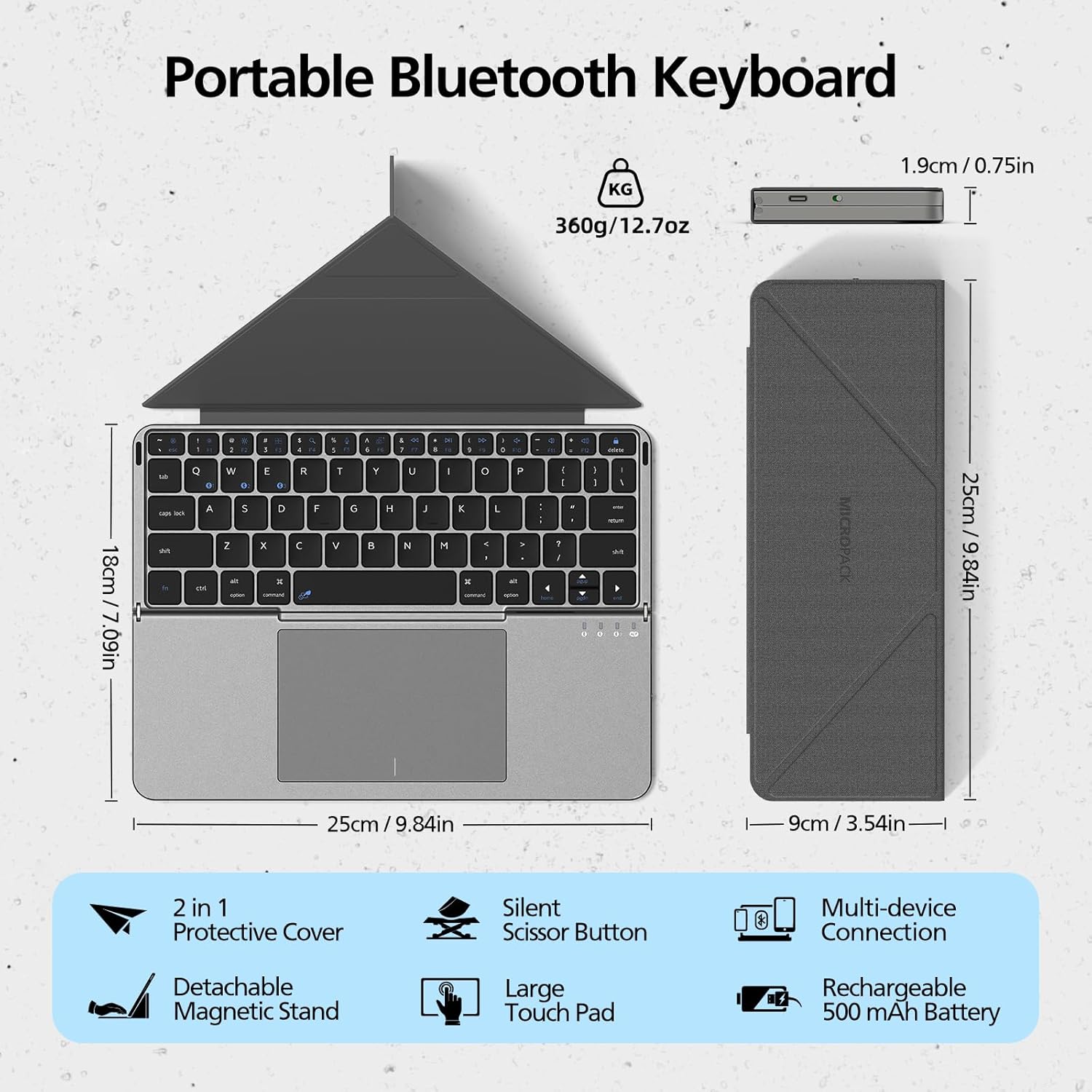
Image 3.1: Visual representation of the keyboard's dimensions and a summary of its features.

Image 3.2: The keyboard offers broad compatibility with various operating systems and devices.
4. Setup Guide
4.1 Charging the Keyboard
Before first use, fully charge the keyboard. Use the provided USB-C cable to connect the keyboard to a power source (e.g., computer USB port, USB wall adapter). The charging indicator light will illuminate during charging and turn off when fully charged.
- Charging Time: Approximately 2 hours.
- Battery Life: Up to 80 hours of continuous use, 30 days standby.
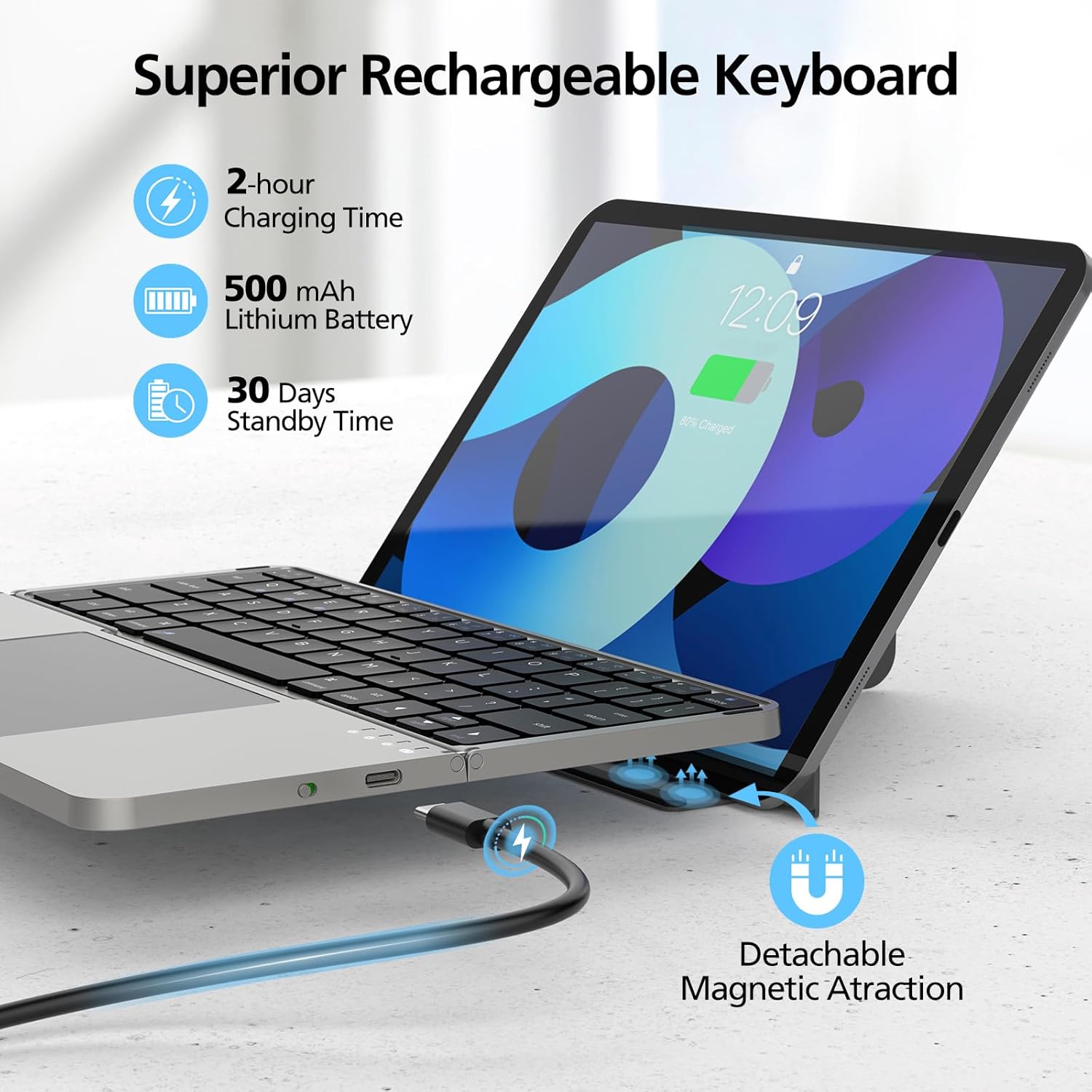
Image 4.1: The keyboard features a USB-C charging port for convenient power replenishment.

Image 4.2: Battery specifications and charging details for the keyboard.
4.2 Pairing with Devices
The keyboard supports connecting up to three devices simultaneously via Bluetooth 5.0.
- Unfold the keyboard to power it on. The Bluetooth indicator light will start blinking, indicating it's in pairing mode.
- On your device (tablet, phone, laptop), go to Bluetooth settings and enable Bluetooth.
- Select "BT Keyboard" or a similar name from the list of available devices.
- If prompted, enter the pairing code displayed on your screen.
- Once connected, the Bluetooth indicator light on the keyboard will stop blinking.
Switching Between Devices:
To switch between paired devices, press the Fn key simultaneously with one of the following keys:
- Fn + Q for Device 1
- Fn + W for Device 2
- Fn + E for Device 3
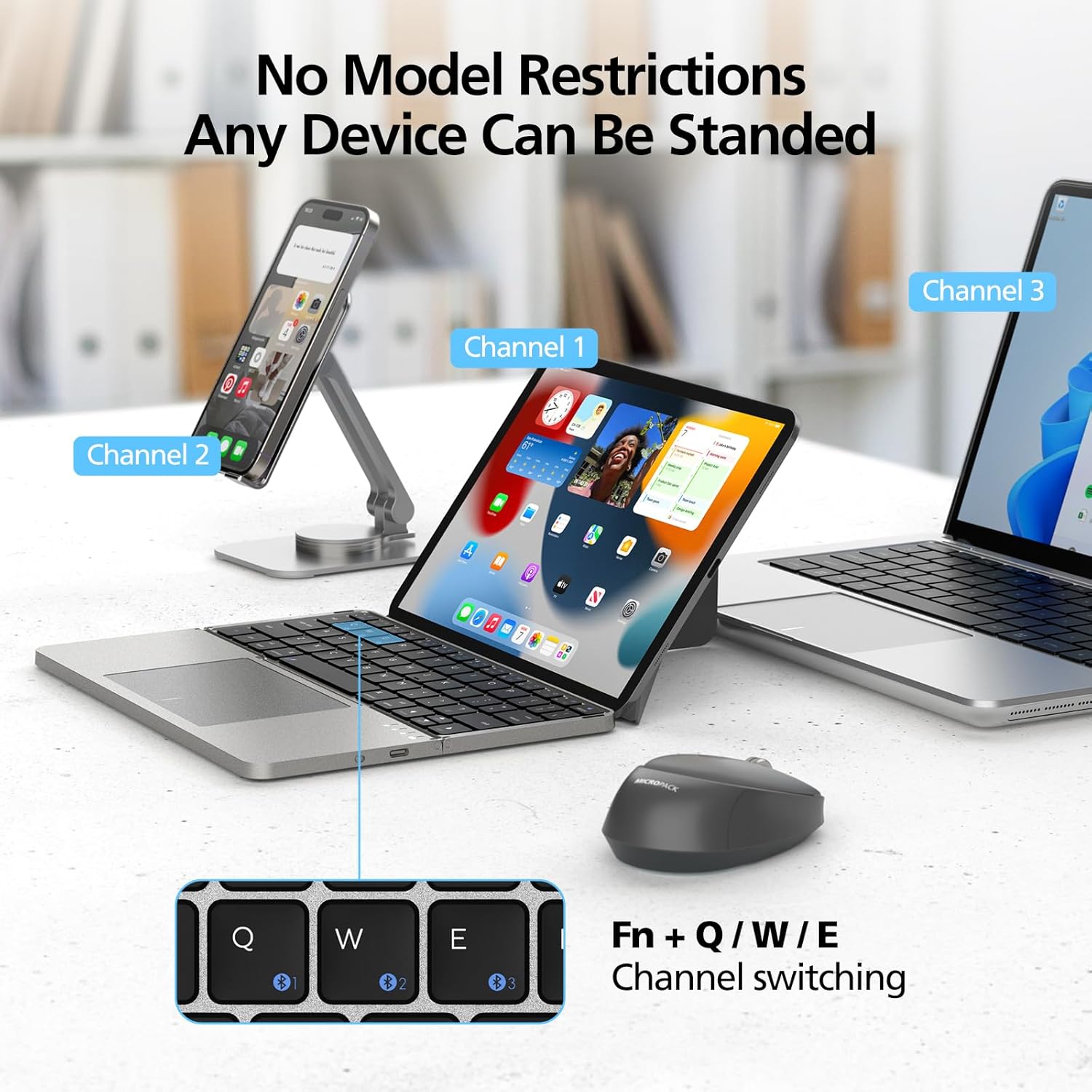
Image 4.3: The keyboard supports seamless switching between up to three connected devices.

Image 4.4: Control multiple devices with a single keyboard for enhanced productivity.
4.3 Using the Magnetic Stand
The keyboard's premium PU leather cover magnetically attaches and converts into a stable stand for your tablet or smartphone, providing an optimal viewing and typing angle.

Image 4.5: The magnetic case transforms into a convenient stand for your device.

Image 4.6: The cover provides both protection and functionality as a stand.

Image 4.7: Adjust the stand to find your preferred typing and viewing angle.
5. Operating Instructions
5.1 Keyboard Usage
The MicroPack K-F01-GY features a scissor-switch mechanism for comfortable and quiet typing.
- Silent Keys: The scissor-switch design ensures a quiet typing experience, ideal for shared environments.
- Shortcut Keys: Utilize the function keys (Fn + F1-F12) for quick access to media controls, brightness adjustments, and other system functions.

Image 5.1: The scissor-switch mechanism provides a responsive and durable typing experience.

Image 5.2: Enjoy quiet typing without disturbing others.

Image 5.3: Access common functions quickly using the dedicated shortcut keys.
5.2 Touchpad Usage and Gestures
The integrated multi-touch touchpad allows for precise navigation and supports various gestures, similar to macOS trackpads.
- Basic Navigation: Use one finger to move the cursor.
- Clicking: Tap with one finger for a left-click. Tap with two fingers for a right-click.
- Scrolling: Use two fingers to scroll up or down.
- Zooming: Pinch with two fingers to zoom in or out.
- Swiping: Use three fingers to swipe between applications or desktops (functionality may vary by operating system).
To disable the touchpad during long typing sessions, refer to your device's operating system settings or keyboard shortcuts if available.
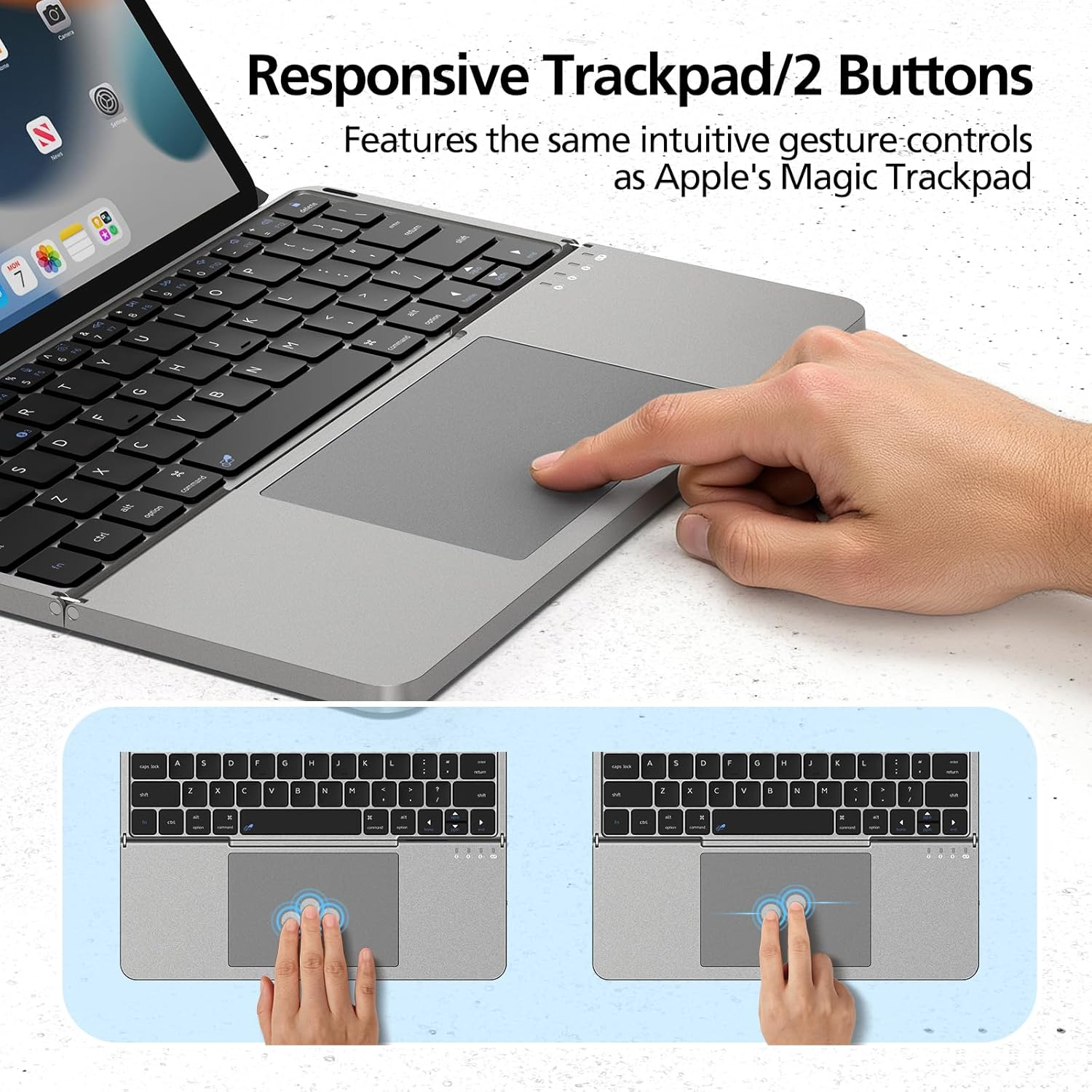
Image 5.4: The touchpad supports intuitive multi-touch gestures for efficient navigation.

Image 5.5: The touchpad offers precise control and dual mouse button functionality.

Image 5.6: The touchpad supports a range of gestures for various operating systems.
6. Maintenance
Proper care will extend the life of your MicroPack K-F01-GY keyboard.
- Cleaning: Use a soft, dry, lint-free cloth to wipe the keyboard and touchpad. For stubborn dirt, slightly dampen the cloth with water or a mild electronic cleaner. Avoid excessive moisture.
- Storage: When not in use, fold the keyboard to protect the keys and touchpad. Store in a cool, dry place away from direct sunlight and extreme temperatures.
- Avoid Liquids: Do not expose the keyboard to liquids. In case of accidental spills, immediately power off the keyboard and allow it to dry completely before use.
- Handle with Care: Avoid dropping the keyboard or subjecting it to strong impacts.
7. Troubleshooting
If you encounter issues with your keyboard, please refer to the following common solutions:
7.1 Keyboard Not Connecting/Pairing
- Check Power: Ensure the keyboard is powered on and has sufficient battery charge.
- Bluetooth Enabled: Verify that Bluetooth is enabled on your device.
- Re-pair: Delete the keyboard from your device's Bluetooth list and attempt to pair again.
- Distance: Ensure the keyboard is within the effective Bluetooth range (approximately 26 feet or 8 meters).
- Interference: Move away from other wireless devices that might cause interference.
7.2 Touchpad Not Responding
- Clean Touchpad: Ensure the touchpad surface is clean and free of debris.
- Restart: Turn the keyboard off and on again, then reconnect to your device.
- Device Settings: Check your device's operating system settings for touchpad functionality and gesture support.
7.3 Keys Not Responding
- Recharge Battery: A low battery can affect key responsiveness. Charge the keyboard fully.
- Re-pair: Disconnect and reconnect the keyboard via Bluetooth.
- Clean Keys: Ensure no debris is lodged under the keys.
7.4 Short Battery Life
- Full Charge: Ensure the keyboard is charged for the recommended 2 hours.
- Usage Patterns: Heavy usage, especially with constant touchpad activity, may reduce battery life.
- Standby: Remember to fold the keyboard when not in use to put it into standby mode and conserve battery.
8. Warranty and Support
8.1 Warranty Information
MicroPack offers a 60-day refund policy and a 1-year free replacement guarantee for this product from the date of purchase. This warranty covers manufacturing defects and issues arising from normal use.
The warranty does not cover:
- Damage caused by misuse, abuse, accident, or neglect.
- Unauthorized repairs or modifications.
- Normal wear and tear.
8.2 Customer Support
If you have any questions, suggestions, or require technical assistance, please do not hesitate to contact MicroPack customer support. Refer to the contact information provided on the product packaging or the official MicroPack website for the most up-to-date support channels.
Ask a question about this manual
Ask about setup, troubleshooting, compatibility, parts, safety, or missing instructions. Manuals+ will review the question and use this page’s manual context to help answer it.