
Q58-MAX Q58-MAX
Q58-Max Motorcycle Helmet Intercom User Manual
Bluetooth Headset with LCD Display and Music Sharing
1. Introduction
This user manual provides detailed instructions for the Q58-Max Motorcycle Helmet Intercom. This device is designed to enhance your riding experience by providing seamless communication, music playback, and navigation audio directly within your helmet. Please read this manual thoroughly before using the product to ensure proper operation and safety.

Image: The Q58-Max helmet headset shown in use by two riders on motorcycles, highlighting its primary function for communication and entertainment during rides.
2. Package Contents
Please verify that all items listed below are included in your package:
- 1 x Q58-Max Host Unit
- 1 x 2-in-1 Earphone/Soft Microphone
- 1 x Charging Cable (USB C)
- 1 x Back Clip Base
- 1 x Adhesive Clip Base
- 2 x Speaker + Velcro Stickers

Image: A detailed view of the Q58-Max intercom unit separated from its mounting base, illustrating the main components included in the package.
3. Key Features
- Bluetooth 5.3 Dual Chip: Ensures stable connection and high-quality sound.
- 2 Riders 300m Intercom: Supports communication between two riders up to 300 meters apart.
- Music Sharing: Share music with another rider during intercom communication.
- IPX6 Waterproof: Designed to withstand various weather conditions.
- Voice Assistant: Activate your smartphone's voice assistant for hands-free control.
- Lighting Function: Double-click the voice assistant button to turn on the integrated flashlight.
- Micro SD Card Support: Expandable storage for music playback (supports 4-32GB, SD card not included).
- Stereo FM Radio: Built-in FM radio for listening to broadcasts.
- Large Capacity Battery: 1000mAh battery with high voltage chip for fast charging and extended use.
- CVC+DSP True Noise Reduction: Advanced noise cancellation for clear audio.
- LCD Large Digital Display: Provides clear information on device status, FM frequency, and more.
- EQ Personalized Sound: Professional acoustic laboratory tuning with 6 preset sound effects (Natural, Rock, Classical, Jazz, Rural, Popular).
- Multi-Scene Mixing: Dual DSP audio multiprocessing supports mixing intercom with music, navigation, or phone calls.
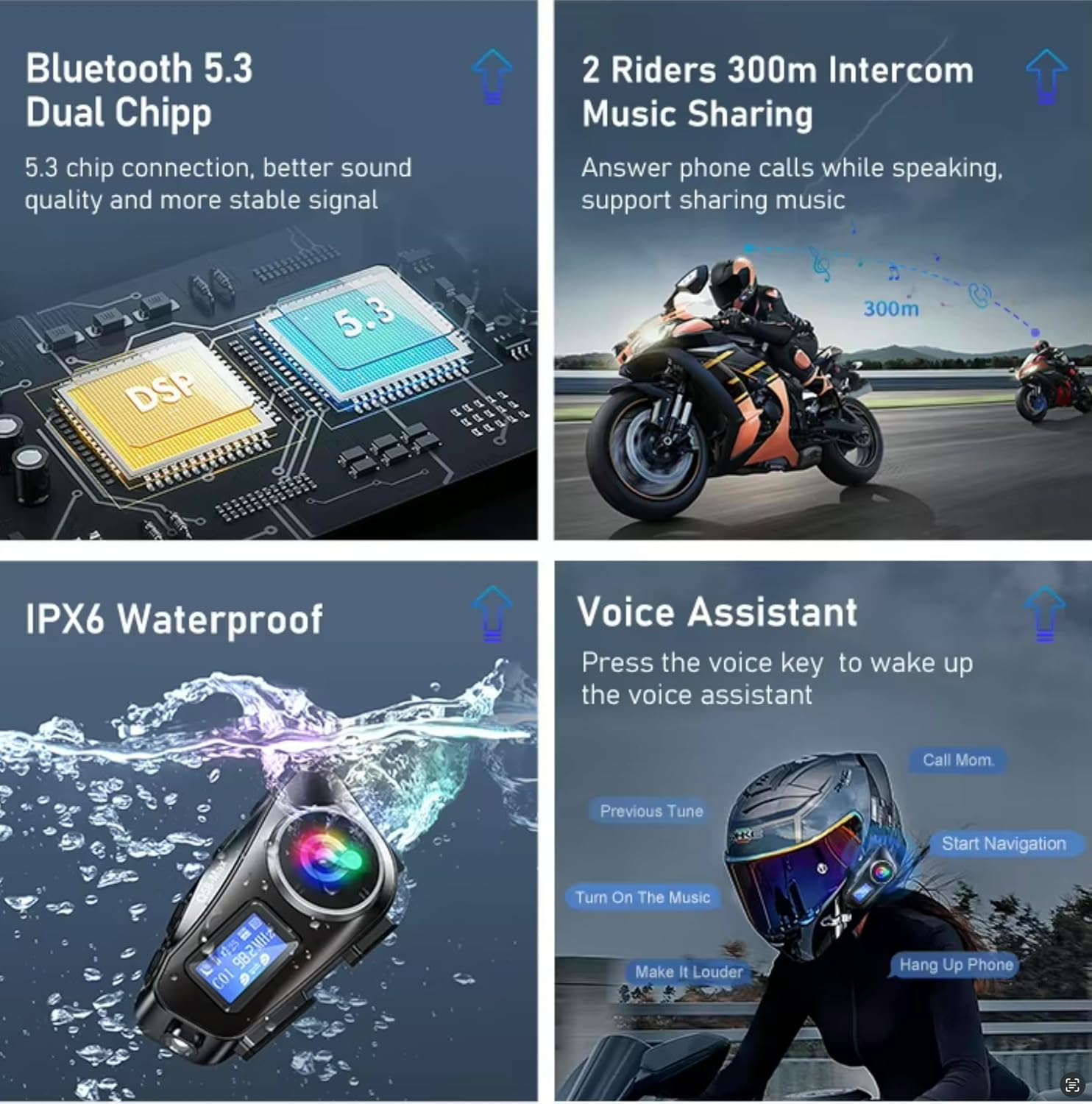
Image: Visual representation of key features including Bluetooth 5.3 dual chip, 2-rider intercom with music sharing, IPX6 waterproofing, and voice assistant functionality.

Image: Visual representation of additional features such as the integrated flashlight, Micro SD card slot, FM radio, and the large capacity battery.

Image: Illustration of the EQ personalized sound settings with various presets and the multi-scene mixing capability for simultaneous audio sources.

Image: Depiction of two riders enjoying the music sharing feature while riding their motorcycles.
4. Controls and Indicators
Familiarize yourself with the buttons and ports on your Q58-Max unit:

Image: A detailed diagram of the Q58-Max unit, clearly labeling each button, port, and indicator for easy identification and understanding of its functions.
- Mode Key: Switches between Bluetooth mode, Micro SD Card mode, FM Radio mode, On/Off Illumination, and EQ Sound settings.
- Intercom Button: Initiates and ends intercom communication.
- Previous Song/Volume Down: Short press for previous song, long press to decrease volume.
- Next Song/Volume Up: Short press for next song, long press to increase volume.
- Power On/Off / Play Pause / Answer Hangup: Multi-function button for power, media control, and call management.
- Voice Assistant / Music Sharing: Activates voice assistant or initiates music sharing.
- Illuminated Lamp: Integrated flashlight.
- LCD Display: Shows current mode, battery status, FM frequency, and other information.
- Micro SD Card Slot: For inserting a Micro SD card for local music playback.
- Charging Port: USB-C port for charging the device.
- Speaker/Microphone Connector: Port for connecting the earphone/microphone assembly.
5. Setup and Installation
5.1 Charging the Device
Before first use, fully charge the Q58-Max unit. Connect the provided USB-C charging cable to the charging port on the unit and a USB power source (e.g., computer, wall adapter). The LCD display will indicate charging status.
5.2 Mounting to Helmet
The Q58-Max can be mounted using either the back clip base or the adhesive clip base, depending on your helmet type and preference.
- Choose Location: Select a suitable flat surface on the side of your helmet, typically on the left side, where the unit will not obstruct vision or movement.
- Install Clip Base:
- Back Clip Base: Slide the clip between the helmet shell and the inner padding. Ensure it is securely fastened.
- Adhesive Clip Base: Clean the helmet surface thoroughly. Peel off the protective film from the adhesive base and firmly press it onto the chosen location for at least 30 seconds. Allow 24 hours for the adhesive to fully cure before attaching the unit.
- Attach Main Unit: Slide the Q58-Max host unit onto the installed clip base until it clicks securely into place.
- Install Speakers and Microphone:
- Attach the speakers inside the helmet's ear pockets using the Velcro stickers. Ensure they are positioned directly over your ears for optimal sound.
- Position the microphone in front of your mouth, ensuring it is close enough to pick up your voice clearly but not obstructing your vision or comfort.
- Connect the speaker/microphone cable to the corresponding port on the Q58-Max unit.

Image: An illustration showing the Q58-Max unit mounted on a full-face helmet, with examples of other compatible helmet types such as off-road, barefaced, half-helmet, and vintage armor.
5.3 Initial Pairing (Bluetooth)
- Power On: Press and hold the Power On/Off button until the LCD display lights up and you hear a power-on prompt.
- Enter Pairing Mode: The device will automatically enter Bluetooth pairing mode. The Bluetooth icon on the LCD display will flash.
- Enable Bluetooth on Phone: On your smartphone, go to Bluetooth settings and search for new devices.
- Select "Q58-Max": From the list of available devices, select "Q58-Max" to connect.
- Confirmation: Once paired, the Bluetooth icon on the LCD display will stop flashing and remain solid. You will hear a confirmation tone.
6. Operating Instructions
6.1 Power On/Off
- Power On: Press and hold the Power On/Off button for approximately 3 seconds.
- Power Off: Press and hold the Power On/Off button for approximately 3 seconds until the display turns off.
6.2 Volume Adjustment
- Increase Volume: Long press the "Next Song/Volume Up" button.
- Decrease Volume: Long press the "Previous Song/Volume Down" button.
6.3 Music Playback (Bluetooth/Micro SD)
- Play/Pause: Short press the Power On/Off button.
- Next Song: Short press the "Next Song/Volume Up" button.
- Previous Song: Short press the "Previous Song/Volume Down" button.
- Switch Source (Bluetooth/SD Card): Short press the Mode Key to cycle through available audio sources.
6.4 Phone Calls
- Answer Call: Short press the Power On/Off button when a call comes in.
- End Call: Short press the Power On/Off button during a call.
- Reject Call: Long press the Power On/Off button when a call comes in.
- Redial Last Number: Double-click the Power On/Off button.
6.5 Intercom Communication
To use the intercom function, two Q58-Max units must be paired with each other.
- Pairing Two Units:
- Ensure both units are powered off.
- On both units, press and hold the Intercom Button and the Power On/Off button simultaneously until the intercom indicator lights flash rapidly.
- The units will automatically search and pair with each other. Once connected, the intercom indicator lights will become solid.
- Start Intercom: Short press the Intercom Button on either paired unit.
- End Intercom: Short press the Intercom Button again.
- Music Sharing (during Intercom): While in intercom mode, short press the Voice Assistant / Music Sharing button to share music with the connected rider.
6.6 FM Radio
- Enter FM Mode: Short press the Mode Key until "FM" is displayed on the LCD.
- Auto Scan/Store Channels: In FM mode, click the Power On/Off button once to automatically scan and store available FM stations.
- Change Station: Short press the "Next Song/Volume Up" or "Previous Song/Volume Down" buttons to switch between stored stations.
6.7 Voice Assistant
- Activate: Short press the Voice Assistant / Music Sharing button to activate your smartphone's voice assistant (e.g., Siri, Google Assistant).
- Speak your command after the prompt.
6.8 Flashlight Function
- Turn On/Off: Double-click the Voice Assistant / Music Sharing button to toggle the integrated flashlight.
6.9 EQ Sound Settings
- Cycle EQ Modes: Short press the Mode Key repeatedly until "EQ" is displayed, then use the "Next Song/Volume Up" or "Previous Song/Volume Down" buttons to cycle through the 6 preset sound effects (Natural, Rock, Classical, Jazz, Rural, Popular).
7. Maintenance and Care
- Cleaning: Wipe the unit with a soft, damp cloth. Do not use harsh chemicals or abrasive cleaners.
- Storage: Store the device in a cool, dry place when not in use. Avoid extreme temperatures.
- Charging: Charge the battery regularly, even if not in frequent use, to maintain battery health.
- Water Resistance: While IPX6 waterproof, avoid submerging the device in water. Ensure the charging port cover is securely closed during wet conditions.
8. Troubleshooting
| Problem | Possible Cause | Solution |
|---|---|---|
| Device does not power on. | Low battery. | Charge the device fully. |
| Cannot pair with phone. | Device not in pairing mode; Bluetooth off on phone; too many paired devices. | Ensure device is in pairing mode (flashing Bluetooth icon). Turn phone's Bluetooth off and on. Delete old Bluetooth connections on your phone. |
| Intercom not connecting. | Units not in intercom pairing mode; out of range. | Ensure both units are in intercom pairing mode. Move closer to the other unit (within 300m). |
| No sound from speakers. | Volume too low; speakers not connected properly; faulty speakers. | Increase volume. Check speaker connection to the unit. Test with another audio source if possible. |
| Microphone not picking up voice. | Microphone not positioned correctly; faulty microphone. | Adjust microphone position closer to your mouth. Ensure it's securely connected. |
| FM radio static/poor reception. | Weak signal; interference. | Try auto-scanning channels again. Move to an area with better signal. |
9. Technical Specifications
- Model Name: Q58-MAX
- Brand: Q58-MAX
- Connectivity Technology: Bluetooth, FM, RF
- Wireless Communication Technology: Bluetooth for streaming / Radio Frequency for Intercom
- Bluetooth Version: 5.3
- Intercom Range: Up to 300m (2 riders)
- Headphone Jack: USB C (for charging and data)
- Form Factor: Over Ear (speakers)
- Color: Black
- Material: Plastic
- Battery Capacity: 1000mAh
- Water Resistance: IPX6
- Micro SD Card Support: 4-32GB (card not included)
- Age Range (Description): Adult
10. Warranty and Support
The Q58-Max Motorcycle Helmet Intercom comes with a standard manufacturer's warranty. Please refer to the warranty card included in your package for specific terms and conditions. For technical support, troubleshooting assistance, or warranty claims, please contact the retailer or manufacturer's customer service through the contact information provided with your purchase.
For the latest information and support, please visit the official Q58-MAX website (if available) or contact your point of purchase.
Ask a question about this manual
Ask about setup, troubleshooting, compatibility, parts, safety, or missing instructions. Manuals+ will review the question and use this page’s manual context to help answer it.