
1. Setup
The Spotelo InCard Wallet Tracker Card is designed for easy integration with both Apple and Android ecosystems. Follow these steps to set up your device:
- Activate the InCard: Locate the small circular button on the InCard. Press and hold this button for a few seconds until you hear a short beep, indicating it's powered on and ready for pairing.
- Prepare Your Smartphone:
- For Apple users: Open the 'Find My' app on your iOS device (iOS 14.5 or later required). Navigate to the 'Items' tab and tap the '+' icon to 'Add New Item'.
- For Android users: Open the 'Find Hub' app on your Android device (Android 9.0 or later required). Follow the in-app instructions to add a new device.
- Pair the InCard: Place the InCard close to your smartphone. Your device should detect the InCard and prompt you to connect. Follow the on-screen instructions to complete the pairing process. You may be asked to name your InCard and assign an icon.
- Confirmation: Once successfully paired, a green LED on the InCard will flash, and your app will confirm the connection.
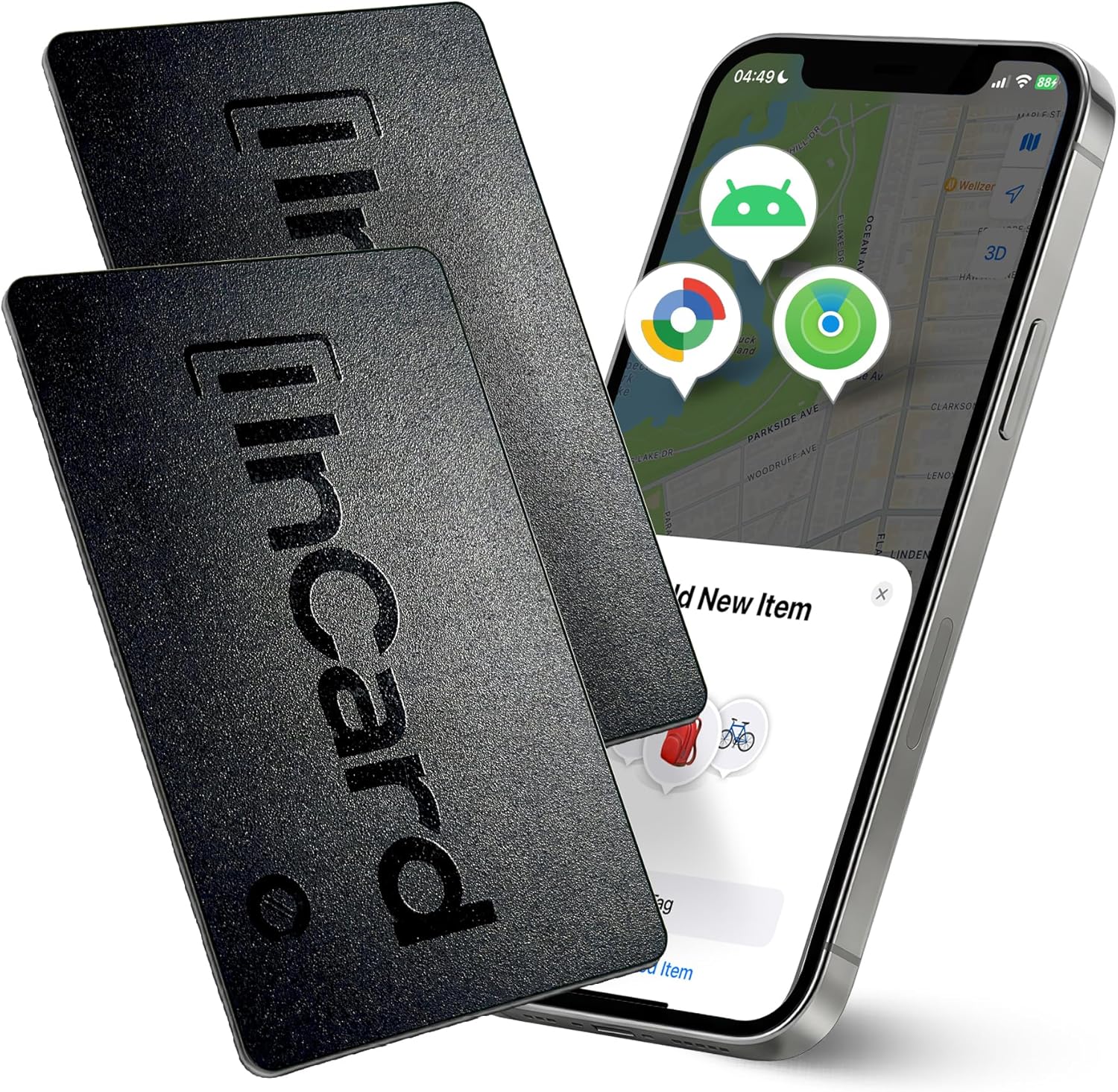
Important Note: The InCard can only be connected to one device (either Apple or Android) at a time for stable performance. To switch between platforms, you must first unbind the device from the current app before connecting it to the new one.
Video: An overview of the InCard Wallet Tracker Card, demonstrating its features and compatibility with tracking systems.
2. Operating the InCard
Once your InCard is set up, you can utilize its features to keep track of your valuables.
Locating Nearby Items
If your InCard is within Bluetooth range (up to 555ft), you can trigger a loud 90 dB alarm directly from your paired app. This sound is designed to cut through ambient noise, helping you quickly find items hidden in couches, bags, or other cluttered spaces.

Global Lost Mode & Last-Known Location
For items outside Bluetooth range, activate 'Lost Mode' in your app. The encrypted Apple/Google networks will anonymously detect your InCard's location via compatible devices passing by, providing you with its last-known location on a map. This feature helps recover items worldwide without compromising privacy.
Left-Behind Alerts
Receive instant notifications on your phone if you accidentally leave your InCard (and the item it's with) behind and it moves out of Bluetooth range. The app will record the last location where the connection was lost.

Shareable Access
You can grant location access to your InCard to up to 5 trusted family members or friends. This feature requires iOS 17+ or Android 9.0+ on the recipient devices and allows for collective item recovery while maintaining privacy.
Usage Scenarios
The ultra-thin design of the InCard allows it to be discreetly placed in various items you wish to track:
- Wallets
- Handbags
- Backpacks
- Luggage
- Passport holders

3. Maintenance
The Spotelo InCard is designed for minimal maintenance, offering long-lasting performance and durability.
Battery Life
The InCard features a non-replaceable, integrated battery with an extended lifespan: approximately 5 years for Android users and 3 years for iOS users post-activation. No charging is required during its operational life.
Waterproof and Dustproof
With an IP68 rating, the InCard is highly resistant to water and dust. This means it can withstand submersion in water and is protected against dust ingress, making it suitable for various environments and daily use without concern for damage from splashes or dirt.

Cleaning
To clean your InCard, simply wipe it with a soft, damp cloth. Avoid using harsh chemicals or abrasive materials that could damage the device's surface.
4. Troubleshooting
If you encounter issues with your Spotelo InCard, refer to the following common troubleshooting steps:
- InCard Not Connecting:
- Ensure the InCard is powered on (press and hold the button until it beeps).
- Verify Bluetooth is enabled on your smartphone.
- Make sure the InCard is within close proximity to your phone during pairing.
- Check if the InCard is already paired to another device. It can only connect to one at a time. Unbind it from the previous device if necessary.
- Alarm Not Sounding or Too Quiet:
- Ensure your phone's volume is turned up.
- Confirm the InCard is within Bluetooth range of your phone.
- Check for any obstructions around the InCard that might muffle the sound.
- Inaccurate Location Tracking:
- Location accuracy depends on the density of compatible devices in the area when out of Bluetooth range. In less populated areas, updates may be less frequent.
- Ensure your phone's location services are enabled for the tracking app.
- Left-Behind Alerts Not Working:
- Verify that 'Left-Behind Alerts' are enabled in your tracking app settings.
- Ensure the app has necessary permissions for notifications and background activity.
5. Specifications
| Model Number | InCard (CARD01NC) |
| Dimensions | 0.07 x 0.07 x 0.07 inches (1.7mm thick) |
| Item Weight | 2.08 ounces |
| Connectivity | Bluetooth |
| Compatibility | Apple Find My (iOS 14.5+), Google Find Hub (Android 9.0+) |
| Battery Life | Up to 5 years (Android), Up to 3 years (iOS) |
| Battery Type | 1 Lithium Ion battery (included, non-replaceable) |
| Alarm Volume | 90 dB |
| Water/Dust Resistance | IP68 |
| Material | Plastic |

6. Warranty & Support
For specific warranty details and support inquiries, please refer to the documentation included with your product or visit the official Spotelo website. General product support can be found through the manufacturer's customer service channels.


