
Introduction
This manual provides detailed instructions for the setup, operation, maintenance, and troubleshooting of your Nillkin Pocket Foldable Bluetooth Keyboard with Touchpad. Please read this manual thoroughly before using the product to ensure optimal performance and longevity.
Package Contents
Verify that all items are present in your package:
- Nillkin Pocket Foldable Keyboard
- Type-C Charging Cable
- Keyboard Storage Bag
- User Manual

Image: Contents of the Nillkin Pocket Foldable Keyboard package.
Product Overview
The Nillkin Pocket Foldable Keyboard is a compact and portable input device designed for mobile productivity. It features a tri-fold design, an integrated touchpad, and a numeric keypad, offering a versatile solution for various devices and environments.
Key Features:
- Foldable Design: Compact and lightweight for easy portability.
- Bluetooth 5.0 Connectivity: Supports connection to up to 3 devices simultaneously.
- Integrated Touchpad: Provides precise cursor control, eliminating the need for an external mouse.
- Numeric Keypad: Dedicated numeric input for data entry.
- Ergonomic Key Layout: Scissor-foot key structure for comfortable and quiet typing.
- Auto-sleep Mechanism: Conserves battery life with automatic sleep mode.
- Durable Material: Soft silicone back panel for a comfortable grip and anti-slip effect.
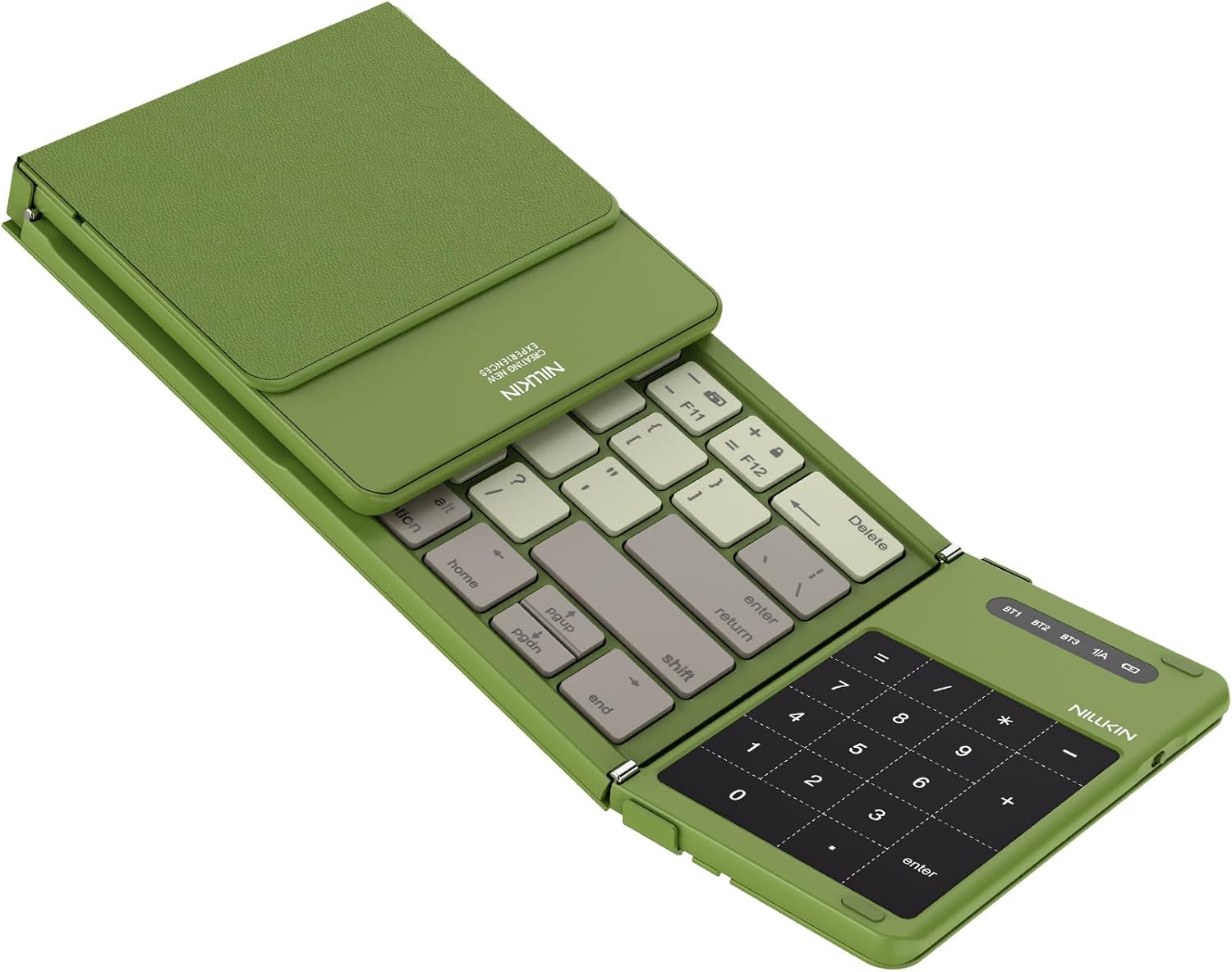
Image: Unfolded view of the Nillkin Pocket Foldable Keyboard.

Image: Size comparison of the keyboard to a smartphone, illustrating its portability.

Image: Tri-fold design and dimensions of the keyboard.
Setup
1. Charging the Keyboard
Before first use, fully charge the keyboard. Connect the provided Type-C charging cable to the keyboard's charging port and the other end to a USB power source (e.g., computer, wall adapter). The charging indicator light will illuminate during charging and turn off when fully charged.
2. Bluetooth Pairing
The keyboard supports connecting to up to three Bluetooth devices. Follow these steps to pair your device:
- Unfold the keyboard to power it on.
- Press and hold the Fn key and one of the Bluetooth channel keys (BT1, BT2, or BT3) for 3-5 seconds until the corresponding indicator light flashes, indicating pairing mode.
- On your device (iPad, laptop, tablet, etc.), go to Bluetooth settings and search for available devices.
- Select "Nillkin Keyboard" from the list of found devices.
- If prompted, enter the pairing code displayed on your screen using the keyboard and press Enter.
- The indicator light will stop flashing and remain solid for a few seconds, then turn off, indicating successful pairing.
Repeat these steps for additional devices using different BT channels (BT2, BT3).
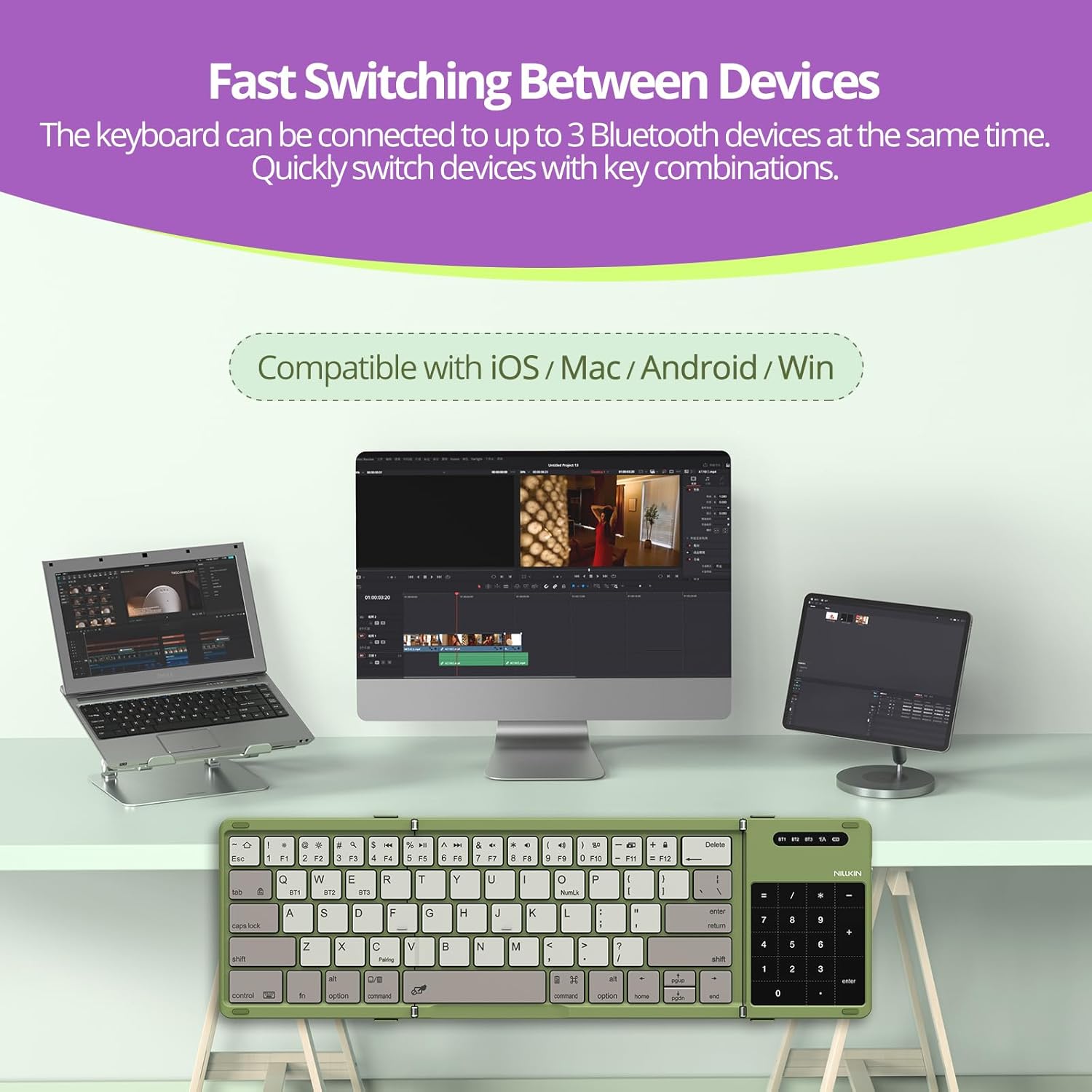
Image: Keyboard connected to multiple devices, illustrating multi-device switching.
Operating Instructions
1. Keyboard Functions
- Power On/Off: Unfold the keyboard to power on. Fold the keyboard to power off.
- Function Keys: Use the Fn key in combination with the F1-F12 keys for various shortcuts (e.g., media control, volume).
- Operating System Compatibility: The keyboard is compatible with iOS, macOS, Android, and Windows systems. Some function keys may behave differently depending on the operating system.
2. Touchpad Functions
The integrated touchpad supports multi-touch gestures for navigation and control.
- Single Finger Tap: Left-click.
- Two Finger Tap: Right-click.
- Two Finger Scroll: Scroll up/down or left/right.
- Pinch to Zoom: Use two fingers to zoom in or out.
The touchpad will automatically hibernate after 10 seconds of inactivity to save power. Tap it once to wake it up.

Image: Hand demonstrating touchpad and numeric keypad use.
3. Numeric Keypad Mode
The touchpad area can function as a numeric keypad. To activate or deactivate the numeric keypad mode, press Fn + Command (or the designated key combination for numeric keypad toggle, usually indicated by a num lock icon).
4. Switching Between Devices
To switch between paired devices, simply press the Fn key along with the corresponding Bluetooth channel key (BT1, BT2, or BT3) that your desired device is paired to. The keyboard will quickly connect to the selected device.
Maintenance
- Keep the keyboard clean by wiping it with a soft, dry cloth.
- Avoid exposing the keyboard to extreme temperatures, direct sunlight, or moisture.
- Do not use harsh chemicals or abrasive cleaners.
- Store the keyboard in its storage bag when not in use to protect it from dust and scratches.
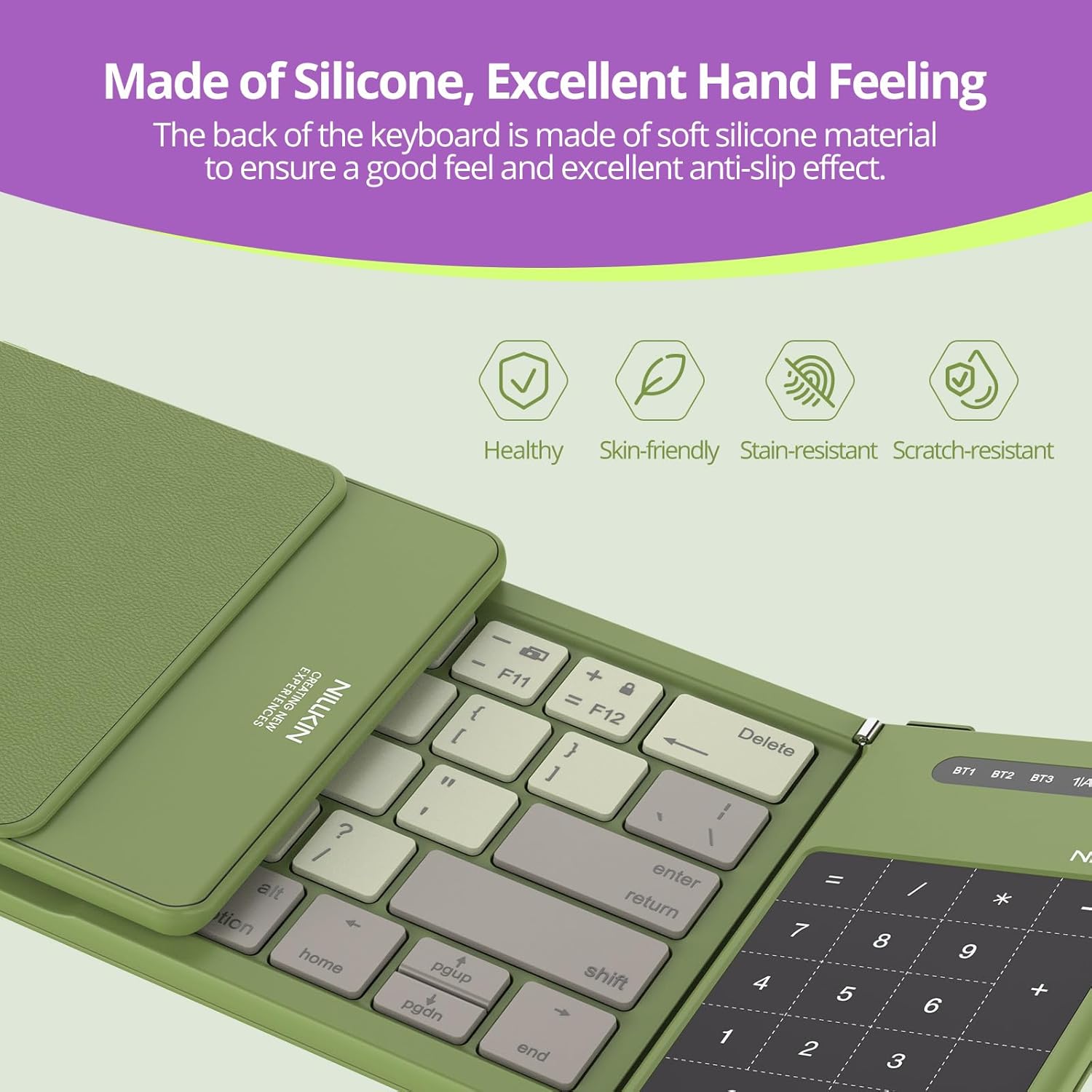
Image: Close-up of the keyboard's silicone back panel, emphasizing its durable and easy-to-clean material.
Troubleshooting
| Problem | Possible Cause | Solution |
|---|---|---|
| Keyboard does not power on. | Low battery or not unfolded correctly. | Charge the keyboard. Ensure it is fully unfolded. |
| Unable to pair with device. | Bluetooth not enabled on device, keyboard not in pairing mode, or incorrect channel selected. | Ensure Bluetooth is active on your device. Put the keyboard into pairing mode (Fn + BT1/BT2/BT3). Try a different BT channel. Forget previous pairings on your device and retry. |
| Keyboard disconnects frequently. | Low battery, device too far, or interference. | Charge the keyboard. Keep the keyboard within 10 meters of your device. Reduce interference from other wireless devices. |
| Touchpad is unresponsive. | Touchpad in auto-sleep mode or numeric keypad mode is active. | Tap the touchpad to wake it up. Ensure numeric keypad mode is deactivated (Fn + Command). |
| Keys are not responding. | Keyboard is disconnected or in sleep mode. | Ensure the keyboard is connected via Bluetooth. Press any key to wake it from sleep mode. |
Specifications
| Feature | Detail |
|---|---|
| Model | Pocket Foldable Keyboard |
| Connectivity Technology | Bluetooth 5.0, USB-C (for charging) |
| Compatible Devices | iPad, iPhone, Laptop, Tablet, PC, Smart TV, Gaming Console |
| Special Features | Ergonomic, Foldable, Low-Profile Key, Quiet, Integrated Touchpad, Numeric Keypad |
| Battery Capacity | 140mAh (Nonstandard Battery) |
| Power Source | Battery Powered |
| Transmission Distance | Up to 10 meters |
| Auto Sleep Time | Keyboard: 10 minutes, Touchpad: 10 seconds |
| Wake-up Method | Any Key Press |
| Item Weight | 1.01 pounds |
| Package Dimensions | 10.08 x 5.75 x 1.14 inches |
| Color | Green |

Image: Summary of key product features and specifications.
Safety Information
- Do not disassemble or attempt to repair the device yourself.
- Keep the device away from water, fire, and high temperatures.
- Dispose of batteries according to local regulations.
- Avoid dropping or subjecting the keyboard to strong impacts.
Warranty and Support
For warranty information, technical support, or customer service inquiries, please visit the official Nillkin website or contact their customer support directly.
Official Website: www.nillkin.com