
1. Introduction
This manual provides detailed instructions for the setup, operation, and maintenance of your NexusLab LOCK-P90 Smart Combination Lock. Please read this manual thoroughly before using the product to ensure proper function and longevity.
Product Overview
The NexusLab LOCK-P90 is an advanced smart combination lock designed for various applications, including lockers, gyms, schools, and travel. It features robust construction, IP67 water and dust resistance, and smart control via the Tuya App.
What's Included
Verify that all items are present in the package:
- 1 x NexusLab LOCK-P90 Smart Combination Lock
- 1 x Instruction Manual (this document)
- 2 x CR2032 Batteries (pre-installed or included separately)
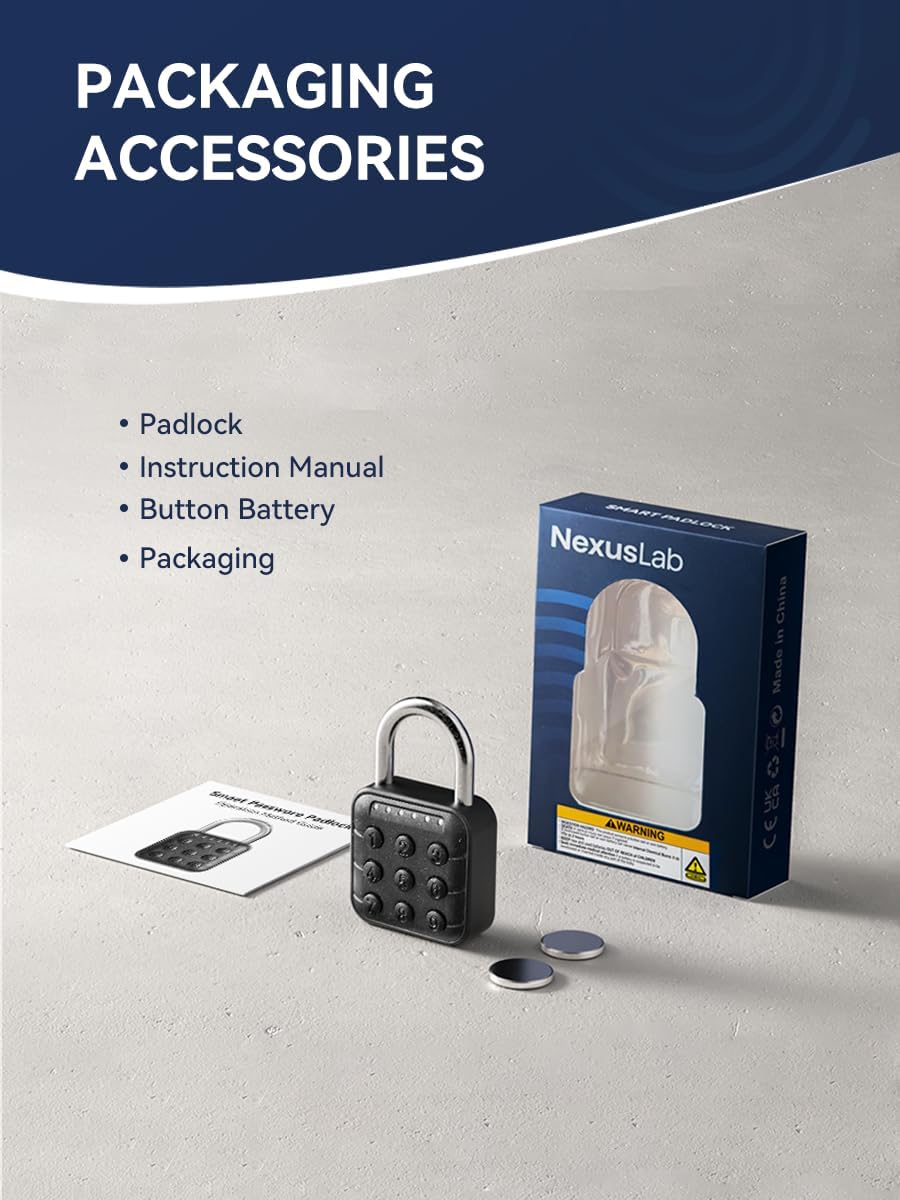
Figure 1.1: Packaging contents of the NexusLab LOCK-P90 Smart Combination Lock.
2. Setup
2.1 App Installation
- Download the "Tuya Smart" app from your smartphone's app store (App Store for iOS or Google Play Store for Android).
- Register or log in to your Tuya Smart account.
2.2 Bluetooth Activation and Device Pairing
Follow these steps to pair your lock with the Tuya Smart App:
- Ensure Bluetooth is enabled on your smartphone.
- Open the Tuya Smart app and navigate to the home screen.
- Tap the "+" icon in the top right corner to add a new device.
- On the lock, press the default password "123456" to activate it. The green indicator lights will illuminate, signifying readiness for pairing.
- The app will begin scanning for nearby devices. Select the "P02-PADLock" when it appears in the list.
- Once successfully added, the app will confirm the pairing.
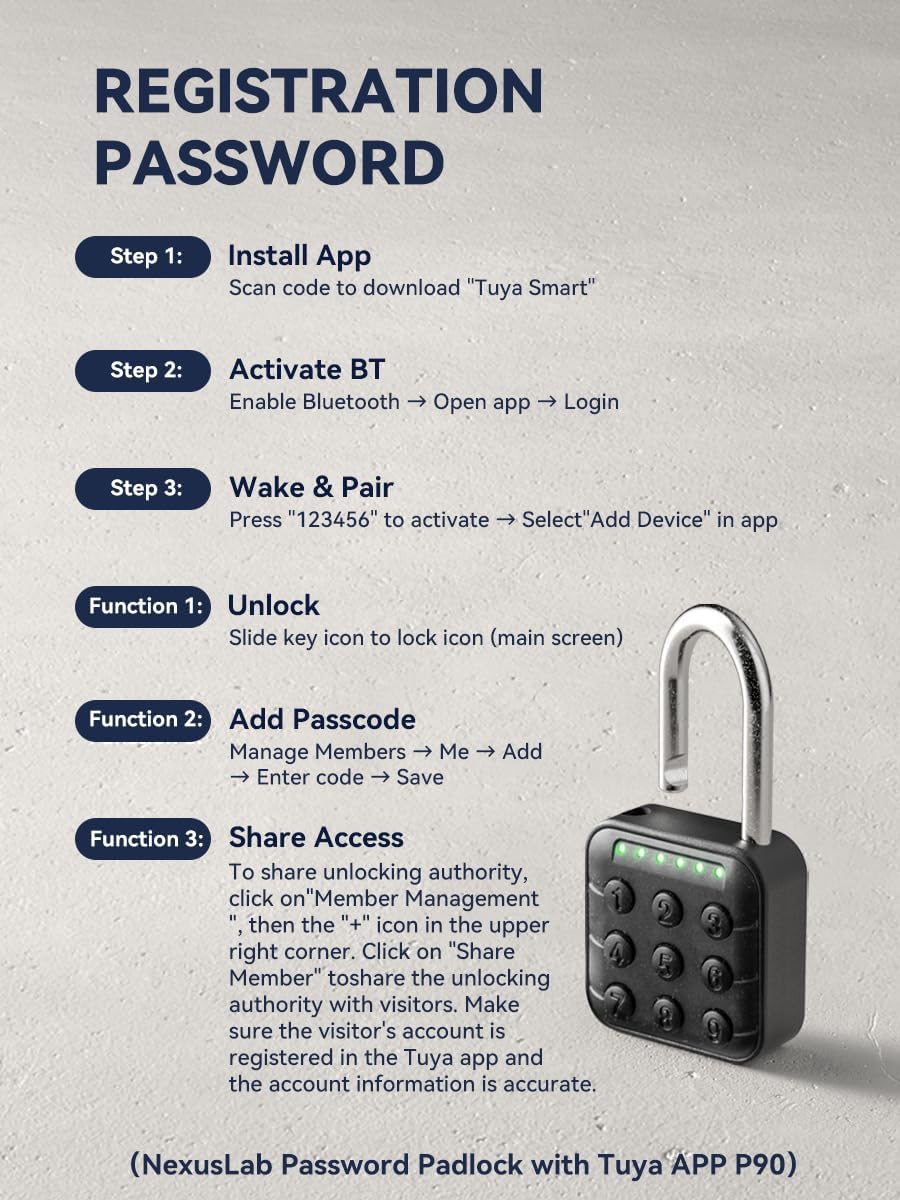
Figure 2.1: Tuya Smart App pairing process with the LOCK-P90.
2.3 Setting a Custom Password
After successful pairing, it is recommended to set a personalized password and disable the default factory password for enhanced security.
- In the Tuya Smart app, navigate to the device's settings or "Member Management" section.
- Authenticate the lock by entering the default password "123456" on the lock's keypad. The lock will indicate successful authentication.
- In the app, select the option to "Add Code" or "Set Password".
- Enter your desired 6-digit personalized password (e.g., "123789") and save it.
- The factory default password will be disabled, and only your personalized code or app access will be enabled.
Video 2.1: This video demonstrates the process of pairing the NexusLab LOCK-P90 with the Tuya Smart App and setting a custom password. It shows the steps from enabling Bluetooth, adding the device, authenticating with the default password, and finally setting a new personalized code.
3. Operating the Lock
3.1 Unlocking via Tuya App
To unlock the device using the Tuya Smart App:
- Ensure your smartphone's Bluetooth is active and within range of the lock.
- Open the Tuya Smart app and select your LOCK-P90 device.
- On the main screen, slide the key icon to the lock icon to initiate unlocking. The lock will open.

Figure 3.1: Unlocking the LOCK-P90 using the Tuya Smart App.
3.2 Unlocking via Personalized Code
To unlock the device using a personalized code:
- Press any button on the keypad to wake up the lock.
- Enter your 6-digit personalized password.
- The lock will open upon correct entry.
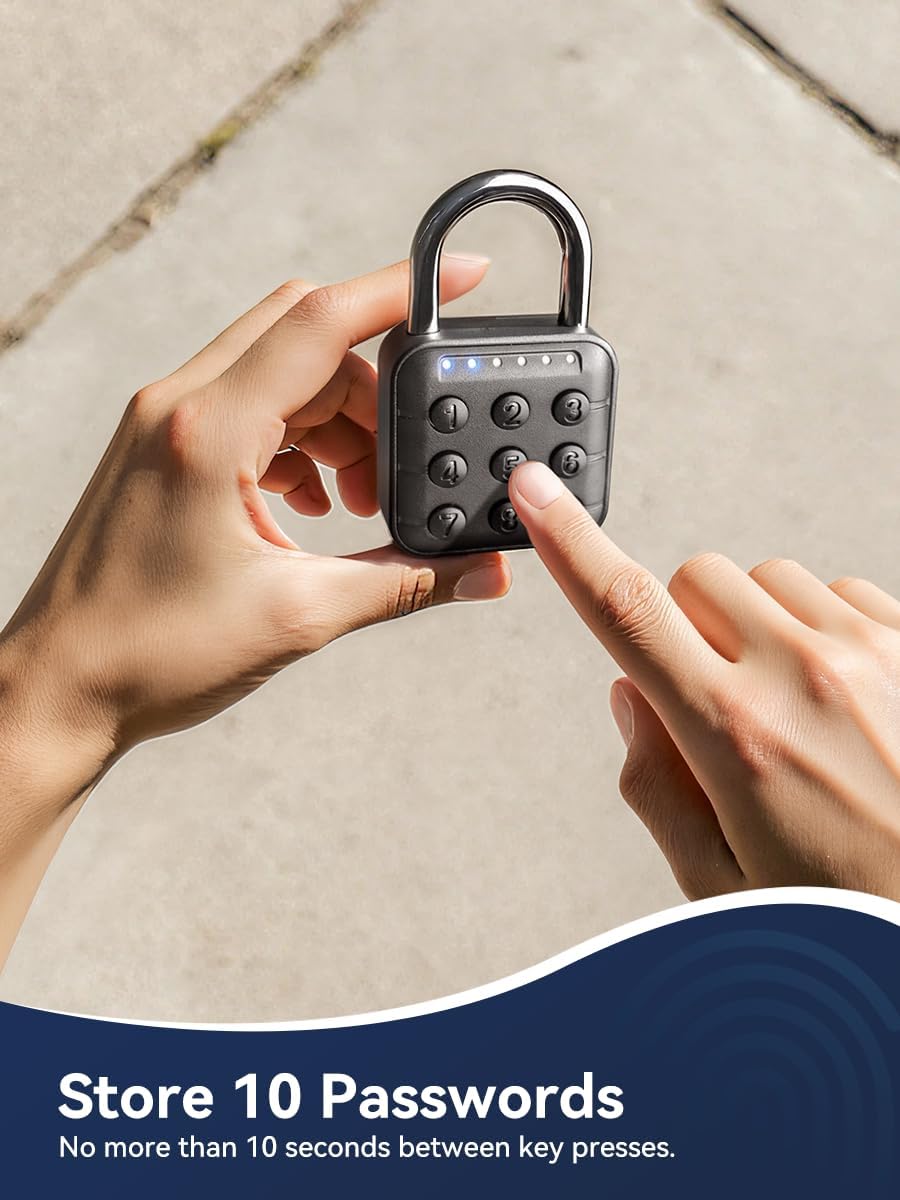
Figure 3.2: Entering a personalized code on the LOCK-P90 keypad.
3.3 Managing Passcodes and Sharing Access
The Tuya Smart App allows for advanced passcode management:
- Add Passcode: Navigate to "Member Management" > "Me" > "Add" to create new permanent passcodes for family members or teams.
- Share Access: To share unlocking authority, go to "Member Management", tap the "+" icon in the upper right corner, and select "Share Member". Ensure the visitor's account is registered in the Tuya app and the information is accurate.
- Temporary Unlock: The app supports time-limited and one-time passwords for temporary access. These can be generated and cleared as needed.
- Activity Log: View unlock records and activity history within the app.
4. Maintenance
4.1 Battery Replacement
The LOCK-P90 uses two CR2032 batteries, providing approximately 12 months of runtime. The app provides real-time battery monitoring, and a red LED warning will indicate low battery. Battery replacement is quick and simple:
- Locate the battery compartment on the lock.
- Open the compartment (refer to the product diagram for specific location).
- Remove the old CR2032 batteries and insert new ones, ensuring correct polarity.
- Close the battery compartment securely.

Figure 4.1: Battery compartment and CR2032 batteries for the LOCK-P90.
4.2 Cleaning and Durability
The LOCK-P90 features an IP67 waterproof and dustproof design, making it resistant to daily rain and humidity. Its high-density zinc alloy body and 4mm 304 stainless steel shackle provide anti-cut, anti-corrosion, and tamper-resistant properties.
- To clean the lock, wipe it with a soft, damp cloth. Avoid using harsh chemicals or abrasive materials.
- Ensure the lock is dry before prolonged exposure to extreme temperatures.

Figure 4.2: The LOCK-P90 demonstrating its IP67 waterproof capability.

Figure 4.3: The LOCK-P90's robust construction for rust resistance and durability.
5. Troubleshooting
If you encounter issues with your NexusLab LOCK-P90, refer to the following common problems and solutions:
| Problem | Possible Cause | Solution |
|---|---|---|
| Lock does not respond to keypad input. | Low battery or lock is not awake. | Press any button to wake the lock. If still unresponsive, replace batteries. |
| Cannot pair with Tuya Smart App. | Bluetooth is off, lock not in pairing mode, or app issue. | Ensure Bluetooth is on. Activate lock with default password (123456) to enter pairing mode. Restart app or phone. |
| Personalized password not working. | Incorrect password entry or password not saved correctly. | Double-check the entered password. Re-enter and save the password via the Tuya App. |
| Lock opens unexpectedly or not at all. | Interference, mechanical issue, or app synchronization problem. | Ensure no obstructions. Check app for error messages or try re-calibrating if available. Contact support if issue persists. |
| Battery drains quickly. | Frequent use, extreme temperatures, or faulty batteries. | Replace with high-quality CR2032 batteries. Avoid extreme temperatures. |
6. Specifications
| Feature | Detail |
|---|---|
| Brand | NexusLab |
| Model Name | LOCK-P90 |
| Lock Type | Combination Lock |
| Special Feature | Anti-Peeping Password, With Tuya APP Control |
| Connectivity Protocol | Bluetooth |
| Control Method | App, Touch |
| Material | Stainless Steel, Zinc Alloy |
| Item Dimensions (L x W x H) | 3 x 0.9 x 4.5 inches |
| Item Weight | 4.6 ounces (0.13 Kilograms) |
| Batteries | 2 CR2032 batteries required (included) |
| Battery Life | Approximately 12 months |
| Waterproof Rating | IP67 |
| Operating Temperature | -20°C to 55°C (-4°F to 131°F) |
| Number of Passcodes | Supports up to 10 unique passcodes |
7. Warranty and Support
7.1 Warranty Information
NexusLab offers a 200-day return policy for this product, ensuring customer satisfaction. For specific warranty claims or details beyond this period, please refer to your purchase documentation or contact NexusLab customer support.
7.2 Customer Support
If you have any questions, require technical assistance, or need further support regarding your NexusLab LOCK-P90 Smart Combination Lock, please contact NexusLab customer service through the retailer where the product was purchased or visit the official NexusLab website for contact information.