
Introduction
This manual provides comprehensive instructions for the setup, operation, and maintenance of your Kriutefy Smart Watch P72. Designed for both men and women, this smartwatch features a 1.91-inch HD full touchscreen, Bluetooth call capabilities, fitness tracking, and IP68 waterproofing. Please read this manual thoroughly to ensure optimal performance and longevity of your device.
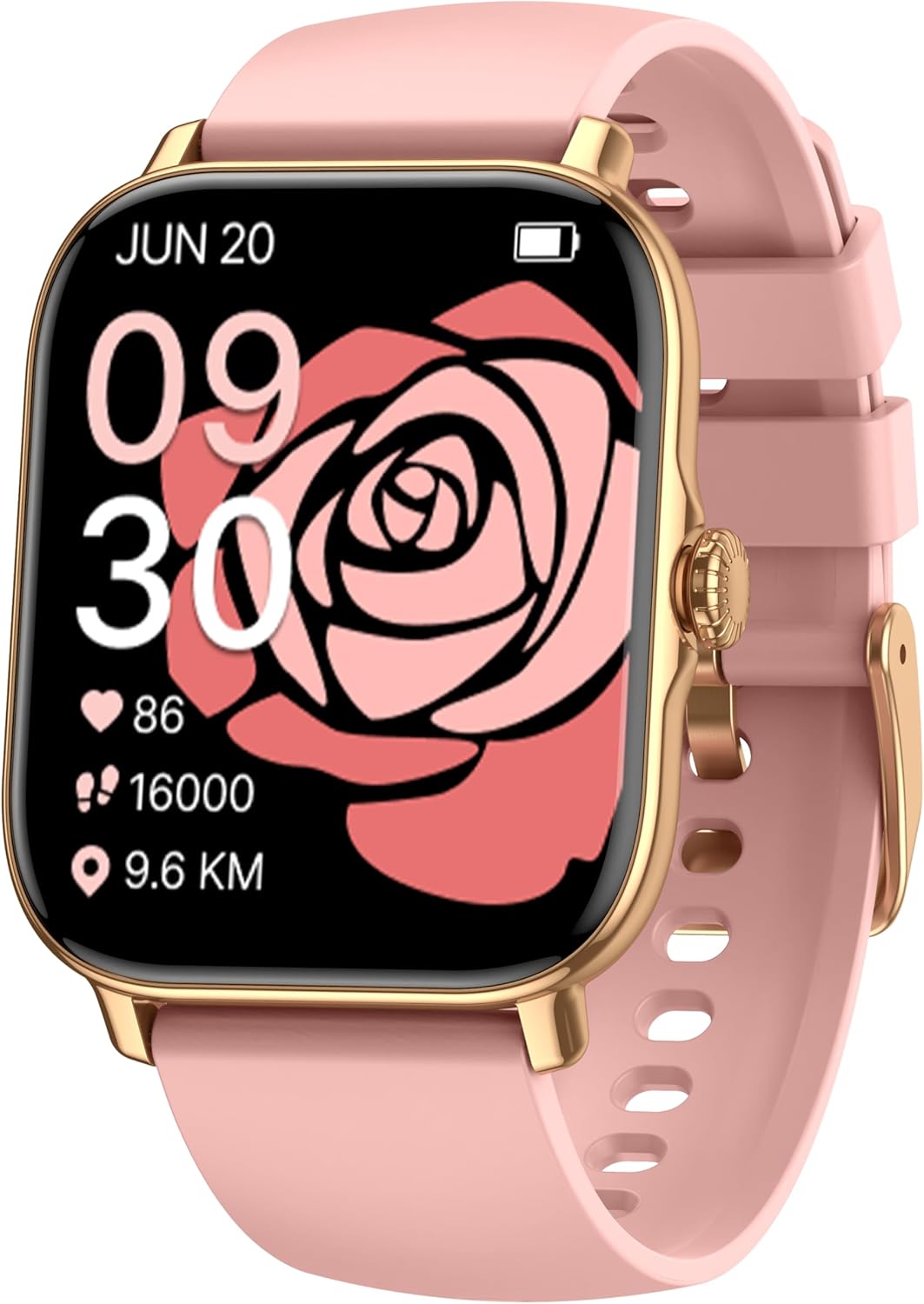
Image: The Kriutefy Smart Watch P72 in pink, displaying a vibrant rose watch face. This image showcases the watch's design and screen clarity.
What's in the Box
Upon opening your Kriutefy Smart Watch P72 package, you should find the following items:
- Smart Watch x 1
- Watch Band x 1
- Charging Cable x 1

Image: A visual representation of the package contents, showing the smartwatch, a user manual, and the USB charging cable.
Setup Guide
1. Initial Charging
Before first use, fully charge your smartwatch. Connect the magnetic charging cable to the charging contacts on the back of the watch and plug the USB end into a standard USB power adapter (not included) or a computer USB port. A full charge typically takes approximately 2 hours.

Image: The smartwatch connected to its magnetic charging cable, illustrating the charging process and expected battery life durations.
2. App Installation and Pairing
To unlock the full features of your smartwatch, download and install the FitCloudPro app on your smartphone. The app is compatible with Android 5.0+ and iOS 9.0+ devices.
- Scan the QR code in the watch's manual or search for "FitCloudPro" in your phone's app store (Google Play Store for Android, Apple App Store for iOS).
- Install the app and open it.
- Enable Bluetooth on your smartphone.
- In the FitCloudPro app, navigate to the device section and search for your smartwatch.
- Select your watch (Model P72) from the list of available devices to pair. Follow any on-screen prompts to complete the pairing process.
- Ensure all necessary permissions are granted to the app for optimal functionality, including notifications and health data access.
Operating Instructions
1. Display and Watch Faces
The smartwatch features a 1.91-inch HD full touchscreen. You can customize your watch face from over 150 pre-designed options available through the FitCloudPro app, or upload your own photos to create a personalized background.
- Changing Watch Faces: Open the FitCloudPro app, go to the "Dial" or "Watch Face" section, and select your desired design.
- Custom Watch Faces: Within the app, select the option to customize a watch face and upload an image from your phone's gallery.

Image: The smartwatch screen showcasing different customizable watch faces, including an option to use a personal photo as the background.

Image: A collection of Kriutefy Smart Watches in various colors, each displaying a unique watch face, highlighting the extensive customization options.
2. Bluetooth Call Functionality
Once paired with your smartphone, you can make and receive calls directly from your wrist.
- Making Calls: Access the dial pad or contacts list on your watch to initiate a call.
- Receiving Calls: When a call comes in, you can answer or reject it directly from the watch screen.

Image: The smartwatch interface displaying options for Bluetooth calls, various app notifications, and the voice assistant feature.

Image: The smartwatch screen displaying a dial pad and contact list, illustrating the ease of making and receiving calls directly from the wrist.
3. Notifications
Receive alerts from various applications such as Instagram, WhatsApp, TikTok, and more directly on your watch. Ensure notification permissions are enabled in the FitCloudPro app and your phone's settings.

Image: The smartwatch displaying incoming messages and a smartphone screen showing the notification management settings within the companion app.
4. Voice Assistant
Use voice commands to interact with your smartwatch. Activate the voice assistant with a tap and speak your commands, such as checking the weather, setting alarms, or making calls.

Image: The smartwatch showing the voice assistant interface, with examples of voice commands like "How is the weather?" and "Set an alarm for 6 p.m."
5. Health Monitoring
The smartwatch continuously tracks vital health data, providing insights into your well-being.
- Heart Rate Monitoring: Monitor your heart rate throughout the day.
- Sleep Monitoring: Analyze your sleep patterns, including deep sleep, light sleep, and awake times.
- Blood Oxygen (SpO2) Monitoring: Track your blood oxygen levels.
- Menstrual Cycle Tracking: For women, seamlessly track menstrual cycles with personalized reminders.

Image: Three smartwatches displaying different health metrics: heart rate, sleep duration and quality, and blood oxygen saturation levels.

Image: The smartwatch displaying blood pressure and blood oxygen levels, indicating health monitoring capabilities.

Image: A graph on the smartwatch screen illustrating continuous heart rate monitoring throughout the day.

Image: The smartwatch displaying comprehensive sleep data, including relaxation, awake time, light sleep, and deep sleep durations.

Image: The smartwatch displaying screens for security period, ovulation period, and menstrual period tracking, designed for female users.
6. Sports Modes and Activity Tracking
The smartwatch supports over 110 built-in workout modes, including walking, running, cycling, swimming, and more. It tracks steps, distance, calories burned, and heart rate during activities.

Image: The smartwatch displaying activity tracking metrics such as steps, distance, and calories burned during a workout session.

Image: The smartwatch connected to a smartphone app, illustrating GPS tracking for various outdoor activities and displaying heart rate, distance, steps, and calories.

Image: A visual representation of the wide array of over 110 sports modes supported by the smartwatch, including walking, running, cycling, and swimming.
7. Remote Camera Control
Control your smartphone's camera remotely by shaking your wrist or tapping the watch screen. This feature is useful for group photos or selfies.

Image: The smartwatch displaying a camera icon, indicating its ability to remotely control a paired smartphone's camera for capturing photos.
8. Find Phone Feature
If you misplace your phone, use the "Find Phone" feature on your smartwatch to make your phone ring, helping you locate it quickly.

Image: The smartwatch displaying the "Find Phone" icon, surrounded by other essential app icons, indicating its utility in locating a misplaced smartphone.
Maintenance
1. Water Resistance (IP68)
The Kriutefy Smart Watch P72 has an IP68 waterproof and dustproof rating. This means it is resistant to dust ingress and can withstand immersion in water up to 1.5 meters for 30 minutes. It is suitable for daily use, including hand washing, rain, and shallow swimming. However, it is not recommended for hot showers, saunas, or diving, as steam and high water pressure can compromise the seals.

Image: The smartwatch being splashed with water, visually confirming its IP68 waterproof capabilities, suitable for active lifestyles.

Image: The smartwatch positioned near water, emphasizing its splash-proof design and IP68 rating for everyday comfort and water activities.
2. Cleaning and Care
To maintain your smartwatch's appearance and functionality:
- Wipe the screen and strap regularly with a soft, damp cloth.
- Avoid using harsh chemicals, abrasive cleaners, or solvents.
- Ensure the charging contacts are clean and dry before charging to prevent corrosion.
3. Battery Life
A full charge provides approximately 7 days of typical use and up to 30 days on standby. Actual battery life may vary based on usage patterns, features enabled, and environmental factors.
Troubleshooting
If you encounter issues with your Kriutefy Smart Watch P72, refer to the following common solutions:
| Problem | Possible Solution |
|---|---|
| Watch not turning on/charging | Ensure the charging cable is securely connected to both the watch and the power source. Try a different USB port or power adapter. Clean the charging contacts on the watch. |
| Cannot pair with phone | Make sure Bluetooth is enabled on your phone and the watch is within range. Restart both the watch and your phone. Forget the device in your phone's Bluetooth settings and try pairing again through the FitCloudPro app. |
| Notifications not appearing | Check notification permissions in the FitCloudPro app and your phone's system settings. Ensure the app is running in the background and not being restricted by battery optimization settings. |
| Inaccurate health data | Ensure the watch is worn snugly on your wrist, about one finger's width above the wrist bone. Keep the sensor clean. Avoid excessive movement during measurements. |
| App crashing or freezing | Update the FitCloudPro app to the latest version. Clear the app's cache and data (Android) or reinstall the app. Ensure your phone's operating system is up to date. |
Specifications
| Feature | Detail |
|---|---|
| Model Number | P72 |
| Screen Size | 1.91 Inches |
| Display Type | HD Full Touchscreen |
| Waterproof Rating | IP68 |
| Connectivity | Bluetooth |
| Battery Capacity | 300 Milliamp Hours |
| Typical Use Battery Life | Up to 7 days |
| Standby Battery Life | Up to 30 days |
| Charging Time | Approx. 2 hours |
| Operating System | Android Wear 2.9 (compatible with Android 5.0+ / iOS 9.0+) |
| Memory Storage Capacity | 256 MB |
| Item Weight | 3.52 ounces |
| Package Dimensions | 6.06 x 3.39 x 0.75 inches |
Image: A detailed diagram illustrating the dimensions of the smartwatch and its band, providing precise measurements for user reference.
Warranty and Support
For warranty information and customer support, please refer to the contact details provided on the product packaging or the official Kriutefy website. Keep your purchase receipt as proof of purchase for any warranty claims.