
1. Product Overview
The We Technology S11Y Slim Smart Lock is designed for sliding doors, offering multiple access methods for enhanced security and convenience. This manual provides detailed instructions for installation, operation, and configuration of your smart lock.

Image 1.1: Overview of the S11Y Smart Lock, including its front and back panels, mortise, and a representation of the mobile app interface.
Key Features:
- 6-in-1 Access: Fingerprint, Passcode, IC Card, Tuya App, Mechanical Key, One-time codes.
- Sliding Door Specific: Engineered with a 2885 hook mortise for aluminum/glass sliding doors.
- Remote Control: Manage and monitor your lock from anywhere via the Tuya Smart App.
- Integrated Doorbell: Built-in doorbell for visitor notification.
- Advanced Security: Auto-lock function and anti-peep code protection.
- Sleek Design: Slim profile in black aluminum.
- Battery Operated: Powered by 4 AAA batteries with low battery alerts.
Video 1.1: An overview of the S11Y Smart Lock, demonstrating its design and basic features.
2. Components and Package Contents
Verify that all components are present and in good condition before beginning installation.

Image 2.1: All components included with the S11Y Smart Lock, including the lock body, panels, screws, keys, IC cards, and user manual.
Included in the Box:
- 1 x Lock Body
- 1 x User Manual
- 2 x Mechanical Keys
- 2 x IC Cards
- Mounting Screws and Hardware
- 1 x USB Cable (for emergency power)
3. Setup and Installation
This section guides you through the physical installation of the smart lock. Ensure your door meets the specified thickness requirements (35-55mm).

Image 3.1: Detailed dimensions of the S11Y Smart Lock and its mortise, along with illustrations for left-handed and right-handed door configurations.
3.1 Pre-Installation Checks
- Confirm door thickness is between 35mm and 55mm.
- Ensure the door frame is suitable for the 2885 hook mortise.
3.2 Handle Direction Adjustment
The handle direction can be adjusted to suit your door's opening. Loosen the screw on the handle, pull out the handle, and turn it 180 degrees down to adjust its direction.
3.3 Mortise and Panel Installation
Install the mortise into the door edge first. Then, install the front panel, ensuring the square rod is correctly inserted into the handle. Finally, install the back panel and secure it with screws.
Video 3.1: A step-by-step guide on how to install the S11Y Smart Lock, including mortise and panel assembly.
3.4 Battery Installation
The lock is powered by 4 AAA batteries. Install them into the battery compartment on the back panel. Ensure correct polarity. Replace the back cover and secure it with screws.

Image 3.2: Illustration showing the battery compartment for the S11Y Smart Lock, highlighting its long battery life and emergency power option.
4. Operating Instructions
The S11Y Smart Lock offers multiple ways to unlock your door.
Video 4.1: Demonstration of various unlocking methods for the S11Y Smart Lock, including fingerprint, password, IC card, and mechanical key.
4.1 Unlocking Methods
- Fingerprint Unlock: Place your registered fingerprint on the sensor.
- Passcode Unlock: Enter your registered passcode on the keypad.
- IC Card Unlock: Tap your registered IC card on the card reader area.
- Mechanical Key Unlock: Use the provided mechanical key as a backup.
- Tuya App Unlock: Use the Tuya Smart App for remote unlocking.
Video 4.2: A closer look at the different entry methods available with the S11Y Smart Lock.
4.2 Built-in Doorbell
The smart lock features an integrated doorbell. When a visitor presses the doorbell button, you will receive a notification on your connected Tuya Smart App.
4.3 Auto-Lock and Anti-Peep Code
- Auto-Lock: The lock will automatically engage after a set period once the door is closed.
- Anti-Peep Code: To prevent others from guessing your passcode, you can enter random digits before or after your actual passcode. The lock will still recognize the correct sequence within the longer input.
5. Configuration Guide
This section details how to configure the settings of your S11Y Smart Lock.
Video 5.1: A comprehensive guide to configuring the S11Y Smart Lock settings, including administrator and system settings.
5.1 Enter Lock Menu
Press '*' then '#' on the keypad. Input your admin information (e.g., admin passcode or fingerprint) to enter the lock menu. The menu options are:
- Administrator Setting
- User Setting
- System Setting
- Restore to Factory
Note: '*' is for return/delete, '#' is for confirm.
5.2 Administrator Setting
From the lock menu, press '1' to enter Administrator Setting.
- Add Admin: Press '1'. Follow prompts to add a password (6 digits twice), fingerprint (multiple scans), or IC card.
- Delete Admin: Press '2'. Input the admin ID and press '#' to delete.
- Network Setting: Press '3'. (See section 5.5 for details).
Note: User settings (option '2' in the main menu) follow the same steps as admin settings for adding/deleting users.
5.3 System Setting
From the lock menu, press '3' to enter System Setting.
- Volume Setting: Press '1' to enable speaker, '2' to disable speaker.
- Unlock Mode Setting: Press '2'. Options include Single Unlock Mode, Combination Unlock Mode, Enable Passage Mode (always open), Disable Passage Mode.
- Language Setting: Press '3'. Options include Chinese and English.
- Time Setting: Press '4'. Input date based on the format: Year (2 digits)_Month_Day_Hour_Minute (e.g., 2505160712 for May 16, 2025, 07:12).
5.4 Restore to Factory
From the lock menu, press '4' to initialize the system. Note: All data will be cleared after initialization. Please operate carefully.
5.5 Network Setting (Tuya App)
To connect your smart lock to the Tuya Smart App:
- Enter the lock menu, then press '1' for Admin Setting, then '3' for Network Setting.
- Select '2' for Smart Connection.
- Download the 'Tuya Smart' app on your smartphone and register an account.
- In the app, follow the instructions to add a new device. The app will guide you through the pairing process.
6. Maintenance
- Battery Replacement: The lock will provide intelligent low battery alerts. Replace all 4 AAA batteries promptly when alerted to ensure continuous operation.
- Emergency Power: In case of complete battery depletion, emergency power can be supplied via the Type-C port on the outer panel using a power bank.
- Cleaning: Use a soft, dry cloth to clean the lock's surface. Avoid abrasive cleaners or solvents.
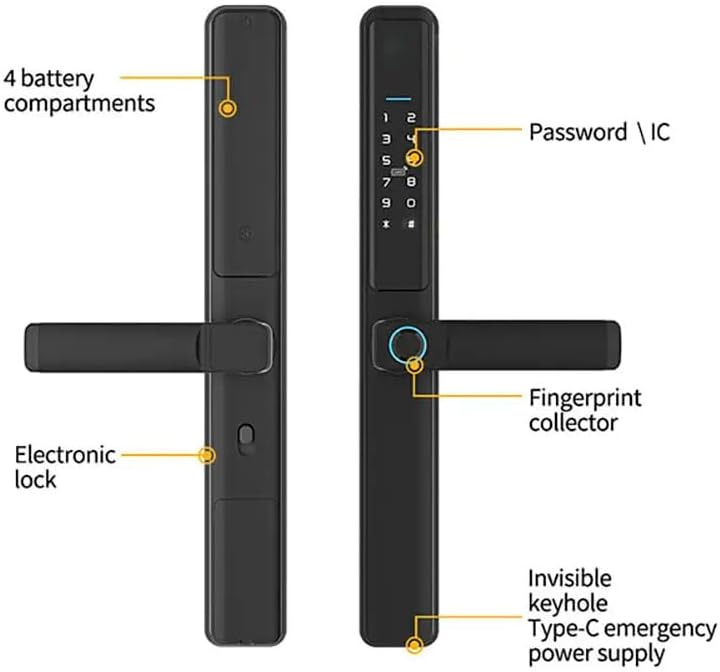
Image 6.1: Labeled diagram of the S11Y Smart Lock, indicating the 4 battery compartments, password/IC area, fingerprint collector, invisible keyhole, and Type-C emergency power supply port.
7. Troubleshooting
- Lock not responding: Check battery levels. If batteries are low or depleted, replace them or use emergency Type-C power.
- Fingerprint not recognized: Ensure your finger is clean and dry. Re-register your fingerprint if issues persist.
- Passcode not working: Verify the correct passcode is entered. Ensure anti-peep code is used correctly if enabled.
- App connectivity issues: Ensure your Wi-Fi network is stable and the lock is within range. Re-pair the device with the Tuya Smart App if necessary.
- Door not locking/unlocking smoothly: Check for any obstructions in the door frame or mortise. Ensure the lock is installed correctly and aligned.
- Forgotten Admin Passcode: If the admin passcode is forgotten and no other admin access method is available, a factory reset may be required (see section 5.4).
8. Specifications
| Feature | Detail |
|---|---|
| Brand | We Technology |
| Model Name | Sliding Smart Door (S11Y) |
| Lock Type | Biometric, Mortise Lock, Sliding Lock |
| Material | Aluminum |
| Color | Black |
| Item Dimensions L x W x H | 27.56 x 3.5 x 8.5 inches |
| Item Weight | 5.5 Pounds |
| Special Features | Alarm, Anti-Peeping Password, Auto-Lock, One-Touch Lock |
| Control Method | App, Remote, Touch |
| Controller Type | Android, iOS (Tuya App) |
| Power Source | 4 x AAA Batteries (not included) |
| Manufacturer | Smart Security Solutions |
9. Warranty and Support
For warranty information or technical support, please refer to the contact details provided with your purchase or visit the official We Technology website. Keep your purchase receipt for warranty claims.