
1. Introduction
This manual provides essential information for the proper setup, operation, and maintenance of your AOC 24G30E 24-inch 180Hz IPS Gaming Monitor. Please read this manual thoroughly before using the product to ensure optimal performance and safety. The AOC 24G30E monitor is designed to deliver a superior gaming experience with its 180Hz refresh rate, 1ms response time, vibrant IPS panel, and HDR10 support.
2. Package Contents
Verify that all items are present in the package:
- AOC 24G30E Monitor
- Monitor Stand (Base and Neck)
- Power Cable
- HDMI Cable
- User Manual (this document)
- Warranty Card (if applicable)
Note: A DisplayPort cable is not included and may need to be purchased separately for optimal performance.
3. Setup Instructions
3.1 Assembling the Monitor Stand
- Carefully place the monitor face down on a soft, clean surface to prevent scratches.
- Attach the stand neck to the back of the monitor by aligning the tabs and pushing until it clicks into place.
- Attach the stand base to the stand neck. Secure it with the captive screw located at the bottom of the base.

Figure 3.1: Front view of the AOC 24G30E monitor with its stand assembled.
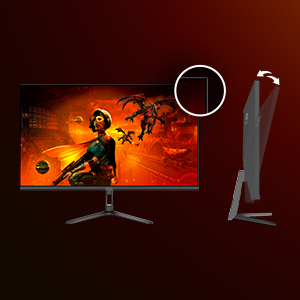
Figure 3.2: The monitor stand allows for tilt adjustment to optimize viewing angles.
3.2 Connecting the Monitor
- Power Connection: Connect the power cable to the monitor's power input and then to a power outlet.
- Video Connection:
- For optimal performance (180Hz, HDR), use a DisplayPort cable (not included) to connect the monitor to your computer's graphics card.
- Alternatively, use the provided HDMI cable to connect the monitor to your computer or other video sources.
- Audio Connection: If desired, connect headphones or external speakers to the monitor's audio output jack.

Figure 3.3: Rear view of the monitor displaying the various input ports for connectivity.
4. Operating Instructions
4.1 Power On/Off
Press the power button located on the monitor to turn it on or off. The power indicator light will illuminate when the monitor is on.
4.2 On-Screen Display (OSD) Menu Navigation
The OSD menu allows you to adjust various monitor settings. Use the control buttons (usually located on the bottom or back of the monitor) to navigate the menu:
- Press a button to open the OSD menu.
- Use the directional buttons to move between menu options.
- Press the select button to confirm a selection or enter a sub-menu.
- Press the exit button to go back or close the OSD menu.
4.3 Key Settings
- Refresh Rate: Ensure your computer's display settings are configured to 180Hz for the smoothest experience. This is typically found in your operating system's display settings.
- Response Time (MPRT): Adjust this setting in the OSD menu to minimize motion blur. The 1ms MPRT setting provides the fastest response.
- HDR (High Dynamic Range): Enable HDR in both the monitor's OSD and your operating system's display settings for enhanced contrast and color.
- Adaptive-Sync (FreeSync): Activate Adaptive-Sync in the OSD menu and ensure your graphics card drivers support AMD FreeSync for tear-free gaming.
- Picture Modes: Select from various preset picture modes (e.g., Standard, Game, FPS, RTS) or customize your own settings for brightness, contrast, and color.
- Low Blue Light: Reduce blue light emission to minimize eye strain during prolonged use.
- Flicker-Free: This technology reduces screen flickering, providing a more comfortable viewing experience.
5. Features Overview
The AOC 24G30E monitor incorporates several advanced features to enhance your visual and gaming experience:
5.1 High Refresh Rate and Fast Response Time
Experience ultra-smooth gameplay with a 180Hz refresh rate and a rapid 1ms MPRT (Moving Picture Response Time). This combination ensures minimal motion blur and ghosting, providing a competitive edge in fast-paced games.
Video 5.1: This video demonstrates the benefits of the 180Hz refresh rate and 1ms response time, showing smoother motion and quicker reactions in gaming scenarios. It also highlights HDR, IPS panel, AMD FreeSync, Flicker-Free, Low Blue Light, and tilt adjustment.
5.2 IPS Panel Technology
The IPS (In-Plane Switching) panel delivers vibrant, accurate colors and wide 178-degree viewing angles, ensuring consistent image quality from almost any perspective.
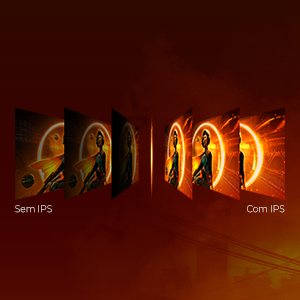
Figure 5.1: Visual comparison illustrating the enhanced color and clarity provided by the IPS panel.
5.3 HDR10 Support
With HDR10 (High Dynamic Range) support, the monitor produces deeper blacks, brighter whites, and a wider range of colors, resulting in more immersive and lifelike visuals.
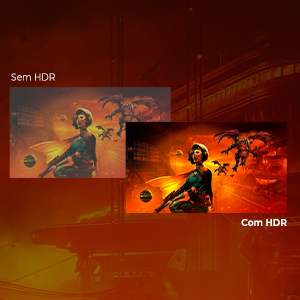
Figure 5.2: Visual comparison highlighting the improved contrast and vibrant colors with HDR enabled.
5.4 Adaptive-Sync (AMD FreeSync)
The monitor supports Adaptive-Sync technology (AMD FreeSync), which synchronizes the monitor's refresh rate with your GPU's frame rate. This eliminates screen tearing and stuttering, providing a fluid gaming experience.
5.5 Eye Care Technologies
- Flicker-Free: Reduces screen flickering that can cause eye strain and fatigue during extended use.
- Low Blue Light: Filters out harmful blue light emissions, promoting better eye health and reducing discomfort.
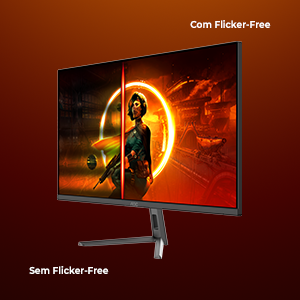
Figure 5.3: Visual representation of the Flicker-Free technology reducing screen flicker.
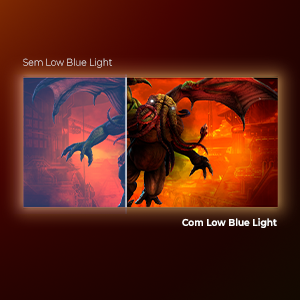
Figure 5.4: Visual representation of the Low Blue Light technology reducing blue light emission.
6. Maintenance
6.1 Cleaning the Monitor
- Always unplug the monitor from the power outlet before cleaning.
- Use a soft, lint-free cloth slightly dampened with water or a mild, non-abrasive screen cleaner.
- Do not spray cleaner directly onto the screen. Apply it to the cloth first.
- Avoid using benzene, thinner, ammonia-based cleaners, or abrasive materials, as these can damage the screen or casing.
6.2 Storage
When storing the monitor for an extended period, ensure it is powered off, unplugged, and stored in a cool, dry place away from direct sunlight and extreme temperatures. Use the original packaging if available to protect it from dust and physical damage.
7. Troubleshooting
If you encounter issues with your monitor, refer to the following common problems and solutions:
7.1 No Power
- Ensure the power cable is securely connected to both the monitor and the power outlet.
- Check if the power outlet is functioning correctly by plugging in another device.
- Verify the monitor's power button is pressed.
7.2 No Signal
- Confirm that the video cable (HDMI or DisplayPort) is securely connected to both the monitor and your computer's graphics card.
- Ensure the correct input source is selected on the monitor's OSD menu.
- Check if your computer is powered on and not in sleep mode.
- Try a different video cable or port if available.
7.3 Image Distortion or Poor Quality
- Adjust the resolution and refresh rate settings in your computer's display settings to match the monitor's native resolution (1920x1080) and desired refresh rate (up to 180Hz).
- Check the video cable for damage or loose connections.
- Reset the monitor to factory default settings via the OSD menu.
- Update your graphics card drivers.
7.4 Flickering Screen
- Ensure the Flicker-Free setting is enabled in the OSD menu.
- Check for external interference from other electronic devices.
- Verify the video cable connection.
8. Specifications
| Feature | Specification |
|---|---|
| Brand | AOC |
| Model Number | 24G30E |
| Screen Size | 24 inches |
| Resolution | 1920 x 1080 Pixels (FHD 1080p) |
| Aspect Ratio | 16:9 |
| Panel Type | IPS (In-Plane Switching) |
| Refresh Rate | 180 Hz |
| Response Time | 1 Millisecond (MPRT) |
| Contrast Ratio | 1000:1 |
| Viewing Angle | 178 Degrees |
| HDR Technology | HDR 10 |
| Adaptive Sync | FreeSync |
| Connectivity | 2x HDMI, 1x DisplayPort, Audio Out |
| Special Features | Tilt Adjustment, Flicker-Free, Low Blue Light |
| Power Consumption | 20 Watt |
| Dimensions (D x W x H) | 22.7D x 53.9W x 40H cm |
9. Warranty and Support
Your AOC 24G30E monitor comes with a 1-year manufacturer's warranty, covering defects in materials and workmanship under normal use. Please retain your proof of purchase for warranty claims.
For technical support, service, or further inquiries, please refer to the official AOC website or contact their customer service department in your region. Contact information can typically be found on the AOC official support page or in the warranty documentation included with your product.
Online Resources:
- Visit the official AOC website for drivers, FAQs, and additional support resources.


