
Introduction
This manual provides detailed instructions for the Generic M96-Shimmer Dual Mode Wireless Mechanical Gaming Keyboard. This versatile keyboard offers both 2.4G wireless and Bluetooth connectivity, a vibrant RGB backlight, and durable PBT keycaps. It features an innovative digital display for essential information and is compatible with both Windows and Mac operating systems. Please read this manual thoroughly to ensure proper use and maintenance of your keyboard.

Figure 1: Overview of the M96-Shimmer Dual Mode Wireless Mechanical Gaming Keyboard, showcasing its full layout and vibrant RGB backlighting.
Package Contents
Please check the package contents upon unboxing to ensure all items are present:
- 1 x M96-Shimmer Dual Mode Wireless Mechanical Gaming Keyboard
- 1 x USB Wireless Receiver (located in the keyboard's lower section)
- 1 x USB-C Charging Cable
- 1 x User Manual (this document)
Setup
1. Charging the Keyboard
Before first use, it is recommended to fully charge the keyboard. Connect the provided USB-C cable to the keyboard's charging port and the other end to a USB power source (e.g., computer USB port, USB wall adapter).
- The digital display will show a charging indicator.
- The keyboard features a 2000 mAh lithium battery for long-lasting performance.

Figure 2: The keyboard is equipped with a 2000 mAh built-in lithium battery, providing extended usage time.
2. Connecting via 2.4G Wireless Mode
- Locate the USB wireless receiver in the dedicated slot on the underside of the keyboard.
- Remove the receiver and plug it into an available USB port on your computer.
- Turn on the keyboard using the power switch located on the top edge.
- Switch the connection mode to 2.4G (indicated on the digital display). The keyboard should automatically connect.

Figure 3: The hidden USB wireless receiver is conveniently stored in a slot on the keyboard's underside for easy access and portability.
3. Connecting via Bluetooth Mode
The keyboard supports up to two Bluetooth connections (BT1 and BT2).
- Turn on the keyboard.
- Switch the connection mode to BT1 or BT2 using the mode switch.
- On your device (computer, tablet, etc.), enable Bluetooth and search for new devices.
- Select "M96-Shimmer" (or similar name) from the list of available devices.
- The digital display will confirm the successful Bluetooth connection.
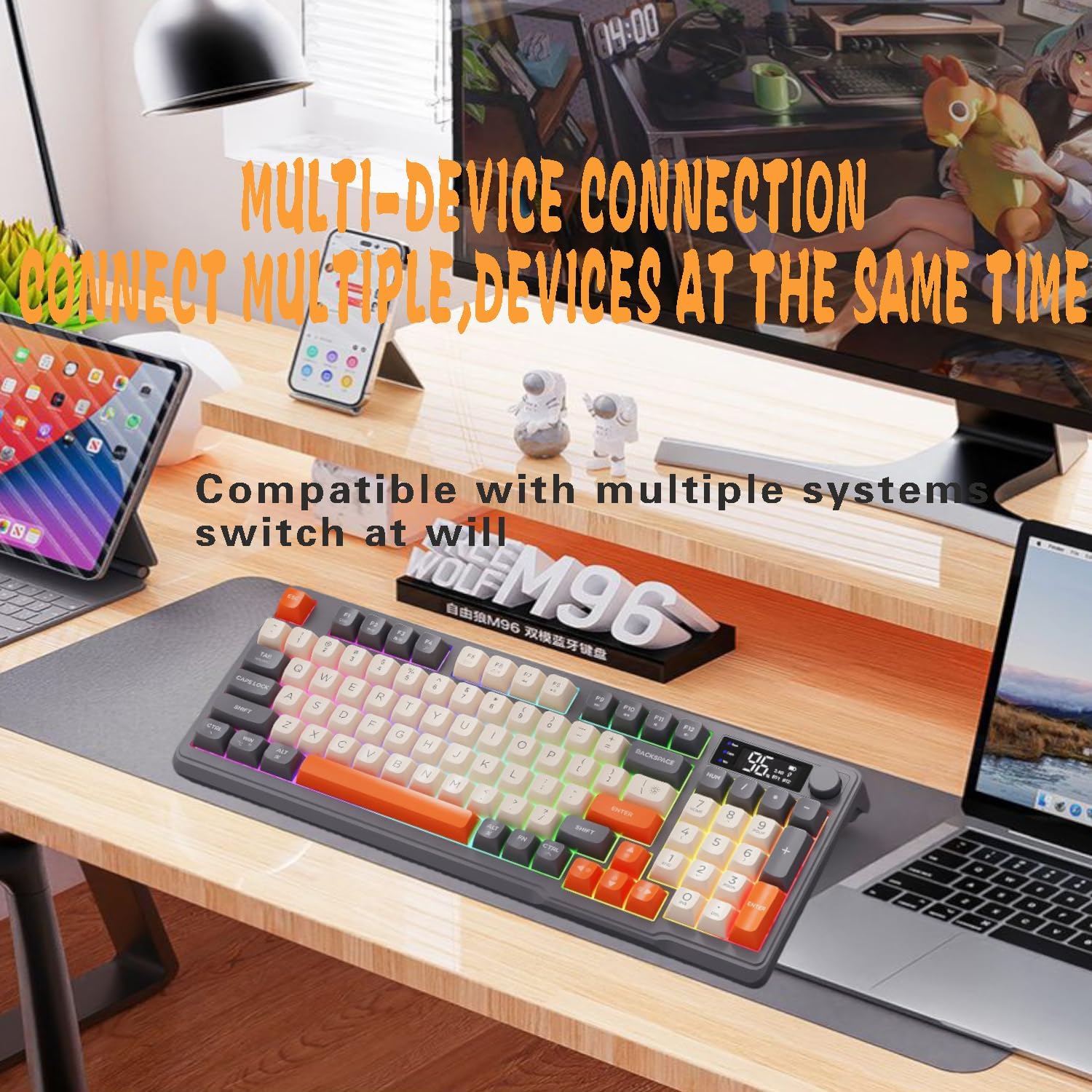
Figure 4: The keyboard supports multi-device connection, allowing seamless switching between different systems like laptops and tablets.

Figure 5: The top edge of the keyboard features clearly labeled switches and indicators for wireless, Bluetooth (BT1, BT2), and charging status, facilitating easy mode switching.
Operating Instructions
1. Digital Display
The integrated digital display provides real-time information:
- Battery Level: Shows the current battery percentage.
- Connection Status: Indicates whether the keyboard is connected via 2.4G, BT1, or BT2.
- Charging Status: Displays when the keyboard is charging.
- Volume Control: Shows the current volume level when adjusted.

Figure 6: The digital display provides clear indicators for battery level, connection status, and charging, alongside a rotary knob for intuitive volume control.
2. Backlight Control
The keyboard features vibrant RGB backlighting. Use the following FN key combinations to control the backlight:
- FN + \: Cycle through backlight modes/effects.
- FN + ↑ (Arrow Up): Increase backlight brightness.
- FN + ↓ (Arrow Down): Decrease backlight brightness.
- FN + ← (Arrow Left): Adjust backlight speed/direction.
- FN + → (Arrow Right): Adjust backlight speed/direction.
3. Multimedia and Function Keys (FN Combinations)
The keyboard provides extensive multimedia and system control through FN key combinations. Refer to the table below for common functions:
| Function | Windows Key Combination | Mac Key Combination |
|---|---|---|
| My Computer | FN + F1 | FN + F1 |
| Mailbox | FN + F2 | FN + F2 |
| Search | FN + F3 | FN + F3 |
| Calculator | FN + F4 | FN + F4 |
| Refresh | FN + F5 | FN + F5 |
| Previous Song | FN + F6 | FN + F6 |
| Pause/Play | FN + F7 | FN + F7 |
| Next Song | FN + F8 | FN + F8 |
| Mute | FN + F9 | FN + F9 |
| Volume - | FN + F10 | FN + F10 |
| Volume + | FN + F11 | FN + F11 |
| Lock Screen | FN + F12 | FN + F12 |
| Backlight Switching | FN + \ | FN + \ |
| Brightness Increase | FN + ↑ | FN + ↑ |
| Brightness Decrease | FN + ↓ | FN + ↓ |
| Windows/Mac Switching | FN + Tab | FN + Tab |
| Win Lock | FN + Win | FN + Win |

Figure 7: The keyboard is designed for multi-system compatibility, supporting both Windows and Mac operating systems.
4. Volume Knob
The rotary knob located on the top right of the keyboard provides convenient volume control:
- Rotate Clockwise: Increase volume.
- Rotate Counter-clockwise: Decrease volume.
- Press Down: Mute/Unmute audio.
Maintenance
Proper maintenance ensures the longevity and performance of your keyboard.
1. Cleaning
- Disconnect the keyboard from your device before cleaning.
- Use a soft, lint-free cloth slightly dampened with water or a mild cleaning solution to wipe the keycaps and frame.
- For dust and debris between keycaps, use compressed air.
- Avoid using harsh chemicals, abrasives, or solvents.
2. Keycap Care
The keyboard features durable PBT keycaps, which are resistant to shine and wear. While PBT keycaps are robust, avoid excessive force when cleaning or removing them (if applicable).

Figure 8: The keyboard's PBT keycaps are designed for durability and a pleasant typing experience.
Troubleshooting
If you encounter issues with your keyboard, please refer to the following common solutions:
- Keyboard Not Responding:
- Ensure the keyboard is turned on.
- Check battery level on the digital display and charge if low.
- Verify the correct connection mode (2.4G or Bluetooth) is selected.
- For 2.4G, ensure the USB receiver is securely plugged into your device.
- For Bluetooth, ensure Bluetooth is enabled on your device and the keyboard is paired. Try re-pairing if necessary.
- Try restarting your computer/device.
- Backlight Not Working or Dim:
- Check battery level; low battery can affect backlight performance.
- Use FN + ↑ to increase brightness.
- Use FN + \ to cycle through backlight modes.
- Connection Drops Frequently:
- Ensure the keyboard is within the effective range (up to 10 meters for wireless).
- Minimize interference from other wireless devices.
- Ensure the USB receiver (for 2.4G) is not obstructed.
- Keys Not Registering or Double-Typing:
- Clean around the affected keycaps to remove any debris.
- Ensure the keyboard firmware is up to date (check manufacturer's website if available).
Specifications
Key technical specifications for the M96-Shimmer keyboard:
| Feature | Detail |
|---|---|
| Keyboard Type | M96 Wireless Bluetooth Keyboard |
| Number of Keys | 96 keys |
| Battery Capacity | 2000 mAh |
| Working Current | ≤200mA |
| Interface | USB (for charging/wired mode) |
| Working Voltage | 5W±2.5W |
| Transmission Method | Bluetooth 5.0 + 2.4G wireless dual mode |
| Keyboard Weight | 680g ± 5% (approx. 1.5 lbs) |
| Keyboard Size | 385*145*40±0.5mm (approx. 15.16"L x 5.71"W x 1.57"H) |
| Compatible Devices | PC, Tablet, Desktop Computer |
| Country of Origin | China |
| Item Model Number | M96-Blueberry |

Figure 9: Detailed product parameters for the M96-Shimmer Dual Mode Wireless Mechanical Keyboard.
Warranty and Support
For warranty information and technical support, please refer to the documentation provided with your purchase or contact the seller directly. Keep your proof of purchase for warranty claims.