
1. Introduction
Thank you for choosing the Feiltik Dual Wireless Charging Station Y23. This device is designed to efficiently charge multiple Apple devices simultaneously, including two iPhones, an Apple Watch, and AirPods. It features a 12-hour format clock with adjustable brightness and a 7-color ambient light. Please read this manual thoroughly before use to ensure proper operation and to maximize the product's lifespan.
2. Package Contents
Verify that all items are present in the package:
- 1 x Feiltik Dual Wireless Charging Station (Model Y23)
- 1 x USB Type-C Cable
- 1 x Power Adapter
- 1 x User Manual (this document)

Image 2.1: Overview of the Feiltik Dual Wireless Charging Station with devices.
3. Product Features
- Dual Phone Charging: Supports simultaneous wireless charging for two compatible iPhones.
- Apple Watch Charging: Dedicated charging area for Apple Watch (compatible with iWatch 1-11 series).
- AirPods Charging: Wireless charging pad for AirPods (compatible with AirPods 2/3/4/Pro/Pro 2/Pro 3 with wireless charging cases).
- 12-Hour Format Clock: Integrated digital clock with adjustable brightness.
- 7-Color Ambient Lighting: Customizable ambient light with 7 color options and an auto-cycling mode.
- Foldable Design: Compact and portable for easy storage and travel.
- Magnetic Alignment: Strong magnetic connection for compatible iPhones.
- Hidden Support Panel: For charging non-magnetic phones.
4. Setup Instructions
4.1 Connecting to Power
- Connect the provided USB Type-C cable to the charging port on the back of the station.
- Connect the other end of the USB Type-C cable to the provided power adapter.
- Plug the power adapter into a standard wall outlet. The station will power on, and the clock display will activate.
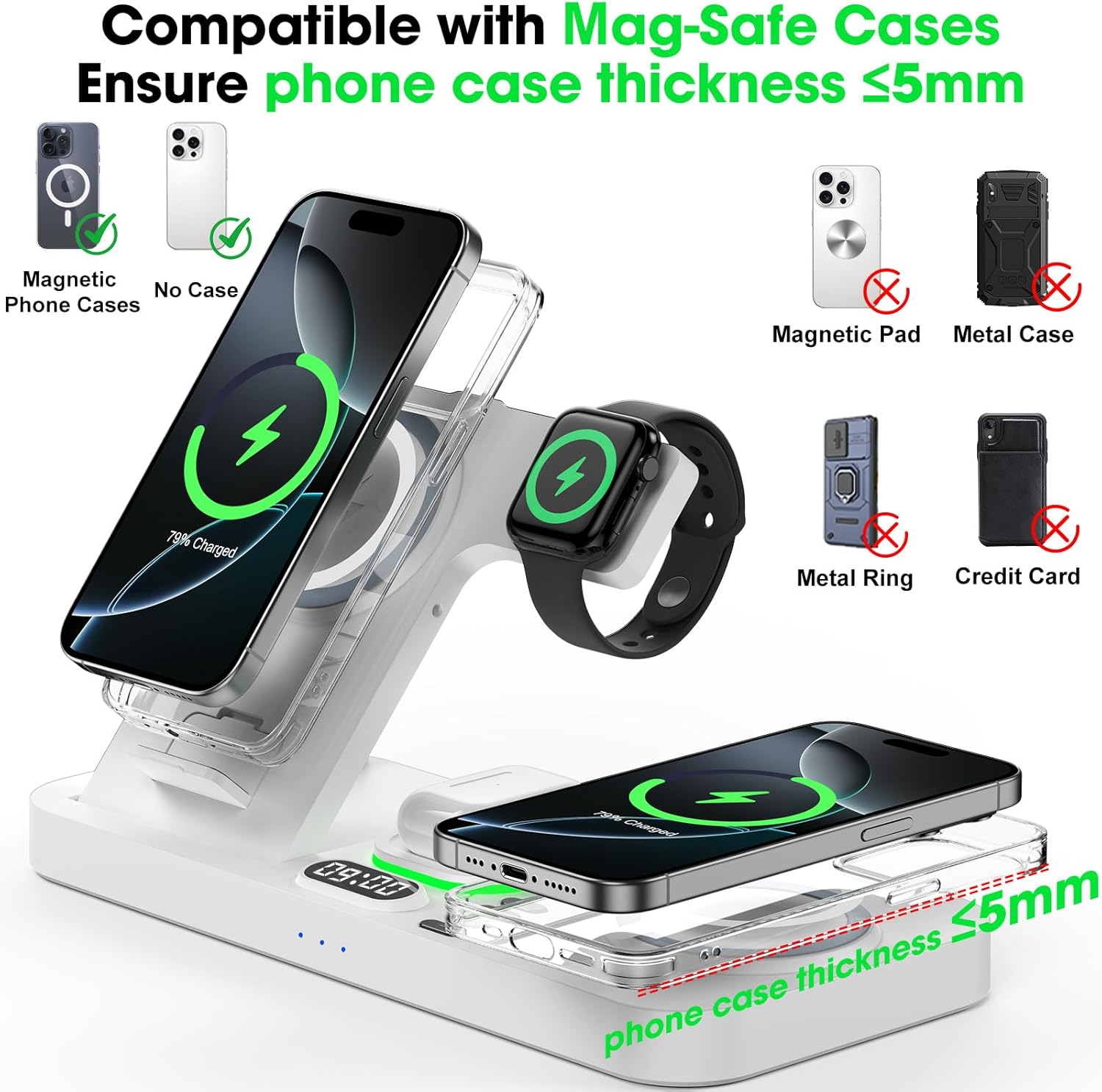
Image 4.1: Connecting the charging station to the power adapter and wall outlet.
4.2 Setting the Clock

Image 4.2: Detailed steps for setting the clock.
- Press and hold the 'M' button (Time & Clock Button) to turn on the clock display.
- Double-press the 'M' button to enter hour setting mode. Use the '+' or '-' buttons to adjust the hours.
- Press the 'M' button once to enter minute setting mode. Use the '+' or '-' buttons to adjust the minutes.
- Press the 'M' button once more to save the settings and confirm the time.
- To turn off the clock display, press and hold the 'M' button.
4.3 Adjusting Clock Brightness

Image 4.3: Visual guide for clock brightness adjustment.
The clock display has three brightness levels (100%, 60%, 30%) and an OFF option.
- Press the 'M' button (Time & Clock Button) to cycle through the brightness levels.
- The fourth press will turn off the clock display.
4.4 Adjusting Ambient Light

Image 4.4: Guide to ambient light controls and color options.
The charging station features 7 different ambient light colors and an auto-cycling mode.
- Press the light bulb button once to turn on the ambient light.
- Each subsequent press of the light bulb button cycles through the 7 available ambient light colors.
- On the 8th press, the light enters automatic color cycling mode.
- Press and hold the light bulb button to turn off the ambient light.
5. Operating Instructions
5.1 Charging Phones
The station supports wireless charging for two compatible iPhones. Ensure your phone supports wireless charging.
- Magnetic Charging (Left Pad): For iPhones with magnetic charging capabilities (iPhone 8-17 series) or Mag-Safe compatible cases. Place your iPhone vertically on the left charging stand. The magnetic connection will align it automatically.
- Flat Charging (Right Pad): For iPhones that support wireless charging but do not have magnetic capabilities, or for a second magnetic phone. Place your iPhone horizontally on the right charging pad.
- Hidden Support Panel: If your phone does not have a magnetic charging feature, open the small hidden support panel on the left side of the phone's charging area to prop up the phone for optimal charging.

Image 5.1: Dual phone charging setup, illustrating the hidden support panel for non-magnetic phones.

Image 5.2: Magnetic phone charging compatibility details.
Important Compatibility Notes for Phones:
- Not compatible with iPhone 12 Mini or iPhone 13 Mini.
- Supports charging for phones with magnetic phone cases and Mag-Safe Cases. Ensure phone case thickness is ≤5mm.
- Remove metal rings, magnetic pads, metal cases, and credit cards from phone cases before charging to prevent interference.

Image 5.3: Guide to Mag-Safe case compatibility and items to avoid.
5.2 Charging Apple Watch
Place your Apple Watch on the dedicated watch charging stand. Ensure the watch is properly aligned for charging to begin.

Image 5.4: Apple Watch charging compatibility details.
Important Compatibility Note for Apple Watch:
- Only compatible with Apple Watch (iWatch 1-11 series). Not compatible with Samsung or other watch brands.
5.3 Charging AirPods
Place your AirPods (with a wireless charging case) on the designated AirPods charging pad. The charging indicator will illuminate when charging.

Image 5.5: AirPods charging compatibility details.
Important Compatibility Notes for AirPods:
- Only works with AirPods that have a wireless charging case (AirPods 2/3/4/Pro/Pro 2/Pro 3).
- Not compatible with 1st-gen AirPods or non-wireless charging earphones.
- Specifically, not compatible with A3058, A2897, A1602 charging cases.
5.4 Foldable Design
The charging station can be folded for portability and storage. To fold, gently push down the phone charging stand and the watch stand until they lie flat against the base. To unfold, lift the stands until they click into place.

Image 5.6: Illustration of the foldable design.
6. Maintenance
6.1 Cleaning
To clean the charging station, disconnect it from the power source. Use a soft, dry, lint-free cloth to wipe the surfaces. Do not use abrasive cleaners, solvents, or aerosol sprays, as these may damage the finish or internal components.
6.2 Storage
When not in use for extended periods, store the charging station in a cool, dry place, away from direct sunlight and extreme temperatures. The foldable design allows for compact storage.
7. Troubleshooting
| Problem | Possible Cause | Solution |
|---|---|---|
| Device not charging |
|
|
| Slow charging |
|
|
| Clock not displaying/setting |
|
|
| Ambient light not working |
|
|
| Overheating during charging |
|
|
8. Specifications
| Feature | Detail |
|---|---|
| Model Number | Y23 |
| Product Dimensions | 6 x 1.5 x 5 inches |
| Item Weight | 8 ounces |
| Connector Type | USB Type C |
| Input Voltage | 9 Volts |
| Output Current | 4 Amps |
| Color (This Variant) | White |
| Manufacturer | Shenzhen Yixing Electronic Technology Co., Ltd. |
9. Warranty and Support
Specific warranty information for the Feiltik Dual Wireless Charging Station Y23 is not provided in this manual. For warranty details, please refer to the product packaging or contact the seller/manufacturer directly.
For technical support or further assistance, please contact the Feiltik customer service team through your purchase platform or the contact information provided with your product.


