
1. Compatibility
This Carplay screen is designed for Mercedes Benz C Class W204 S204 models from 2011-2015 with the NTG 4.5 system. It is not compatible with other NTG systems or vehicle models.
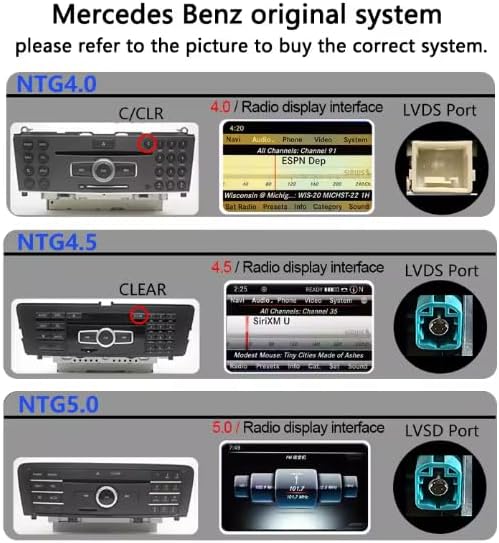
Image 1: Compatibility chart showing NTG 4.0, 4.5, and 5.0 radio display interfaces and LVDS ports. The NTG 4.5 system is highlighted as compatible.
2. Setup and Installation
2.1 Package Contents
Before beginning installation, please verify all components are present:
- 1 x Carplay Screen for W204
- 1 x Power Cable
- 1 x USB Cable
- 1 x AUX Cable
- 1 x Plastic base
- 1 x GPS Antenna
- Installation Tools
2.2 Basic Installation Steps
Note: Installation requires removing the car dashboard to connect wires. Professional installation is recommended if you are unfamiliar with automotive electronics. For detailed visual instructions, please refer to the installation videos.
- Carefully remove the original car radio and display unit.
- Unplug the original power cable from the head unit.
- Remove the original optical fiber cable from the original power connector.
- Connect the male connector of the original power cable to the female connector of the new power cable.
- Connect the male connector of the new power cable to the female connector of the original car host power supply.
- Insert the original optical fiber cable into the correct position on the new power connector.
- Connect the new Carplay screen to the vehicle's wiring harness.
- Secure the new Carplay screen in the dashboard.
2.3 Optical Fiber Cable Installation
This video demonstrates how to properly relocate optical cables to the new harness for Mercedes vehicles, ensuring proper audio functionality.
Video 1: Instructions on how to relocate optical cables to the Linux harness for Mercedes-Benz vehicles. This is crucial for maintaining audio quality and system integration.
3. Operating Instructions
3.1 Wireless Carplay Connection
To use Wireless Carplay, ensure your iPhone's Bluetooth is enabled and connected to the vehicle's OEM Bluetooth. Then, connect to the Carplay screen's Bluetooth.
- Go to the car information screen, then to Media, and switch the media device to Bluetooth audio.
- Find the phone status bar and connect your phone with OEM Bluetooth.
- Once the connection is successful, switch to Media Bluetooth Audio again to check if there is a connection to the phone.
- Manually search for a connection to your phone's Bluetooth if it's not connected.
- After ensuring that the Bluetooth audio connection is successful, select the Bluetooth audio device and return to the Linux interface.
- Turn on the "Use Car's BT Channel" switch and turn off the "AUX Auto Switch" switch in the setting interface.
- Enter the Linux Bluetooth interface and connect with your cell phone. After successful connection, it will automatically enter the Carplay interface and play music, providing original high-quality music sound.
Video 2: Detailed steps on how to get sound in Carplay using OEM Bluetooth and Bluetooth audio, ensuring clear audio for calls and music.
3.2 Wireless Android Auto Connection
To use Wireless Android Auto, ensure your Android phone's Bluetooth is enabled and connected to the vehicle's OEM Bluetooth. Then, connect to the Carplay screen's Bluetooth.
- Follow steps 1-5 from the Wireless Carplay connection to ensure OEM Bluetooth audio is connected.
- Turn on the "Use Car's BT Channel" switch and turn off the "AUX Auto Switch" switch in the setting interface.
- Enter the Linux Bluetooth interface and connect with your Android cell phone. After successful connection, it will automatically enter the Android Auto interface.
Video 3: Demonstrates the main functions, including connecting Carplay, Android Auto, and mirror link features.
3.3 GPS Navigation
The unit supports accurate GPS navigation. You can easily search for your destination by using online maps like Google Maps or Waze. Map downloads are available from the Google Play Store. During GPS navigation, you can simultaneously listen to music or watch videos.

Image 2: Display of the Carplay screen showing GPS navigation with various map applications.
3.4 DSP Sound System
The built-in Digital Signal Processor (DSP) allows for advanced audio customization. You can adjust the equalizer (EQ) and position settings to enhance sound quality, making the bass fuller, the mid-range richer, and the overall audio smoother.

Image 3: Screenshot of the DSP sound system interface, showing equalizer settings and sound positioning options.
4. Key Features
- 8.8" HD Carplay Screen: Features a 1920*720 HD resolution touchscreen for clear visuals.
- Android 14 System: Operates on the latest Android 14 system.
- Memory & Storage: Available with 4-8GB RAM and 32-128GB ROM configurations.
- Built-in DSP/3 UI Themes: Digital Signal Processor for enhanced audio and multiple user interface themes.
- Bluetooth 5.0: For stable and fast wireless connections.
- AUX Audio Output: Provides versatile audio connectivity.
- Built-in 2 USB Ports: For media playback and device charging.
- Original Functions Retention: Keeps original car radio, amplifier function, factory joystick control, and original camera functionality.
- Steering Wheel Control: Supports existing steering wheel controls for convenience.
- Original Speaker Support: Compatible with the vehicle's original speaker system.

Image 4: Various user interface displays, including phone, navigation, car info, Bluetooth phone, Bluetooth music, apps, dashboard, and video playback screens.

Image 5: Illustrates compatibility with CAN Original bus Protocol, showing retention of original system, CD player, steering wheel control, speakers, original camera, and iDrive control.
5. Specifications
| Feature | Detail |
|---|---|
| Display Size | 8.8 Inches |
| Resolution | 1920*720 HD |
| Operating System | Android 14 |
| RAM | 8GB (variant: 4GB, 8GB) |
| ROM | 64GB (variant: 32GB, 128GB) |
| Connectivity | Bluetooth 5.0, Wi-Fi |
| Audio Output Mode | Stereo, AUX |
| Special Feature | Built-in DSP, 3 UI Themes, GPS Navigation, Wireless Android Auto/Carplay |
| Mounting Type | Dashboard Mount |
| Manufacturer | weiyuankeji |
6. Troubleshooting
6.1 Audio Issues (No Sound or One-Sided Sound)
If you experience high current sound or one-sided car speaker sound, it may be related to the audio connection. Ensure the optical fiber cable is correctly installed and the AUX input is selected.
Video 6: Guide to resolve issues with high current sound or one-sided car speaker sound, often related to optical fiber cable installation.
6.2 Bluetooth Connection Issues
If your phone cannot find the Linux Bluetooth, try turning off and on your phone's Bluetooth switch to refresh the device list. Ensure the "Use Car's BT Channel" is ON and "AUX Auto Switch" is OFF in the system settings.
6.3 Installation Assistance
If you encounter any installation issues, please reach out to customer support for assistance.
7. Maintenance
To ensure optimal performance and longevity of your Carplay screen:
- Regularly clean the screen with a soft, lint-free cloth. Avoid abrasive cleaners.
- Keep the unit free from dust and moisture.
- Ensure proper ventilation around the unit to prevent overheating.
- Periodically check for firmware updates to enhance functionality and security.
8. Warranty and Support
For warranty information and technical support, please refer to the contact details provided with your purchase or visit the WEIAV official website. Extended protection plans may be available for purchase.