
1. Product Overview
This manual provides instructions for the WEIAV 8.8-inch Carplay Screen, an advanced car multimedia system designed to enhance your driving experience. It integrates seamlessly with compatible Mercedes Benz vehicles, offering modern connectivity and navigation features while retaining original car functionalities.
Key features include a high-definition touchscreen, wireless Apple CarPlay and Android Auto, GPS navigation, and enhanced audio processing.

Figure 1: WEIAV 8.8" Carplay Screen main interface.
2. Safety Information
Please read all safety instructions carefully before installation and operation. Improper installation or use may cause damage to the product, vehicle, or result in personal injury.
- Professional installation is highly recommended to ensure correct wiring and functionality.
- Do not attempt to operate the device in a way that distracts you from driving. Always prioritize road safety.
- Ensure all connections are secure to prevent short circuits or electrical hazards.
- Keep the device away from water, moisture, and extreme temperatures.
3. Compatibility
This Carplay screen is specifically designed for:
- Mercedes Benz C Class W204 S204 (2011-2015 Year)
- Vehicles equipped with the NTG 4.5 system.
It is not compatible with other NTG systems or vehicle models. Please verify your vehicle's NTG system version before installation.

Figure 2: Mercedes Benz NTG system identification guide.
4. Setup
4.1 Included Components
The package includes the following items:
- Carplay Screen
- Power Cable
- GPS Antenna
- AUX/USB Cable
- Installation Tools
- Plastic base
- Installation instruction (this manual)
4.2 Installation Overview
Installation requires removing the car dashboard to connect wires. It is strongly recommended to seek professional installation to avoid damage to the vehicle or the product.
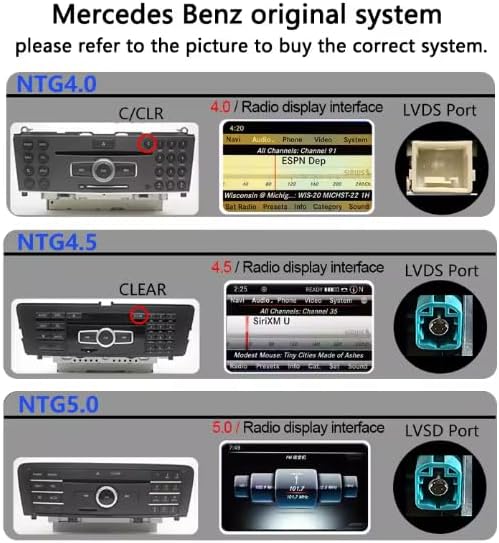
Figure 3: Rear view of the Carplay screen with connection ports.
4.3 Optical Fiber Cable Installation
If your vehicle uses optical fiber cables, they must be correctly adapted to the new harness. Refer to the following videos for guidance:
Video 1: Instructions on how to relocate optic cables to the Linux harness for Mercedes vehicles.
Video 2: Detailed guide on properly adapting fiber optic cables during installation.
4.4 General Installation Steps
For a general overview of the installation process, the following video may be helpful:
Video 3: Demonstration of a Mercedes Wireless Carplay installation.
4.5 Initial Audio Configuration
To ensure proper audio output, navigate to the system settings interface and perform the following actions:
- Turn on the "Use Car's BT Channel" switch.
- Turn off the "AUX Auto Switch" option.
This configuration helps in routing audio correctly through the vehicle's original Bluetooth system.
Video 4: Demonstrates how to connect to OEM Bluetooth for CarPlay audio.
Video 5: Shows how to use OEM Bluetooth and CarPlay features together for audio.
5. Operating Instructions
5.1 User Interface
The system runs on Android 14 and offers multiple customizable UI themes. Navigate using the 8.8-inch HD touchscreen.

Figure 4: Examples of the customizable user interface displays.
5.2 Apple CarPlay & Android Auto
The system supports both wireless Apple CarPlay and wireless Android Auto, allowing seamless integration with your smartphone for navigation, music, calls, and messaging.

Figure 5: Wireless Apple CarPlay and Android Auto functionality.
Video 6: A brief demonstration of the 8.8" Carplay Screen features.
Video 7: Overview of main functions, including CarPlay, Android Auto, and mirror link.
Video 8: Guide on how to connect Apple CarPlay and Android Auto.
Video 9: Demonstrates how to connect wireless Airplay (example shown on a BMW screen, but principles apply).
5.3 GPS Navigation
Utilize accurate GPS navigation with support for online maps like Google Maps and Waze. Maps can be downloaded from the Google Play Store. The system allows for simultaneous music playback during GPS navigation.

Figure 6: GPS navigation interface.
5.4 Audio Features
The built-in Digital Sound Processor (DSP) allows for precise equalization and position adjustment, enhancing audio quality. Bluetooth 5.0 ensures stable wireless audio streaming and hands-free calling. An AUX audio output and two built-in USB ports provide additional connectivity options.

Figure 7: DSP system equalizer and position adjustment.
5.5 Original Car Functions
The system is designed to retain all original car functions, including the factory radio, amplifier, joystick control, original camera, speakers, and iDrive control. This ensures that no existing vehicle features are lost after installation.
Video 10: Demonstrates dual system switching (example shown on a BMW screen).
6. Maintenance
To ensure the longevity and optimal performance of your Carplay screen, follow these maintenance guidelines:
- Regularly clean the screen with a soft, lint-free cloth. Avoid abrasive cleaners.
- Keep the unit free from dust and debris.
- Ensure proper ventilation around the unit to prevent overheating.
- Check for available software updates periodically to benefit from new features and improvements.
7. Troubleshooting
If you encounter any issues with your Carplay screen, please refer to the following common troubleshooting tips:
- No Power/Display: Check all power cable connections. Ensure the vehicle's ignition is on.
- No Sound: Verify that the