
1. Introduction
This manual provides detailed instructions for the safe and efficient operation of your VEVOR 14-inch Portable DVD Player, Model M4. Please read this manual thoroughly before using the device and retain it for future reference.
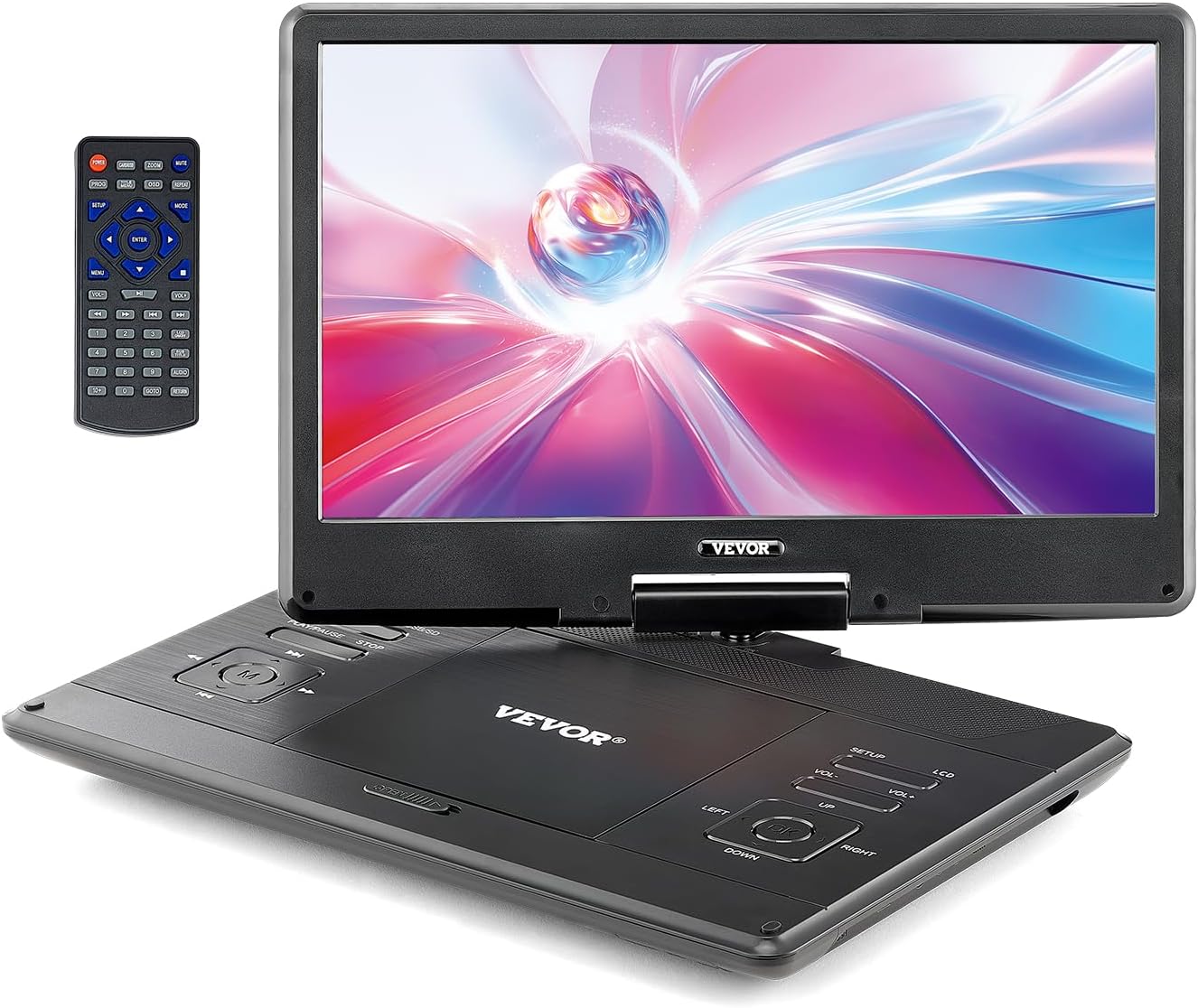
Figure 1.1: VEVOR 14-inch Portable DVD Player and Remote Control
2. Package Contents
Verify that all items listed below are included in your package. If any items are missing or damaged, please contact customer support.
- 1 x VEVOR 14-inch Portable DVD Player (Model M4)
- 1 x Remote Control
- 1 x Pair Remote Control Batteries (AAA x2)
- 1 x 1.8m Car Charger
- 1 x Power Adapter
- 1 x 1.5m AV Cable
3. Product Features
- 14-inch HD Swivel Display: Features a 1366 x 768 HD resolution screen that rotates 270° and folds 180° for flexible viewing angles.
- Extended Battery Life: Equipped with a built-in 5000mAh rechargeable battery providing approximately 4.5 to 5 hours of playback.
- Dual Speakers: Integrated dual speakers deliver stereo sound. Includes a 3.5mm headphone jack and external speaker support.
- Multiple Format Support: Compatible with all region discs including DVD, DVD±R, DVD±RW, VCD, CD, CD-R, CD-RW, CVD, SVCD. Supports USB and SD cards (up to 32GB) and formats like MPEG1, MPEG2, MPEG4, MP3, WMA, JPEG, JPG.
- Screen Sync Playback: AV output feature allows connection to a TV screen for a larger display.

Figure 3.1: 14-inch HD Rotatable Screen

Figure 3.2: Multiple Audio Output Options
4. Setup
4.1 Powering the Device
The VEVOR Portable DVD Player can be powered using three methods:
- AC Power Adapter: Connect the included AC power adapter to the DC IN port on the player and plug it into a standard wall outlet.
- Car Charger: Use the provided car charger to power the player from your vehicle's 12V power socket.
- Built-in Battery: The player has a built-in 5000mAh rechargeable battery. Ensure it is charged before portable use.

Figure 4.1: Built-in 5000mAh Rechargeable Battery

Figure 4.2: Connecting to a TV for a larger viewing experience
4.2 Initial Battery Charge
Before first use, fully charge the built-in battery for optimal performance. Connect the AC power adapter to the player and a wall outlet. The charging indicator will illuminate.
5. Operating Instructions
5.1 Basic Disc Playback
- Open the disc cover.
- Place a compatible disc (DVD, CD, etc.) onto the spindle with the label side facing up.
- Close the disc cover securely.
- Power on the device. The disc will begin playing automatically or display a menu.
- Use the control buttons on the player or the remote control to navigate menus, play, pause, stop, or skip tracks/chapters.

Figure 5.1: Supported Disc Formats
5.2 USB/SD Card Playback
- Insert a USB flash drive or SD card (up to 32GB) into the corresponding port on the player.
- Use the 'MODE' button on the player or remote to select USB or SD mode.
- Navigate through your files using the directional buttons and 'OK' button.
- Supported formats include MPEG1, MPEG2, MPEG4 (video), MP3, WMA (audio), JPEG, JPG (photo).
5.3 Connecting to an External Display (TV Sync)
To view content on a larger screen:
- Connect one end of the included AV cable to the AV OUT port on the DVD player.
- Connect the other end of the AV cable to the corresponding AV IN ports on your television or projector.
- Select the correct AV input source on your television or projector.
- The player's screen content will now be displayed on the external screen.
5.4 Screen Rotation and Folding
The 14-inch screen can be rotated up to 270 degrees and folded back 180 degrees, allowing for various viewing positions, including a tablet-like configuration.
5.5 Last Memory Function
The player features a last memory function, allowing you to resume playback from where you left off after powering off the device.
6. Maintenance
6.1 Cleaning
- Use a soft, dry cloth to clean the exterior of the player.
- For the screen, use a soft, lint-free cloth specifically designed for electronics screens. Do not use abrasive cleaners or solvents.
- Keep the disc compartment free of dust and debris.
6.2 Storage
- Store the player in a cool, dry place away from direct sunlight and extreme temperatures.
- If storing for an extended period, fully charge the battery every 3-6 months to maintain battery health.
7. Troubleshooting
| Problem | Possible Cause | Solution |
|---|---|---|
| Player does not power on. | Battery is depleted; Power adapter/charger not connected or faulty. | Connect to AC power or car charger. Ensure connections are secure. Charge battery. |
| No disc playback. | Disc is dirty, scratched, or incompatible; Disc inserted incorrectly. | Clean the disc. Ensure disc is inserted label-side up. Try a different, compatible disc. |
| No sound. | Volume too low; Mute function active; External audio device not connected properly. | Increase volume. Deactivate mute. Check headphone/external speaker connections. |
| No picture on TV. | AV cable not connected correctly; Incorrect TV input selected. | Ensure AV cable is securely connected to AV OUT on player and AV IN on TV. Select correct input source on TV. |
| USB/SD card not recognized. | Card/drive formatted incorrectly; Incompatible file format; Card/drive capacity too large. | Ensure card/drive is FAT32 formatted. Check file formats. Max capacity 32GB. |
8. Specifications

Figure 8.1: Product Dimensions and Specifications Overview
| Feature | Detail |
|---|---|
| Model Number | M4 |
| Screen Size | 14 Inches / 358 mm |
| Resolution | 1366 x 768 HD |
| Display Type | LED |
| Battery | 5000mAh Lithium Ion (2 included) |
| Playback Time | 4.5 - 5 Hours |
| Media Type Support | DVD, DVD±R, DVD±RW, VCD, CD, CD-R, CD-RW, CVD, SVCD |
| USB/SD Card Support | Up to 32GB |
| Video Formats | MPEG1, MPEG2, MPEG4 |
| Audio Formats | MP3, WMA |
| Photo Formats | JPEG, JPG |
| Color | Black |
| Item Weight | 3.84 pounds / 1.74 kg |
| Closed Dimensions (L x W x H) | 13.5 x 9.2 x 1.85 inches / 343 x 233 x 47 mm |
| Open Dimensions (L x W x H) | 13.5 x 9.2 x 10.4 inches / 343 x 233 x 265 mm |
9. Warranty and Support
For warranty information and customer support, please refer to the documentation provided with your purchase or visit the official VEVOR website. If you encounter any issues not covered in this manual, please contact VEVOR customer service for assistance.
VEVOR Official Website: www.vevor.com