
1. Introduction
This manual provides detailed instructions for the installation, operation, and maintenance of your ATOTOMOVE A6PF Ultra 7-inch Android Double Din Car Stereo. Please read this manual thoroughly before using the product to ensure proper functionality and safety.

Image 1.1: ATOTOMOVE A6PF Ultra Car Stereo with accessories.
2. What's in the Box
Verify that all components are present in the packaging:
- A6PF Car Stereo
- Backup Camera (AC-HD01LR)
- OBD2 Scanner (AC-4450)
- Power Cable
- Rear Camera Input Cable
- RCA Connector
- USB External Storage Cable
- USB Phone Link Cable
- GPS Antenna
- External Microphone
- Double-DIN Brackets
- Mounting Screws
- Rear Audio Out Cable
- Installation Frame
- Online Resources Quick Guide & Product Care

Image 2.1: Packaging contents overview.
3. Product Features
3.1. Performance and Internet Connectivity
The A6PF Ultra operates on an Android system, powered by an 8-core ARM Cortex A55 processor with 2GB RAM and 32GB internal storage, ensuring smooth performance for daily tasks. Internet access is available through Wi-Fi hotspot, USB tethering, or Bluetooth tethering, providing flexible connectivity options.

Image 3.1.1: Android system interface with core processor details.

Image 3.1.2: Available internet connection methods.
3.2. DriveChat AI Assistant
DriveChat functions as an in-car AI companion, allowing hands-free control of calls, applications, and music. It supports multiple AI chatbots and customizable wake-up words, providing interactive conversation and assistance while driving.

Image 3.2.1: DriveChat AI voice control and conversation features.
3.3. OBDII Scanner Integration (AC-4450)
The included AC-4450 Bluetooth OBDII scanner connects to the stereo via Bluetooth 2 (BT2). It is compatible with applications like Torque, enabling users to clear fault codes, check engine status, monitor ABS, tire pressure, and other vehicle parameters for enhanced safety and system awareness.

Image 3.3.1: OBDII scanner functionality and display.
3.4. Backup Camera and Live Rear View (AC-HD01LR)
The AC-HD01LR backup camera provides a 720P wide-angle view for safe parking and reversing. The Live Rear-View (LRV) feature allows continuous monitoring of rear traffic via the stereo display, even when not in reverse.

Image 3.4.1: Rear view camera features and display modes.
3.5. Immersive Audio with DSP and 36-Band EQ
The stereo features a Digital Signal Processor (DSP) and a 36-band equalizer for customizable and natural audio. Time alignment ensures synchronized sound delivery from speakers, while Speed Compensated Volume Control (SCVC) automatically adjusts volume based on vehicle speed and ambient noise. A built-in amplifier (4×45W Max, 4×24W RMS) and adjustable crossover provide powerful and balanced sound output.

Image 3.5.1: Audio customization features including EQ, DSP, Time Correction, and SCVC.
3.6. GPS Tracking (TrackHU)
The TrackHU application offers real-time vehicle tracking with a 5-second refresh rate, satellite positioning, playback history, and geofence alerts. This feature assists in locating your vehicle and preventing theft. Additionally, BT1 automatically locks the screen when your phone is out of range to protect data privacy.

Image 3.6.1: TrackHU GPS tracking interface.
3.7. Wireless CarPlay, Android Auto, and MirrorLink
The system supports both wireless and wired CarPlay and Android Auto. After an initial Bluetooth and Wi-Fi connection, subsequent connections are automatic. MirrorLink extends app options by mirroring your phone's display. A USB-to-HDMI adapter (not included) allows for different content display on front and rear screens.
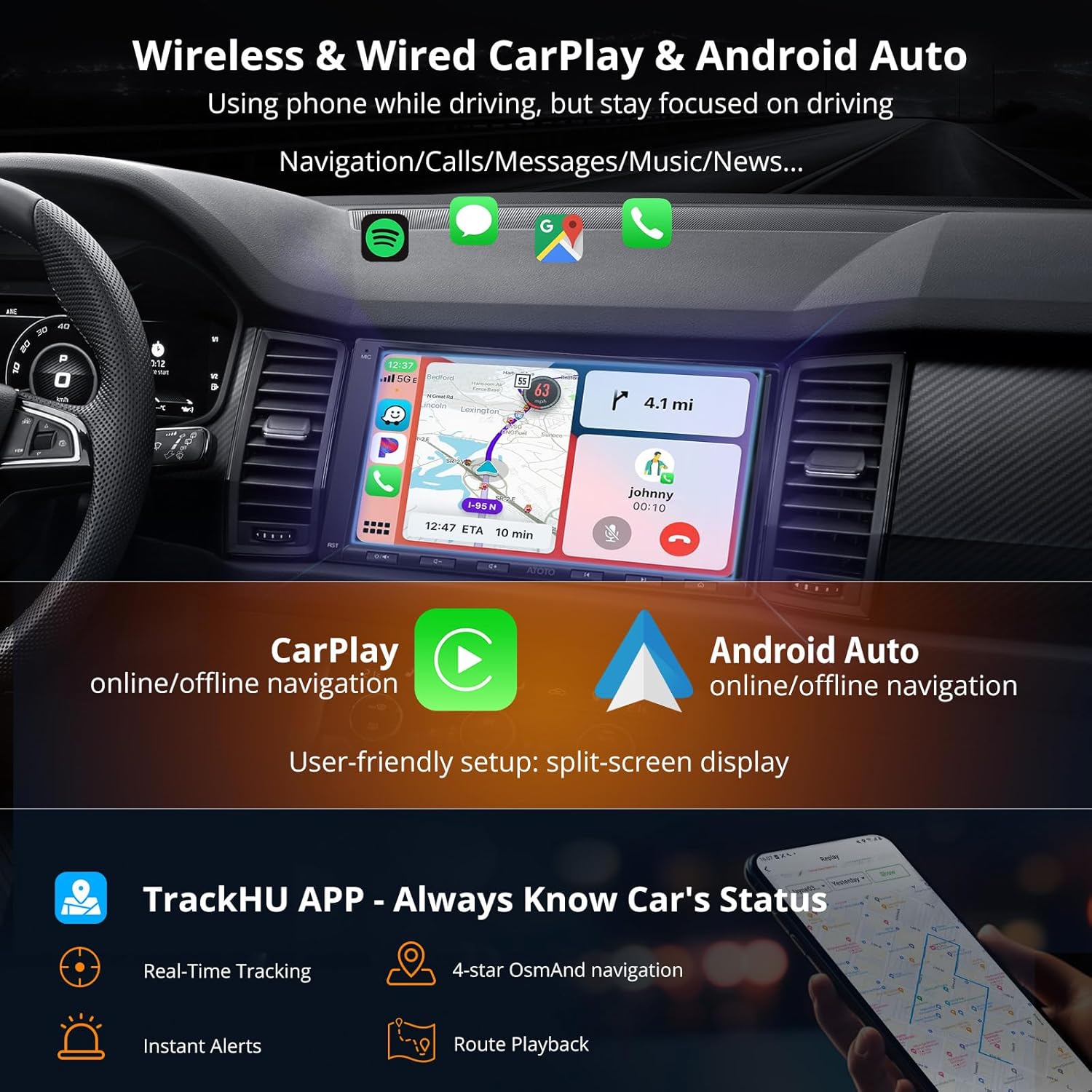
Image 3.7.1: Wireless CarPlay and Android Auto functionality.

Image 3.7.2: Wired and Wireless CarPlay/Android Auto compatibility.

Image 3.7.3: Compatibility requirements for CarPlay and Android Auto.
3.8. Display and Physical Buttons
The unit features a 7-inch IPS QLED screen with a resolution of 1024x600 and a 178° viewing angle. It includes 6 responsive physical buttons for essential controls. The double din unit has a 172x97mm front panel.

Image 3.8.1: Display specifications and physical buttons.
3.9. Dual Zone Video Out
The stereo supports dual zone video output, allowing different content to be displayed on the main unit and external rear monitors (requires USB-to-HDMI adapter AC-AHV68 or USB-to-RCA adapter AC-AHV48, not included).

Image 3.9.1: Dual Zone Video Out in use.
4. Setup and Installation
4.1. Wiring Diagram
Refer to the following diagram for proper wiring connections. Ensure all connections are secure before powering on the unit.

Image 4.1.1: Main wiring harness connections.
4.2. OBDII Scanner Setup (AC-4450)
- Connect OBDII: Plug the AC-4450 OBDII connector into your vehicle's OBD interface.
- Enable Bluetooth: Turn on Bluetooth on your infotainment system and search for the OBDII device to pair.
- Open Torque App: Launch the Torque app on the stereo to begin monitoring your vehicle's data.

Image 4.2.1: Steps for OBDII scanner connection.
4.3. Steering Wheel Control (SWC)
The unit is compatible with OEM steering wheel controls. There are typically three options for SWC retention:
- Option 1: Connect to SWC wires on your vehicle (analog signals).
- Option 2: Use a dedicated 3.5mm port for SWC interfaces like Metra, PAC, or Scosche.
- Option 3: Utilize the AC-44F8 Wireless Remote (not included).

Image 4.3.1: Steering Wheel Control connection options.
5. Operating Instructions
5.1. Basic Operation
The unit operates like a standard Android tablet. Navigate through apps using touch gestures on the 7-inch IPS QLED screen. The physical buttons provide quick access to essential functions such as volume, home, and back.
5.2. CarPlay and Android Auto
To use Wireless CarPlay or Android Auto, ensure your phone's Bluetooth and Wi-Fi are enabled. Pair your phone with the stereo via Bluetooth. The system will then prompt you to connect via Wi-Fi for the wireless projection. For wired connections, use a compatible USB cable.
5.3. AI Voice Control (DriveChat)
Activate DriveChat using your chosen wake-up word. You can then issue commands for navigation, music playback, calls, and general inquiries. For example, say "Mojo, adjust the screen brightness to 50%" or "Piko, can you give me some advice for my confusion?"
5.4. Internet Options
Connect to the internet via:
- Wi-Fi Hotspot: Connect to your smartphone's Wi-Fi hotspot or a dedicated in-car Wi-Fi device.
- Bluetooth Tethering: Share your phone's internet connection via Bluetooth.
- USB Tethering: Connect your phone via USB and enable USB tethering in your phone's settings.
5.5. Split-screen Display
The unit supports split-screen functionality, allowing two applications to run simultaneously. This is useful for navigation while controlling music or other apps.

Image 5.5.1: Split-screen display in action.
6. Maintenance
6.1. System Updates
Regular software updates are provided to enhance performance and add new features. It is recommended to keep your A6PF Ultra updated. Updates are typically available Over-The-Air (OTA) via the FindApps application.

Image 6.1.1: System update interface.
7. Troubleshooting
7.1. Slow Boot Time
The A6PF Ultra is designed for an ultra-fast boot time of approximately 2 seconds. If your unit fails to boot within this timeframe, it may indicate a wiring issue. Please review your installation or contact customer support for assistance.

Image 7.1.1: Ultra-fast boot time feature and troubleshooting tip.
8. Specifications
| Feature | Specification |
|---|---|
| Model | A6PF Ultra 7" /2G+32G |
| Operating System | Android |
| Processor | 8-core ARM Cortex A55 |
| Memory (RAM) | 2GB |
| Storage (ROM) | 32GB |
| Screen Size | 7 inches |
| Display Type | IPS QLED |
| Resolution | 1024x600 |
| Connectivity | Bluetooth, Wi-Fi, USB, FM/AM |
| Controller Type | Android, iOS |
| Special Features | Wireless CarPlay, Wireless Android Auto, DriveChat (AI), OBD2 Scanner support, Live Rear-View (LRV), DSP, 36-Band EQ, GPS Tracker (TrackHU), MirrorLink, Dual Zone Video Out |
| Audio Output Mode | Mono, Stereo |
| Amplifier Output | 4×45W Max, 4×24W RMS |
| Package Dimensions | 8.94 x 5.87 x 5.71 inches |
| Item Weight | 3.37 pounds |

Image 8.1.1: Physical dimensions of the head unit.
9. Warranty and Support
ATOTOMOVE provides product care and support for your device. For online resources, quick guides, and product care information, please visit the official support channels.
- Product Care: 12 + 6 Months (additional 6 months upon registration).
- Online Support: Access support via your order center or eproductcare.com.
- Software Updates: Regular OTA updates are available via FindApps.

Image 9.1.1: Compatible accessories for expanding functionality.

Image 9.1.2: Customer support and product care details.