
1. Introduction
The GANODS GH12 AI Language Translator Device is designed to facilitate communication across language barriers. This portable device supports a wide range of languages for both online and offline translation, offering various modes including voice, photo, and group translation. This manual provides essential information for setting up, operating, and maintaining your device.
2. What's in the Box
Please verify that all items are present in the package:
- 1* Language Translator Device
- 1* Charging Data Cable (1m)
- 1* Charging Head
- 1* Protective Case
- 1* Instruction Manual (this document)

Image: Contents of the GANODS GH12 package. This image displays the language translator device, a 1-meter charging data cable, a charging head, a protective case, and the instruction manual, all neatly arranged.
3. Device Overview
The GANODS GH12 features an upgraded chip for stable and fast performance, a 4.1-inch IPS touch screen for clear visualization, and 16GB of storage for downloading more files and offline language packages. It weighs only 97g, making it highly portable.

Image: Front and back view of the GANODS GH12 AI Language Translator Device. The front shows the 4.1-inch screen with a clock and various translation mode icons. The back displays the camera and product information including 'GANODS MODEL: GANODS-GH-12B'.
4. Setup
4.1 Charging the Device
Before first use, fully charge the device. Connect the provided charging cable to the device and the charging head to a power outlet. The device features a 1500mAh battery, which fully charges in 1-2 hours and provides up to 6 hours of continuous use or 7 days of standby time.
4.2 Powering On/Off
- To Power On: Press and hold the power button (usually on the side) until the screen illuminates.
- To Power Off: Press and hold the power button, then select 'Power Off' on the screen.
4.3 Network Connection (Wi-Fi / Mobile Hotspot)
For online translation features, connect your device to a Wi-Fi network or mobile hotspot.
- Go to Settings on the device.
- Select WLAN (Wi-Fi) and toggle it on.
- Choose your desired network from the list and enter the password if required.
- For Mobile Hotspot: Ensure your mobile hotspot is set to a 2.4GHz band. For Apple phones, enable maximum compatibility in your phone's settings.

Image: Network Connection Guide. This diagram illustrates the process of connecting the GANODS GH12 translator to a Wi-Fi network or mobile hotspot, showing the settings menu and network selection.
4.4 Downloading Offline Language Packages
To use offline translation, you must first download the necessary language packages while connected to the internet.
- Ensure the device is connected to the internet.
- Navigate to the Offline Translation section.
- Select Offline package management.
- Choose the languages you wish to download for offline use.

Image: Offline Translation Usage. This image demonstrates the steps to download offline language packages, starting from an internet connection, accessing offline package management, and then using offline translation.
5. Operating Instructions
5.1 Translation Modes
The GANODS GH12 supports 8 distinct translation modes:
- Online Voice Translation: Supports 139 languages and dialects for real-time spoken translation.
- Offline Voice Translation: Supports 17 languages without an internet connection.
- Photo Translation: Uses OCR technology to translate text from images (75 online languages, 41 offline languages).
- Recording Translation: Translates recorded audio.
- Text Translation: Translates typed text.
- Group Translation: Facilitates multi-person interactive communication.
- Phone Translation: Connects to mobile phones via QR code for multi-person translation.
- AI Translation (AI Xiaobei): Utilizes AI for advanced translation functions.
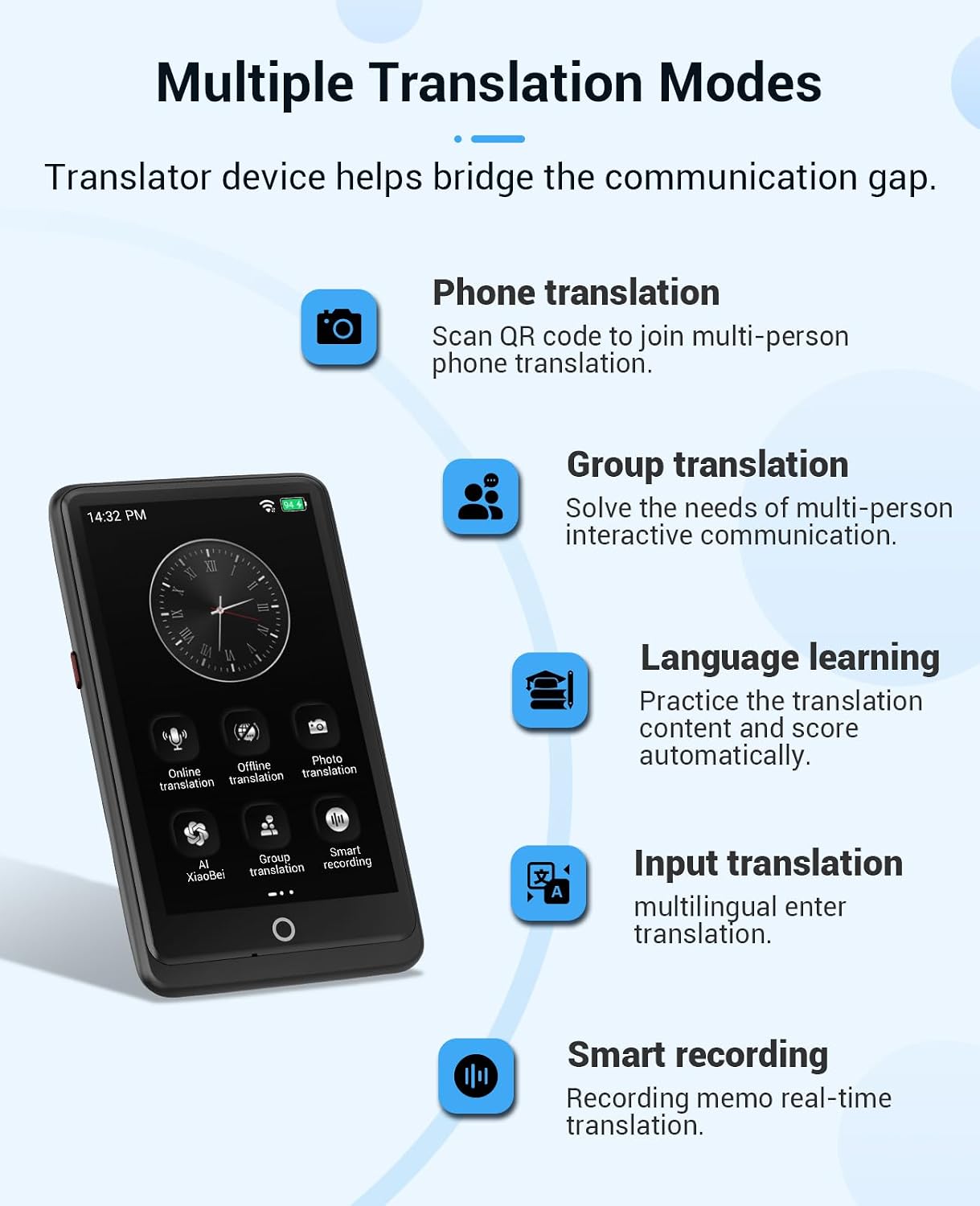
Image: Multiple Translation Modes. The device screen displays icons for Online Translation, Offline Translation, Photo Translation, AI Xiaobei, Group Translation, and Smart Recording, illustrating the diverse functionalities.
5.2 Using Voice Translation (Online/Offline)
- Select Online Translation or Offline Translation from the main menu.
- Choose the source and target languages.
- Press and hold the designated button (usually a microphone icon) and speak clearly into the device.
- Release the button to hear and see the translated text.

Image: Online Translation Example. The device screen shows an online translation interface, translating 'What's the weather like today?' from English (UK) to Spanish, displaying '¿Qué tiempo hace hoy?'.
5.3 Using Photo Translation
This feature is useful for translating text from signs, menus, or documents.
- Select Photo Translation from the main menu.
- Point the device's camera at the text you wish to translate.
- Tap the screen to capture the image. The device will recognize and translate the text.

Image: Photo Translation in Use. A person is shown using the GANODS GH12 to translate an airport sign, demonstrating the device's OCR picture recognition technology for converting and translating text.
5.4 Using Phone Translation and Group Translation
These modes allow for multi-person communication by connecting the translator to other devices.
- Select Phone Translation or Group Translation.
- Follow the on-screen instructions, typically involving scanning a QR code with your mobile phone to join a multi-person translation session.
- Translation records and results can be synchronized across connected devices.

Image: Multi-person Phone Translation. This image illustrates how the GANODS GH12 can connect to a laptop and a smartphone via QR code for group translation, showing synchronized translation records.
5.5 Language Learning
The device includes a language learning function to help users practice and improve their pronunciation.
- Select Language Learning from the main menu.
- Choose the language you wish to practice.
- Speak the displayed phrases; the device will provide an oral score.

Image: Language Translation & Learning. A user is shown practicing language learning with the GANODS GH12, which displays a phrase in English and its Chinese translation, along with an oral score.
5.6 Other Functions
The GANODS GH12 also includes practical tools for travelers and business professionals:
- Exchange Rate Conversion: Convert currencies easily.
- Unit Conversion: Convert various units of measurement.
- World Clock: Keep track of time zones around the world.
6. Maintenance
To ensure the longevity and optimal performance of your GANODS GH12 translator, follow these maintenance guidelines:
- Cleaning: Use a soft, dry cloth to clean the device. Avoid using liquid cleaners or abrasive materials.
- Storage: Store the device in a cool, dry place away from direct sunlight and extreme temperatures.
- Protection: Use the provided protective case and lanyard to prevent accidental drops and scratches.
- Battery Care: Avoid fully discharging the battery frequently. Charge the device regularly, even if not in use for extended periods, to maintain battery health.
7. Troubleshooting
If you encounter issues with your GANODS GH12, refer to the following common solutions:
- Device Not Turning On: Ensure the device is charged. Connect it to the charger and try again.
- No Network Connection: Verify Wi-Fi settings and password. Ensure your mobile hotspot is configured correctly (2.4GHz band for Android, maximum compatibility for Apple).
- Inaccurate Translations: Ensure clear speech and proper pronunciation. Check that the correct source and target languages are selected. For online translation, a stable internet connection is crucial.
- Offline Translation Not Working: Confirm that the required language packages have been downloaded successfully.
- Screen Unresponsive: Restart the device. If the issue persists, contact customer support.
8. Specifications
| Feature | Detail |
|---|---|
| Product Dimensions | 5.2 x 2.3 x 0.4 inches |
| Item Weight | 12.6 ounces (approx. 357g) |
| Battery | 1 Lithium Ion battery (1500mAh, included) |
| Screen Size | 4.1 inches IPS Touch Screen |
| Storage | 16GB |
| Online Translation Languages | 139 languages and dialects |
| Offline Translation Languages | 17 languages |
| Online Photo Translation Languages | 75 languages |
| Offline Photo Translation Languages | 41 languages |
| Manufacturer | GANODS |
9. Warranty and Support
GANODS is committed to customer satisfaction. We offer comprehensive support for your GH12 device.
9.1 Return Policy
We provide a 12-month free return policy from the date of purchase. To initiate a return, please contact us with your order number.
9.2 Customer Support
Our U.S.-based customer service team is available to assist you with any questions regarding translation results or device usage.
- Telephone Support: Monday - Friday, 9 AM - 5 PM EST.
- Email Support: Available 24 hours every day, with responses typically within 24 hours.
For support, please visit the GANODS store page or refer to the contact information provided with your purchase.

Image: GANODS Professional Customer Help. This image shows a customer service representative with a headset, symbolizing the one-to-one professional online telephone customer care provided by GANODS.

Image: Telephone Support Available. This image highlights the availability of telephone support in the United States from 9 AM to 5 PM, Monday to Friday, and lists common pre-sales, in-sale, and aftermarket questions.

Image: Email Support Available. This image details the 24-hour email support available every day in the United States, along with examples of common inquiries for pre-sales, in-sale tracking, and aftermarket help.