
1. Introduction
This manual provides essential instructions for the setup, operation, maintenance, and troubleshooting of your Generic Five G 5G CPE 5 Router, model H155-381. This device is designed to provide high-speed internet access using 5G and 4G networks, featuring Wi-Fi 6 technology for robust wireless connectivity.
2. Product Overview
Familiarize yourself with the components and indicators of your 5G CPE 5 Router.
2.1 Front Panel
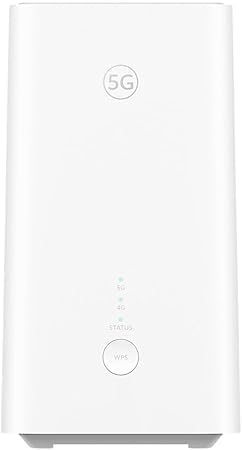
The front panel features the 5G logo and several LED indicators that display the device's status:
- 5G Indicator: Illuminates when connected to a 5G network.
- 4G Indicator: Illuminates when connected to a 4G network.
- Status Indicator: Indicates the device's operational status (e.g., power on, network activity).
- WPS Button: Used for Wi-Fi Protected Setup to quickly connect devices.
2.2 Rear Panel
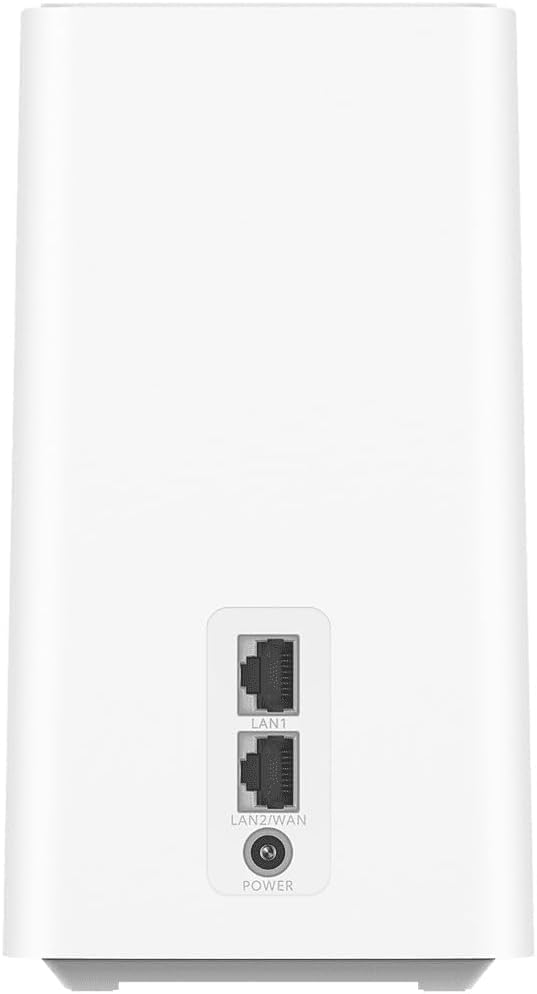
The rear panel provides connectivity ports:
- LAN1 Port: Ethernet port for connecting wired devices.
- LAN2/WAN Port: Can function as an additional LAN port or as a WAN port for connecting to an existing broadband network.
- Power Port: Connects to the included power adapter.
2.3 Bottom Panel

The bottom panel houses the SIM card slot and reset button:
- Nano SIM Card Slot: Insert your Nano SIM card here to enable 5G/4G cellular connectivity.
- Reset Button: Press and hold to restore the router to its factory default settings.
3. Setup Instructions
Follow these steps to set up your 5G CPE 5 Router:
- Insert Nano SIM Card: Locate the Nano SIM card slot on the bottom of the router. Gently insert your Nano SIM card into the slot until it clicks into place. Ensure the SIM card is correctly oriented.
- Connect Power: Connect the included power adapter to the Power port on the rear of the router, then plug the adapter into a power outlet. The router will power on automatically.
- Placement: Place the router in an open area, away from obstructions, and preferably near a window for optimal cellular signal reception.
- Initial Connection (Wi-Fi):
- On your computer or mobile device, search for available Wi-Fi networks.
- Select the Wi-Fi network name (SSID) printed on the label at the bottom of the router.
- Enter the Wi-Fi password (Key) also found on the router's label.
- Initial Connection (Ethernet): Connect an Ethernet cable from the LAN1 or LAN2/WAN port on the router to the Ethernet port on your computer.
- Access Web Interface: Open a web browser and enter the default IP address (e.g., 192.168.8.1 or 192.168.1.1) to access the router's web management interface. Log in using the default username and password (usually 'admin' for both, or as specified on the router label).
4. Operating Instructions
4.1 Connecting Devices
- Wi-Fi Devices: Use the SSID and password provided on the router's label to connect smartphones, tablets, laptops, and other Wi-Fi enabled devices. The router supports Wi-Fi 6 (802.11ax) and dual-band frequencies (2.4GHz and 5GHz) for optimal performance.
- Wired Devices: Connect devices such as desktop computers, gaming consoles, or smart TVs to the LAN1 or LAN2/WAN ports using Ethernet cables.
4.2 Understanding LED Indicators
Monitor the LED indicators on the front panel to understand the router's status:
- 5G LED: Solid blue indicates a stable 5G connection. Blinking blue indicates 5G network activity.
- 4G LED: Solid green indicates a stable 4G connection. Blinking green indicates 4G network activity.
- Status LED: Solid white indicates the router is powered on and operating normally. Blinking white may indicate a system error or firmware update.
4.3 Advanced Settings (Web Interface)
Access the router's web management interface to configure advanced settings:
- Change Wi-Fi SSID and password.
- Configure network settings (e.g., DHCP, DNS).
- Set up parental controls or guest networks.
- Monitor connected devices (up to 128 users supported).
- Update firmware.
5. Maintenance
Regular maintenance ensures optimal performance and longevity of your router:
- Keep Firmware Updated: Periodically check the router's web interface for available firmware updates. Updating firmware can improve performance, add new features, and fix security vulnerabilities.
- Cleaning: Use a soft, dry cloth to clean the router's exterior. Do not use liquid cleaners or aerosols. Ensure ventilation openings are free from dust and debris.
- Resetting the Device: If the router experiences persistent issues, you can perform a factory reset by pressing and holding the Reset button on the bottom panel for approximately 5-10 seconds until the indicators flash. This will erase all custom settings.
- Proper Ventilation: Ensure the router is placed in a location with adequate airflow to prevent overheating.
6. Troubleshooting
If you encounter issues with your router, refer to the following troubleshooting tips:
| Problem | Possible Cause | Solution |
|---|---|---|
| No Internet Connection | SIM card not inserted correctly, no cellular signal, data plan expired, network outage. | Ensure SIM card is properly inserted. Check 5G/4G LED indicators. Relocate router for better signal. Contact your service provider. |
| Slow Internet Speed | Weak cellular signal, too many connected devices, network congestion, router placement. | Optimize router placement. Disconnect unused devices. Check for firmware updates. |
| Cannot Connect to Wi-Fi | Incorrect Wi-Fi password, Wi-Fi disabled, device out of range. | Verify Wi-Fi password. Ensure Wi-Fi is enabled in router settings. Move closer to the router. |
| Router Not Powering On | Power adapter not connected, faulty power outlet. | Check power connections. Try a different power outlet. |
If problems persist, perform a factory reset or contact customer support.
7. Specifications
Key technical specifications for the Generic Five G 5G CPE 5 Router (H155-381):
- Model Number: H155-381
- Connectivity Technology: 5G, 4G, Wi-Fi 6 (802.11ax), Ethernet
- Wireless Communication Standard: 802.11ax
- Frequency Band Class: Dual-Band (2.4GHz, 5GHz)
- Maximum Download Speed: Up to 3600 Mbps
- Maximum Upload Speed: Up to 500 Mbps
- Ethernet Data Transfer Speed: Up to 2.5 Gbps (via cable)
- Antenna: 5G NR High Gain Antenna (Peak gain up to 11dBi)
- SIM Card Type: Nano SIM Card
- Supported Users: Up to 128 devices simultaneously
- Ports: LAN1, LAN2/WAN, Power
- Special Features: Access Point Mode
- Compatible Devices: Personal Computer, Smart Television, Smartphone
- Recommended Uses: Home, Small Office
- Product Dimensions: 20 x 18.5 x 10.5 cm
- Weight: 920 g
8. Safety Information
Please observe the following safety guidelines:
- Use only the power adapter supplied with the device.
- Do not expose the router to water, moisture, or extreme temperatures.
- Avoid placing the router near heat sources or in direct sunlight.
- Do not open the router casing or attempt to repair it yourself. Refer all servicing to qualified personnel.
- Ensure proper ventilation to prevent overheating.
9. Warranty and Support
For warranty information and technical support, please refer to the documentation provided at the time of purchase or contact your retailer. Keep your proof of purchase for warranty claims.


