1. Introduction
This manual provides comprehensive instructions for the setup, operation, and maintenance of your AIMIUVEI T45 Kids Smartwatch. Please read this manual carefully before using the device to ensure proper functionality and safety.
2. Package Contents
Upon opening the package, verify that all the following items are included:
- 1 x AIMIUVEI T45 Smartwatch
- 1 x Replacement Strap
- 1 x Magnetic Charging Cable
- 1 x Packaging Box
- 2 x Tempered Glass Screen Protectors
- 1 x User Manual
- 1 x SIM Card Needle
- 1 x Plastic Rod
- 2 x Replacement Strap Pins
3. Setup Guide
3.1. Charging the Smartwatch
Before initial use, fully charge the smartwatch. Connect the magnetic charging cable to the charging port on the back of the watch and to a standard USB power adapter (not included). A full charge typically takes approximately 5 hours.

Image: The smartwatch connected to its magnetic charging cable, illustrating the 820mAh battery capacity and the charging process.
3.2. SIM Card Installation
The AIMIUVEI T45 smartwatch requires a Nano SIM card for 4G communication features. Ensure the watch is powered off before inserting or removing the SIM card.
- Locate the SIM card slot on the side of the smartwatch.
- Use the provided SIM card needle to gently open the SIM card tray.
- Place the Nano SIM card into the tray with the gold contacts facing down, ensuring correct orientation.
- Carefully reinsert the SIM card tray into the slot until it clicks into place.
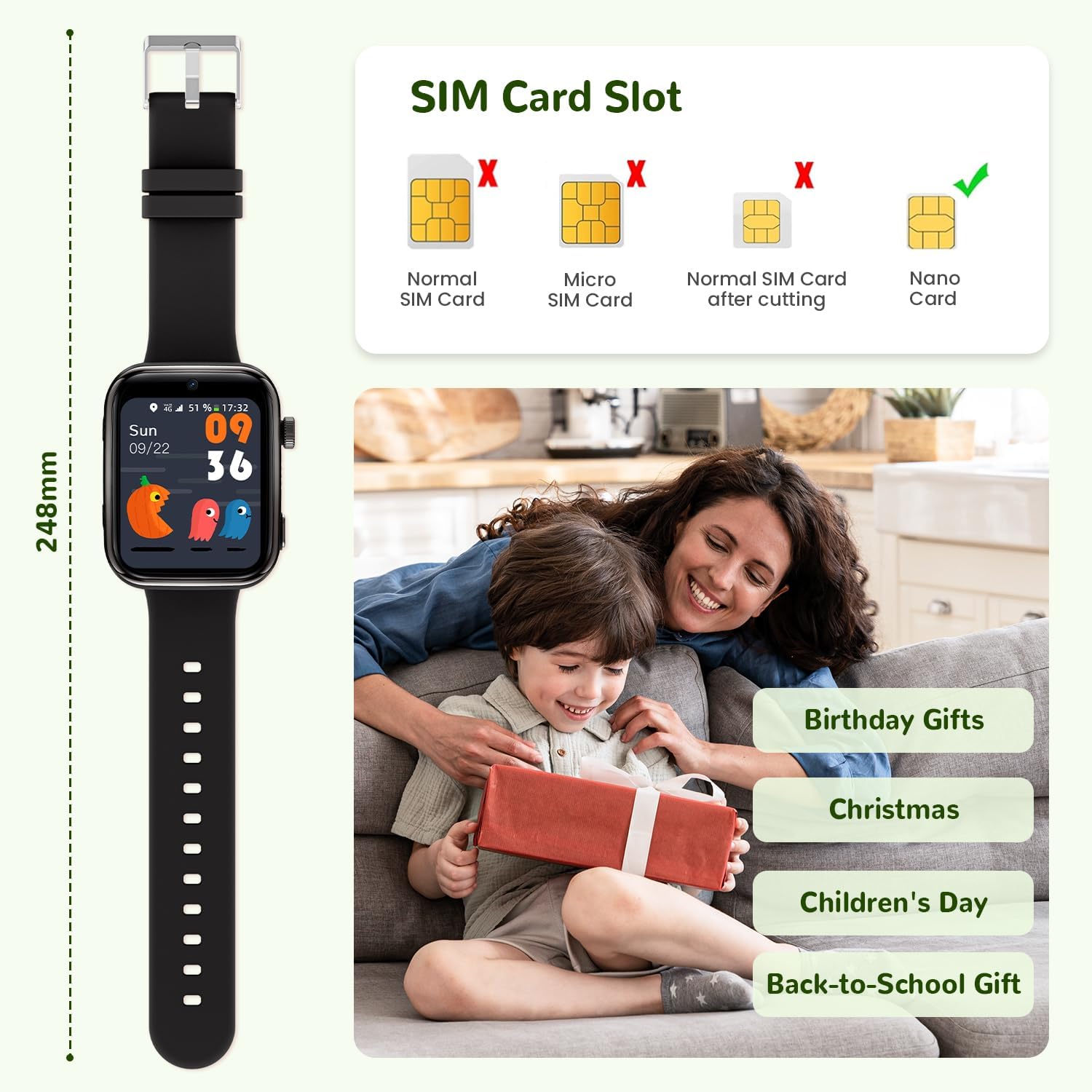
Image: A visual guide to SIM card installation, highlighting the use of a Nano SIM card and showing incorrect SIM card types.
3.3. App Installation and Pairing
To manage the smartwatch and access all features, parents need to install the dedicated parental control application on their smartphone. Refer to the included quick start guide or packaging for the specific app name and download instructions (usually via QR code or app store search).
- Download and install the companion app on your smartphone.
- Create an account and log in.
- Follow the in-app instructions to pair the smartwatch with your smartphone. This typically involves scanning a QR code displayed on the smartwatch screen.
- Once paired, you can configure contacts, safety zones, and other settings through the app.
4. Operating Instructions
4.1. Communication Features
The smartwatch supports various communication methods via its 4G network connection:
- Phone Calls: Make and receive calls from pre-approved contacts.
- Video Calls: Engage in real-time video calls with family members.
- Voice Chat: Send and receive voice messages.
- SMS: Send and receive text messages.

Image: The smartwatch's capabilities for phone calls, video calls, and voice chat, demonstrating how a child can stay connected.

Image: The smartwatch displaying an incoming call, highlighting its communication functionality.
4.2. SOS Emergency Function
In an emergency, the child can press and hold the dedicated SOS button for 3 seconds. This action will immediately trigger an alarm and contact pre-defined emergency contacts set up in the parental app.

Image: The smartwatch's SOS button, indicating a 3-second press for emergency activation. This image also shows the camera, pedometer, and waterproof features.
4.3. Location Tracking and Safety Zones
The smartwatch utilizes multiple positioning technologies (GPS, Wi-Fi, LBS, AGPS) for accurate location tracking. Parents can monitor the child's location in real-time via the companion app.
- Real-time Location: View the child's current position on a map.
- History Footprint: Review past locations and routes.
- Safe Zones (Electronic Fencing): Set up virtual boundaries (e.g., home, school) in the app. You will receive an immediate notification if the child enters or exits these designated safe zones.
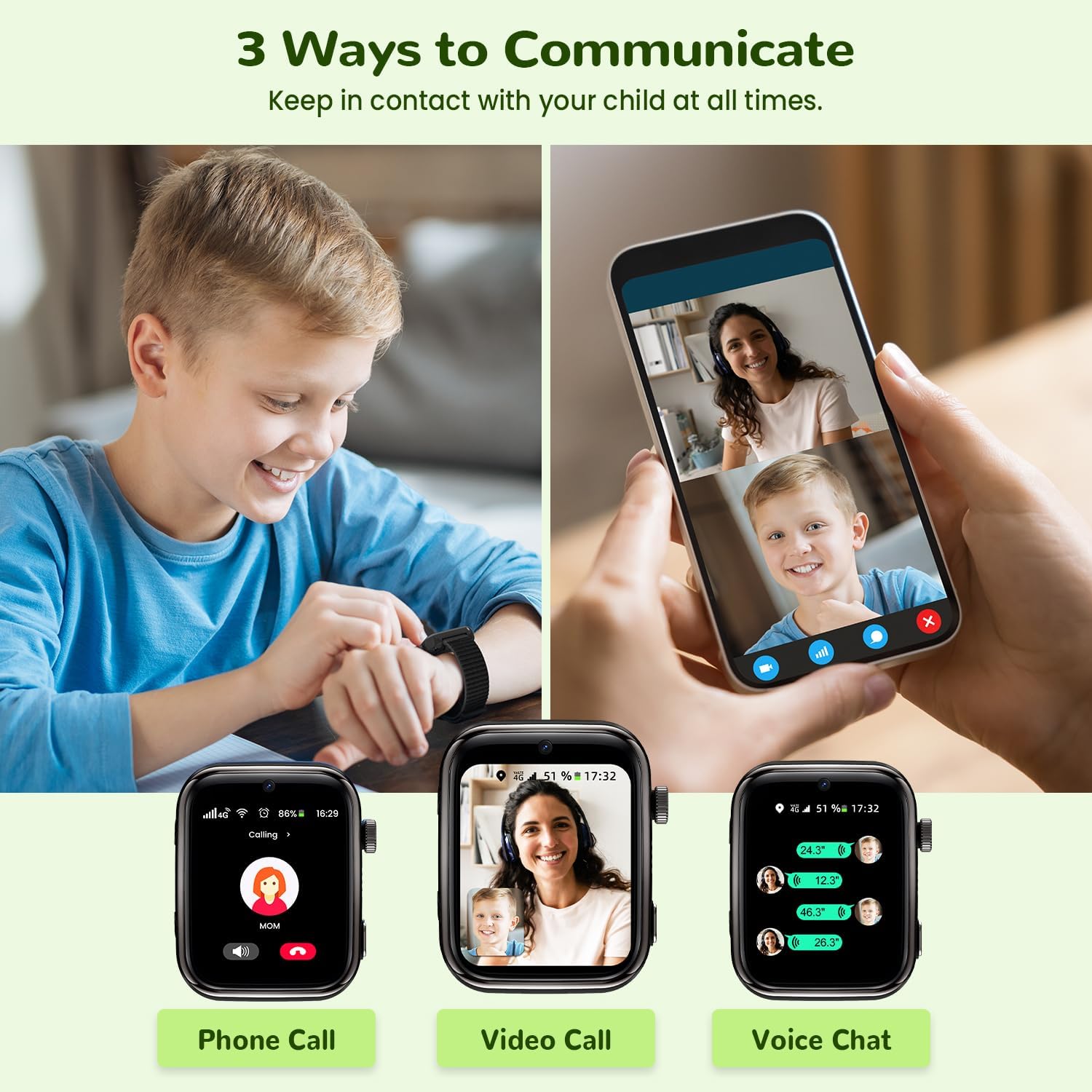
Image: The smartwatch's advanced positioning system, demonstrating features like safe zones, real-time tracking, and location history.
4.4. School Mode
To minimize distractions during school hours, activate School Mode through the parental app. This mode blocks incoming calls and messages, allowing the child to focus on learning. You can set specific schedules for School Mode activation.
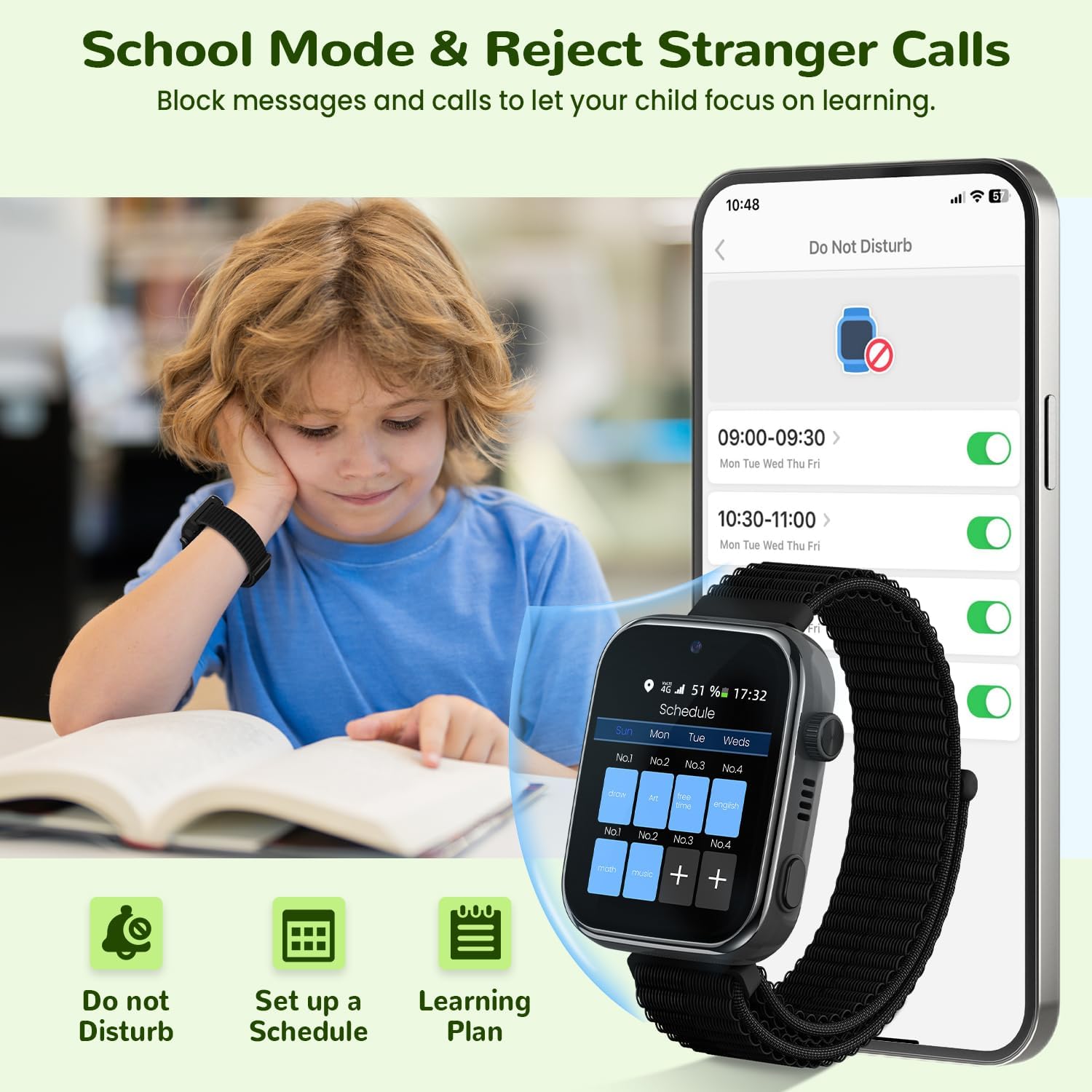
Image: The School Mode feature, showing how it can be scheduled to block distractions and promote focus during learning.
4.5. Other Functions
- 3MP HD Camera: The smartwatch includes a camera for taking photos.
- Pedometer: Tracks steps and activity levels.
- Smartwatch App Store: Access and download additional applications.
- English Learning Flashcards: An integrated feature to aid in language learning.

Image: The smartwatch's app store and English learning flashcard feature, showcasing its educational and entertainment capabilities.
5. Maintenance and Care
5.1. Waterproof Rating (IP68)
The smartwatch is IP68 waterproof, meaning it is resistant to dust and can withstand immersion in water up to 1.5 meters for up to 30 minutes. It is suitable for activities like washing hands or light rain. However, it is not recommended for swimming, diving, or prolonged exposure to water.
Image: The IP68 waterproof rating of the smartwatch, demonstrating its resistance to water during activities like hand washing.
5.2. Cleaning
Wipe the smartwatch regularly with a soft, dry cloth. For stubborn dirt, a slightly damp cloth can be used. Avoid using harsh chemicals or abrasive cleaners, as these can damage the device.
5.3. Battery Care
To prolong battery life, avoid fully discharging the battery frequently. Charge the device regularly and avoid exposing it to extreme temperatures (hot or cold).
6. Troubleshooting
| Problem | Possible Cause | Solution |
|---|---|---|
| Smartwatch does not power on. | Low or depleted battery. | Charge the smartwatch for at least 30 minutes before attempting to power it on. |
| SIM card not recognized. | Incorrect SIM card type or improper installation. | Ensure a Nano SIM card is used and correctly inserted as per Section 3.2. Restart the watch. |
| Inaccurate GPS location. | Weak GPS signal, environmental interference, or app settings. | Ensure the watch has a clear view of the sky. Check app settings for location accuracy preferences. Update the watch's software if available. |
| Short battery life. | Frequent use of power-intensive features (video calls, GPS), or background app activity. | Reduce usage of power-intensive features. Adjust screen brightness. Close unnecessary background applications. Ensure School Mode is active during designated times. |
| Cannot make/receive calls. | No network signal, SIM card issues, or contacts not approved. | Check network signal strength. Verify SIM card is active and has credit/data. Ensure contacts are added and approved in the parental app. Disable School Mode if active. |
7. Specifications
- Model: T45
- Brand: AIMIUVEI
- Screen Size: 1.83 inches
- Main Material: Silicone
- Battery: 820 mAh Lithium-ion (included)
- Waterproof Rating: IP68
- Connectivity: 4G, GPS, Wi-Fi, LBS, AGPS
- Camera: 3MP HD
8. Warranty and Support
For warranty information and customer support, please refer to the documentation provided with your purchase or contact AIMIUVEI customer service directly. Keep your proof of purchase for warranty claims.


