
1. Product Overview
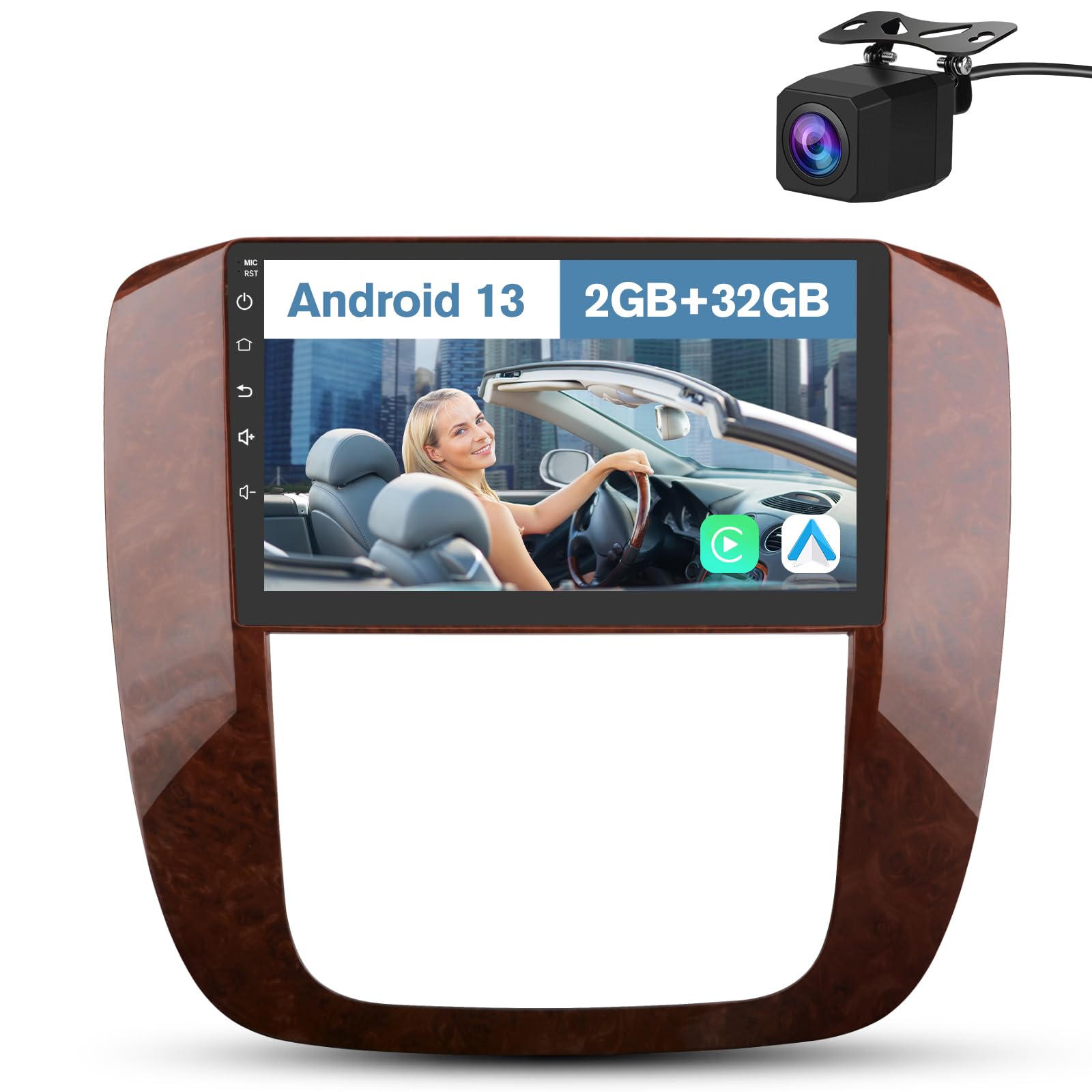
The Votheon Android 13 Car Radio is an advanced infotainment system designed to upgrade your vehicle's dashboard. It features a 9-inch IPS touchscreen, Android 13 operating system, and seamless integration with modern smartphone functionalities. This unit is specifically compatible with GMC Yukon, Chevrolet Tahoe, and Chevrolet Suburban models from 2007 to 2013.
- Android 13 System: Equipped with 2GB RAM and 32GB ROM for smooth operation and ample storage.
- 9-inch IPS Touchscreen: High-resolution display for intuitive control and clear visuals.
- Wireless CarPlay & Android Auto: Seamless smartphone integration for navigation, calls, and music.
- Steering Wheel Control: Direct control over audio functions for enhanced driving safety.
- Rear Camera Support: Provides a clear view for parking and reversing, minimizing blind spots.
- WiFi & Online Navigation: Connect to WiFi for online maps, app downloads, and browsing.
- Bluetooth Connectivity: Effortless pairing for hands-free calls and wireless audio streaming.
- FM/AM Radio: Powerful tuners with automatic scanning and station presets.
- DSP Sound Effects: Customizable audio settings with 10 scene modes for an optimized listening experience.
2. Package Contents
Verify that all items listed below are included in your package. If any items are missing or damaged, please contact customer support.
- Votheon Android 13 Car Radio Unit
- Power Cable
- USB Cable (multiple)
- GPS Module
- Antenna Cable
- RCA Cable
- Reversing Line
- Can Bus Decoder
- Rear Camera
- Microphone
- Installation Tools (Crowbar, Screwdriver)
- User Manual (this document)

3. Installation
Professional installation is recommended. Ensure the vehicle's power is disconnected before beginning installation. Refer to your vehicle's service manual for specific dashboard disassembly instructions.
3.1 Pre-Installation Check
- Confirm vehicle compatibility (GMC Yukon, Chevrolet Tahoe/Suburban 2007-2013).
- Gather necessary tools (provided crowbar and screwdriver, additional tools may be required).
- Disconnect the negative terminal of the car battery.
3.2 Removing the Factory Radio
- Carefully pry off the dashboard trim surrounding the factory radio using the provided crowbar.
- Unscrew the mounting bolts securing the factory radio.
- Gently pull out the factory radio and disconnect all wiring harnesses.
3.3 Connecting the New Unit
- Connect the provided power cable, USB cables, GPS module, and antenna cable to the Votheon car radio unit.
- Connect the RCA cable for audio/video inputs and outputs as needed.
- For the rear camera, connect the RCA port to the CAMERA plug on the device. Connect the red cable to the brake cable (brown cable) and the red/black cables to the positive/negative electrodes of the reversing light.
- Connect the Can Bus decoder to the vehicle's wiring harness.


3.4 Reassembly
- Carefully slide the new Votheon unit into the dashboard opening.
- Secure the unit with the mounting bolts.
- Reattach the dashboard trim.
- Reconnect the car battery's negative terminal.
4. Initial Setup
4.1 Power On and Basic Settings
- Turn on the vehicle ignition. The unit should power on automatically.
- Follow the on-screen prompts to select your preferred language and region.
- Set the correct date and time.
4.2 WiFi Connection
Connecting to WiFi enables online navigation, app downloads, and internet browsing.
- From the main menu, navigate to Settings > Network & Internet > Wi-Fi.
- Toggle Wi-Fi On.
- Select your desired network from the list and enter the password if prompted.

5. Operating Instructions
5.1 CarPlay and Android Auto
The unit supports both wireless and wired CarPlay and Android Auto for seamless smartphone integration.
- Wireless Connection: Enable Bluetooth and Wi-Fi on your smartphone. Pair your phone with the car radio via Bluetooth. Follow the on-screen prompts to initiate CarPlay or Android Auto.
- Wired Connection: Connect your smartphone to the car radio's USB port using a compatible USB cable.
- Once connected, you can access navigation, make calls, send messages, and play music directly from your phone's interface on the car radio screen. Voice commands are supported for hands-free operation.
Note: CarPlay or Android Auto cannot be used simultaneously with Bluetooth audio or FM/AM radio.

5.2 Bluetooth Connectivity
Bluetooth allows for hands-free calling and wireless music streaming.
- From the main menu, select the Bluetooth icon.
- Enable Bluetooth on your smartphone and search for available devices.
- Select the car radio (usually named 'CarBT' or similar) from your phone's list and pair.
- Once paired, the unit will automatically connect to your phone upon entering the vehicle.
- Use the on-screen dialer or synchronize your phone book for calls. Stream audio from music apps directly to the car speakers.

5.3 GPS Navigation
The unit supports both online and offline navigation.
- Online Maps: Connect the unit to WiFi or use CarPlay/Android Auto to access online mapping services.
- Offline Maps: If you require offline map data, please contact Votheon customer support for assistance in obtaining and installing the necessary files.
- Select the Navigation icon from the main menu to launch the mapping application.

5.4 Steering Wheel Control (SWC)
The unit is compatible with your vehicle's existing steering wheel controls via the included CANBUS decoder, allowing you to manage audio and calls without taking your hands off the wheel.
- After installation, the steering wheel controls should function automatically.
- Common functions include volume adjustment, track skipping, answering/ending calls, and mode switching.
- If controls do not work, check the wiring connections for the CANBUS decoder or consult the unit's settings for SWC configuration.

5.5 FM/AM Radio
Access local radio stations with the built-in FM/AM tuner.
- Select the Radio icon from the main menu.
- Use the on-screen controls to manually tune or perform an automatic scan for available stations.
- Save your favorite stations to the preset buttons for quick access.
- The unit supports RDS (Radio Data System) for displaying station information where available.

5.6 Rear Camera Functionality
The unit automatically displays the rear camera feed when the vehicle is shifted into reverse, providing parking assistance.
- Ensure the rear camera is correctly wired according to the installation instructions.
- When reversing, the screen will automatically switch to the camera view, often with dynamic guidelines.

5.7 DSP Sound Effects
Customize your audio experience with the Digital Sound Processor (DSP).
- Access the Sound Effects or EQ settings from the main menu or audio playback screen.
- Choose from preset scene modes (e.g., Pop, Jazz, Classical, Rock) or manually adjust the equalizer bands to fine-tune the sound.
- Adjust balance and fader settings to optimize sound distribution within the vehicle.

5.8 Mirrorlink
Mirrorlink allows you to display your smartphone's screen directly on the car radio unit.
- Access the Mirrorlink application from the main menu.
- Follow the on-screen instructions to connect your Android or iOS device.
- Note: Wireless screen mirroring for Android devices may require a specific software download.

6. Maintenance
- Cleaning: Use a soft, dry cloth to clean the touchscreen and unit exterior. Avoid abrasive cleaners or solvents.
- Software Updates: Periodically check for software updates via the unit's settings menu (if available) or the Votheon website to ensure optimal performance and access to new features.
- Temperature: Avoid exposing the unit to extreme temperatures for prolonged periods.
7. Troubleshooting
| Problem | Possible Cause | Solution |
|---|---|---|
| Unit does not power on | Incorrect wiring; Blown fuse; Vehicle battery disconnected | Check power cable connections; Inspect vehicle fuses; Ensure battery is connected. |
| No sound | Volume too low; Mute activated; Speaker wiring issue | Increase volume; Check mute status; Verify speaker connections. |
| GPS signal lost/inaccurate | GPS antenna obstructed or disconnected; Poor satellite coverage | Ensure GPS antenna has clear view of sky; Check antenna connection. |
| CarPlay/Android Auto not connecting | Incorrect phone settings; USB cable faulty; Bluetooth/WiFi issues | Verify phone settings (Bluetooth/WiFi on); Try a different USB cable; Restart phone and unit. |
| Steering Wheel Controls not working | CANBUS wiring incorrect; SWC settings not configured | Check CANBUS connections; Refer to unit settings for SWC learning/configuration. |
| Rear camera not displaying | Camera wiring incorrect; Camera faulty | Verify camera power and RCA connections; Ensure reverse trigger wire is connected. |
8. Specifications
| Feature | Detail |
|---|---|
| Brand | Votheon |
| Operating System | Android 13 |
| RAM | 2 GB |
| Internal Storage | 32 GB |
| Screen Size | 9 Inches |
| Display Type | IPS Touchscreen (Capacitive) |
| Connectivity Technology | Bluetooth, Wi-Fi |
| Special Features | CarPlay, Android Auto, GPS Navigation, Steering Wheel Control, Rear Camera Support, FM/AM Radio, DSP Sound Effects |
| Compatible Vehicles | GMC Yukon, Chevrolet Tahoe/Suburban (2007-2013) |
| Map Type | North America (Offline data available upon request) |
| Control Method | Touch |
| ASIN | B0F7HCST44 |
| UPC | 735851691151 |
9. Warranty and Support
The Votheon Android 13 Car Radio comes with a 1-Year Manufacturer Warranty. This warranty covers defects in materials and workmanship under normal use.
For technical support, warranty claims, or to obtain offline map data, please contact Votheon customer service. Our support team is available to assist you with any questions or issues you may encounter.
Please visit the official Votheon website or refer to the contact information provided with your product packaging for the most up-to-date support details.