
Introduction
This manual provides essential instructions for the installation, operation, and maintenance of your new Generic Laptop Backlit Keyboard. This keyboard is designed for specific CLEVO laptop models: NH55EDQ, NH55EHQ, NH55EJQ, and NH55EKQ. Please read this manual thoroughly before attempting installation or use to ensure proper function and to prevent damage.
Safety Information
- Always disconnect your laptop from the power source and remove the battery (if removable) before performing any installation or maintenance.
- Handle the keyboard and laptop components with care to avoid static discharge damage. Consider using an anti-static wrist strap.
- If you are unsure about any step, seek assistance from a qualified technician. Improper installation can damage your laptop.
- Keep small parts away from children.
Package Contents
Verify that your package contains the following item:
- 1 x Generic Laptop Backlit Keyboard (Latin America LA Black with Frame)
Setup and Installation
Installing a laptop keyboard requires careful handling of internal components. It is recommended that this procedure be performed by a professional technician. If you choose to proceed with self-installation, follow these general guidelines:
- Verify Compatibility: Before beginning, ensure this keyboard is the correct model for your laptop. Check your laptop's model number against the compatible models (NH55EDQ, NH55EHQ, NH55EJQ, NH55EKQ). Refer to your laptop's original service manual for specific disassembly instructions.
- Power Down: Shut down your laptop completely and disconnect the AC adapter. Remove the main battery if your laptop model allows.
- Disassembly: Carefully follow your laptop's service manual to remove the existing keyboard. This typically involves releasing clips, screws, or a bezel. Be gentle with ribbon cables.
- Disconnect Old Keyboard: Detach the ribbon cables connecting the old keyboard to the motherboard. Note their orientation.
- Install New Keyboard: Position the new Generic Laptop Backlit Keyboard into the keyboard bay. Carefully connect the ribbon cables to the motherboard, ensuring they are fully seated and secured by their latches.
- Reassembly: Reassemble your laptop by reversing the disassembly steps. Ensure all screws and clips are securely fastened.
- Initial Test: Reconnect the battery and AC adapter. Power on your laptop and test all keys, including the backlight function, to ensure proper operation before fully closing the laptop chassis if possible.
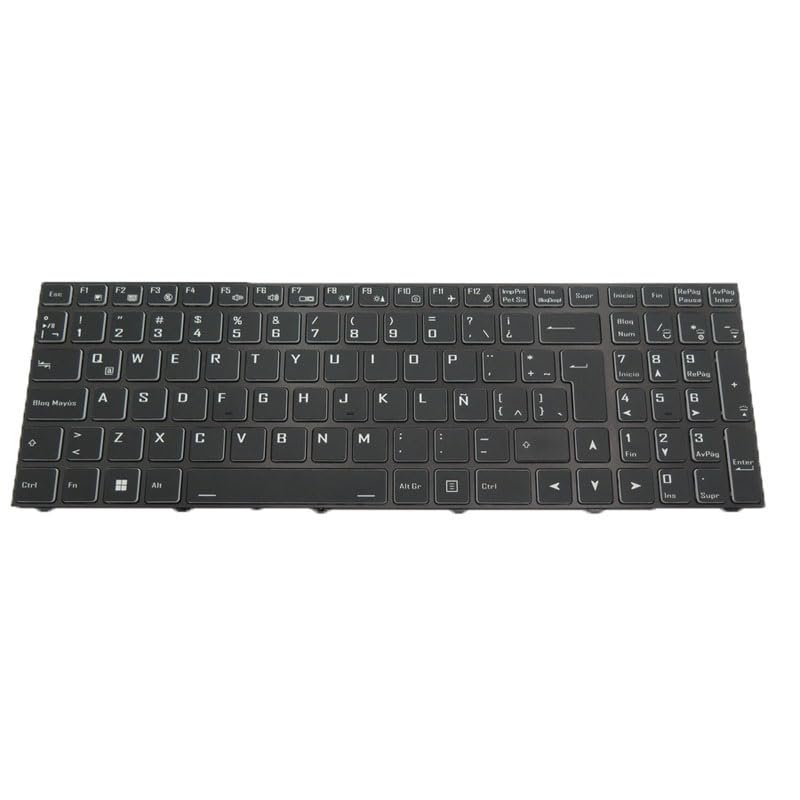
Image: The Generic Laptop Backlit Keyboard, showing its layout and frame. This image illustrates the product to be installed.
Operating Instructions
Once installed, your new backlit keyboard functions similarly to your original laptop keyboard. Key features include:
- Standard Typing: All alphanumeric and special character keys operate as expected.
- Function Keys (Fn): Utilize the 'Fn' key in combination with other keys (e.g., F1-F12) for system functions such as volume control, screen brightness, and external display toggling. Refer to your laptop's user manual for specific Fn key combinations.
- Backlight Control: The keyboard features backlighting. Typically, the backlight can be toggled on/off or adjusted in brightness using a specific Fn key combination (e.g., Fn + F3 or Fn + Spacebar, depending on your laptop model).
Maintenance
To ensure the longevity and proper function of your keyboard, follow these maintenance tips:
- Cleaning: Use a soft, lint-free cloth slightly dampened with water or a mild electronics cleaner to wipe the keycaps. Avoid spraying liquids directly onto the keyboard. For dust and debris between keys, use compressed air.
- Avoid Spills: Keep liquids away from the keyboard to prevent damage to internal circuitry.
- Gentle Use: Avoid excessive force when typing.
Troubleshooting
If you encounter issues with your new keyboard, consider the following:
- Keyboard Not Responding:
- Ensure all ribbon cables are securely connected.
- Restart your laptop.
- Check device manager for keyboard drivers. Reinstall if necessary.
- Backlight Not Working:
- Verify that the backlight function is enabled via the appropriate Fn key combination.
- Check your laptop's BIOS/UEFI settings for backlight options.
- Ensure the backlight ribbon cable (if separate) is properly connected.
- Specific Keys Not Working:
- This could indicate a faulty connection or a defective key. Recheck installation or consider professional inspection.
If problems persist after attempting these steps, contact customer support or a qualified technician.
Specifications
| Feature | Detail |
|---|---|
| Brand | Generic |
| Model Numbers | NH55EDQ, NH55EHQ, NH55EJQ, NH55EKQ |
| Part Number | LA NH55EDQ NH55EHQ NH55EJQ NH55EKQ |
| Item Weight | 0.3 Kilograms |
| Layout | Latin America (LA) |
| Color | Black with Frame |
Warranty Information
This product comes with a 90-day warranty from the date of purchase. This warranty covers manufacturing defects. It does not cover damage caused by improper installation, misuse, accidents, or unauthorized modifications. Please retain your proof of purchase for warranty claims.
Support
For further assistance, technical support, or warranty claims, please contact your retailer or the manufacturer. When contacting support, please have your product model number and purchase information ready.