
Introduction
Welcome to the user manual for your Generic G4 Wireless Gaming Mouse. This document provides essential information for setting up, operating, and maintaining your device. Please read it thoroughly before use to ensure optimal performance and longevity of your mouse.
Safety Information
Please observe the following safety guidelines:
- Do not expose the mouse to extreme temperatures, direct sunlight, or high humidity.
- Avoid dropping the mouse or subjecting it to strong impacts.
- Keep the device out of reach of children.
- Dispose of batteries and electronic components according to local environmental regulations.
- Do not attempt to disassemble or repair the mouse yourself, as this may void the warranty and cause damage.
Package Contents
Verify that all items are present in your package:
- 1 x Generic G4 Wireless Gaming Mouse
- 1 x USB Receiver (2.4GHz)
- 1 x USB Charging Cable
- 1 x User Manual (this document)
Product Overview
The Generic G4 Wireless Gaming Mouse features a transparent design with customizable RGB lighting and 7 programmable buttons, engineered for precise control and an immersive gaming experience.

Image: The G4 Wireless Gaming Mouse, showcasing its transparent shell and internal RGB lighting.
Key Components
- Left Click Button: Standard primary function.
- Right Click Button: Standard secondary function.
- Scroll Wheel: For vertical scrolling and middle-click function.
- DPI Adjustment Button: Cycles through sensitivity settings.
- Forward Button (Side): Typically for navigating forward in web browsers or applications.
- Backward Button (Side): Typically for navigating backward in web browsers or applications.
- Additional Programmable Button: A seventh button for custom assignments.
- USB Receiver Storage Slot: Located on the underside of the mouse for secure storage.
- On/Off Switch: Located on the underside to power the mouse.
- Charging Port: For connecting the USB charging cable.
Setup
Connecting the Mouse
- Locate the USB receiver, typically stored in a compartment on the underside of the mouse.
- Insert the USB receiver into an available USB port on your computer.
- Turn on the mouse using the On/Off switch located on the bottom of the device.
- The mouse should automatically connect to your computer. If not, ensure the receiver is properly inserted and the mouse is powered on. Your operating system may install necessary drivers automatically.
Charging the Mouse
The mouse comes with a built-in rechargeable battery.
- Connect the provided USB charging cable to the charging port on the front of the mouse.
- Connect the other end of the charging cable to a USB power source (e.g., computer USB port, USB wall adapter).
- The RGB lighting may indicate the charging status (e.g., pulsing, changing color). Refer to visual cues for full charge indication, after which the lighting may stabilize or turn off.
Operating Instructions
Power On/Off
Use the dedicated On/Off switch on the underside of the mouse to power it on or off. Turning off the mouse when not in use helps conserve battery life.
DPI Adjustment
The mouse features multiple DPI settings for varying cursor sensitivity, allowing you to adapt to different tasks or gaming scenarios.
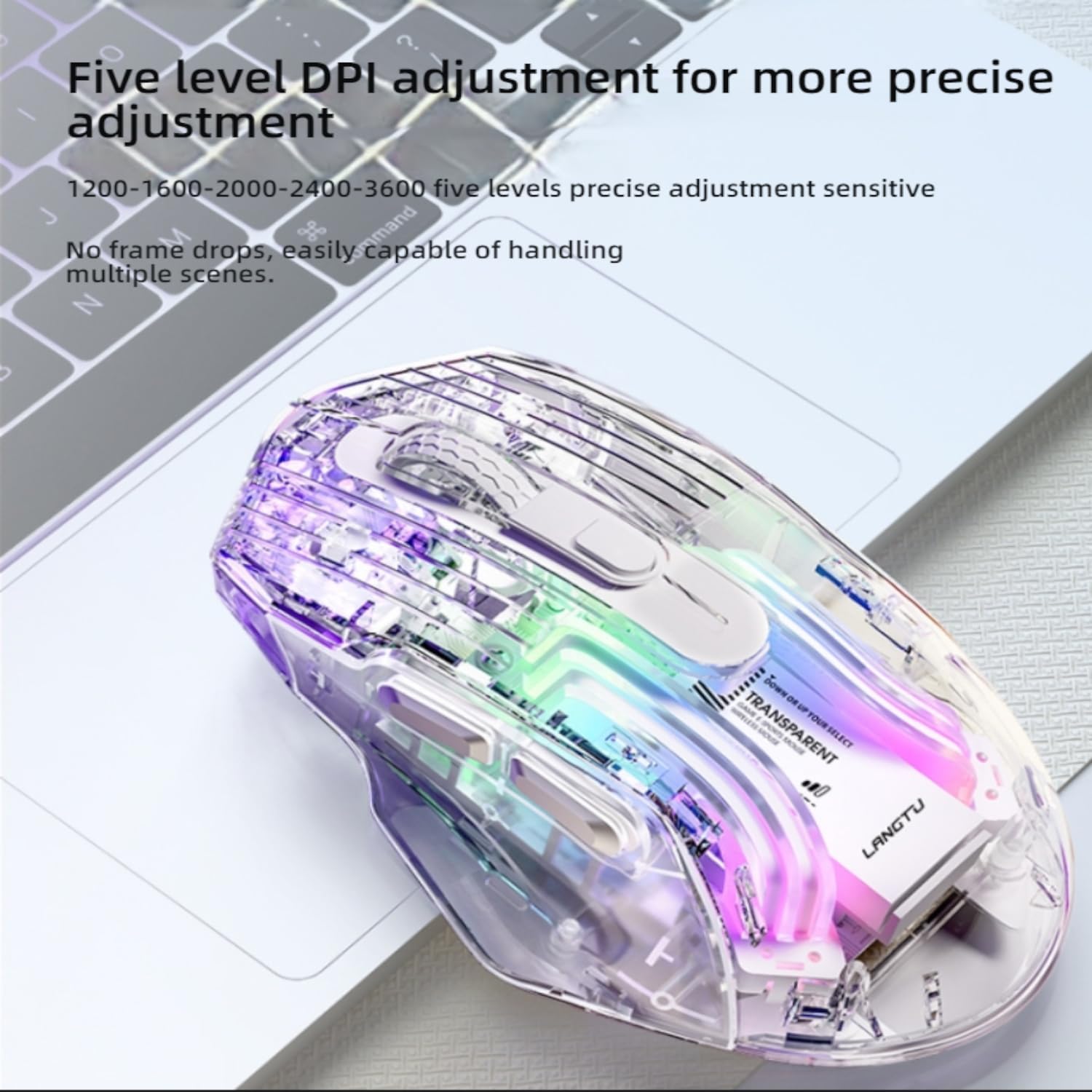
Image: The G4 mouse highlighting its five-level DPI adjustment feature for precise control.
Press the DPI button (typically located behind the scroll wheel) to cycle through the available DPI settings: 1200, 1600, 2000, 2400, and 3600 DPI. The RGB lighting may change color or pattern to indicate the current DPI level.
RGB Lighting Control
The mouse features dynamic RGB lighting effects that enhance its aesthetic appeal.
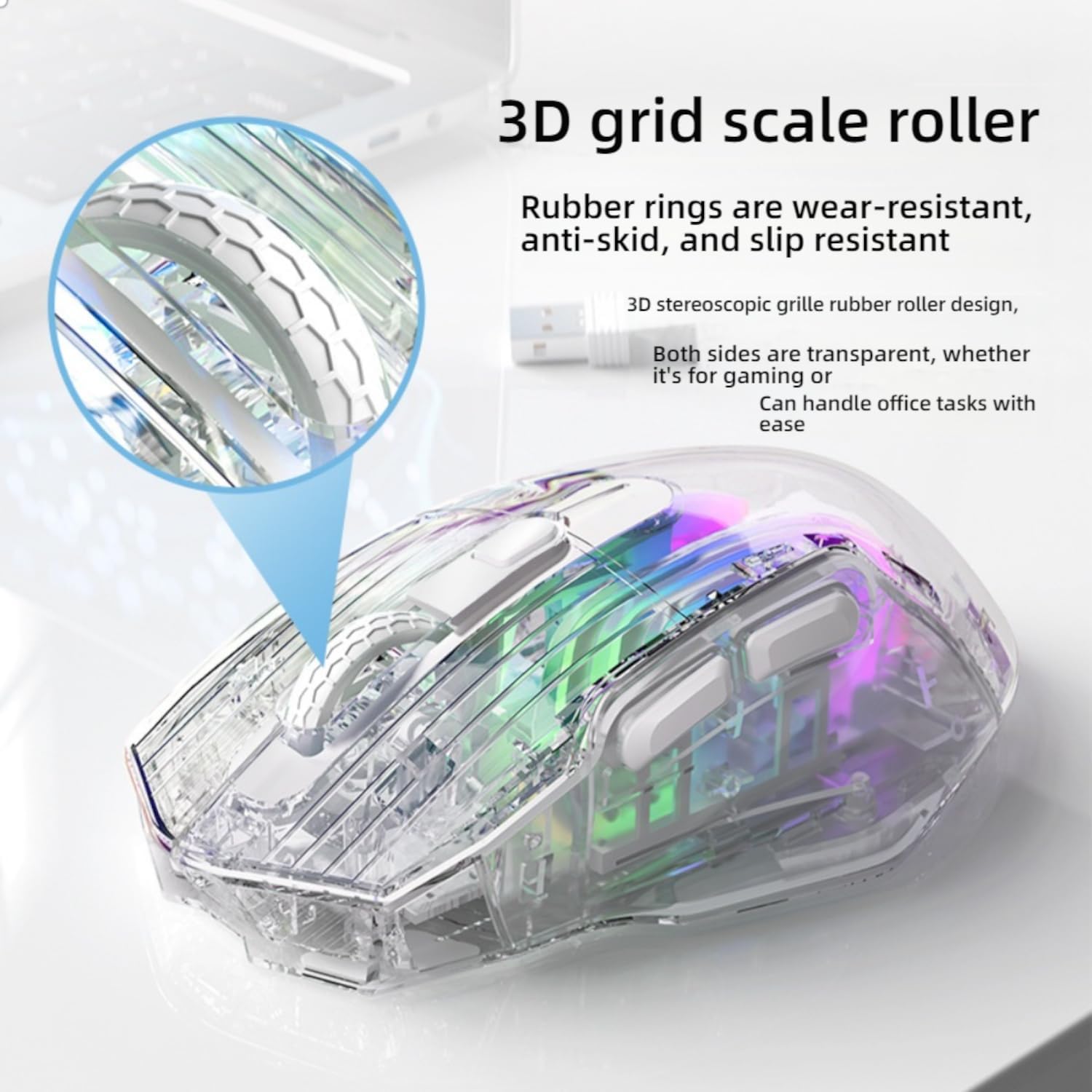
Image: The G4 mouse displaying its cool RGB lighting effect, enhancing the gaming atmosphere.
Specific controls for changing lighting modes or turning them off may vary. Consult any accompanying software or the manufacturer's website for advanced customization options, if available.
Button Functions
The mouse is equipped with 7 buttons. The standard left, right, and scroll click functions are pre-assigned. The side buttons (Forward/Backward) are typically used for navigation in web browsers or file explorers.
For advanced customization of the 7 programmable buttons, such as assigning macros or specific in-game actions, refer to any accompanying software provided by the manufacturer. This software usually allows you to remap buttons to suit your preferences.
Maintenance
Cleaning
To clean the mouse, use a soft, dry, lint-free cloth. For stubborn dirt or grime, a slightly damp cloth can be used, ensuring no moisture enters the internal components. Avoid using harsh chemicals, abrasive materials, or solvents, as these can damage the transparent casing and internal electronics.
Battery Care
- Charge the mouse regularly to maintain optimal battery health and performance.
- Avoid completely draining the battery frequently, as this can reduce its overall lifespan.
- If storing the mouse for an extended period, charge it to approximately 50% and store it in a cool, dry place.
Troubleshooting
Mouse Not Responding
- Ensure the mouse is powered on using the On/Off switch.
- Check if the USB receiver is securely plugged into an active USB port on your computer.
- Try plugging the USB receiver into a different USB port.
- Ensure the mouse battery is sufficiently charged. Connect the charging cable if the battery is low.
- Restart your computer.
Intermittent Connection
- Move the mouse closer to the USB receiver to ensure a strong wireless signal.
- Remove any potential sources of wireless interference, such as other 2.4GHz wireless devices, large metal objects, or strong electromagnetic fields.
- Ensure the mouse battery is not low, as a weak battery can affect wireless performance.
DPI Button Not Changing Sensitivity
- Ensure the mouse is powered on and properly connected to your computer.
- Press the DPI button firmly and observe if the RGB lighting changes, indicating a DPI switch.
- If the issue persists, try restarting the mouse and your computer.
Specifications
| Feature | Detail |
|---|---|
| Model Number | G4 |
| Connectivity | 2.4GHz Wireless |
| Sensor | A3212 Optical Sensor |
| DPI Settings | 1200 / 1600 / 2000 / 2400 / 3600 |
| Buttons | 7 Programmable Buttons |
| Dimensions (L x W x H) | 5.35 in x 2.91 in x 1.57 in (136mm x 74mm x 40mm) |
| Weight | 2.43 ounces |
| Power | 4.2V, 500-600mAh (Battery Capacity) |
| Operating Current | 12 ±2.0mA |
| Special Features | RGB Lighting, Transparent Design, Lightweight |

Image: Technical diagram illustrating the dimensions (136mm x 74mm x 40mm) and power specifications of the G4 mouse.
Warranty and Support
This product comes with a standard manufacturer's warranty. For specific warranty details, including coverage period and terms, please refer to the documentation included with your purchase or contact the retailer where you purchased the product.
For technical support, troubleshooting assistance, or any other inquiries regarding your Generic G4 Wireless Gaming Mouse, please contact the product manufacturer or your point of purchase. Please have your model number (G4) and purchase information ready when seeking support.