
1. Introduction
Thank you for choosing the X96Q Pro IPTV Multimedia Streaming Box. This device transforms your standard television into a smart entertainment hub, offering access to a wide range of streaming services, applications, and games. Powered by Android 10 and an Allwinner H313 Quad Core processor, it supports 4K Ultra HD resolution for a superior viewing experience. This manual provides essential information for setting up, operating, and maintaining your device.
2. Safety Information
- Do not expose the device to water, moisture, or extreme temperatures.
- Use only the provided power adapter to prevent damage.
- Avoid blocking ventilation openings to prevent overheating.
- Do not attempt to disassemble or repair the device yourself. Contact qualified service personnel.
- Keep the device away from direct sunlight and heat sources.
3. Package Contents
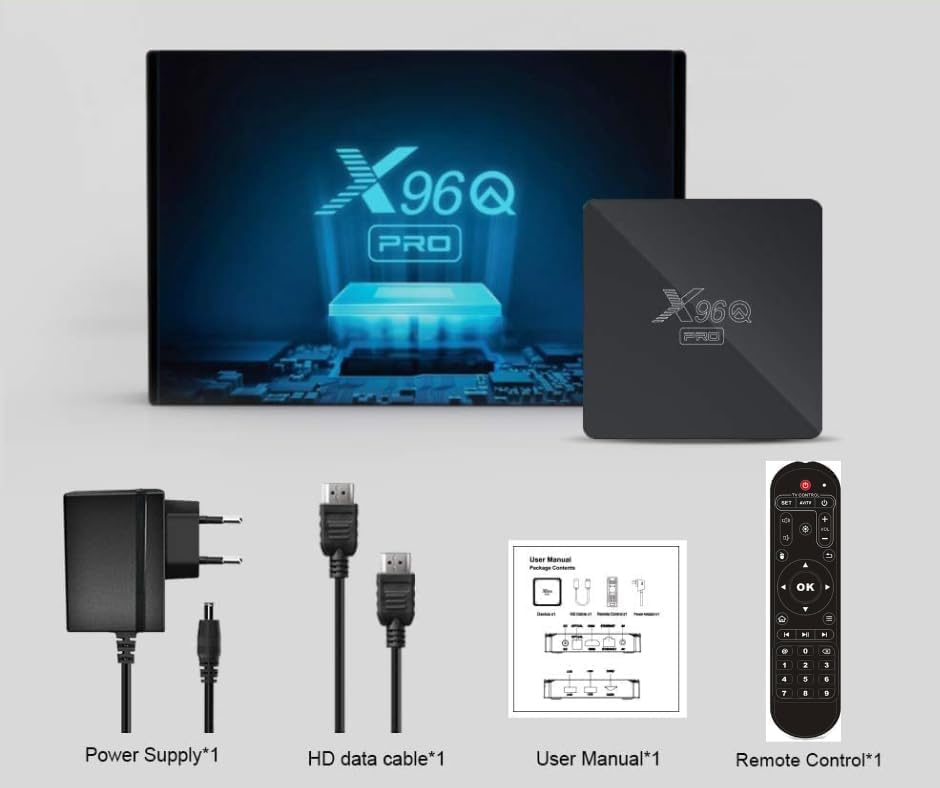
Please check the box for the following items:
- X96Q Pro TV Box
- 1 x Remote Control
- 1 x HD Cable (HDMI)
- 1 x User Manual
- 1 x Power Adapter
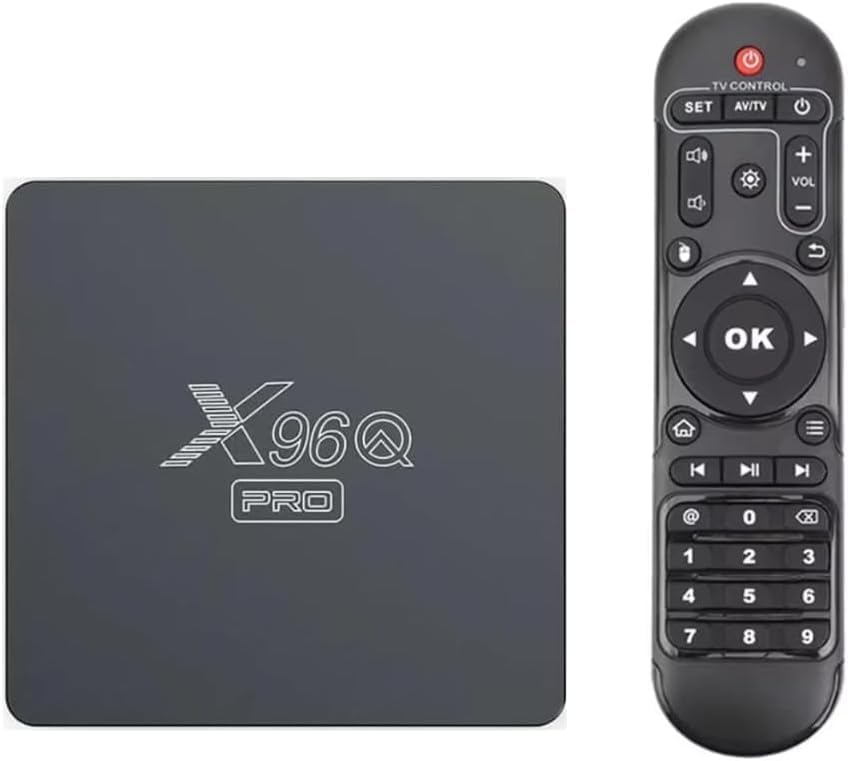
The X96Q Pro streaming box and its accompanying remote control. The box is compact and black, featuring the 'X96Q PRO' logo. The remote control is black with various navigation and function buttons.
4. Product Overview
Familiarize yourself with the X96Q Pro streaming box and its various ports.

An angled view of the X96Q Pro streaming box, highlighting its sleek black design and compact form factor. The front panel displays a digital clock and status indicators.

Diagram illustrating the various ports on the X96Q Pro streaming box, including DC power input, Optical audio, HDMI, Ethernet, and AV output on the rear. The side features USB ports and a TF card slot. Dimensions are shown as 109x109x18mm.
5. Setup Guide
- Connect to TV: Connect one end of the provided HD cable (HDMI) to the HDMI port on the X96Q Pro box and the other end to an available HDMI input on your television.
- Connect Power: Plug the power adapter into the DC IN port on the X96Q Pro box, then plug the adapter into a power outlet.
- Power On: The device should automatically power on. If not, press the power button on the remote control.
- Select Input: On your TV, select the correct HDMI input source using your TV's remote control.
- Initial Setup: Follow the on-screen instructions to complete the initial setup, including language selection, time zone, and network connection.
6. Operating Instructions
6.1. Remote Control Navigation
Use the provided remote control to navigate the Android interface:
- Directional Pad (D-Pad): Use the up, down, left, and right arrows to move between menu items and options.
- OK Button: Press to confirm selections or open applications.
- Back Button: Returns to the previous screen or menu.
- Home Button: Returns to the main home screen.
- Volume Buttons: Adjust the audio volume.
6.2. Accessing Applications
From the home screen, you can access pre-installed applications or download new ones from the Google Play Store. Navigate to the 'Apps' section or the Google Play Store icon and press OK to open.
7. Connectivity
7.1. Wi-Fi Connection
The X96Q Pro supports both 2.4GHz and 5GHz Wi-Fi bands for stable wireless connectivity.
- Go to Settings > Network & Internet > Wi-Fi.
- Turn Wi-Fi On.
- Select your desired Wi-Fi network from the list.
- Enter the password if prompted and select Connect.

The X96Q Pro streaming box supports both 2.4GHz and 5GHz Wi-Fi bands, compliant with IEEE 802.11 a/b/g/n/ac standards, ensuring faster and more stable wireless connectivity.
7.2. Ethernet Connection
For a more stable internet connection, you can use an Ethernet cable.
- Connect one end of an Ethernet cable to the Ethernet port on the X96Q Pro box and the other end to your router or modem.
- The device will automatically detect and connect to the wired network.
7.3. USB and HDMI Ports
The device features USB ports for connecting external storage devices (like USB drives or external hard drives) or peripherals (like keyboards or mice). The HDMI port is for connecting to your television or display.
7.4. Screen Mirroring (Miracast)
The X96Q Pro supports screen mirroring from various devices.

The X96Q Pro supports screen mirroring from Android, Windows, iOS, and Mac devices, allowing users to cast content from their mobile devices or computers to the TV.
To use screen mirroring, ensure your mobile device or computer is connected to the same Wi-Fi network as the X96Q Pro box. Look for a 'Cast', 'Screen Mirroring', or 'Miracast' option on your device and select the X96Q Pro from the list of available devices.
8. Media Playback and Streaming
8.1. 4K Ultra HD Playback
Experience stunning visuals with 4K Ultra HD resolution support.
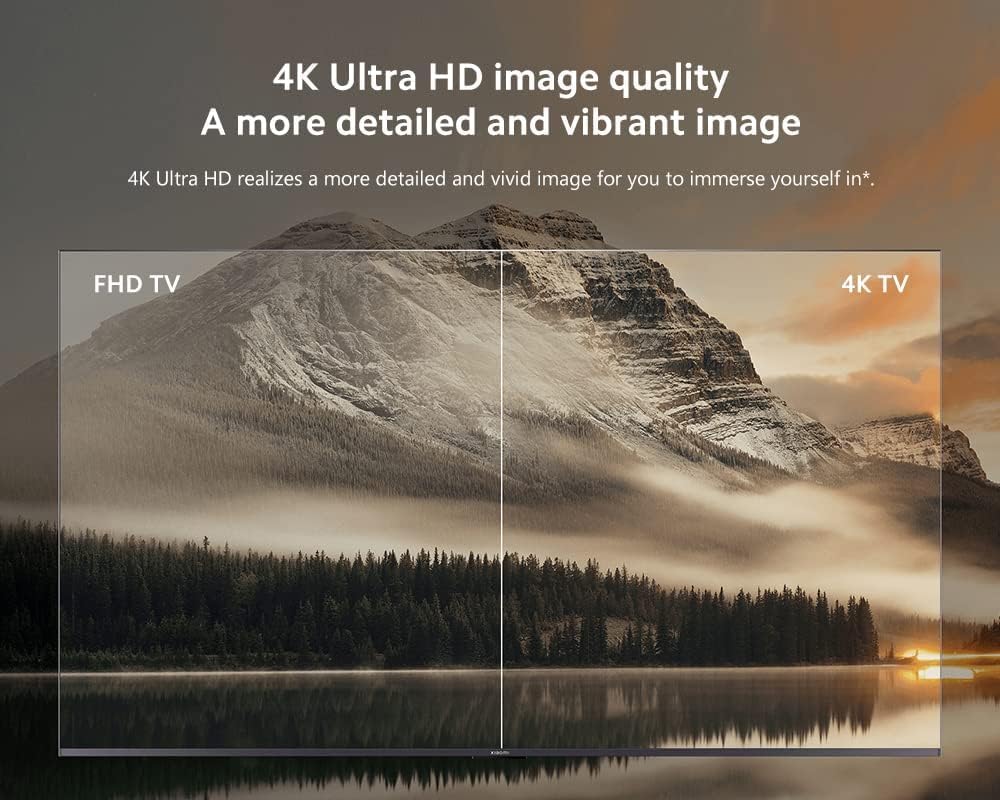
An image demonstrating the superior clarity and detail of 4K Ultra HD resolution compared to Full HD, highlighting the X96Q Pro's ability to deliver a more immersive viewing experience.
8.2. Supported Internet Services
The X96Q Pro allows access to popular streaming services and applications:
- Netflix
- YouTube
- Prime Video
- Disney+
- Chromecast (built-in)
The X96Q Pro operates on Android 10, providing a high-quality output and powerful graphics processing for stable performance. The image shows various popular streaming and social media applications available.
9. Troubleshooting
9.1. No Power
- Ensure the power adapter is securely connected to the device and a working power outlet.
- Try a different power outlet.
9.2. No Picture on TV
- Verify the HDMI cable is securely connected to both the box and the TV.
- Ensure your TV is set to the correct HDMI input source.
- Try a different HDMI cable or HDMI port on your TV.
9.3. No Internet Connection
- For Wi-Fi, check your network settings and ensure the correct password is entered.
- For Ethernet, ensure the cable is properly connected to both the box and your router.
- Restart your router/modem and the X96Q Pro box.
9.4. Remote Control Not Responding
- Check and replace the batteries in the remote control.
- Ensure there are no obstructions between the remote and the box.
10. Specifications
| Feature | Description |
|---|---|
| Brand | x96q pro |
| Model Name | Android TV Box |
| Operating System | Android 10.0 |
| Processor | Allwinner H313 Quad Core |
| Installed RAM Size | 2 GB |
| Memory Storage Capacity | 16 GB |
| Resolution | 4K UHD |
| Connectivity Technology | Wi-Fi (2.4G & 5G), Ethernet |
| Connector Type | USB, HDMI |
| Special Feature | Miracast |
| Product Dimensions | 10L x 4W x 10H centimeters |
| Supported Internet Services | Netflix, YouTube, Prime Video, Disney+, Chromecast |
11. Maintenance
- Cleaning: Use a soft, dry cloth to clean the device. Do not use liquid cleaners or aerosols.
- Software Updates: Periodically check for system updates in the device's settings to ensure optimal performance and security.
- Storage: When not in use for extended periods, store the device in a cool, dry place.
12. Warranty and Support
For warranty information or technical support, please refer to the contact details provided by your retailer or the manufacturer's official website. Keep your purchase receipt as proof of purchase.


