
1. Introduction
This manual provides essential information for setting up, operating, and maintaining your Dell OptiPlex 7020 Small Form Factor (SFF) Desktop. The OptiPlex 7020 SFF is a compact business computer designed for efficient performance and reliable connectivity, featuring an Intel Core i7-12700K processor, 32GB DDR5 RAM, and a 1TB NVMe SSD.
For detailed technical support or warranty information, please refer to the official Dell support website or contact customer service.
2. What's in the Box
Verify that all components are present in the packaging:
- Dell OptiPlex 7020 SFF Desktop
- USB Keyboard
- USB Mouse
- Power Adapter
3. Initial Setup
Follow these steps to set up your Dell OptiPlex 7020 SFF Desktop:
- Unpack the System: Carefully remove the desktop and all accessories from the packaging.
- Connect Peripherals:
- Connect the USB keyboard and mouse to the available USB ports on the front or rear of the desktop.
- Connect your monitor(s) to the DisplayPort 1.4a and/or HDMI 1.4b ports on the rear. The system supports dual monitors.
- If using a wired network, connect an Ethernet cable to the RJ-45 port on the rear.
- Connect any other desired peripherals (e.g., speakers, external drives) to the appropriate ports.
- Connect Power: Connect the power adapter to the power adapter port on the rear of the desktop, then plug the power cable into a wall outlet.
- Power On: Press the power button located on the front of the desktop.
- Initial Configuration: Follow the on-screen instructions to complete the Windows 11 Pro setup, including language, region, network connection, and user account creation.
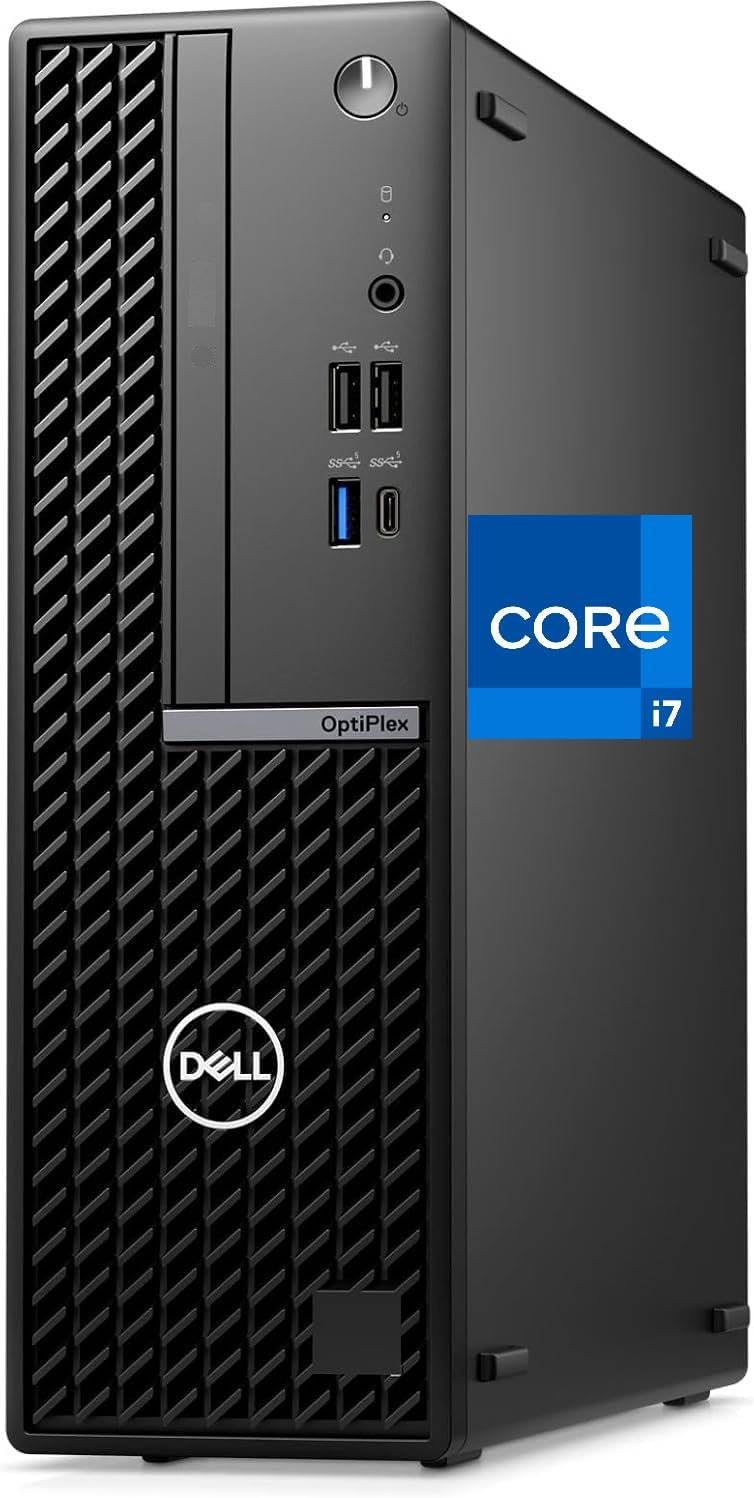
Figure 1: Front view of the Dell OptiPlex 7020 SFF Desktop.
4. Operating Instructions
4.1. Power Management
- Power On: Press the power button on the front panel.
- Shut Down: Click the Start button in Windows, then select Power > Shut down.
- Restart: Click the Start button in Windows, then select Power > Restart.
- Sleep: Click the Start button in Windows, then select Power > Sleep.
4.2. Using Windows 11 Pro
Your Dell OptiPlex 7020 SFF comes pre-installed with Windows 11 Pro. Familiarize yourself with the operating system's interface and features:
- Start Menu: Access applications, settings, and power options.
- Taskbar: Pin frequently used applications and manage open windows.
- File Explorer: Manage your files and folders.
- Settings: Customize system preferences, network settings, and connected devices.
- Microsoft Store: Download and install new applications.
5. Connectivity
The Dell OptiPlex 7020 SFF offers a variety of ports and wireless options for seamless connectivity.
5.1. Front Panel Ports
- 1x Universal Audio Jack
- 1x USB 3.2 Gen 1 Type-A Port
- 1x USB 3.2 Gen 1x1 Type-C Port (ideal for high-speed access and fast charging)
- 2x USB 2.0 Ports

Figure 2: Front panel ports for easy access.
5.2. Rear Panel Ports
- 1x RJ-45 Ethernet Port (10/100/1000 Mbps)
- 2x USB 2.0 Type-A Ports (with Smart Power On)
- 2x USB 3.2 Gen 1 Type-A Ports (great for peripherals and wired accessories)
- 1x DisplayPort 1.4a
- 1x HDMI 1.4b
- 1x Power Adapter Port

Figure 3: Rear panel ports for display, network, and additional USB devices.
5.3. Wireless Connectivity
- Wi-Fi: Intel AX211 802.11ax WiFi 6E for ultra-fast wireless internet.
- Bluetooth: Bluetooth 5.3 for connecting wireless peripherals like headphones, keyboards, and mice.
6. Maintenance
Regular maintenance helps ensure the longevity and optimal performance of your desktop.
- Keep it Clean: Regularly dust the exterior of the desktop and ensure ventilation openings are clear to prevent overheating. Use a soft, dry cloth.
- Software Updates: Keep your Windows operating system and drivers updated. Windows Update can be accessed via Settings > Windows Update.
- Antivirus Protection: Maintain up-to-date antivirus software to protect against malware and viruses.
- Data Backup: Regularly back up important data to an external drive or cloud storage to prevent data loss.
- System Performance: Periodically run disk cleanup and defragmentation tools (for HDD, not necessary for SSD) to optimize storage.

Figure 4: The OptiPlex 7020 SFF is designed for efficient airflow to maintain optimal operating temperatures.
7. Troubleshooting
This section addresses common issues you might encounter with your Dell OptiPlex 7020 SFF Desktop.
7.1. No Power
- Ensure the power cable is securely connected to both the desktop and a working power outlet.
- Verify the power outlet is functional by plugging in another device.
- Check the power adapter for any visible damage.
7.2. No Display
- Confirm that the monitor is powered on and the video cable (HDMI or DisplayPort) is securely connected to both the desktop and the monitor.
- Try connecting the monitor to a different video port on the desktop, if available.
- Test the monitor with another device to rule out monitor issues.
7.3. No Internet Connection
- Wired Connection: Ensure the Ethernet cable is properly connected and your router/modem is working.
- Wireless Connection: Check if Wi-Fi is enabled in Windows settings and you are connected to the correct network. Restart your router/modem if necessary.
- Run the Windows Network Troubleshooter (Settings > Network & internet > Advanced network settings > Network troubleshooter).
7.4. Slow Performance
- Close unnecessary applications running in the background.
- Check for and install any pending Windows updates.
- Scan for malware or viruses using your antivirus software.
- Ensure you have sufficient free space on your primary drive.
8. Technical Specifications
Detailed specifications for the Dell OptiPlex 7020 SFF Desktop (Model: B0F7CKMJXC):
| Feature | Specification |
|---|---|
| Model | Dell OptiPlex 7020 SFF |
| Color | Black |
| Processor | Intel Core i7-12700K (12-Core, 2.70GHz - 5.00GHz, 25MB Cache) |
| RAM | 32GB DDR5 (4800MHz, 2x DDR5 DIMM slots, Max 64GB) |
| Storage | 1TB NVMe SSD (2x m.2 2280/2230 NVMe slots) |
| Graphics | Intel UHD Graphics 770 |
| Operating System | Windows 11 Pro |
| Wi-Fi | Intel AX211 802.11ax WiFi 6E |
| Bluetooth | Bluetooth 5.3 |
| Ethernet | RJ-45, 10/100/1000 Mbps |
| Front USB Ports | 1x USB 3.2 Gen 1, 2x USB 2.0, 1x USB 3.2 Type-C |
| Rear USB Ports | 2x USB 2.0, 2x USB 3.2 Gen 1 Type-A |
| Video Ports | 1x DisplayPort 1.4a, 1x HDMI 1.4b (Dual Monitor Support) |
| Audio Ports | 1x Universal audio jack |
| Dimensions (LxWxH) | 11.42 x 3.65 x 11.53 inches |
| Item Weight | 13.02 pounds |
9. Warranty and Support
Your Dell OptiPlex 7020 SFF Desktop is covered by Dell's standard warranty. For specific warranty terms and conditions, please refer to the documentation included with your purchase or visit the official Dell support website.
Dell Support: For technical assistance, driver downloads, and service requests, visit www.dell.com/support. You will need your service tag, which is typically located on a label on the desktop chassis.
Protection Plans: Additional protection plans may be available for purchase. Refer to your retailer for details on extended warranties or service agreements.


