
ZEALFEEL ZF20-A
ZEALFEEL 9x7ft Golf Simulator Impact Screen Instruction Manual
Model: ZF20-A | Brand: ZEALFEEL
Introduction
This manual provides essential instructions for the setup, operation, and maintenance of your ZEALFEEL 9x7ft Golf Simulator Impact Screen. Designed for both golf training and versatile entertainment, this durable screen offers a clear projection surface and robust impact absorption.

Image: The ZEALFEEL 9x7ft Golf Simulator Impact Screen displaying a golf simulation, accompanied by the screen folded and a bag of bungee cords.
Product Features
- Optimal Size: Measures 112 x 94 inches (approximately 9ft x 7ft), suitable for most home golf simulator setups.
- Dual-Layer Durability: Constructed with a 0.6mm thick, dual-layer polyester material designed to absorb high-speed golf ball impacts. Tested to withstand approximately 10,000 shots at speeds over 120 mph without tearing.
- Enhanced Clarity: The two-layered design contributes to improved image clarity for projected visuals.
- Reinforced Edges: Features tear-resistant reinforced edges for long-term durability.
- Multiple Mounting Points: Equipped with 14 grommets around the edges for secure installation, plus 3 extra grommets in each corner for added stability and to prevent detachment.
- Versatile Use: Functions as both a golf impact screen and a high-quality projector screen for gaming or movie viewing.

Image: Detailed view highlighting the screen's unique design for durability, including reinforced grommet holes, two-layered impact screen for clarity, and tear-resistant reinforced edges.
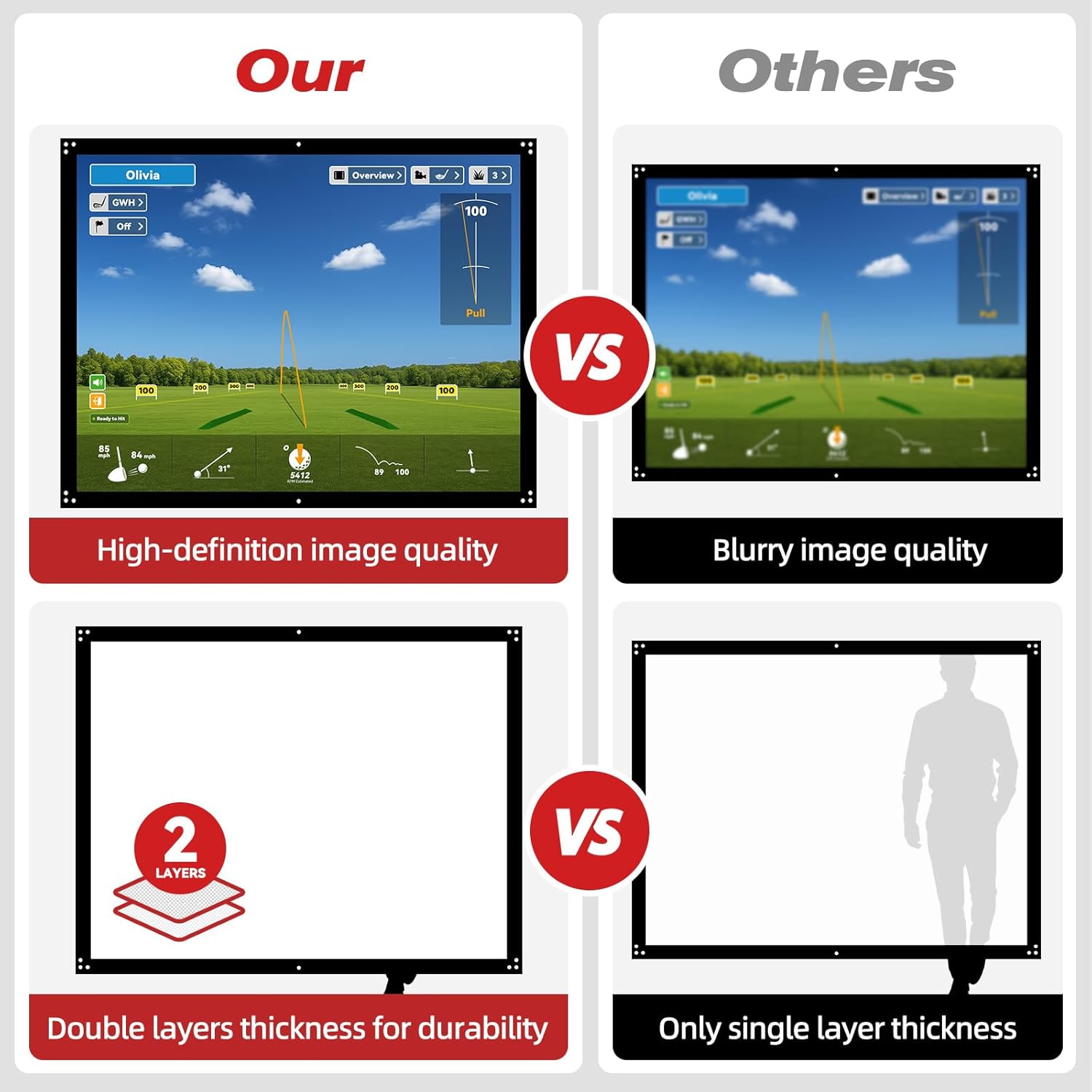
Image: A visual comparison illustrating the ZEALFEEL screen's high-definition image quality and double-layer thickness against a competitor's blurry image and single-layer design.
Package Contents
Please verify that all items are present upon opening the package:
- 1 x ZEALFEEL 9x7ft Golf Simulator Impact Screen
- 14 x Bungee Cords

Image: A visual representation of the package contents, including the 9x7ft impact screen and 14 bungee cords.
Setup Instructions
Follow these steps to properly install your impact screen:
- Prepare the Area: Ensure you have a suitable frame or support structure (not included) for hanging the screen. The screen measures 112"W x 94"H.
- Hang the Screen: Attach the screen to your support structure using the provided bungee cords. Utilize the 14 grommets located around the edges. The extra grommets in each corner provide additional securing points.
- Secure the Screen: Use the bungee cords to firmly hold the screen in place, ensuring it is taut and wrinkle-free for optimal projection and impact absorption.
- Optional: Add Bottom Weights: To prevent golf balls from rolling under the screen, consider placing weights (e.g., dumbbells) along the bottom edge of the screen.

Image: Step-by-step guide demonstrating how to hang and secure the impact screen using bungee cords on a support structure.
Operating Instructions
For Golf Simulation:
Once the screen is securely installed, position your golf simulator projector (not included) to cast the image onto the screen. The dual-layer design is engineered to absorb the impact of golf balls while providing a clear display of your swing data and virtual course.
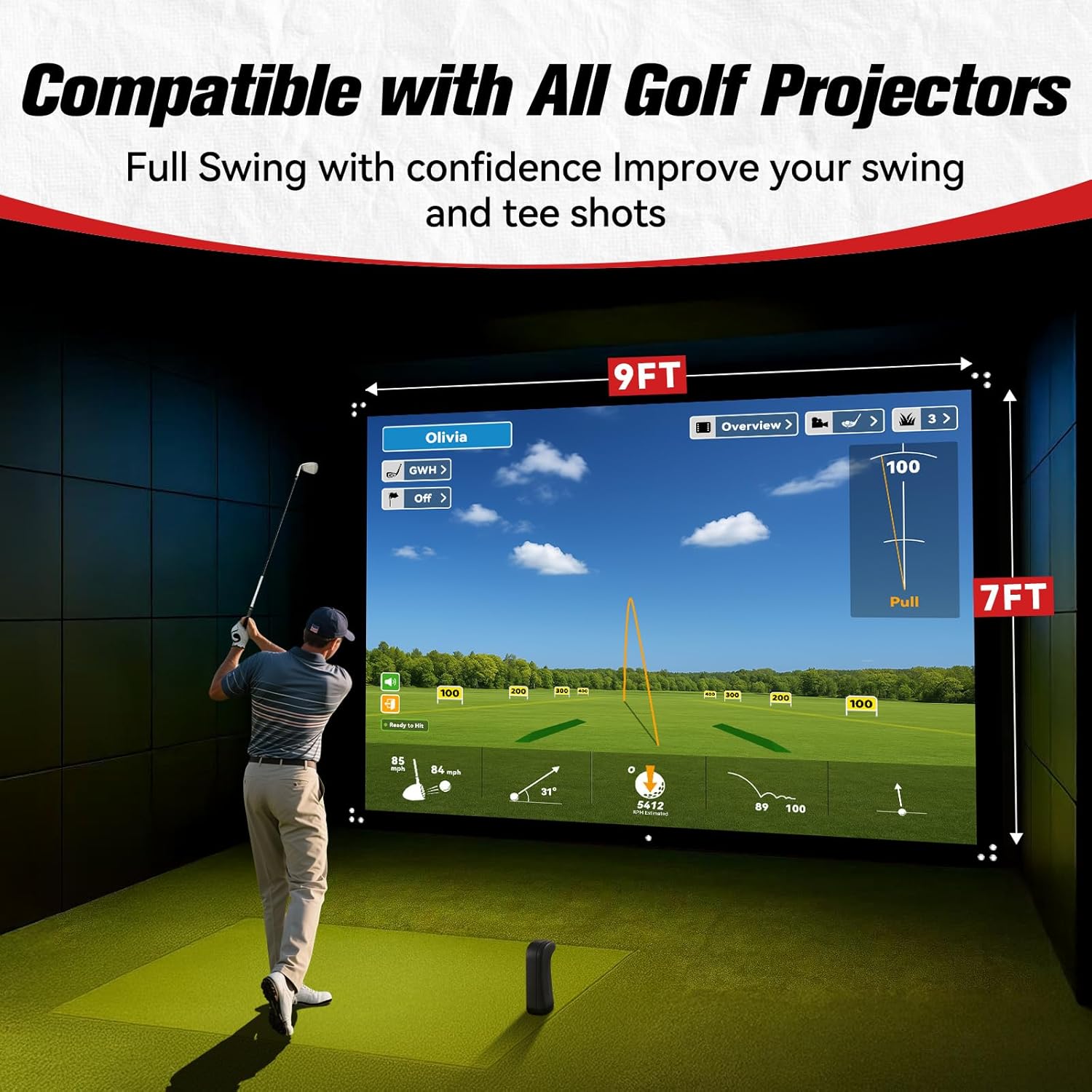
Image: A golfer demonstrating a full swing in front of the ZEALFEEL impact screen, which is displaying a golf simulation, emphasizing its compatibility with golf projectors.
For Projector Screen Use:
The ZEALFEEL impact screen can also serve as a high-quality projector screen for various entertainment purposes. Connect your projector to a media source (e.g., gaming console, streaming device) and enjoy movies or games on the large display.

Image: Two scenarios illustrating the versatility of the ZEALFEEL screen: one for home theater viewing and another for playing video games.
Maintenance
Proper care will extend the life and performance of your impact screen:
- Avoid Sharp Objects: Keep the screen away from sharp objects to prevent punctures or tears.
- Cleaning: Do not machine wash or soak the screen in water. For cleaning, gently wipe the surface with a soft, damp cloth. Avoid harsh chemicals or abrasive cleaners.
- Storage: When not in use, store the screen in a clean, dry place, away from direct sunlight and extreme temperatures.
Specifications
| Brand | ZEALFEEL |
| Model Number | ZF20-A |
| Product Dimensions | 112"W x 94"H (approx. 9 ft x 7 ft) |
| Material | Polyester |
| Item Weight | 6.61 pounds |
| Mounting Type | Wall Mount (requires external frame/structure) |
Troubleshooting
- Screen is not taut/has wrinkles: Ensure all bungee cords are securely attached to the grommets and the support structure. Adjust tension evenly across all attachment points.
- Golf balls roll under the screen: Place weights (e.g., dumbbells, sandbags) along the bottom edge of the screen to keep it flush with the ground.
- Image appears blurry or distorted: Check your projector's focus and keystone correction settings. Ensure the screen is flat and evenly stretched.
- Screen shows signs of wear/tear prematurely: Verify that only golf balls are impacting the screen and that no sharp objects are in contact with its surface. Ensure proper installation to avoid excessive stress on specific points.
Warranty and Support
For information regarding warranty coverage, product support, or to purchase replacement parts, please contact ZEALFEEL customer service through the retailer where the product was purchased or visit the official ZEALFEEL website.
Please retain your proof of purchase for warranty claims.
Ask a question about this manual
Ask about setup, troubleshooting, compatibility, parts, safety, or missing instructions. Manuals+ will review the question and use this page’s manual context to help answer it.