
1. Introduction
This manual provides essential information for the safe and efficient operation of your Optoma GT4000UHD Ultra-Short Throw 4K UHD Home Cinema Laser Projector. Please read it thoroughly before using the product and retain it for future reference.
The Optoma GT4000UHD is designed to deliver high-quality 4K UHD visuals for various entertainment purposes, including console gaming, PC gaming, and streaming video content. Its ultra-short throw capability allows for large images from a minimal distance.
2. Safety Information
Observe the following safety precautions to prevent damage to the projector and ensure user safety:
- Do not block ventilation openings. Ensure adequate airflow around the projector.
- Do not look directly into the projector lens when the lamp is on. The bright light can cause eye damage.
- Avoid placing the projector in direct sunlight, near heat sources, or in environments with high humidity or dust.
- Use only the power adapter supplied with the projector.
- Disconnect the power cord during lightning storms or when unused for long periods.
- Do not attempt to open or service the projector yourself. Refer all servicing to qualified personnel.
3. Package Contents
Verify that all items are present in the package:
- Optoma GT4000UHD Projector
- Power Cord
- Remote Control
- User Manual (this document)
4. Product Overview
4.1 Projector Front and Top View
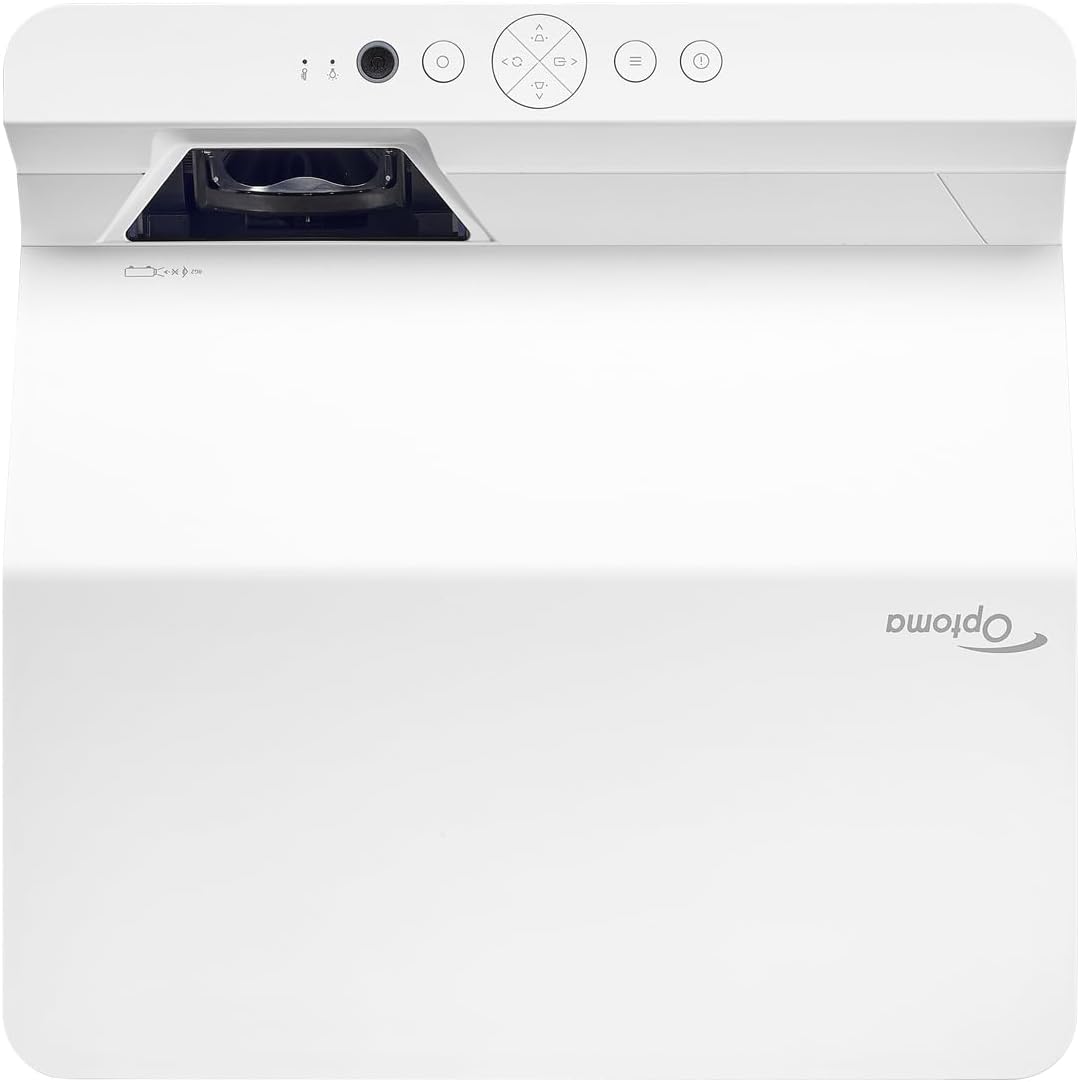
Description: This image displays the top and front view of the Optoma GT4000UHD projector. The ultra-short throw lens is visible at the front, along with basic control buttons on the top panel. The Optoma logo is prominently displayed.
4.2 Rear Panel and Connectivity
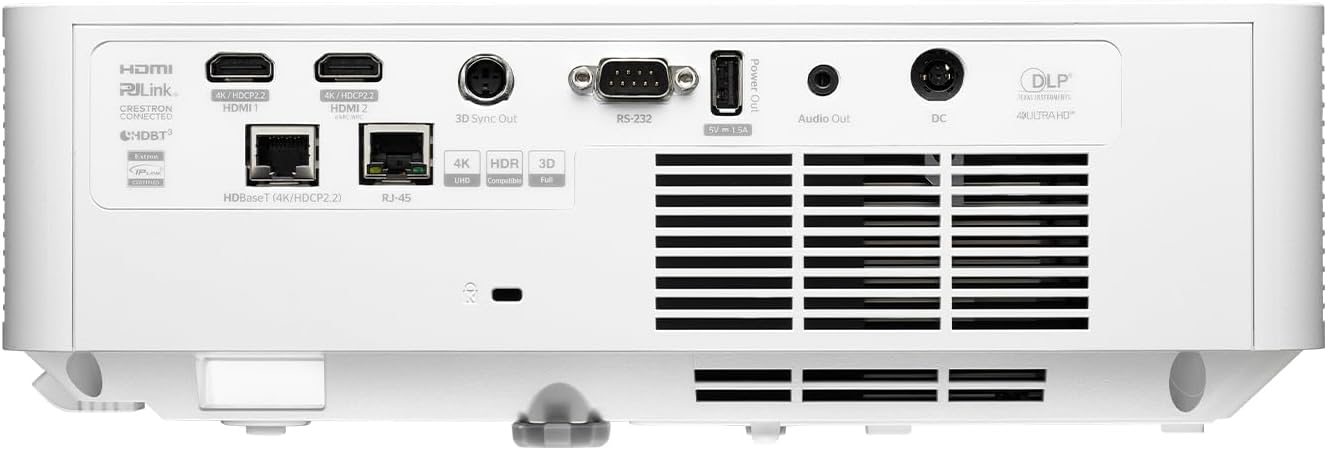
Description: This image shows the rear panel of the Optoma GT4000UHD projector, highlighting its connectivity options. Ports include HDMI, HDBaseT, RJ-45, 3D Sync Out, RS232, Audio Out, and DC power input.
4.3 Remote Control
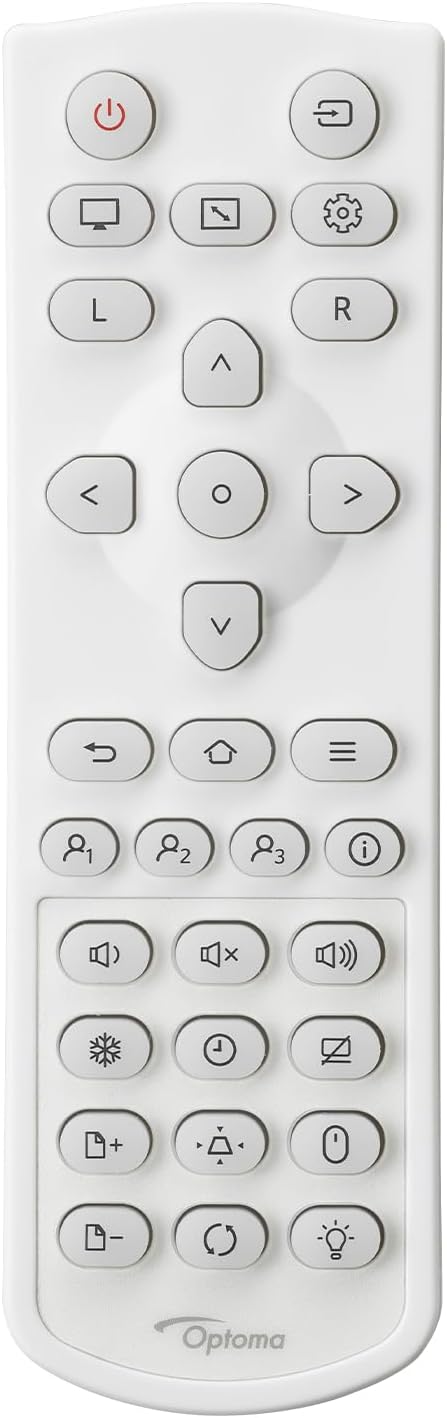
Description: This image displays the remote control for the Optoma GT4000UHD projector. It features buttons for power, source selection, menu navigation, volume control, and other functions.
5. Setup
5.1 Projector Placement
The GT4000UHD is an ultra-short throw projector, capable of producing large images from a very short distance. Place the projector on a stable, flat surface directly in front of your screen or wall.
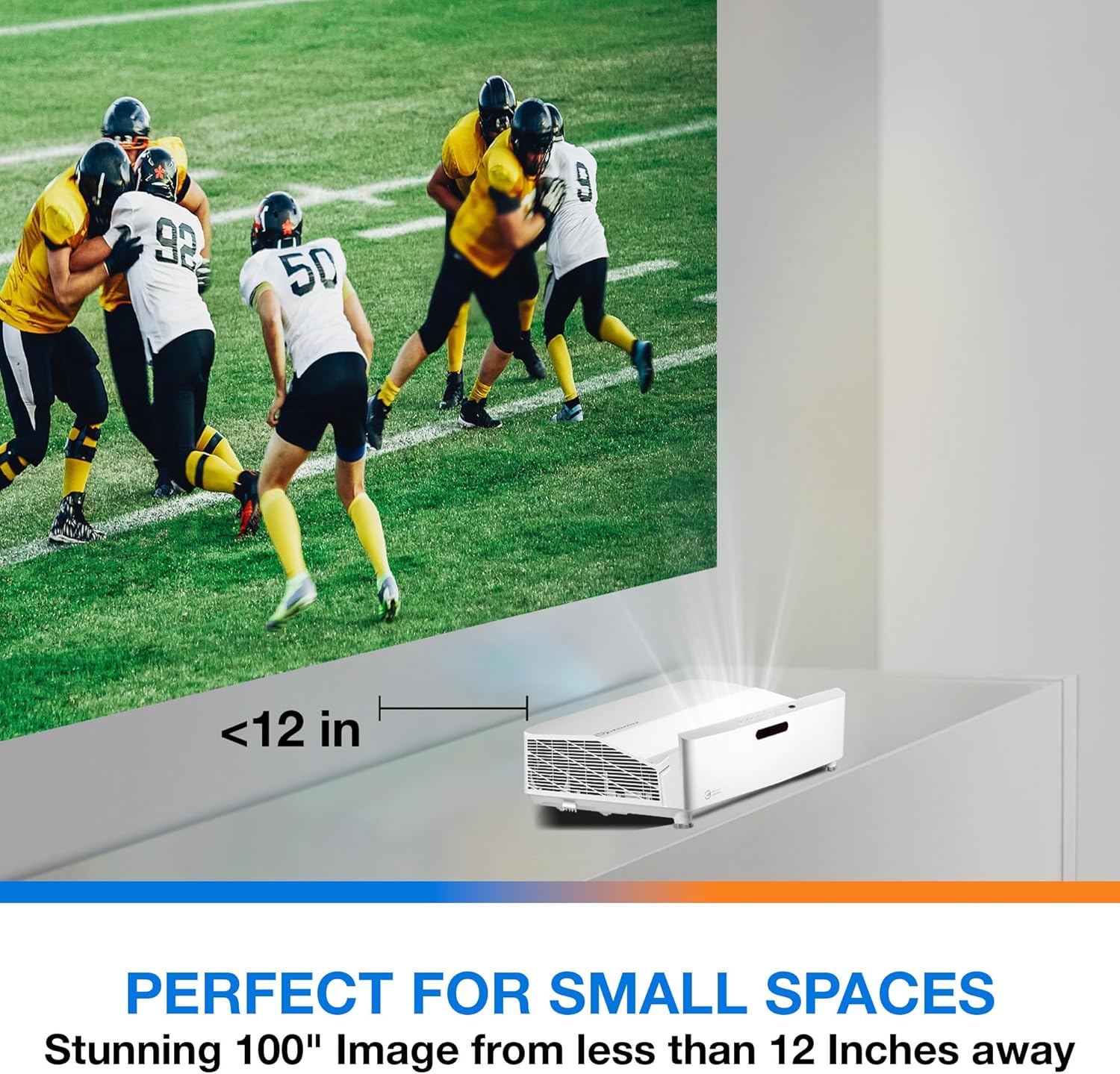
Description: This image illustrates the ultra-short throw capability of the GT4000UHD, showing it projecting a 100-inch image from less than 12 inches away from the projection surface. This allows for flexible placement in small spaces.
- For a 100-inch image, position the projector approximately 10-12 inches (25-30 cm) from the projection surface.
- Ensure the projector is level to avoid image distortion. Use the adjustable feet if necessary.
5.2 Connecting Devices
Connect your video sources (e.g., gaming console, Blu-ray player, streaming device) to the projector's HDMI ports. For network control or HDBaseT connectivity, use the respective ports on the rear panel.
- HDMI: Connect HDMI cables from your source devices to the HDMI 1 or HDMI 2 ports.
- Audio Out: For external audio systems, connect an audio cable from the Audio Out port to your sound system.
- Power: Connect the power cord to the DC input on the projector and then to a power outlet.
5.3 Power On/Off
- Power On: Press the power button on the projector or the remote control. The power indicator light will turn on.
- Power Off: Press the power button again. A confirmation message may appear; confirm to shut down the projector.
6. Operating Instructions
6.1 Basic Operation
- Source Selection: Use the 'Source' button on the remote control to cycle through available input sources (HDMI 1, HDMI 2, etc.).
- Menu Navigation: Use the 'Menu' button to access settings. Use the arrow keys and 'OK' button to navigate and select options.
- Volume Control: Adjust the volume using the dedicated volume buttons on the remote control.
6.2 Image Adjustment (4-Corner Geometric Correction)
The GT4000UHD features 4-Corner Adjustment for precise image alignment, especially useful when the projector is not perfectly perpendicular to the screen.
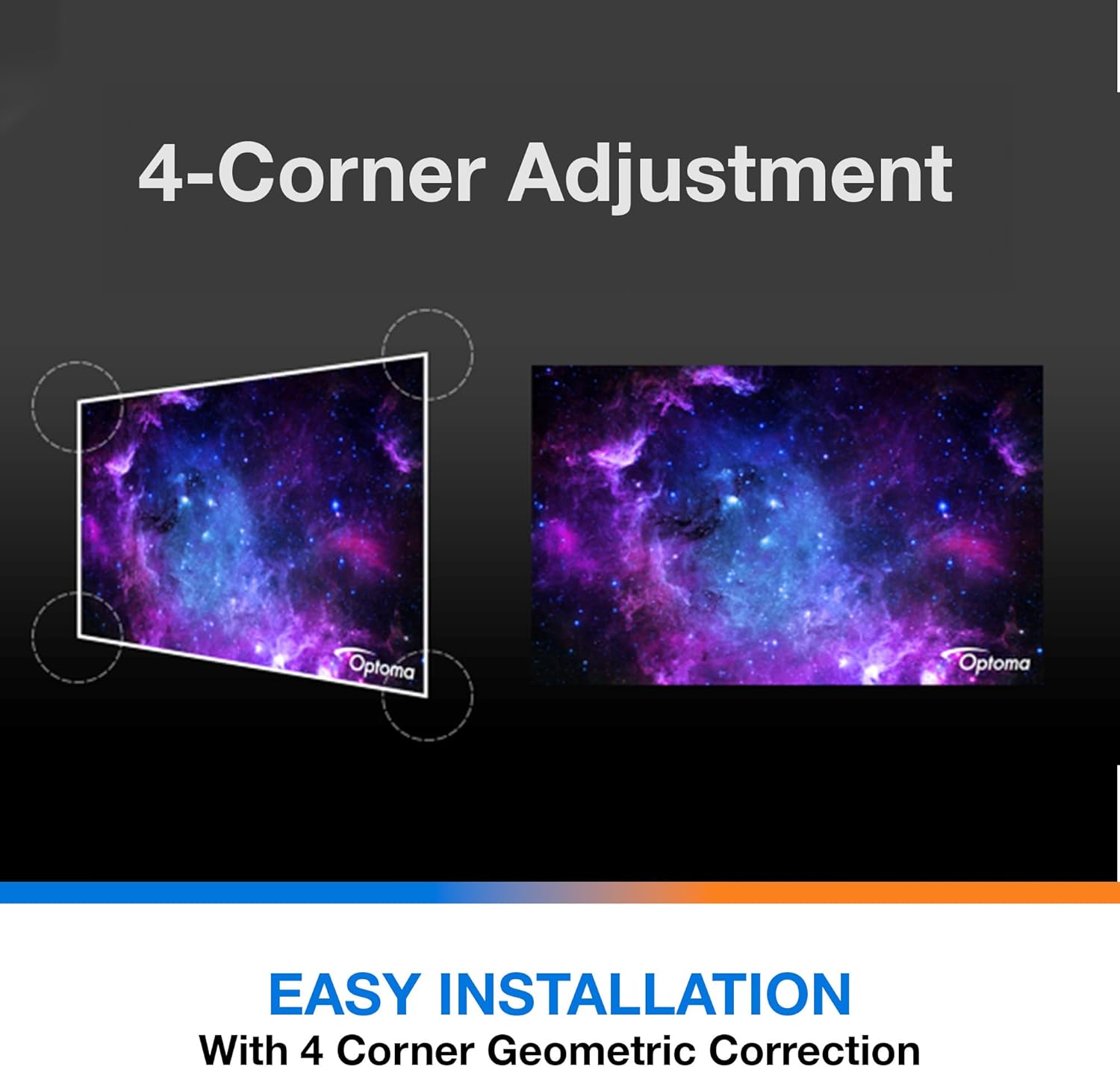
Description: This diagram illustrates the function of 4-Corner Adjustment. It shows a trapezoidal, distorted image being geometrically corrected to form a perfect rectangular projection, ensuring easy installation and optimal viewing.
- Access the 'Image' or 'Geometric Correction' menu.
- Select '4-Corner Adjustment' and use the arrow keys to individually adjust each corner of the projected image until it forms a perfect rectangle.
6.3 Enhanced Gaming Mode
The projector includes an Enhanced Gaming Mode to minimize input lag, providing a more responsive gaming experience.
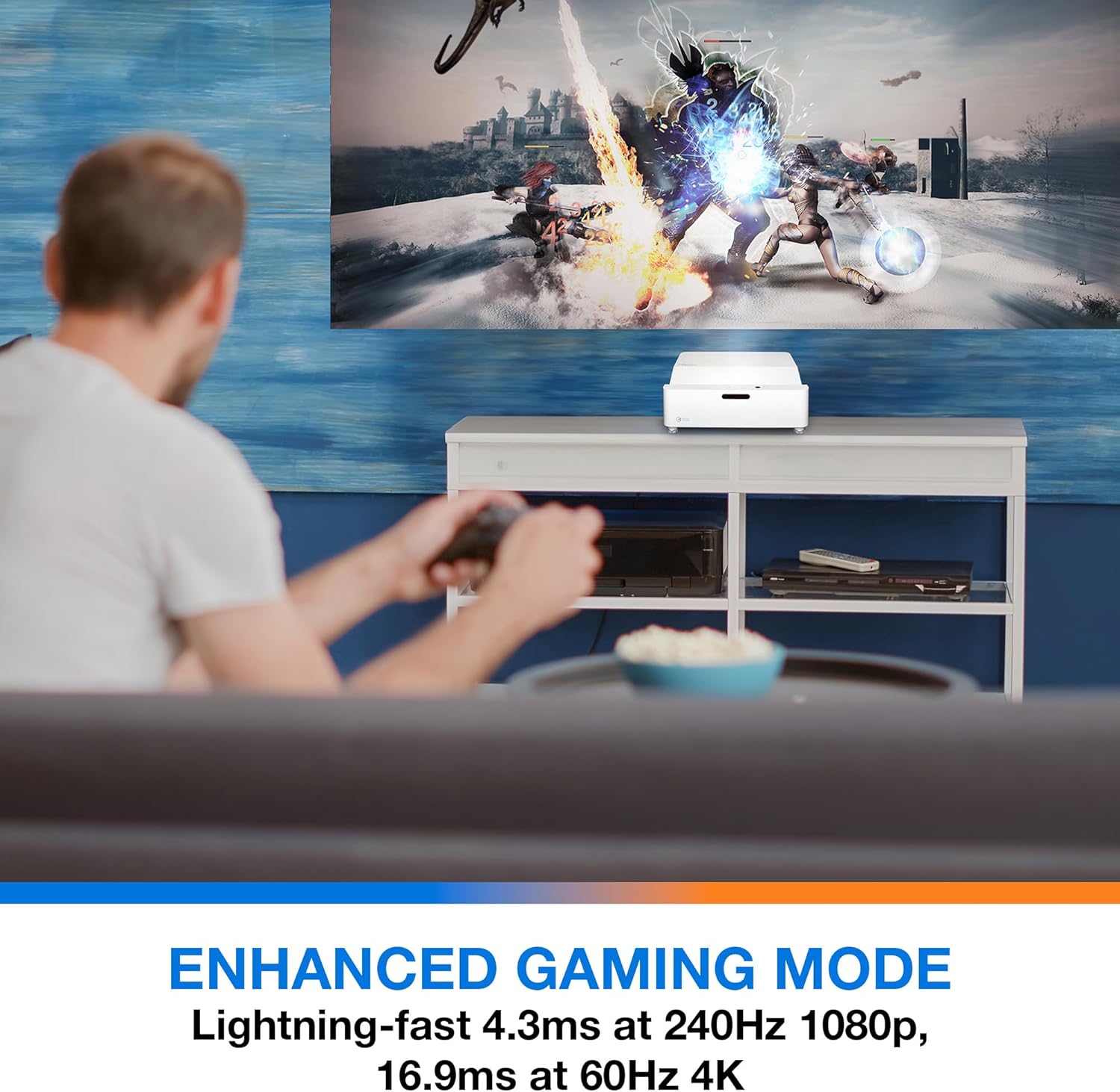
Description: This image shows a user engaged in gaming with the Optoma GT4000UHD projector, highlighting the Enhanced Gaming Mode. This mode offers low input lag for a responsive gaming experience.
- To activate, navigate to the 'Display' or 'Picture Mode' settings in the menu and select 'Gaming Mode'.
- This mode optimizes the projector for fast-paced action, reducing input latency to as low as 4.3ms at 240Hz 1080p, or 16.9ms at 60Hz 4K.
6.4 Firmware Updates (FOTA Integration)
The projector supports Firmware Over-The-Air (FOTA) updates, allowing for convenient software enhancements.
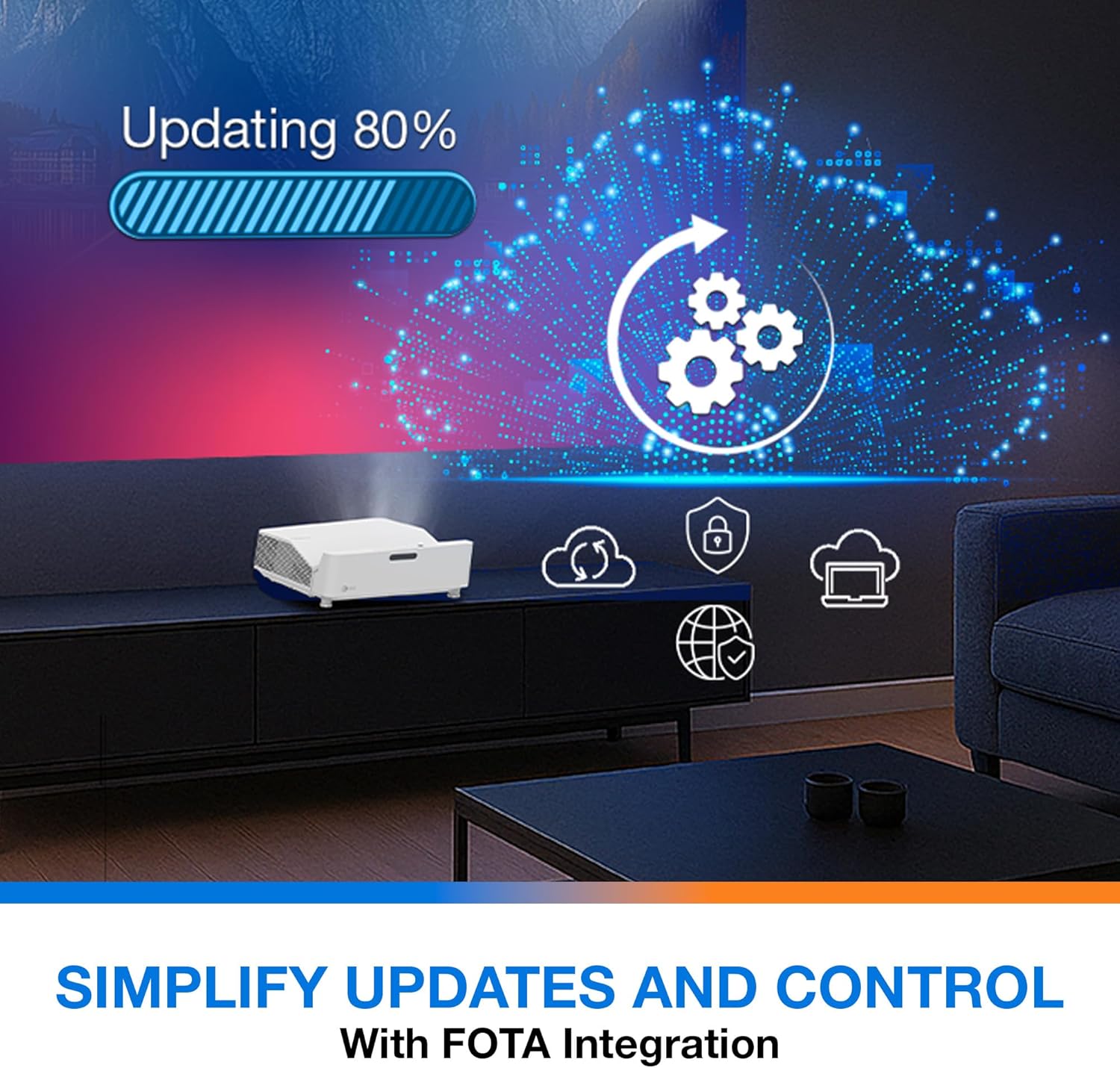
Description: This image depicts the FOTA (Firmware Over-The-Air) integration feature, showing a progress bar for an update and cloud icons representing simplified updates and control for the projector.
- Ensure the projector is connected to the internet via its network port.
- Check for updates in the 'System' or 'About' menu. Follow on-screen prompts to download and install any available firmware updates.
7. Maintenance
- Lens Cleaning: Gently wipe the lens with a soft, lint-free cloth specifically designed for optical surfaces. Do not use abrasive cleaners.
- Ventilation: Regularly check and clean the air vents to prevent dust buildup, which can affect performance and lifespan.
- Storage: When not in use for extended periods, store the projector in a cool, dry place, protected from dust.
8. Troubleshooting
If you encounter issues, refer to the following common solutions:
| Problem | Possible Cause | Solution |
|---|---|---|
| No image displayed | Power cable loose, incorrect input source, source device off | Check power connections, select correct input source, ensure source device is on. |
| Image distorted/not rectangular | Projector not level, keystone/corner adjustment needed | Adjust projector position, use 4-Corner Adjustment feature. |
| No audio | Volume too low, external audio system not connected/selected | Increase volume, check external audio connections and settings. |
| Remote control not working | Batteries depleted, obstruction between remote and projector | Replace batteries, remove obstructions, ensure line of sight. |
If the problem persists, contact Optoma customer support.
9. Specifications
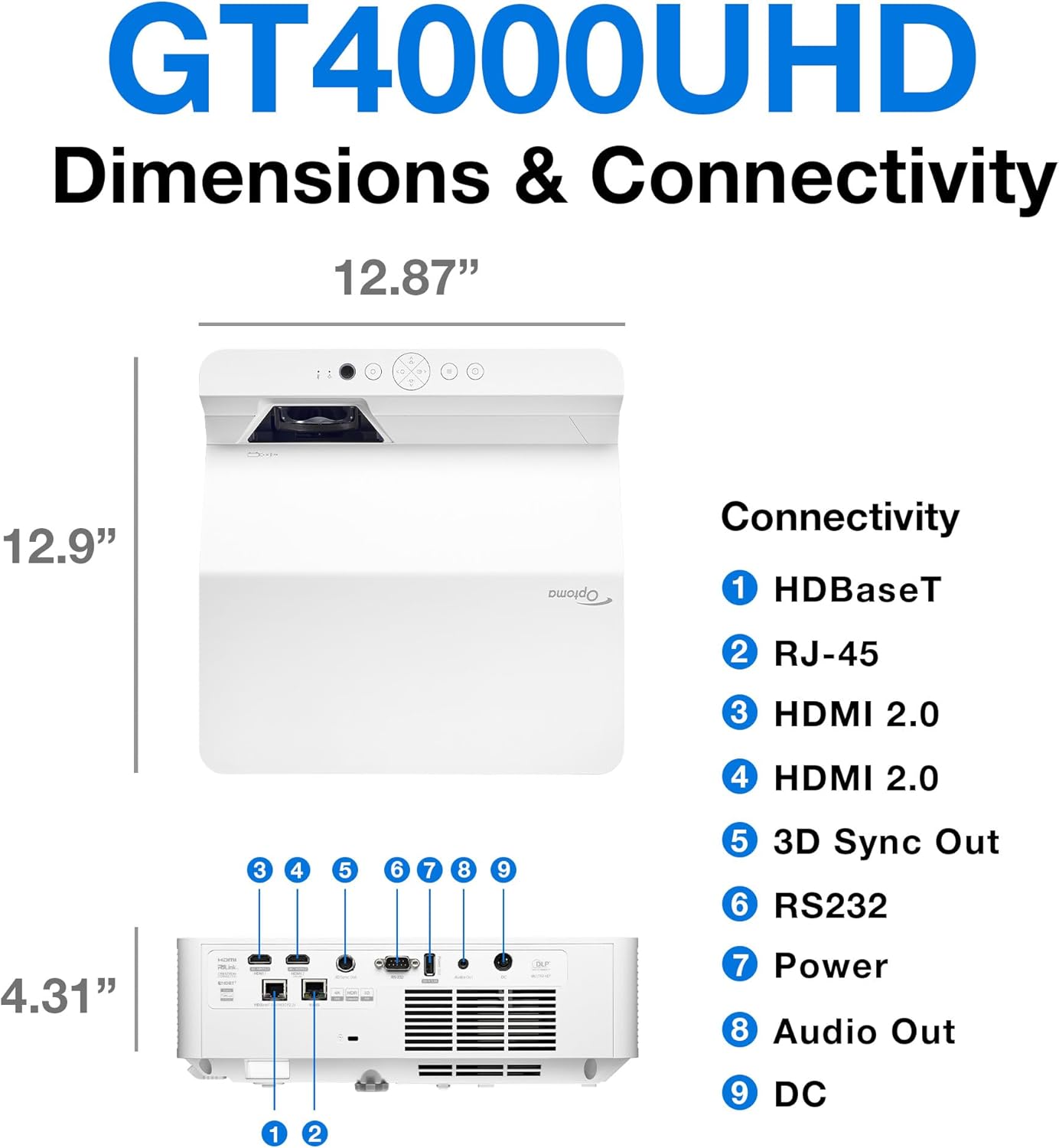
Description: This image provides a detailed diagram of the Optoma GT4000UHD projector, including its dimensions (12.87" x 12.9" x 4.31") and a labeled overview of its connectivity ports such as HDBaseT, RJ-45, HDMI 2.0, 3D Sync Out, RS232, Power, Audio Out, and DC.
| Feature | Specification |
|---|---|
| Model Name | GT4000UHD |
| Brand | Optoma |
| Display Resolution | 3840 x 2160 (4K UHD) |
| Brightness | 4,000 Lumens |
| Connectivity Technology | HDMI, RCA |
| Special Feature | Ultra Short Throw |
| Recommended Uses | Gaming, Home Cinema |
| Maximum Image Size | 100 Inches |
| Minimum Throw Distance | 0.28 Meters |
| Maximum Throw Distance | 0.56 Meters |
| Item Weight | 9.8 Pounds |
| Mounting Type | Tabletop Mount |
10. Warranty and Support
10.1 Warranty Information
The Optoma GT4000UHD projector comes with a 1 Year Projector Parts and Labor Manufacturer’s Warranty. Please retain your proof of purchase for warranty claims.
10.2 Customer Support
For technical assistance, troubleshooting beyond this manual, or warranty inquiries, please visit the official Optoma support website or contact their customer service department. Contact information can typically be found on the Optoma website or in the product packaging.


