
Acer EK241Y Gbi
Acer EK241Y Gbi Gaming Monitor User Manual
Model: EK241Y Gbi
1. Introduction and Overview
The Acer EK241Y Gbi is a high-performance 23.8-inch monitor designed to provide an exceptional visual experience for both work and entertainment. It features a Full HD 1920x1080 resolution, a rapid 120Hz refresh rate, and a 1ms Visual Response Boost (VRB) for smooth motion. The IPS panel technology ensures wide viewing angles and consistent color accuracy. This manual provides essential information for setting up, operating, maintaining, and troubleshooting your monitor.
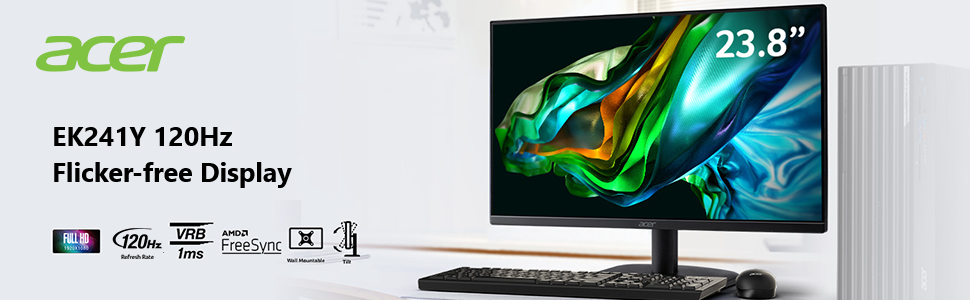
Image 1.1: Acer EK241Y Gbi monitor in a typical desk setup, highlighting its 120Hz flicker-free display.
2. Setup
2.1 Package Contents
Before you begin, please check the package contents to ensure all items are present:
- Acer EK241Y Gbi Monitor
- Monitor Stand (Base and Neck)
- HDMI Cable
- Power Cord
- User Manual (this document)
2.2 Assembling the Monitor Stand
- Carefully remove the monitor from its packaging, keeping the screen protected.
- Attach the stand neck to the back of the monitor until it clicks into place or is secured with screws (refer to the quick start guide for specific screw locations if applicable).
- Attach the stand base to the neck, securing it with the thumb screw or screws provided.
- Place the assembled monitor on a stable, flat surface.

Image 2.1: Front view of the Acer EK241Y Gbi monitor with its stand assembled.
2.3 Connecting the Monitor
Connect the necessary cables to the monitor's rear ports:
- Power Connection: Connect the power cord to the monitor's power input and then to a power outlet.
- Video Connection: Connect one end of the HDMI cable (included) to the HDMI port on your computer's graphics card and the other end to the HDMI port on the monitor. Alternatively, you can use a VGA cable if your computer supports it.
- Audio (Optional): If your monitor has an audio output, you can connect external speakers or headphones.

Image 2.2: Rear view of the Acer EK241Y Gbi monitor, showing the HDMI, VGA, and power input ports.

Image 2.3: Illustration of the monitor's tilt-able stand, allowing for flexible adjustment of the viewing angle.
3. Operating the Monitor
3.1 Powering On/Off
Press the power button located on the monitor (usually on the bottom right or rear) to turn the monitor on or off. The power indicator light will illuminate when the monitor is on.
3.2 On-Screen Display (OSD) Menu
The OSD menu allows you to adjust various monitor settings. Use the buttons on the monitor (typically on the bottom right or rear) to navigate the menu:
- Menu Button: Opens the OSD menu.
- Navigation Buttons: Used to move through menu options (up/down/left/right).
- Select/Enter Button: Confirms a selection.
- Exit Button: Exits the current menu or the OSD.
3.3 Key Features and Adjustments
The Acer EK241Y Gbi monitor offers several features to enhance your viewing experience:
- Full HD Resolution (1920x1080): Provides crisp and clear images with excellent detail.
- 120Hz Refresh Rate: Speeds up frames per second for smooth 2D motion scenes, ideal for fast-paced content and gaming.
- 1ms Visual Response Boost (VRB): Minimizes ghosting and smearing for clear, blur-free visuals during rapid transitions.
- AMD FreeSync: Synchronizes the monitor's refresh rate with your graphics card's frame rate to eliminate screen tearing and stuttering, providing a smoother gaming experience.
- IPS Panel Technology: Offers wide 178-degree viewing angles horizontally and vertically, ensuring consistent colors and clarity from almost any position.

Image 3.1: Comparison illustrating the clarity of Full HD (1080p) resolution versus 720p.

Image 3.2: Visual representation of the smooth motion provided by a 120Hz refresh rate in a gaming scenario.

Image 3.3: Demonstration of 1ms VRB, showing a clear image on the left and a blurry image on the right.

Image 3.4: Visual comparison of screen tearing without FreeSync (right) versus smooth, tear-free viewing with AMD FreeSync (left).

Image 3.5: Illustration of the 178-degree wide viewing angle provided by the In-Plane-Switching (IPS) panel technology.
4. Maintenance
Proper maintenance helps extend the life of your monitor and ensures optimal performance.
- Screen Cleaning: Gently wipe the screen with a soft, lint-free cloth. For stubborn marks, use a monitor-specific cleaning solution applied to the cloth, not directly to the screen.
- Casing Cleaning: Use a soft, damp cloth to clean the monitor casing. Avoid abrasive cleaners or solvents.
- Ventilation: Ensure the monitor's ventilation openings are not blocked to prevent overheating.
- Power Off When Not in Use: Turn off the monitor when not in use for extended periods to save energy and prolong its lifespan.
5. Troubleshooting
If you encounter issues with your monitor, refer to the following common problems and solutions:
| Problem | Possible Cause | Solution |
|---|---|---|
| No image on screen | Monitor not powered on; Video cable loose or disconnected; Incorrect input source selected. | Ensure power cord is securely connected and monitor is turned on. Check video cable connection at both monitor and computer. Press the input select button on the monitor to cycle through input sources (HDMI, VGA). |
| Image is blurry or distorted | Incorrect resolution setting; Video cable issue. | Set the display resolution to 1920x1080 in your computer's display settings. Ensure the video cable is securely connected and not damaged. |
| Screen flickering | Refresh rate mismatch; Cable issue; Graphics driver issue. | Ensure your computer's refresh rate is set to 120Hz. Check video cable for damage. Update your graphics card drivers. If using FreeSync, ensure it's enabled in both monitor OSD and graphics card settings. |
| No sound (if speakers are connected) | Audio cable disconnected; Volume too low; Incorrect audio output selected on computer. | Check audio cable connection. Increase monitor and computer volume. Select the correct audio output device in your computer's sound settings. |
6. Specifications
| Feature | Specification |
|---|---|
| Model Name | EK241Y Gbi |
| Screen Size | 23.8 Inches |
| Display Resolution | 1920 x 1080 (Full HD) |
| Refresh Rate | 120Hz |
| Response Time | 1ms (VRB) |
| Panel Type | IPS |
| Aspect Ratio | 16:9 |
| Viewing Angle | 178° (H) / 178° (V) |
| Connectivity | 1 x HDMI, 1 x VGA |
| Tilt Adjustment | -5 to 20 degrees |
| Color | Black |
| Dimensions (L x W x H) | 53.92 x 40.14 x 19.2 cm (with stand) |
| Weight | 2.73 kg |
7. Warranty and Support
For detailed warranty information, please refer to the warranty card included with your product or visit the official Acer website. You can also find support resources, driver downloads, and frequently asked questions on the Acer support page.
Acer Official Store: Visit the Acer Store on Amazon
Related Documents - EK241Y Gbi
 |
Acer R221Q LCD Monitor Quick Start Guide This guide provides essential safety instructions, package contents, setup procedures, and panel control information for the Acer R221Q LCD monitor, ensuring a smooth and safe user experience. |
 |
Acer KA242Y LCD Monitor Quick Start Guide Quick Start Guide for the Acer KA242Y LCD Monitor, covering safety instructions, setup, connection, FreeSync technology, external controls, and regulatory notices. |
 |
Acer LCD Monitor User's Guide Comprehensive user guide for the Acer LCD Monitor, covering setup, safety precautions, operation, and troubleshooting. |
 |
Acer EK1 Series EK241Y LCD Monitor User Guide This user guide provides essential information for setting up and using your Acer EK1 Series EK241Y LCD monitor. It includes important safety instructions, connection guides, and technical specifications. |
 |
Acer XN253QX Predator LCD Monitor Quick Start Guide: Setup, Safety, and Specifications This Acer XN253QX Predator LCD monitor quick start guide provides essential safety information, step-by-step connection instructions, details on external controls, information on G-SYNC and 3D capabilities, regulatory notices, and comprehensive technical specifications for optimal setup and use. |
 |
Acer LCD Monitor Quick Start Guide - Setup and Safety Instructions Quick start guide for Acer LCD monitors, covering safety instructions, setup, connections, AMD FreeSync, external controls, and regulatory information. |
Ask a question about this manual
Ask about setup, troubleshooting, compatibility, parts, safety, or missing instructions. Manuals+ will review the question and use this page’s manual context to help answer it.