
1. Introduction
This user manual provides detailed instructions for the LG Ultragear 45GX90SA 45-inch OLED Curved Smart Gaming Monitor. It covers product features, setup procedures, operational guidelines, maintenance tips, and troubleshooting solutions to ensure optimal performance and user experience. Please read this manual thoroughly before operating the monitor and retain it for future reference.
2. Safety Information
Observe the following safety precautions to prevent damage to the product and ensure user safety:
- Do not place the monitor near heat sources or in direct sunlight.
- Ensure proper ventilation around the monitor to prevent overheating.
- Use only the power adapter supplied with the monitor.
- Avoid placing heavy objects on the power cord or monitor.
- Do not attempt to disassemble or repair the monitor yourself. Refer all servicing to qualified personnel.
- Keep the monitor away from water or excessive moisture.
3. Package Contents
Verify that all items are present in the product box:
- LG Ultragear 45GX90SA Monitor
- Monitor Stand (Base and Neck)
- Power Adapter and Power Cord
- HDMI Cable
- DisplayPort Cable
- USB-C Cable
- User Manual (this document)
4. Setup
4.1 Physical Assembly
Attach the stand base to the neck, then secure the assembled stand to the monitor panel. Alternatively, the monitor supports VESA mounting for wall or arm installation (VESA 100x100mm).

4.2 Connecting Devices
Connect your computer or other devices to the monitor using the appropriate cables. The monitor supports:
- HDMI 2.1: For high-resolution and high-refresh-rate video and audio.
- DisplayPort 1.4: For optimal gaming performance with high refresh rates and adaptive sync technologies.
- USB-C (with 65W Power Delivery): For video, data, and charging compatible devices with a single cable.

4.3 Initial Power On
After connecting all necessary cables, plug the power adapter into an electrical outlet and then into the monitor. Press the power button (usually located on the bottom center or rear of the monitor) to turn on the display.
5. Operating Instructions
5.1 On-Screen Display (OSD) Navigation
The monitor's settings are controlled via a joystick button, typically located on the bottom center of the monitor. Move the joystick up, down, left, or right to navigate the OSD menu, and press it in to select options.

5.2 Picture Settings
Access the OSD menu to adjust various picture settings:
- Brightness: Adjust the overall luminance of the screen.
- Contrast: Control the difference between the brightest and darkest areas.
- Sharpness: Enhance the clarity of image edges.
- Gamma: Adjust the tone curve for optimal image display.
- Color Temperature: Select preset color temperatures or customize RGB values.
- Black Stabilizer: Adjust black levels to improve visibility in dark scenes.
- Response Time: Optimize pixel response for faster transitions (e.g., Fast, Faster).
- DFC (Digital Fine Contrast): Automatically adjusts brightness based on the input signal.
Note: The 'Smart Energy Saver' feature, if enabled, may cause the screen brightness to fluctuate. For consistent brightness, it is recommended to disable this feature in the OSD menu.
5.3 Gaming Features
The monitor is equipped with advanced gaming technologies:
- 240Hz Refresh Rate: Provides ultra-smooth motion for fast-paced games.
- 0.03ms (GtG) Response Time: Minimizes motion blur and ghosting.
- NVIDIA G-SYNC Compatible: Synchronizes the monitor's refresh rate with the GPU's frame rate to eliminate screen tearing and stuttering.
- AMD FreeSync Premium: Offers similar adaptive synchronization benefits for AMD graphics cards.

5.4 Smart Features (webOS)
The integrated webOS platform allows access to various smart functionalities without a connected PC:
- Streaming Services: Access popular streaming applications directly (e.g., Netflix, Disney+).
- Cloud Gaming: Launch cloud gaming services (e.g., GeForce NOW, Amazon Luna) directly from the monitor.
- AI Personalized Picture Wizard: Utilizes AI to optimize picture settings based on content and environment.

6. Features Overview
The LG Ultragear 45GX90SA monitor offers a range of advanced features designed for an immersive visual experience:
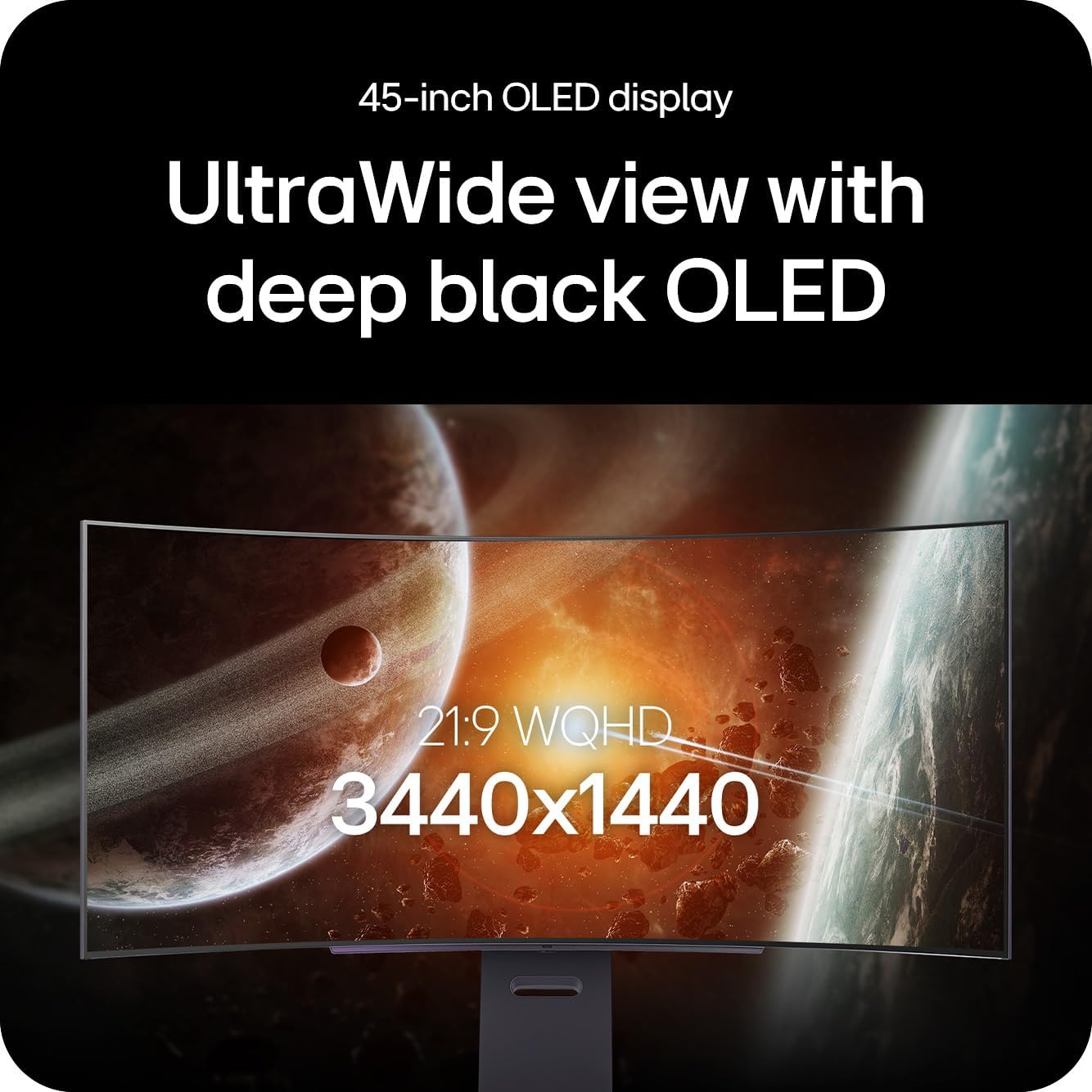
- 45-inch WQHD OLED Panel: An expansive 3440x1440 resolution OLED display delivers vibrant colors and true blacks.
- 800R Curved Display: A steep curvature designed to enhance immersion and provide a more natural viewing experience.
- HDR True Black 400: Offers deep black levels and bright highlights for superior contrast.
- 98.5% DCI-P3 Color Gamut: Ensures accurate and wide color reproduction.
- Advanced Anti-Glare Technology: Reduces reflections and glare for improved visibility in various lighting conditions.


7. Maintenance
7.1 Cleaning the Monitor
To clean the monitor screen, gently wipe it with a soft, lint-free cloth. For stubborn marks, lightly dampen the cloth with water or a specialized screen cleaner. Avoid using harsh chemicals, abrasive cleaners, or direct spraying of liquids onto the screen.
7.2 General Care
Keep the monitor in a clean, dust-free environment. Ensure adequate airflow around the monitor to prevent dust accumulation in vents. When moving the monitor, handle it carefully by the edges and avoid applying pressure to the screen.
8. Troubleshooting
If you encounter issues with your monitor, refer to the following common problems and solutions:
| Problem | Possible Cause | Solution |
|---|---|---|
| No power | Power cable not connected; power outlet faulty. | Ensure power cable is securely connected. Test the outlet with another device. |
| No signal | Input cable not connected; incorrect input source selected. | Check HDMI/DisplayPort/USB-C cable connections. Select the correct input source via OSD. |
| Screen flickering or image loss | Faulty or incompatible DisplayPort/HDMI cable; graphics card issue. | Replace the cable with a certified high-quality one. Update graphics drivers. |
| Screen dims and brightens automatically | Smart Energy Saver feature is active. | Disable 'Smart Energy Saver' in the OSD menu for consistent brightness. |
| Distorted or blurry image | Incorrect resolution or refresh rate; cable issue. | Set the display resolution to 3440x1440 and refresh rate to 240Hz in your device's display settings. Check cable integrity. |
9. Specifications
| Feature | Detail |
|---|---|
| Brand | LG |
| Model Number | 45GX90SA-B |
| Screen Size | 44.5 Inches |
| Display Resolution | 3440 x 1440 Pixels (WQHD) |
| Aspect Ratio | 21:9 |
| Refresh Rate | 240Hz |
| Response Time (GtG) | 0.03ms |
| Panel Type | OLED |
| Curvature | 800R |
| Color Gamut | 98.5% DCI-P3 |
| HDR Support | HDR True Black 400 |
| Adaptive Sync | NVIDIA G-SYNC Compatible, AMD FreeSync Premium |
| Smart Features | webOS, AI Personalized Picture Wizard |
| Connectivity | HDMI 2.1, DisplayPort 1.4, USB-C (65W PD) |
| Product Dimensions (L x W x H) | 33.9 x 99.3 x 66.2 cm |
| Item Weight | 13.5 kg |
| Screen Surface Description | Matte |
10. Warranty and Support
For warranty information and technical support, please refer to the warranty card included in your product packaging or visit the official LG website. You can also contact LG customer service for assistance with product registration, troubleshooting, and service requests.