
1. Introduction
The Techtex 2025 WiFi Extender is designed to enhance your existing wireless network coverage, eliminating dead zones and providing stable internet access throughout your home or office. This device supports seamless streaming, gaming, and browsing by extending your router's signal. It is compatible with a wide range of devices including smartphones, laptops, smart home devices, and more.
The extender operates on a voltage range of 110V–240V, making it suitable for global use with a standard U.S. plug. It is ideal for various environments such as homes, offices, hotels, retail stores, RVs, and outdoor camping.
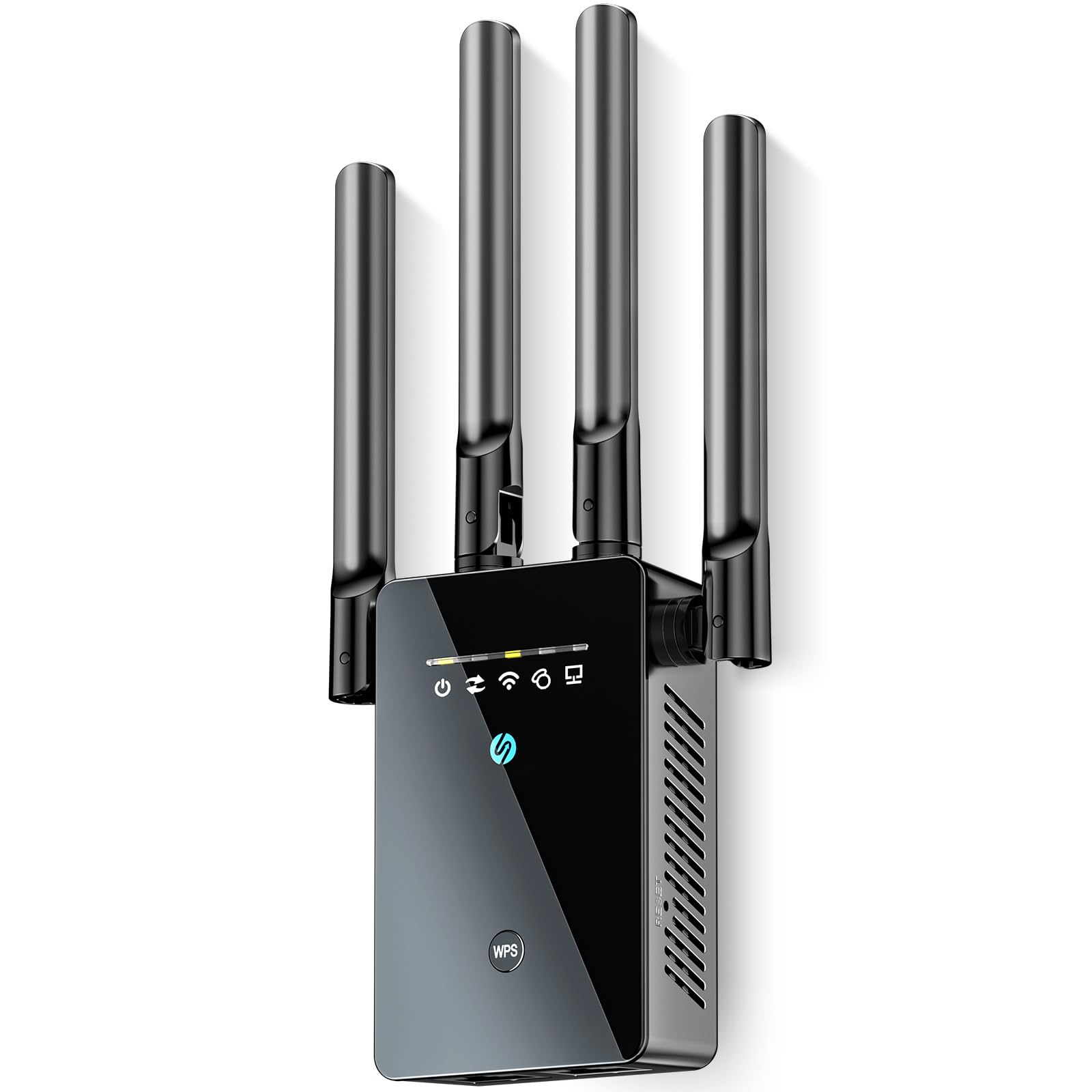
Figure 1: The Techtex 2025 WiFi Extender, showcasing its compact design and indicator lights.
2. Package Contents
Verify that all items are present in the package:
- 1 × Techtex 2025 WiFi Extender
- 1 × RJ45 Ethernet Cable (for wired connections)
- 1 × User Manual (Installation guide with video link)
3. Quick Setup Guide
The Techtex 2025 WiFi Extender features a simple one-tap setup process using WPS (Wi-Fi Protected Setup).
3.1. WPS Setup (Recommended)
- Plug In: Plug the WiFi extender into an electrical outlet near your existing router. Wait for the power indicator light to become stable.
- Press WPS on Extender: Press the WPS button on the Techtex 2025 WiFi Extender. The WPS indicator light will start blinking.
- Press WPS on Router: Within two minutes, press the WPS button on your main WiFi router.
- Connect: The extender's WPS indicator light will turn solid, indicating a successful connection. You can now unplug the extender and move it to a desired location within your router's signal range.
Note: If your router does not have a WPS button, or if the WPS setup fails, please refer to the advanced setup instructions in the included user manual or contact support.

Figure 2: Visual guide for the WPS setup process.
4. Operating Modes
The Techtex 2025 WiFi Extender supports five distinct operating modes to suit various networking needs:
- Repeater Mode: Extends the coverage of an existing wireless network. This is the most common mode for eliminating dead zones.
- Bridge Mode: Connects two or more network segments, allowing devices on different segments to communicate.
- Access Point (AP) Mode: Transforms a wired network connection into a wireless access point, ideal for areas without existing WiFi.
- Router Mode: Functions as a primary router, creating a new wireless network from a wired internet connection.
- Client Mode: Allows wired-only devices (e.g., smart TVs, gaming consoles) to connect to a wireless network.
You can switch between these modes via the extender's web-based management interface, accessible after initial setup.
5. Network Security
The Techtex 2025 WiFi Extender incorporates an embedded security encryption module to protect your network and data. It supports industry-leading security protocols:
- WPA2 (Wi-Fi Protected Access II): Provides robust encryption and authentication for secure wireless connections.
- WPA (Wi-Fi Protected Access): An earlier security protocol, still supported for compatibility.
- WEP (Wired Equivalent Privacy): An older, less secure protocol, supported for legacy device compatibility.
These protocols ensure real-time detection and prevention of security risks, maintaining a stable and secure Wi-Fi environment.
6. Technical Specifications
| Feature | Detail |
|---|---|
| Model | 2025 |
| Brand | Techtex |
| Wireless Standard | 802.11a |
| Power Input | 110V–240V |
| Socket Type | Standard U.S. plug |
| Special Feature | 1-Tap Setup (WPS) |
| Color | Black Glossy |
| Max Coverage | Up to 15,588 Sq Ft |
| Max Devices | Up to 65 Devices |
7. Maintenance
To ensure optimal performance and longevity of your Techtex 2025 WiFi Extender, consider the following maintenance tips:
- Placement: Position the extender in an open area, away from obstructions like large metal objects, microwaves, or thick walls, to maximize signal strength.
- Cleaning: Gently wipe the device with a dry, soft cloth. Do not use liquid cleaners or aerosols.
- Firmware Updates: Periodically check the manufacturer's website for firmware updates. Keeping your device's firmware up-to-date can improve performance, security, and stability.
- Restart: If you experience connectivity issues, try restarting the extender by unplugging it from the power outlet for 10 seconds and then plugging it back in.
8. Troubleshooting
If you encounter issues with your Techtex 2025 WiFi Extender, refer to the following common solutions:
- No Power: Ensure the extender is securely plugged into a working electrical outlet. Check if the power indicator light is on.
- Cannot Connect to Extender: Verify that you are selecting the correct extended network name (SSID). Ensure the extender is within range of your main router.
- WPS Setup Fails: Try repeating the WPS process. If it continues to fail, attempt manual setup via the web interface (refer to the full user manual for detailed steps). Ensure your router supports WPS.
- Slow Speed: Reposition the extender closer to your main router or away from potential interference sources. Ensure your main internet connection is stable.
- Frequent Disconnections: Check for firmware updates. Ensure the extender is not overheating. Try resetting the extender to factory defaults (consult the full manual for instructions).
For further assistance, please contact Techtex customer support.
9. Warranty and Support
The Techtex 2025 WiFi Extender comes with a standard manufacturer's warranty. Please refer to the warranty card included in your package for specific terms and conditions, including warranty duration and coverage details.
For technical support, product inquiries, or warranty claims, please visit the official Techtex website or contact their customer service department. Contact information can typically be found on the product packaging or the official brand website.
Online Resources: