Forc Shipping Label Printer (Model POS-9250) User Manual
Efficient Thermal Label Printing for Small Businesses
1. Setup
1.1 Package Contents
Before beginning, verify that all items are present in the package:
1 x Forc Shipping Label Printer (4x6)
1 x Power Adapter
1 x Power Cable
1 x USB Cable
1 x USB Flash Drive (containing drivers and software)
1 x User Manual
30 x Test Labels
Figure 1.1: The complete packing list for the Forc Shipping Label Printer, including the printer, power accessories, cables, USB drive, manual, and test labels.
1.2 Physical Connection
Connect the power adapter to the printer's power port and then plug the power cable into a wall outlet.
For USB connection, plug one end of the USB cable into the printer and the other end into your computer (Windows or Mac OS).
1.3 Loading Labels
The printer supports both roll labels and fan-fold labels. It features a built-in label bin for convenience.
Open the top cover of the printer.
Place the roll labels into the built-in label bin, ensuring the printing side faces upwards. For fan-fold labels, feed them from the back of the printer.
Adjust the label guides to fit the width of your labels snugly, without being too tight.
Close the top cover. The printer will automatically detect the label size and calibrate.
Figure 1.2: Loading roll labels into the printer's built-in label bin. The printer supports both roll and fan-fold labels.
1.4 Driver and App Installation
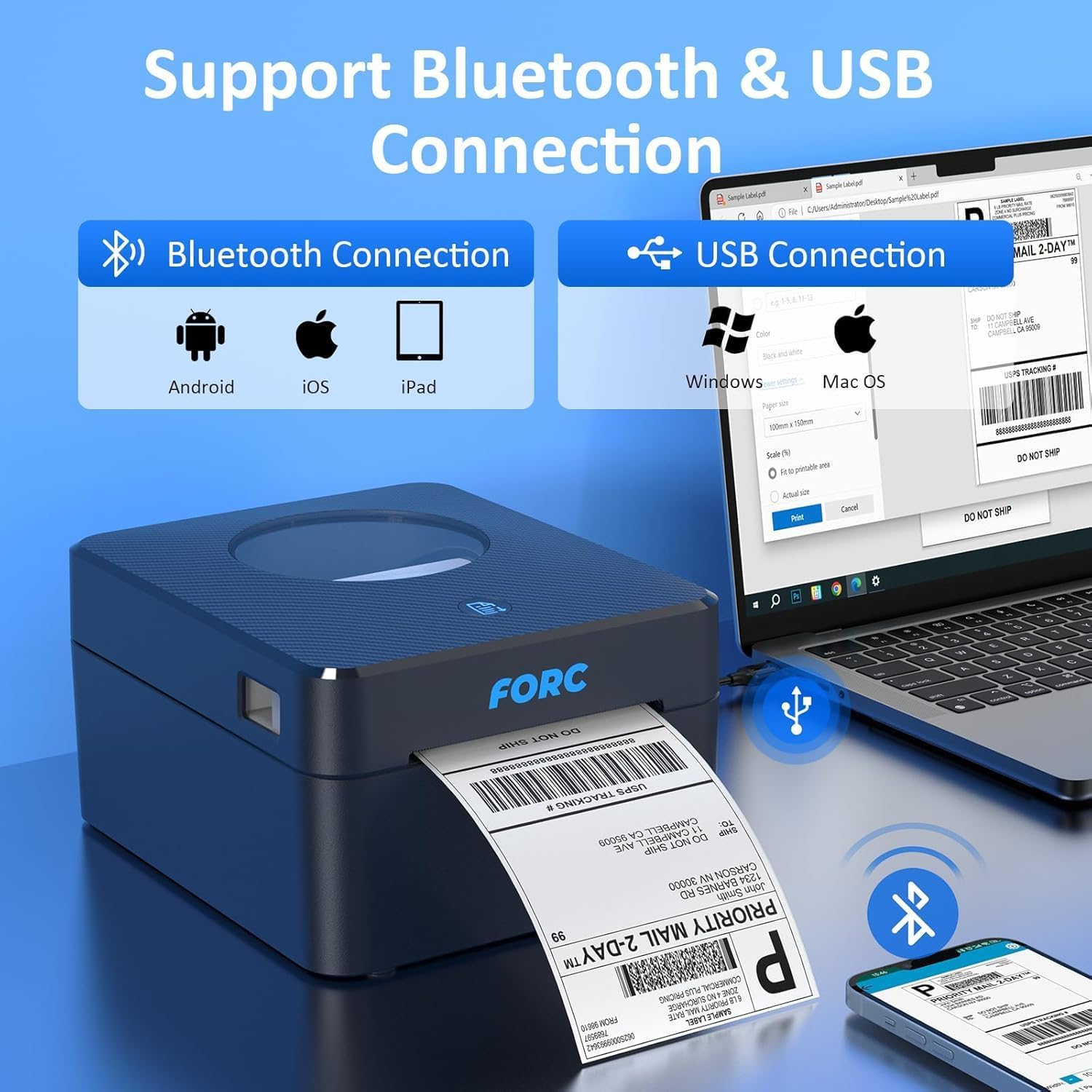
The printer offers both USB and Bluetooth connectivity.
For Windows/Mac OS (USB Connection): Insert the provided USB Flash Drive into your computer. Follow the instructions to install the printer drivers. If the drive is not available, drivers can typically be downloaded from the manufacturer's official website.
For Android/iOS (Bluetooth Connection): Download the dedicated mobile application. For Android, search for "Print Label". For iOS, search for "Zlabel" in your device's app store.
Figure 1.3: The printer supports Bluetooth connectivity for Android and iOS devices, and USB connectivity for Windows and Mac OS computers.
2. Operating Instructions
2.1 Connecting to Your Device
USB Connection (Windows/Mac OS): After driver installation, the printer should appear as an available printer in your system's print dialogue. Select it to print.
Bluetooth Connection (Android/iOS): Open the "Print Label" (Android) or "Zlabel" (iOS) app. Navigate to the printer settings within the app and pair with your Forc printer via Bluetooth. Ensure Bluetooth is enabled on your mobile device.
Note: Wi-Fi connection is not supported by this printer model.
2.2 Printing Labels
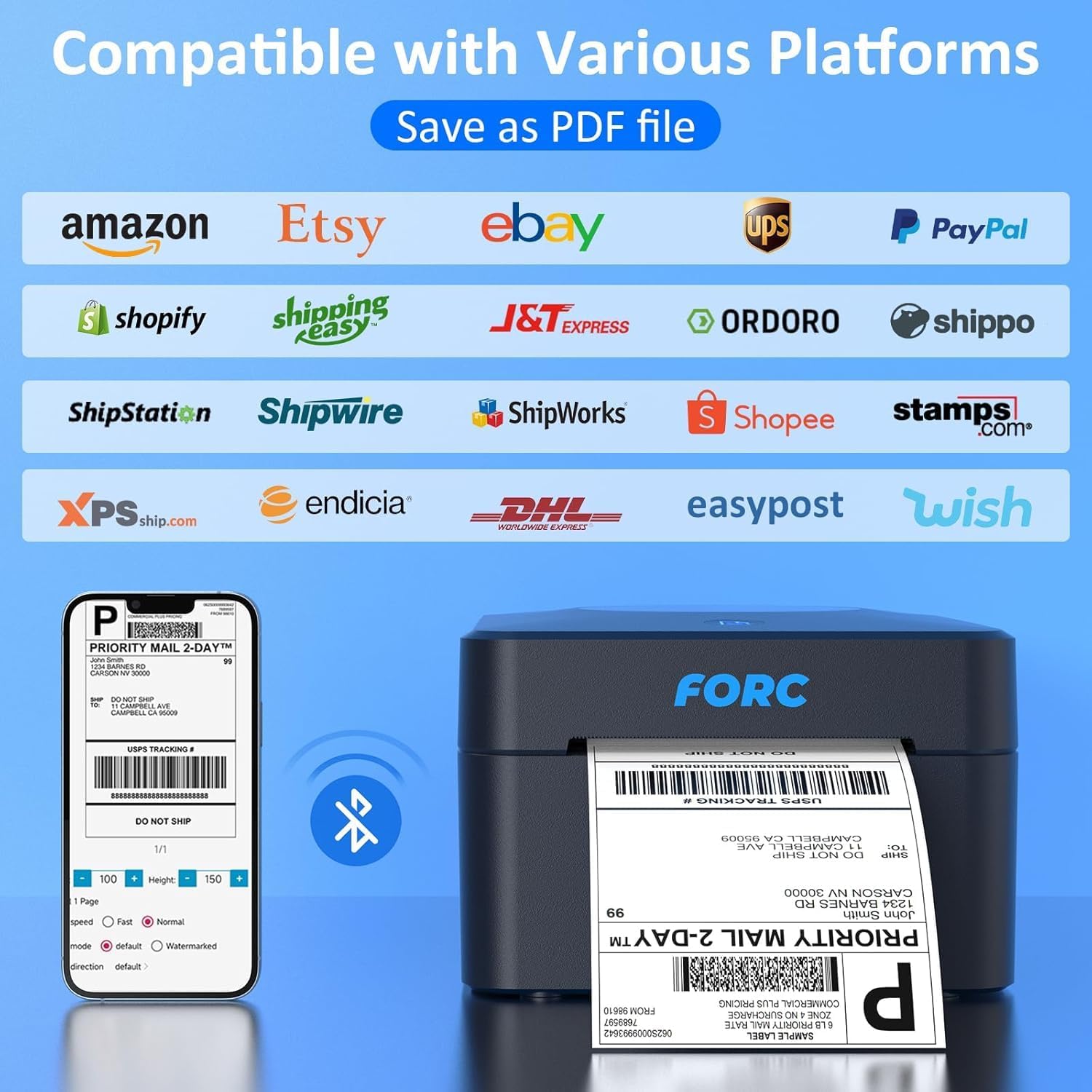
The Forc Shipping Label Printer is compatible with various platforms including USPS, UPS, Etsy, eBay, Shopify, and PayPal.
Generate your shipping label or desired document from your platform or software.
Important: Save and download the label as a PDF file first.
Open the PDF file on your computer or within the mobile app.
Select the Forc printer from your list of available printers.
Ensure print settings (e.g., paper size, orientation) match your label dimensions (e.g., 4x6 inches).
Initiate the print command. The printer will print at speeds up to 160mm/s with 203 DPI resolution.
Figure 2.1: The printer is compatible with major e-commerce and shipping platforms, requiring labels to be saved as PDF files for printing.Figure 2.2: The printer delivers fast and clear label printing with a speed of 160mm/s and a resolution of 203 DPI.
2.3 Supported Label Types and Sizes
This thermal printer supports direct thermal labels with a width range of 0.8 inches (20mm) to 4.1 inches (104mm). The maximum media size supported is 4x6 inches.
Common sizes include 2"x1", 3"x2", 4"x4", and 4"x6" labels.
It also supports circular labels.
Figure 2.3: The printer supports a variety of direct thermal label sizes, from 0.8" to 4.1" in width, including standard shipping labels and custom shapes.
3. Maintenance
3.1 Cleaning the Print Head
Regular cleaning of the print head ensures optimal print quality and extends the printer's lifespan. Since this is a thermal printer, no ink or toner replacement is needed.
Turn off the printer and unplug it from the power source.
Open the top cover to access the print head.
Gently wipe the print head with an alcohol swab or a soft, lint-free cloth dampened with isopropyl alcohol.
Allow the print head to dry completely before closing the cover and reconnecting power.
3.2 General Care and Storage
Keep the printer in a clean, dust-free environment.
Avoid exposing the printer to direct sunlight, extreme temperatures, or high humidity.
When not in use for extended periods, store the printer in its original packaging or a protective cover.
4. Troubleshooting
Issue
Possible Cause
Solution
Printer not responding
Power issue, loose cable, driver problem.
Check power connections. Ensure USB cable is securely connected. Reinstall printer drivers if necessary.
Bluetooth connectivity issues
Bluetooth not enabled, incorrect pairing, app issue.
Ensure Bluetooth is active on your mobile device. Re-pair the printer within the app. Restart the app and printer.
Verify print settings (paper size, orientation) in your software/app. Clean the print head (refer to Section 3.1). Ensure labels are loaded correctly.
Printer not feeding labels
Labels jammed, empty label roll, label guides too tight.
Check for and clear any label jams. Replace the label roll. Adjust label guides to allow free movement.
5. Specifications
Feature
Detail
Brand
Forc
Model Name
POS-9250
Printing Technology
Thermal
Connectivity Technology
Bluetooth, USB
Printer Output
Monochrome
Maximum Print Speed
160 mm/s
Resolution
203 DPI (203 x 203)
Maximum Media Size
4 x 6 inches
Supported Label Width
0.8" - 4.1" (20mm - 104mm)
Item Weight
1.77 Kilograms
Item Dimensions (D x W x H)
8.9" x 9" x 4.7"
Built-In Media
30 x Test Labels
6. Warranty and Support
6.1 Product Warranty
Forc offers a 1-year limited warranty on the thermal shipping label printer from the date of purchase. This warranty covers manufacturing defects and malfunctions under normal use. Please retain your proof of purchase for warranty claims.
6.2 Customer Support
If you encounter any issues not covered in the troubleshooting section or require further assistance, please contact Forc customer support. Refer to the contact information provided in your product packaging or on the official Forc website.