
Rewurnth B0F6XKTZ2Y
Rewurnth Gaming Keyboard and Mouse Set with Headphones User Manual
Comprehensive guide for your Rewurnth all-in-one gaming peripheral set.
Introduction
Thank you for choosing the Rewurnth Gaming Keyboard and Mouse Set with Headphones. This all-in-one package is designed to enhance your gaming experience with its high-performance components and ergonomic design. This manual provides detailed instructions on setting up, operating, and maintaining your new gaming peripherals.

Image: The complete Rewurnth gaming set, including the RGB backlit keyboard, LED gaming mouse, red LED over-ear headphones, and a large gaming mouse pad.
Setup Guide
Follow these steps to quickly set up your Rewurnth gaming peripherals.
1. Keyboard Setup
- Unpack the keyboard from its packaging.
- Connect the keyboard's USB cable to an available USB port on your PC, Mac, PS4, or Xbox.
- The keyboard is plug-and-play and should be automatically recognized by your system.
- For RGB lighting control, refer to the "Operating the Keyboard" section.
2. Mouse Setup
- Remove the mouse from its packaging.
- Connect the mouse's USB cable to another available USB port on your device.
- The mouse is also plug-and-play and will be ready for use.
- DPI settings and LED effects can be adjusted during operation.
3. Headset Setup
- Take the headset out of its packaging.
- Connect the headset's 3.5mm audio jack to your device's audio output (headphone jack).
- Connect the headset's USB cable to a USB port for the red LED lighting functionality.
- Adjust the headband for a comfortable fit and position the microphone as needed.
4. Mouse Pad Placement
- Place the large gaming mouse pad on a flat, stable surface.
- Ensure the non-slip rubber base is in full contact with the surface to prevent movement during use.
Operating Instructions
Operating the Keyboard
The Rewurnth keyboard features RGB backlighting and multimedia shortcut keys for enhanced functionality.
- RGB Backlighting:
- Press the Scroll Lock key to turn the RGB backlight on or off.
- The keyboard offers colorful RGB lighting with adjustable brightness.
- Multimedia Shortcut Keys:
Access various functions quickly using the FN (Function) key in combination with the F1-F12 keys.

Image: The Rewurnth keyboard displaying the 12 multimedia shortcut keys (F1-F12) and their corresponding functions when pressed with the FN key.
Keyboard Multimedia Functions Key Combination Function FN+F1 Music Player FN+F2 Volume Down FN+F3 Volume Up FN+F4 Mute FN+F5 Previous Track FN+F6 Next Track FN+F7 Play/Pause FN+F8 Stop FN+F9 Website FN+F10 Email FN+F11 My Computer FN+F12 Favorites - Anti-Ghosting: The keyboard supports 19 anti-ghosting keys, ensuring multiple simultaneous key presses are registered accurately.
Operating the Mouse
The Rewurnth gaming mouse offers adjustable DPI settings and ergonomic design.

Image: The Rewurnth gaming mouse, highlighting its 6 buttons and illustrating the four adjustable DPI levels with corresponding LED colors.
- DPI Adjustment: The mouse features four adjustable DPI levels (800/1200/1600/2000). Press the DPI button (often located behind the scroll wheel) to cycle through the settings. Each DPI level may correspond to a different LED color for visual indication.
- Navigation Buttons: Use the dedicated forward and backward buttons (typically on the side of the mouse) for quick navigation in web browsers or file explorers.
- Ergonomic Design: The mouse is designed for a natural hand grip, providing comfort during extended use.
Operating the Headset
The Rewurnth gaming headset provides clear stereo sound and comfortable wear.
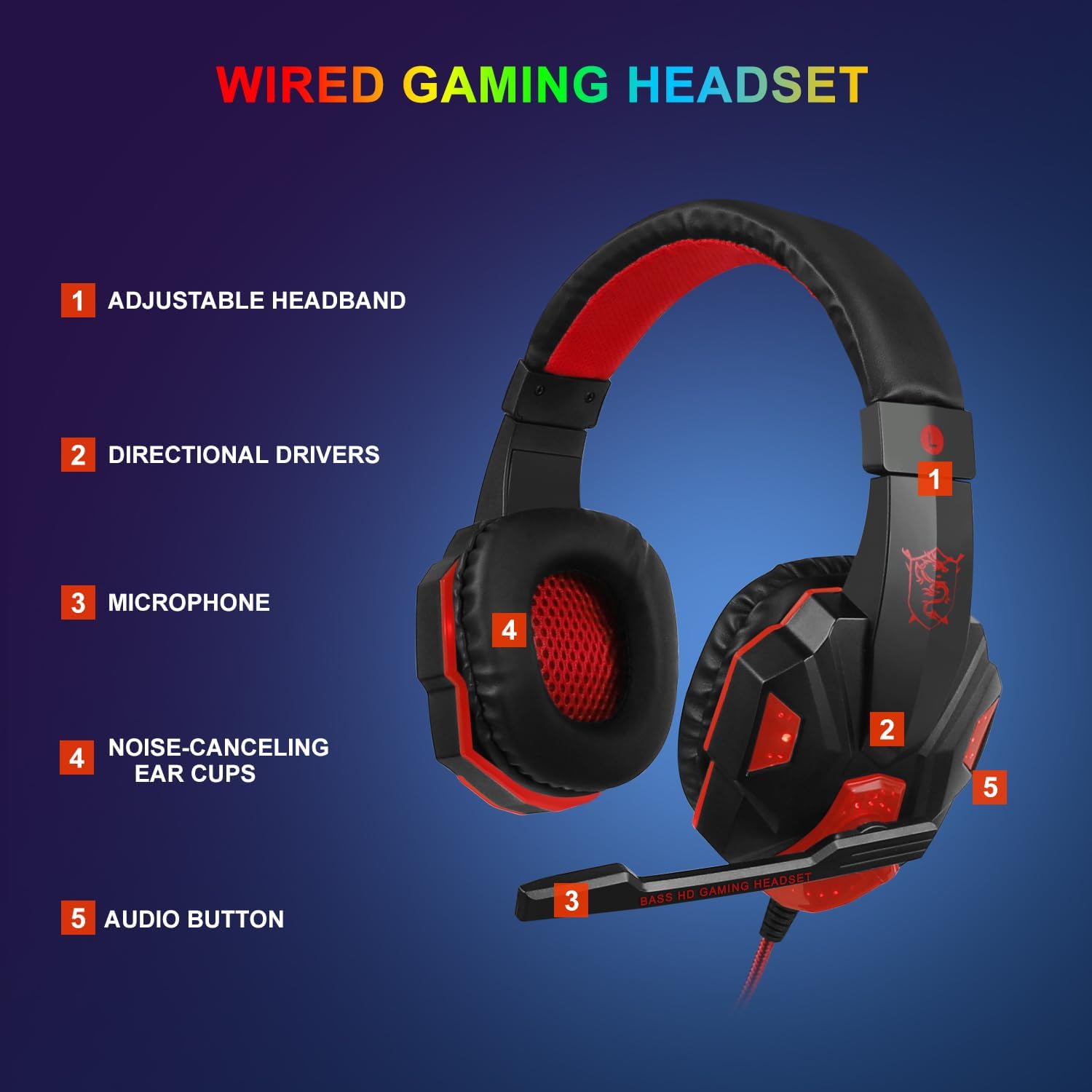
Image: The Rewurnth wired gaming headset, showing its adjustable headband, directional drivers, microphone, noise-canceling ear cups, and audio button.
- Adjustable Headband: Extend or retract the headband to fit your head comfortably.
- Microphone: Position the microphone close to your mouth for clear voice communication.
- Audio Control: Use the in-line audio button or volume wheel (if present) to adjust volume or mute the microphone.
- LED Lighting: The red LED lights on the earcups are powered via the USB connection. Ensure the USB cable is connected for the lights to function.
Maintenance and Care
Proper maintenance ensures the longevity and optimal performance of your gaming peripherals.
- Cleaning:
- Use a soft, dry cloth to wipe down the surfaces of the keyboard, mouse, and headset.
- For stubborn dirt, slightly dampen the cloth with water or a mild, non-abrasive cleaner. Avoid excessive moisture.
- Do not use harsh chemicals, solvents, or abrasive materials, as these can damage the finish.
- For the keyboard, use compressed air to remove dust and debris from between the keys.
- Storage:
- When not in use, store the peripherals in a clean, dry environment away from direct sunlight and extreme temperatures.
- Avoid coiling cables too tightly to prevent damage.
- Handling:
- Avoid dropping or subjecting the devices to strong impacts.
- Do not pull on the cables to disconnect them; always grasp the plug.
Troubleshooting
If you encounter issues with your Rewurnth gaming set, refer to the following common solutions.
Keyboard Issues
- Keyboard not responding:
- Ensure the USB cable is securely plugged into a working USB port.
- Try plugging the keyboard into a different USB port or a different computer to rule out port issues.
- Restart your computer.
- RGB lighting not working:
- Press the Scroll Lock key to toggle the lighting on/off.
- Ensure the keyboard is properly connected via USB.
- Keys not registering or ghosting:
- Clean the keyboard to remove any debris under the keys.
- Ensure no other software or drivers are interfering with keyboard input.
Mouse Issues
- Mouse not moving or responding:
- Check the USB connection.
- Try a different USB port.
- Ensure the optical sensor on the bottom of the mouse is clean and unobstructed.
- Use the mouse on a clean, flat surface, preferably the provided mouse pad.
- DPI adjustment not working:
- Ensure you are pressing the correct DPI button.
- Check if the mouse's LED color changes, indicating a DPI switch.
Headset Issues
- No sound from headset:
- Ensure the 3.5mm audio jack is fully inserted into the correct audio output port.
- Check your device's volume settings and ensure the headset is not muted.
- Test the headset on another device to confirm it's working.
- Microphone not working:
- Ensure the microphone is properly positioned and not muted (if an in-line mute button is present).
- Check your device's sound settings to ensure the microphone is selected as the input device and its volume is up.
- Test the microphone with a different application or device.
- Headset LED lights not working:
- Ensure the USB cable for the headset is connected to a powered USB port.
Specifications
Detailed technical specifications for the Rewurnth Gaming Keyboard and Mouse Set with Headphones.
| Component | Specification |
|---|---|
| General | |
| Brand | Rewurnth |
| Model | B0F6XKTZ2Y |
| Connectivity | Wired USB (Keyboard, Mouse, Headset LED), 3.5mm Audio Jack (Headset Audio) |
| Compatible Devices | PC, Laptop, Mac, PS4, Xbox |
| Operating Systems | Windows XP/Vista/7/8/10, Mac OS |
| Package Dimensions | 45 x 23 x 5 cm |
| Item Weight | 1 kg |
| Keyboard | |
| Layout | QWERTZ DE (Full-size, 104 keys) |
| Backlighting | RGB (Adjustable brightness, on/off via Scroll Lock) |
| Multimedia Keys | 12 (FN+F1-F12) |
| Anti-Ghosting | 19 keys |
| Key Durability | Up to 10 million keystrokes |
| Keycap Material | UV coated, laser-engraved ABS |
| Mouse | |
| Buttons | 6 (Left, Right, Middle, Forward, Backward, DPI+) |
| DPI Levels | 800/1200/1600/2000 |
| Lighting | LED (4 color modes: blue, red, purple, pink with breathing effect) |
| Click Time | 3 Million |
| Headset | |
| Type | Over-ear |
| Lighting | Red LED (USB powered) |
| Audio | Clear Stereo Sound |
| Comfort | Soft ear pads, adjustable headband |
| Mouse Pad | |
| Dimensions | 31.75 x 23.88 cm (12.5 x 9.4 inches) |
| Surface | Textured Micro-weave Cloth |
| Base | Non-slip Rubber |
| Edges | Exquisite Durable Stitched Edges |
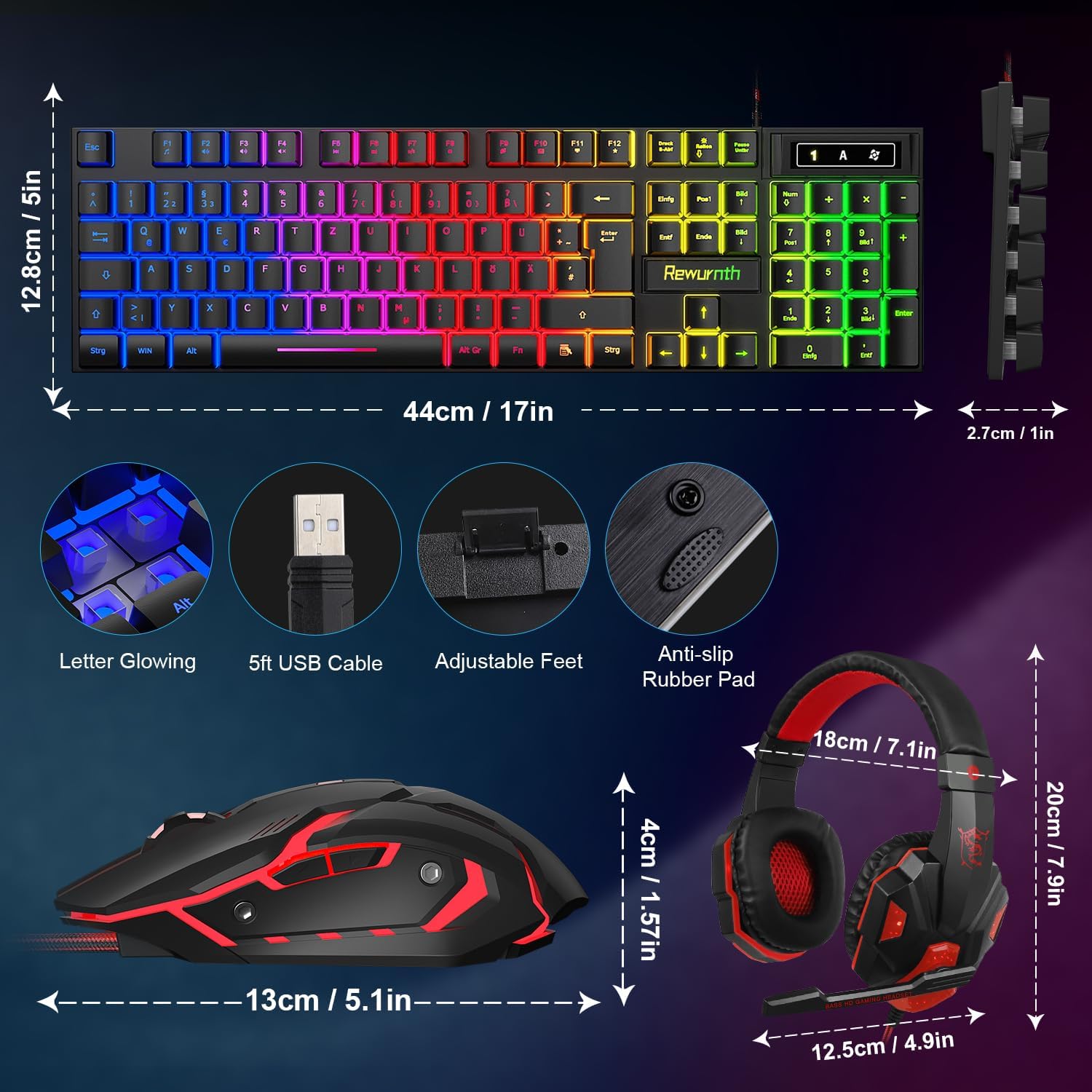
Image: Detailed dimensions for the keyboard (44cm/17in wide, 12.8cm/5in deep), mouse (13cm/5.1in long), and headset (18cm/7.1in wide, 20cm/7.9in high).
Warranty and Support
For warranty information and customer support, please refer to the retailer's policy or contact Rewurnth customer service directly.
- Warranty: Please retain your proof of purchase for any warranty claims. Specific warranty terms may vary by region and retailer.
- Customer Support: For technical assistance, troubleshooting beyond this manual, or product inquiries, please visit the official Rewurnth website or contact their customer support channels.