
1. Introduction
This manual provides comprehensive instructions for the setup, operation, and maintenance of your McAuley Labels GoDEX ZX430i+ Thermal Label Printer. Designed for industrial environments, this printer offers high-resolution label printing for various applications, including barcode, shipping, and general industrial labeling.
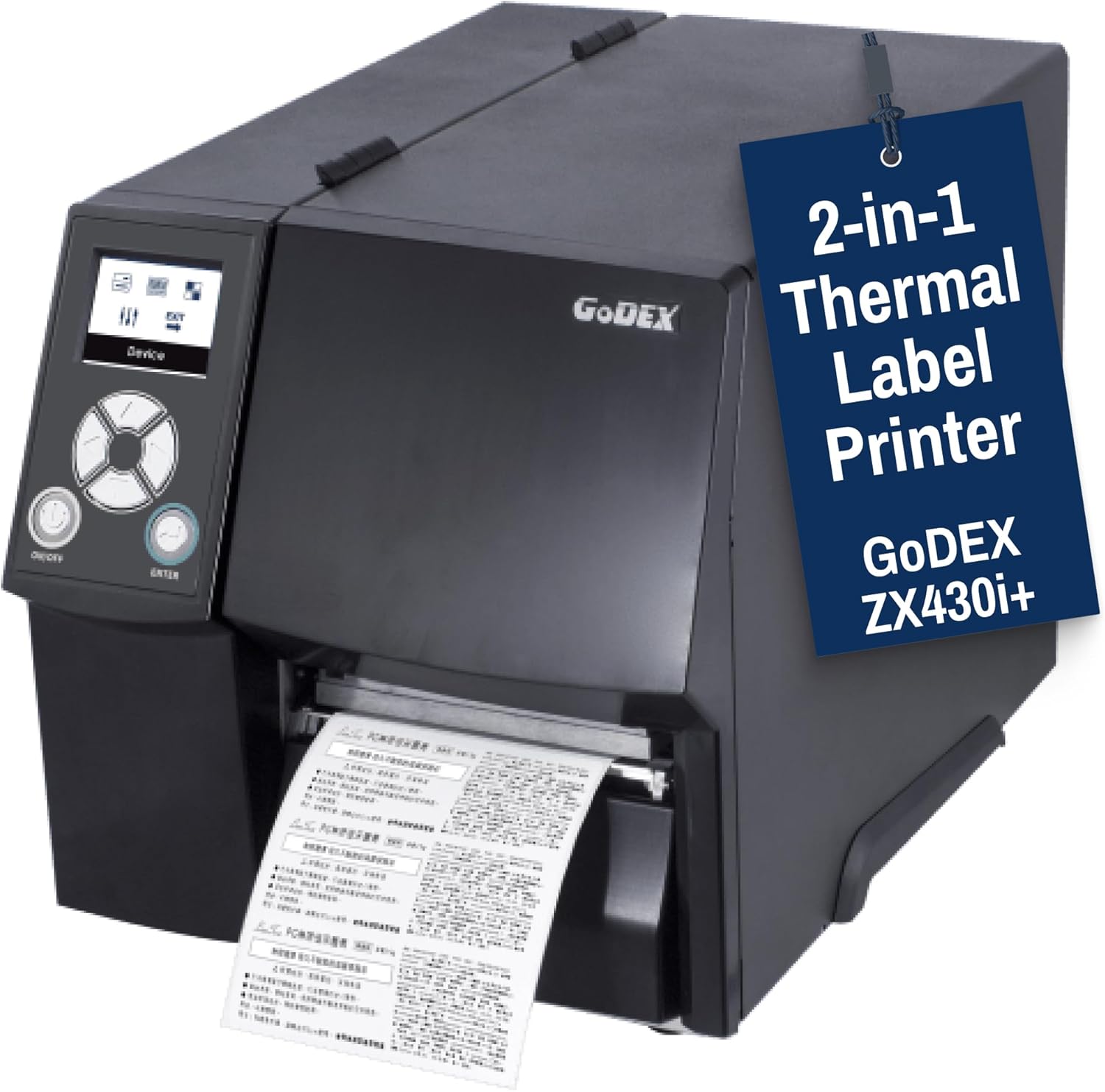
Figure 1: McAuley Labels GoDEX ZX430i+ Thermal Label Printer. This image displays the front-left view of the black industrial thermal label printer with a label partially exiting the front slot. A blue tag with "2-in-1 Thermal Label Printer GoDEX ZX430i+" is attached to the top.
2. Product Overview
The GoDEX ZX430i+ is an industrial-grade thermal label printer engineered for demanding workloads. Key features include:
- High-Speed Printing: Capable of printing labels up to 4 inches per second (ips) without compromising clarity, suitable for high-volume environments.
- Resolution: Offers 300 DPI for crisp barcodes and precise details, even for micro-text compliance tags.
- Durable Construction: Features rugged metal housing for long-term use in warehouses, factories, and high-duty operations where durability is essential.
- Connectivity: Equipped with USB, Serial, and Ethernet ports. USB Host (Type A) is also available for enhanced flexibility.
- Large Ribbon Capacity: Optimized for long print runs with industrial ribbon and media support, reducing downtime for media reloading.

Figure 2: Visual comparison of label print quality at 203 DPI, 300 DPI, and 600 DPI. The 300 DPI example shows clear and sharp text and barcodes, indicating the printer's capability.
3. Setup Instructions
3.1 Unpacking and Placement
- Carefully remove the printer from its packaging.
- Place the printer on a stable, level surface with adequate ventilation.
- Ensure sufficient space around the printer for opening covers and accessing ports.
3.2 Connecting the Printer
The ZX430i+ offers multiple connectivity options for integration with your existing systems:
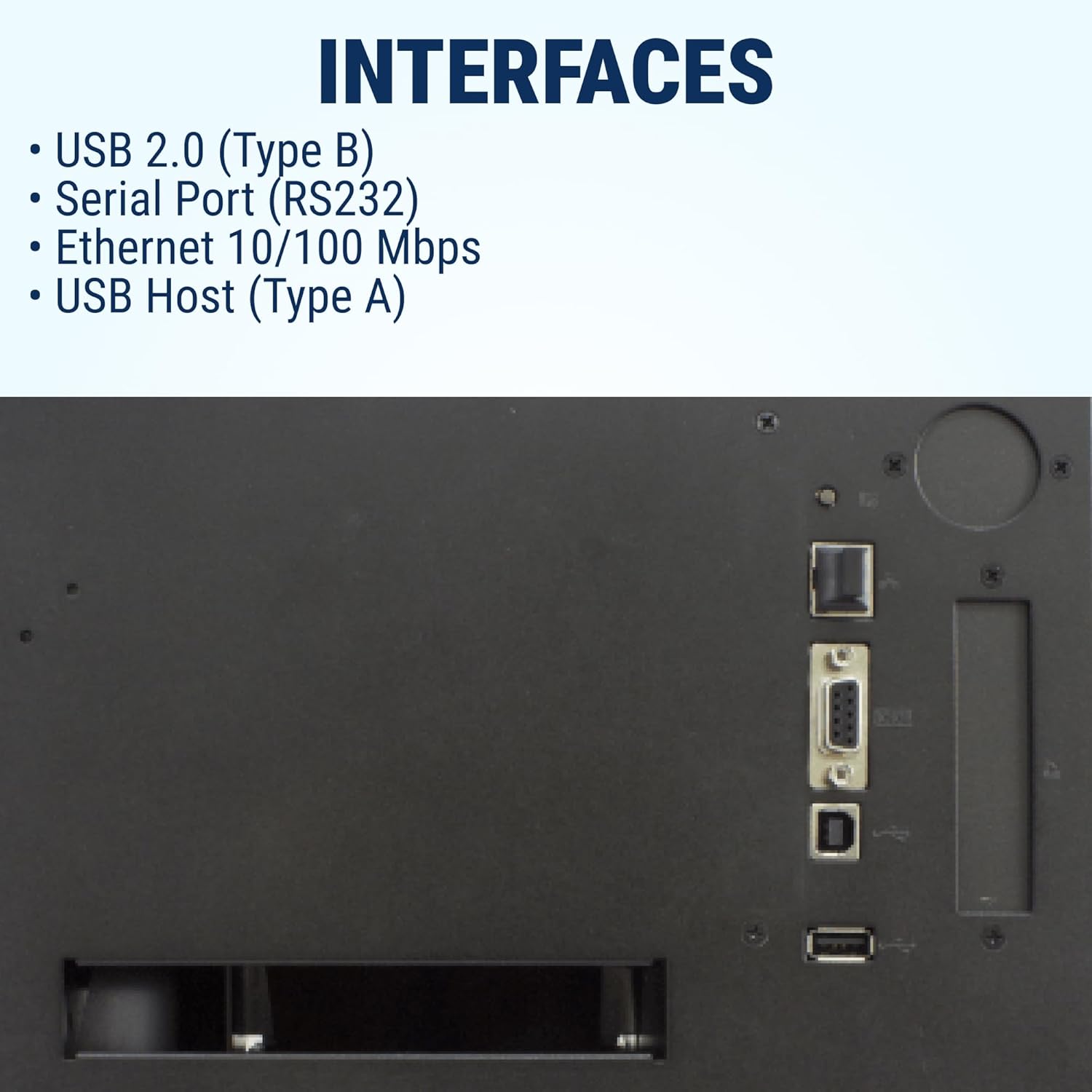
Figure 3: Rear view of the printer showing available interfaces. The image highlights the USB 2.0 (Type B), Serial Port (RS232), Ethernet 10/100 Mbps, and USB Host (Type A) ports for various connection needs.
- USB: Connect the USB cable (Type B) from the printer to your computer.
- Ethernet: Connect an Ethernet cable to the printer's LAN port and your network for network printing.
- Serial: Use a serial cable (RS232) to connect to compatible legacy devices.
- USB Host: Utilize the USB Host (Type A) port for connecting external devices such as a keyboard or scanner.
- Power: Connect the power cord to the printer and a grounded electrical outlet.
3.3 Loading Labels and Ribbon
The printer supports both direct thermal and thermal transfer printing methods. The internal mechanism is designed for straightforward media loading.

Figure 4: Internal view of the GoDEX ZX430i+ printer with the top cover open, showing the label roll spindle and ribbon spindles ready for media loading. The blue components indicate user-friendly guides for proper installation.
- Open the printer's top cover by lifting the latch.
- Install the label roll onto the label unwind spindle, ensuring the labels feed smoothly into the print mechanism. Adjust guides to fit the label width.
- For thermal transfer printing, install the ribbon onto the ribbon unwind and rewind spindles as indicated by the internal diagrams and guides. Ensure the ribbon is taut and wrinkle-free.
- Close the top cover securely until it latches.
4. Operating Instructions
4.1 Printing Methods
The ZX430i+ supports two primary printing methods, chosen based on your label material and durability requirements:
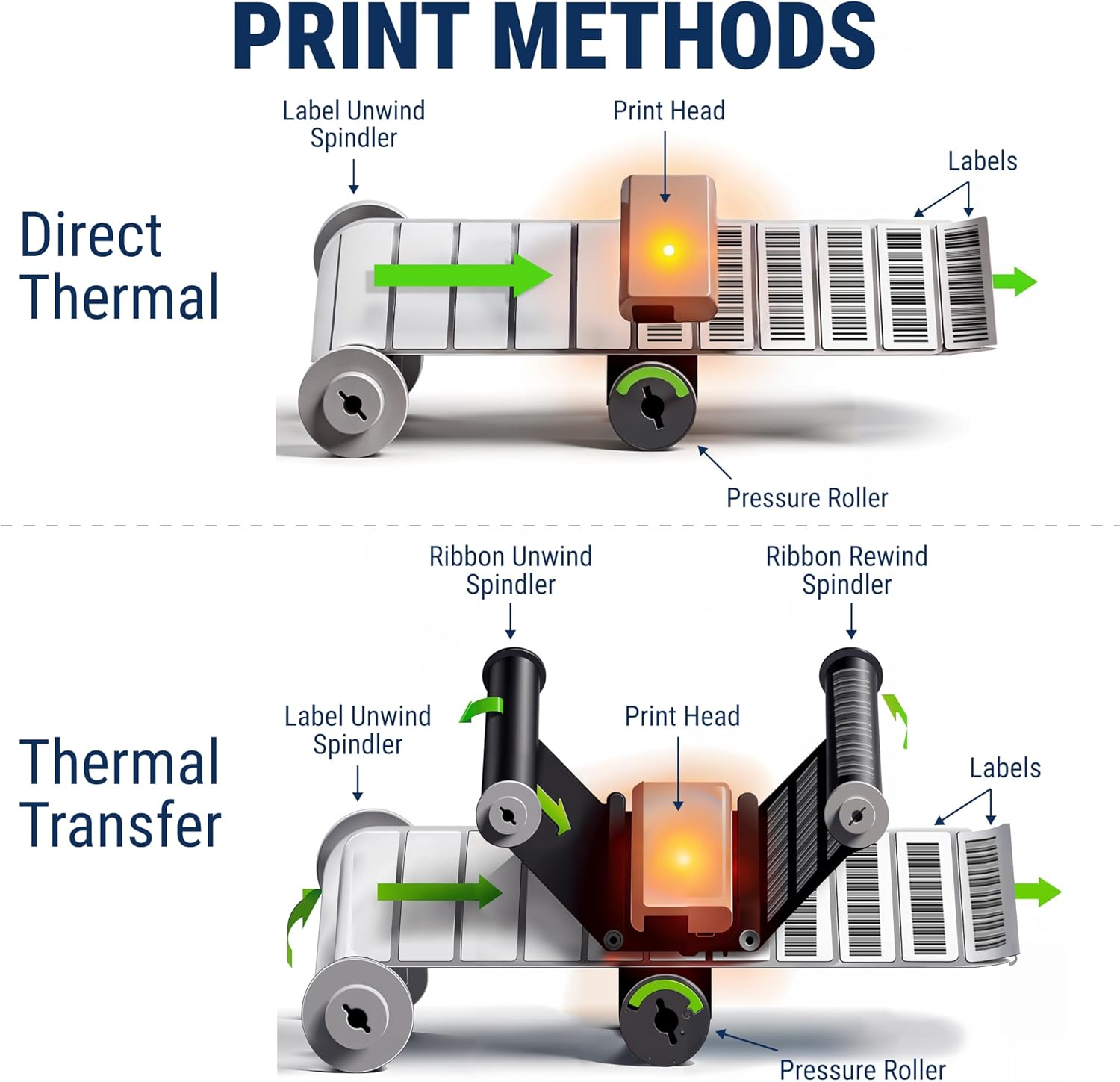
Figure 5: Diagram illustrating the difference between Direct Thermal and Thermal Transfer printing. Direct Thermal shows labels passing under the print head. Thermal Transfer shows labels and a ribbon passing under the print head, with ribbon unwind and rewind spindles, for more durable prints.
- Direct Thermal: This method uses heat-sensitive labels that darken when heated by the print head. No ribbon is required. Ideal for short-term labeling where durability against heat, light, or chemicals is not critical.
- Thermal Transfer: This method uses a thermal transfer ribbon that transfers ink to the label when heated by the print head. This provides more durable, long-lasting prints resistant to environmental factors. Required for standard paper, synthetic, or specialty labels.
4.2 Basic Operation
- Power On: Press the 'ON/OFF' button on the printer's control panel. The printer will perform a self-test and initialize.
- Driver Installation: Install the appropriate printer drivers on your computer. These are typically available from the McAuley Labels or GoDEX support website.
- Software Configuration: Configure your label design software or ERP system to recognize and utilize the GoDEX ZX430i+ printer. Select the correct label size, print method (Direct Thermal or Thermal Transfer), and other print settings.
- Printing: Send print jobs from your computer. Monitor the printer's color TFT LCD control panel for status messages and any error indicators.
- Calibration: If labels are not feeding correctly, skipping, or print quality is inconsistent, perform a media calibration. This can usually be initiated from the printer's control panel or through the printer driver settings.
5. Maintenance
Regular maintenance is crucial for ensuring optimal performance, print quality, and extending the operational life of your printer. Always power off and unplug the printer before performing any cleaning or maintenance.
- Cleaning the Print Head: The print head is a critical component. Use an alcohol swab or a specialized print head cleaning pen to gently wipe the print head surface. Perform this regularly (e.g., after every few label rolls or if print quality degrades).
- Cleaning Rollers: Clean the platen roller and other media path rollers with a lint-free cloth dampened with isopropyl alcohol. This removes adhesive residue, dust, and paper particles that can affect media feeding and print quality.
- Exterior Cleaning: Wipe the printer's exterior with a soft, damp cloth. Avoid using harsh or abrasive cleaners, which can damage the printer's finish.
- Firmware Updates: Periodically check the McAuley Labels or GoDEX support website for firmware updates. Keeping your printer's firmware up-to-date ensures it has the latest features, performance enhancements, and bug fixes.
6. Troubleshooting
This section addresses common issues you might encounter during the operation of your GoDEX ZX430i+ printer. Refer to the printer's control panel for specific error codes or messages.
| Problem | Possible Cause | Solution |
|---|---|---|
| Printer has no power | Power cord disconnected, power switch off, faulty power outlet. | Ensure power cord is securely connected to both the printer and a working electrical outlet. Verify the power switch is in the 'ON' position. |
| Poor print quality (faded, streaky, incomplete) | Dirty print head, incorrect media/ribbon type, incorrect print darkness/speed settings, worn print head. | Clean the print head. Verify that the correct media and ribbon (if applicable) are used for the chosen print method. Adjust print darkness and speed settings in the printer driver. If issues persist, the print head may need replacement. |
| Labels are not feeding correctly or skipping | Media loaded incorrectly, media sensor dirty or obstructed, media jam, incorrect media type. | Reload media correctly, ensuring it is properly aligned with the guides. Clean media sensors. Clear any visible media jams. Perform a media calibration. |
| Printer not responding to print commands | Connectivity issue, incorrect printer driver, printer in error state, network problem. | Check USB/Ethernet cable connection. Restart the printer and computer. Reinstall printer drivers. Verify network connectivity if using Ethernet. Check the printer's control panel for specific error messages. |
| Ribbon wrinkles or breaks | Ribbon loaded incorrectly, incorrect ribbon tension, worn ribbon spindles. | Ensure the ribbon is loaded correctly and taut. Adjust ribbon tension if possible (refer to advanced settings). Inspect ribbon spindles for damage. |
7. Specifications
Detailed technical specifications for the GoDEX ZX430i+ Thermal Label Printer are provided below:

Figure 6: A table detailing the specifications of the GoDEX ZX430i+ printer, including Print Method, Resolution, Print Speed, Print Width, Print Length, Processor, Memory, Interfaces, Ribbon specifications, and Control Panel features.
| Feature | Detail |
|---|---|
| Print Method | Thermal Transfer / Direct Thermal |
| Resolution | 300 dpi (12 dot/mm) |
| Print Speed | Up to 4 ips (102 mm/s) |
| Print Width | Max. 4.25" (108 mm) / 4.16" (105.7 mm) |
| Print Length | Min. 0.16" (4 mm); Max. 279.53" (7100 mm) |
| Processor | 32 Bit RISC CPU |
| Memory | Flash 128 MB, SDRAM 128 MB |
| Interfaces | USB 2.0 (Type B), Serial Port (RS232), Ethernet 10/100 Mbps, USB Host (Type A) |
| Ribbon | Length Max. 1476' (450 m), Width Min. 1.18" (30 mm) - Max. 4.33" (110 mm), Ribbon roll diameter 3" (76.2 mm), Core diameter 1" (25.4 mm) |
| Control Panel | Color TFT LCD with navigation button, 1 Power on/standby button with green color LED backlight, 1 Calibration button at rear panel, 1 Control key: FEED / PAUSE / CANCEL with dual color LED backlight: Ready (Green); Error (Red) |
| Product Dimensions | 1"D x 1"W x 1"H (Note: These dimensions are placeholder values from the source data and may not reflect actual product size.) |
8. Warranty and Support
The McAuley Labels GoDEX ZX430i+ printer is backed by McAuley Labels' expert service and support. For warranty information, technical assistance, or to order supplies (ribbons, labels, custom needs), please contact McAuley Labels directly.
Visit the McAuley Labels Store for more information and contact details.