
1. Product Overview
The Pyle Wireless CarPlay & Android Auto Box is designed to integrate smart features and seamless connectivity into your vehicle's infotainment system. This device enables wireless CarPlay and Android Auto functionality in cars equipped with factory wired CarPlay, providing access to navigation, music, and communication applications directly on your car's display.
Key features include:
- Wireless CarPlay and Android Auto support.
- Qualcomm Snapdragon processor for efficient performance.
- 4GB RAM and 64GB ROM for ample storage and smooth operation.
- Dual-band WiFi and Bluetooth 5.0 for stable connections.
- Integrated GPS, GLONASS, and Beidou navigation.
- Screen mirroring capability.
- Expandable storage via TF card up to 128GB.
- 4G SIM card support for continuous internet access.

Image 1.1: The Pyle Wireless CarPlay & Android Auto Box highlighting its high-performance 5G chipset. This device is powered by a Qualcomm Snapdragon processor, ensuring fast processing speed and stable connectivity for an enhanced in-car experience.
2. What's in the Box
Verify that all components are present in the packaging:
- iA Box (Main Unit)
- USB Cable
- USB Adapter
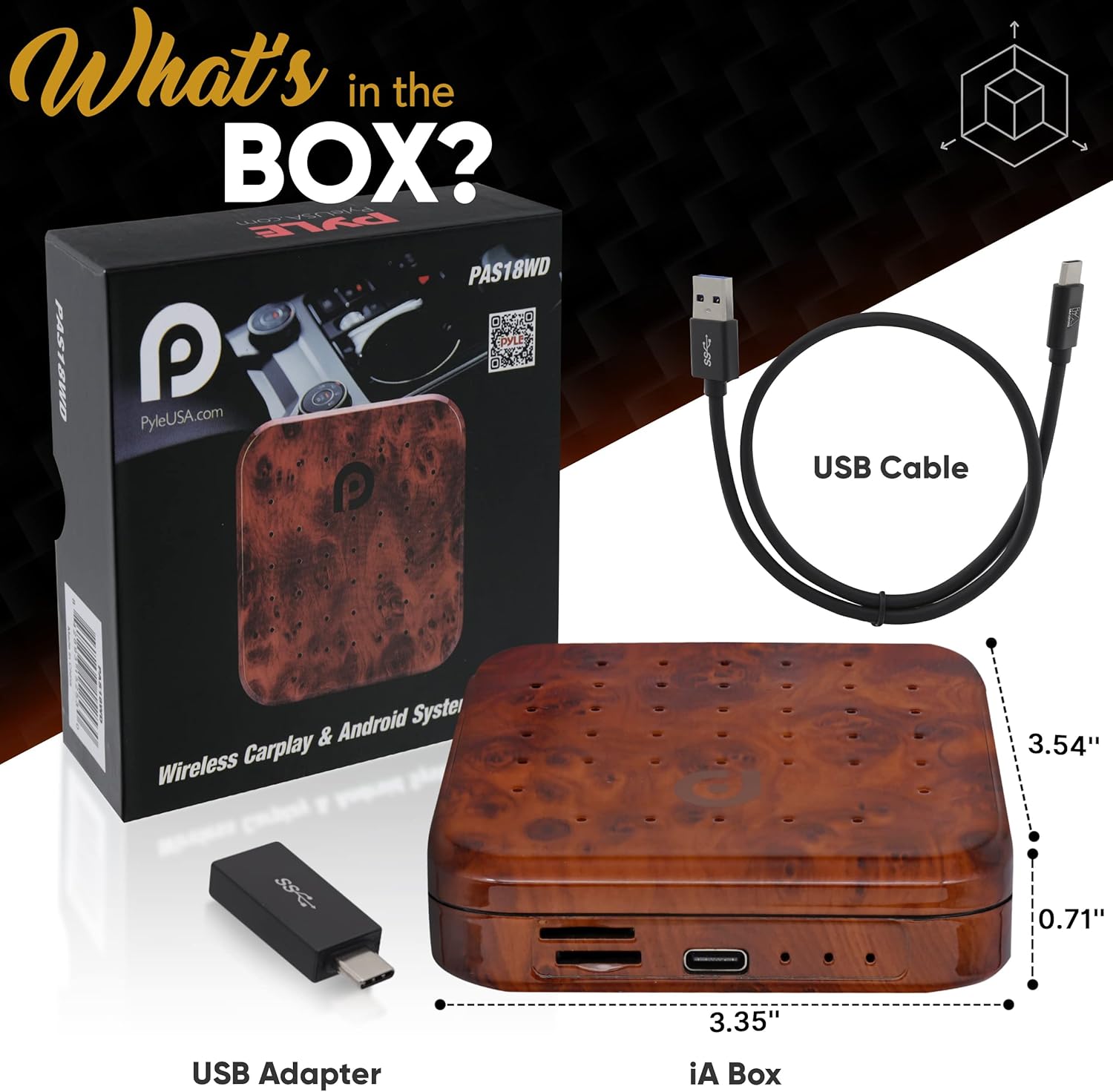
Image 2.1: Contents of the Pyle Wireless CarPlay & Android Auto Box package. The image displays the iA Box, a USB cable, and a USB adapter, along with their approximate dimensions.
3. Setup Instructions
This device is designed for vehicles that already have factory-installed wired CarPlay. No modifications to your vehicle are required.
3.1 Connecting the Device
- Locate the USB port in your vehicle that supports wired CarPlay. This is typically the port you would use to connect your iPhone for CarPlay.
- Connect the provided USB cable to the iA Box.
- Plug the other end of the USB cable into your vehicle's CarPlay-enabled USB port.
- The iA Box will power on automatically, indicated by the power indicator light.
- Your car's infotainment screen should display the iA Box interface or prompt for connection.

Image 3.1: The Pyle Wireless CarPlay & Android Auto Box connected to a car's USB port. This illustrates the simple plug-and-play setup for fast connection and WiFi transmission.
3.2 Initial Pairing (Wireless CarPlay/Android Auto)
- On your car's screen, navigate to the iA Box interface.
- Enable Bluetooth and Wi-Fi on your smartphone.
- On the iA Box interface, select the option to connect to Wireless CarPlay or Android Auto.
- Search for the iA Box's Bluetooth name on your smartphone and pair with it.
- Follow any on-screen prompts on both your car's display and your smartphone to complete the connection.
- Once connected, your phone's CarPlay or Android Auto interface will appear on your car's screen.

Image 3.2: Illustration of converting wired CarPlay to wireless functionality using the Pyle AI Box. This shows the automatic transition from a phone connected via cable to a wireless connection on the car's display.
3.3 SIM Card and TF Card Installation
The iA Box supports 4G SIM cards for independent internet access and TF/Micro SD cards for expanded storage.
- Locate the SIM card slot and TF/Micro SD card slot on the side of the iA Box.
- Carefully insert your 4G SIM card into the designated slot until it clicks into place. Ensure correct orientation.
- Insert a TF/Micro SD card (up to 128GB, not included) into its slot for additional storage.

Image 3.3: Detailed view of the Pyle CarPlay AI Box product interface. This image highlights the working indicator, upgrade button, power indicator, Type-C slot, TF/Micro SD card slot, and SIM card slot.
4. Operating Instructions
4.1 Wireless CarPlay and Android Auto
Once connected, the iA Box provides a full Android operating system on your car's display, allowing access to various applications and features.
- Navigation: Use pre-installed navigation apps or download others from the Google Play Store. The device supports GPS, GLONASS, and Beidou for accurate positioning.
- Music and Media: Stream music, podcasts, and audiobooks through your preferred apps. The device supports Bluetooth 5.0 for high-quality audio streaming.
- Hands-Free Calling: Make and receive calls directly from your car's screen using the integrated Bluetooth functionality.
- App Installation: Access the Google Play Store to download and install a wide range of Android applications directly onto the iA Box.

Image 4.1: The Pyle AI Box showcasing its dual Bluetooth capabilities for wireless music streaming and hands-free calling. Bluetooth 4.2 is for external devices, and Bluetooth 5.0 is for smartphone connections.
4.2 Screen Mirroring
The iA Box supports screen mirroring, allowing you to display content from your smartphone directly onto your car's infotainment screen.
- Ensure your smartphone and the iA Box are connected to the same Wi-Fi network or via a direct Wi-Fi connection if available.
- On the iA Box interface, select the "Screen Mirroring" option.
- Follow the on-screen instructions to initiate screen mirroring from your smartphone (e.g., using AirPlay for iOS or Cast for Android).

Image 4.2: Screen mirroring functionality of the Pyle AI Box using AOA protocol. This image shows a smartphone screen being easily shared and displayed on the car's CarPlay interface, including navigation.
5. Maintenance
To ensure the longevity and optimal performance of your Pyle Wireless CarPlay & Android Auto Box, follow these maintenance guidelines:
- Cleaning: Use a soft, dry cloth to clean the exterior of the device. Avoid using liquid cleaners, solvents, or abrasive materials, as these can damage the finish or internal components.
- Temperature: Operate and store the device within recommended temperature ranges. Extreme temperatures can affect performance and lifespan. Avoid leaving the device in direct sunlight or in extremely cold conditions for extended periods.
- Moisture: Keep the device dry. Exposure to moisture can cause damage.
- Firmware Updates: Periodically check for firmware updates. Updates can improve performance, add new features, and fix bugs. Refer to the manufacturer's website or the device settings for update procedures.
- Storage: If storing the device for an extended period, disconnect it from the power source and store it in a cool, dry place.
6. Troubleshooting
If you encounter issues with your Pyle Wireless CarPlay & Android Auto Box, refer to the following common problems and solutions:
| Problem | Possible Cause | Solution |
|---|---|---|
| Device does not power on. | No power supply or loose connection. | Ensure the USB cable is securely connected to both the iA Box and the car's USB port. Verify the car's USB port is active. |
| Cannot connect to Wireless CarPlay/Android Auto. | Bluetooth/Wi-Fi issues, incorrect pairing, or car not supporting wired CarPlay. |
|
| Slow performance or lag. | Too many apps running, poor Wi-Fi signal, or device overheating. |
|
| Screen mirroring not working. | Network issues or incompatible mirroring protocol. |
|
7. Specifications
| Feature | Detail |
|---|---|
| Model Number | PAS18WD.5 |
| Processor | Qualcomm Snapdragon |
| RAM | 4GB |
| ROM | 64GB |
| Expandable Storage | Up to 128GB via TF/Micro SD card |
| Wireless Connectivity | Dual-Band Wi-Fi, Bluetooth 5.0 |
| Navigation Systems | GPS, GLONASS, Beidou |
| SIM Card Support | 4G |
| Video Encoding | H.264, H.265/HEVC |
| Audio Output Mode | Stereo, Surround |
| Item Weight | 8.8 Ounces |
| Color | Brown |
| UPC | 842893179766 |
8. Warranty Information
The Pyle Wireless CarPlay & Android Auto Box (Model PAS18WD.5) comes with a 1-Year Warranty from the date of purchase. This warranty covers manufacturing defects and malfunctions under normal use. It does not cover damage caused by misuse, accidents, unauthorized modifications, or improper installation.
For warranty claims or detailed terms and conditions, please refer to the official Pyle website or contact customer support.
9. Customer Support
For technical assistance, product inquiries, or support, please visit the official Pyle website or contact their customer service department.
Pyle Official Website: www.pyleusa.com
You can also find additional resources and FAQs on the Pyle Store on Amazon.


