
Introduction
This user manual provides essential information for the safe and efficient operation of your AIWA FPH-S200/4G mobile phone. Please read this manual thoroughly before using the device and keep it for future reference.
Safety Information
- Do not use the phone while driving.
- Avoid exposing the phone to extreme temperatures, direct sunlight, or moisture.
- Use only original or certified accessories.
- Do not attempt to disassemble or repair the phone yourself.
- Keep the phone away from medical devices.
Package Contents
Please check the package for the following items:
- AIWA FPH-S200/4G Mobile Phone
- USB Cable
- Charging Cradle (if included, based on product description)
- User Manual (this document)
Product Overview
Familiarize yourself with the key components of your AIWA FPH-S200/4G phone.
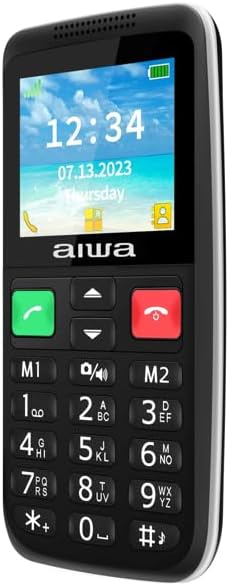
Figure 1: Front View. This image displays the front of the AIWA FPH-S200/4G phone, highlighting its 2.4-inch QVGA screen, large numeric keypad, dedicated call answer (green) and end (red) buttons, and two memory keys (M1, M2).
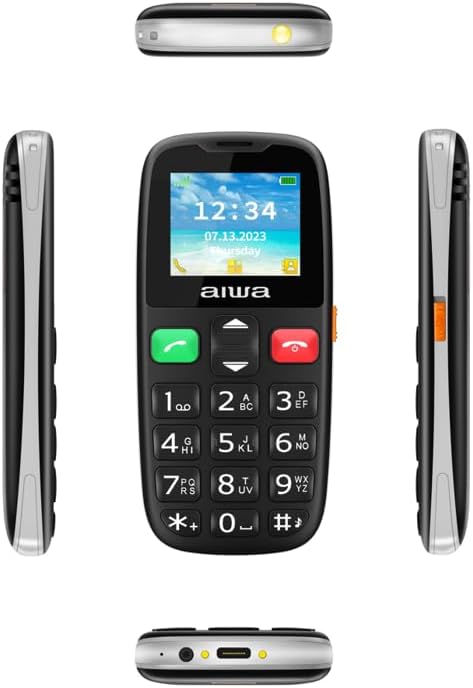
Figure 2: Multi-Angle View. This composite image provides various perspectives of the AIWA FPH-S200/4G, including the front with its display and keypad, the sides showing the slim profile, the top with the flashlight, and the bottom with the USB-C charging port and headphone jack.

Figure 3: Side View. A detailed view of the side of the AIWA FPH-S200/4G, typically showing the volume control buttons and possibly a dedicated flashlight button or other side-mounted controls.
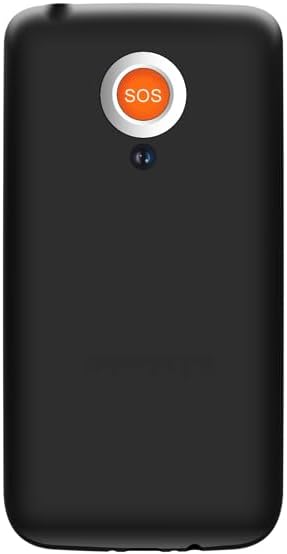
Figure 4: Back View. This image shows the rear of the AIWA FPH-S200/4G, prominently featuring the large, circular SOS button and the 0.3 MP camera lens located above it.
Key Components:
- Display: 2.4" QVGA (240x320) screen.
- Keypad: Large, easy-to-read buttons.
- Call Buttons: Dedicated green (answer) and red (end) buttons.
- SOS Button: Located on the back for emergency calls.
- Camera: 0.3 MP camera.
- Charging Port: Type-C connector at the bottom.
- Flashlight: Integrated LED flashlight.
- Memory Keys (M1/M2): Supports quick dialing.
Setup
1. Installing the SIM Card and TF Card
- Carefully remove the back cover of the phone.
- If present, remove the battery.
- Insert the SIM card(s) into the designated slot(s) with the gold contacts facing down. This phone supports single or dual SIM.
- Insert a TF (microSD) card into its slot for expanded storage (optional).
- Reinsert the battery and replace the back cover.
2. Charging the Battery
Before first use, fully charge the phone's battery.
- Connect the USB Type-C cable to the phone's charging port or place the phone in the charging cradle.
- Connect the other end of the USB cable to a power adapter and plug it into a wall outlet.
- The battery indicator on the screen will show charging progress.
- Once fully charged, disconnect the charger.
Operating Instructions
Power On/Off
- To Power On: Press and hold the Power/End Call button (red button) until the screen lights up.
- To Power Off: Press and hold the Power/End Call button (red button) until the power off options appear, then select "Power Off".
Making Calls
- Enter the phone number using the keypad.
- Press the Green Call button to dial.
- To end a call, press the Red End Call button.
Receiving Calls
- When a call comes in, press the Green Call button to answer.
- To reject a call, press the Red End Call button.
SOS Button Functionality
The SOS button is designed for emergency situations.
- Setup: Before using, configure emergency contacts in the phone's settings.
- Activation: Press and hold the SOS button on the back of the phone for a few seconds.
- The phone will automatically dial the pre-set emergency numbers and send an emergency SMS message.
FM Radio
To use the built-in FM radio:
- Navigate to the FM Radio application from the main menu.
- Ensure headphones are connected as they often act as the antenna.
- Scan for available stations.
Flashlight
The phone includes an LED flashlight.
- Typically activated by a dedicated side button or a shortcut from the keypad (e.g., long press '0' or a specific key). Refer to your phone's on-screen prompts for exact activation.
Photo Contacts
Assign photos to your contacts for easier identification.
- Go to Contacts.
- Select a contact and choose 'Edit'.
- Add a photo from your gallery or take a new one using the camera.
Bluetooth Connectivity
Connect your phone to other Bluetooth devices like headsets or speakers.
- Go to Settings > Bluetooth.
- Turn Bluetooth On.
- Search for available devices and select the one you wish to pair with.
- Confirm the pairing code if prompted.
Maintenance
- Cleaning: Use a soft, dry cloth to clean the phone's surface. Avoid liquid cleaners.
- Battery Care: Do not expose the battery to high temperatures. Avoid fully discharging the battery frequently to prolong its lifespan.
- Storage: If storing the phone for an extended period, charge the battery to about 50% and store it in a cool, dry place.
Troubleshooting
| Problem | Possible Cause | Solution |
|---|---|---|
| Phone does not power on. | Battery is low or depleted. | Charge the battery for at least 30 minutes before attempting to power on. |
| Cannot make or receive calls. | No SIM card inserted, SIM card not properly inserted, or no network signal. | Ensure SIM card is correctly inserted. Check network signal strength. Contact your service provider if issues persist. |
| SOS button not working. | Emergency contacts not set up. | Go to SOS settings and configure emergency contacts. Ensure the button is pressed and held long enough. |
| Poor call quality. | Weak network signal or interference. | Move to an area with better network coverage. Avoid using the phone near other electronic devices that may cause interference. |
Specifications
| Feature | Detail |
|---|---|
| Model Name | FPH-S200/4G |
| Operating System | Symbian 9.1 |
| Network Technology | GSM: 850/900/1800/1900 MHz, WCDMA: 900/2100 MHz, LTE-FDD: B1/B3/B7/B8/B20 (4G) |
| Chipset | T107 |
| Memory | 48MB + 128MB |
| Display | 2.4" QVGA, 240x320 |
| SIM Card Support | Single SIM / Dual SIM / TF Card |
| Camera | 0.3 MP |
| Special Features | SOS Button, FM Radio, Charging Cradle, Type-C Connector, Bluetooth, Photo Contacts, LED Flashlight, M1/M2 Support |
| Battery Capacity | 1400 mAh |
| Product Weight | 58 g |
| Form Factor | Bar |
| Color | Black |
| Included Components | USB Cable |
Warranty and Support
For warranty information and technical support, please refer to the warranty card included with your product or visit the official Aiwa website. Keep your purchase receipt as proof of purchase.
For further assistance, you may contact Aiwa customer service through their official channels.