
Introduction
This manual provides detailed instructions for the setup, operation, maintenance, and troubleshooting of your Axtel One BT Stereo Wireless Headset. This headset is designed for professional use, offering reliable Bluetooth connectivity, noise-cancelling microphones, and high-definition speakers for clear communication and audio playback.
Package Contents
Verify that all items are present in your package:
- Axtel One BT Stereo Wireless Headset
- USB-A Dongle
- Charging Station
- USB-C Charging Cable
- User Manual (this document)

Image: Axtel One BT Stereo Wireless Headset placed on its charging base, showing the headset and base as a complete unit.
Product Overview
Familiarize yourself with the components of your Axtel One BT Stereo Wireless Headset.

Image: Side view of the Axtel One BT Stereo Wireless Headset with the microphone boom extended, highlighting the earcups and headband.
Headset Components:
- Adjustable Headband: For comfortable fit.
- Ear Cushions: Vegan leather and memory foam for comfort.
- Microphone Boom: Flexible arm with dual noise-cancelling microphones.
- Control Buttons: Located on the earcup for call management (answer/reject/mute) and volume.
- USB-C Port: For direct charging of the headset.
- Busy Light Indicator: Signals availability during calls.
Charging Station & USB-A Dongle:

Image: The Axtel One BT Charging Station, a black stand designed to hold and charge the headset.
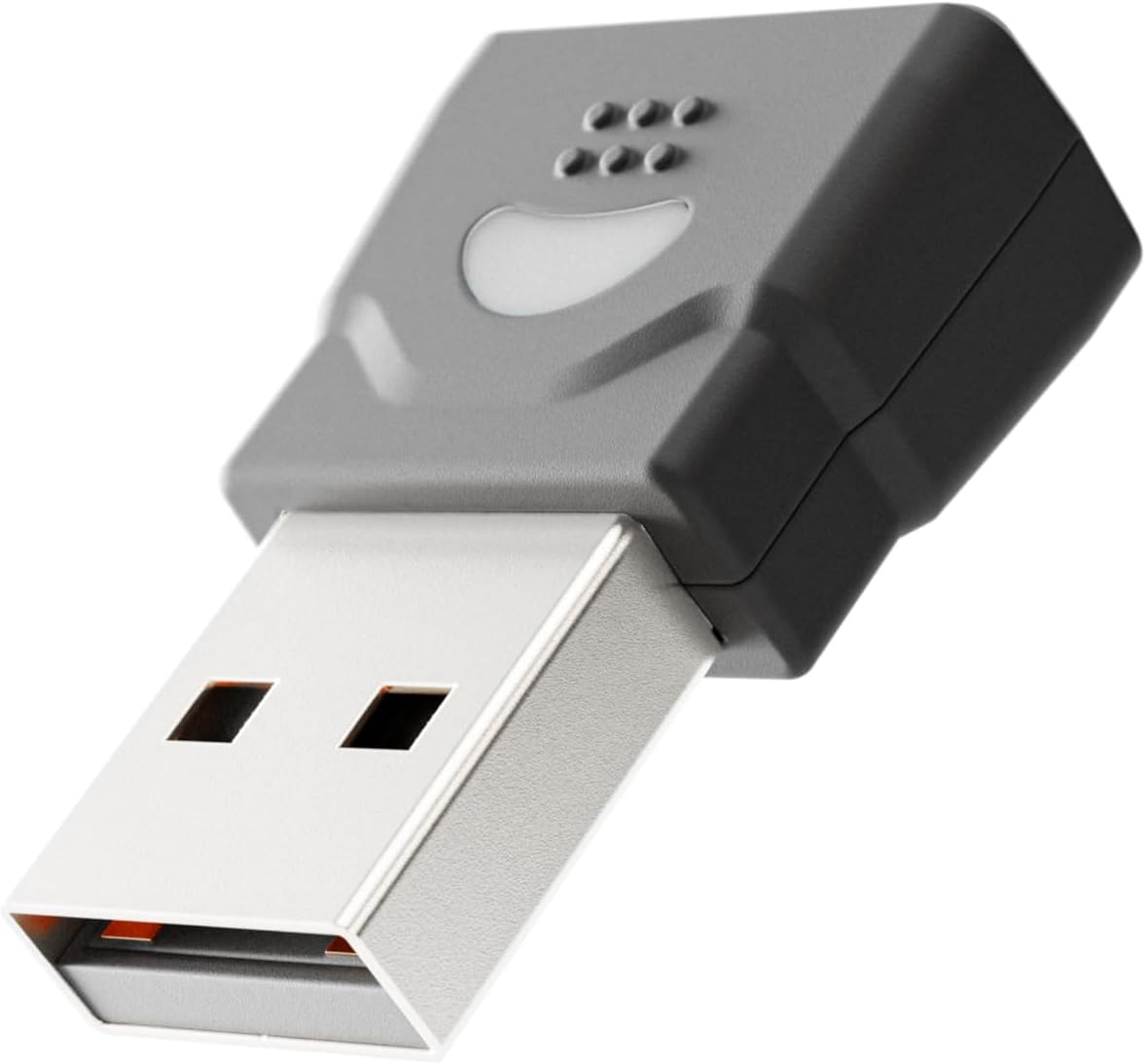
Image: The compact USB-A dongle, used for connecting the headset to a computer without built-in Bluetooth.
- Charging Station: Provides a convenient dock for charging and storing the headset.
- USB-A Dongle: Enables wireless connection to computers without Bluetooth or for enhanced stability.
Setup
1. Charging the Headset
Before initial use, fully charge your headset. A full charge takes approximately 2 hours and provides up to 40 hours of talk or music time. A 20-minute fast charge can provide several hours of use.
- Using the Charging Station: Connect the USB-C charging cable to the charging station and then to a power source (e.g., computer USB port or wall adapter). Place the headset onto the charging station. The headset's indicator light will show charging status.
- Direct USB-C Charging: Connect the USB-C charging cable directly to the USB-C port on the headset and then to a power source.
2. Connecting to a Computer via USB-A Dongle (Plug & Play)
For seamless connection to your computer, use the included USB-A dongle.
- Insert the USB-A dongle into an available USB-A port on your computer.
- The dongle's indicator light will blink, then turn solid when connected to the headset.
- Power on your headset. It will automatically pair with the dongle.
- Your computer should recognize the headset as an audio device. You may need to select "Axtel One BT" as your default audio input/output device in your system settings.
3. Connecting via Bluetooth (Mobile Devices / Computers with Bluetooth)
To connect to a mobile device or a computer with built-in Bluetooth:
- Ensure the headset is powered off.
- Press and hold the Power button on the headset until the indicator light flashes blue and red, indicating pairing mode.
- On your device (smartphone, tablet, computer), go to Bluetooth settings and enable Bluetooth.
- Select "Axtel One BT" from the list of available devices.
- Once paired, the headset's indicator light will turn solid blue.
Operating Instructions
Power On/Off
- Power On: Press and hold the Power button for 2 seconds.
- Power Off: Press and hold the Power button for 3 seconds.
Call Controls
The headset features integrated controls for managing calls.
- Answer/End Call: Press the Call button once.
- Reject Call: Press and hold the Call button for 2 seconds.
- Mute/Unmute Microphone: Press the Mute button (usually located on the microphone boom or earcup) once during a call.
Audio Controls
- Volume Up: Press the Volume Up button.
- Volume Down: Press the Volume Down button.
Microsoft Teams and UC Platform Compatibility
The Axtel One BT Stereo Headset is optimized for Microsoft Teams and compatible with other Unified Communications (UC) platforms such as Zoom, Skype, and Webex. For optimal performance, ensure the headset is selected as the default audio device within the application settings.
Busy Light Indicator
The integrated busy light indicator automatically illuminates when you are on a call, signaling to others that you are occupied and minimizing interruptions.
Maintenance
Cleaning
- Wipe the headset and charging station with a soft, dry, anti-static cloth.
- Do not use harsh chemicals, cleaning solvents, or strong detergents.
Battery Care
- To prolong battery life, avoid fully discharging the headset frequently.
- Store the headset in a cool, dry place when not in use for extended periods.
Earcup Maintenance
The vegan leather and memory foam ear cushions are designed for comfort and can be swapped for hygiene and durability. Refer to the manufacturer's website or support for instructions on replacing ear cushions.
Troubleshooting
| Problem | Possible Cause | Solution |
|---|---|---|
| No sound from headset | Headset not powered on; Not paired; Incorrect audio device selected; Volume too low. | Ensure headset is powered on. Re-pair the headset. Check computer/device audio settings and select "Axtel One BT". Increase headset and device volume. |
| Microphone not working | Microphone muted; Incorrect input device selected; Microphone boom not positioned correctly. | Unmute the microphone. Check computer/device audio settings and select "Axtel One BT" as input. Ensure microphone boom is close to your mouth. |
| Cannot connect via Bluetooth | Headset not in pairing mode; Device Bluetooth off; Out of range; Interference. | Put headset in pairing mode (flashing blue/red). Ensure device Bluetooth is on. Move headset closer to device. Turn off other Bluetooth devices temporarily. |
| Charging issues | Cable or charging station not connected properly; Faulty cable/port; Headset not seated correctly on station. | Check all cable connections. Try a different USB port or power adapter. Ensure headset is firmly seated on the charging station. |
| Poor audio quality | Weak signal; Interference; Low battery. | Move closer to the connected device. Avoid sources of strong electromagnetic interference. Charge the headset fully. |
Specifications
| Model Name | ONE BT Stereo with charging base |
| Model Number | AXH-ONEBTD |
| Connectivity Technology | Wireless (Bluetooth) |
| Ear Placement | Over Ear |
| Form Factor | On Ear |
| Color | Black |
| Speaker Driver Size | 40 mm HD Speakers |
| Microphone | Dual Noise-Cancelling Microphones (ENC) |
| Battery Capacitance | 500mAh |
| Talk Time | Up to 40 hours |
| Music Time | Up to 40 hours |
| Standby Time | Up to 8.5 days |
| Charging Time | Up to 2 hours (via USB-C) |
| Acoustic Protection Technology | Yes, < 118 dB(A) |
| Digital Signal Processing (DSP) | Yes |
| Automatic Gain Control (AGC) | Yes |
| Busy Light Indicator | Yes |
| Cushion Material | Memory foam with vegan leather finish |
| Platform Compatibility | Compatible with major communication platforms (MS Teams, Zoom, Skype, Webex) |
| USB-A Dongle | Included in package |
| Manufacturer | Axtel |
Warranty Information
The Axtel One BT Stereo Wireless Headset comes with a 1-Year Limited Manufacturer Warranty. This warranty covers defects in materials and workmanship under normal use. Please retain your proof of purchase for warranty claims. For full terms and conditions, please refer to the official Axtel website or contact customer support.
Support
If you encounter any issues not covered in the troubleshooting section or require further assistance, please contact Axtel customer support. You can find contact information on the official Axtel website.
Online Resources: For the latest drivers, firmware updates, and FAQs, visit the Axtel support page.