
1. Introduction
This manual provides detailed instructions for the setup, operation, and maintenance of your ACASIS 40Gbps Docking Station. Designed for high-performance connectivity, this docking station expands your device's capabilities with a wide array of ports, supporting high-resolution displays, rapid data transfer, and efficient power delivery. Please read this manual thoroughly before using the product to ensure optimal performance and safety.
2. Package Contents
Please verify that all items listed below are included in your package:
- ACASIS 40Gbps Docking Station
- 240W Power Adapter
- Thunderbolt 4 Cable
- User Manual (this document)
3. Product Overview
The ACASIS 40Gbps Docking Station is a versatile hub featuring 21 ports to meet diverse connectivity needs. Its robust design and comprehensive port selection make it an ideal solution for professionals requiring extensive peripheral support.
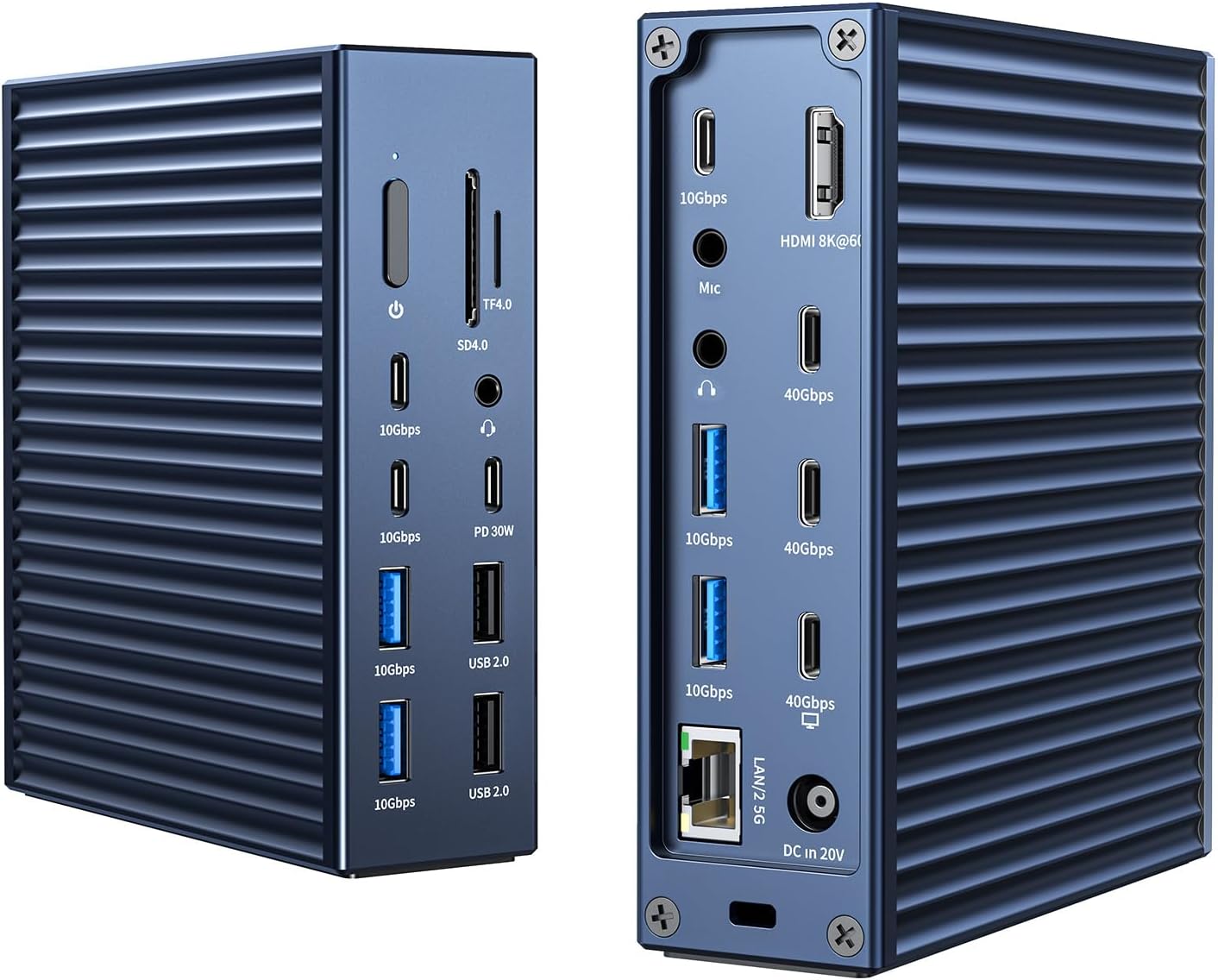
Image: Front and back view of the ACASIS 40Gbps Docking Station, showcasing its compact design and multiple ports.
3.1 Port Layout and Functions
The docking station provides a wide range of ports for various applications:
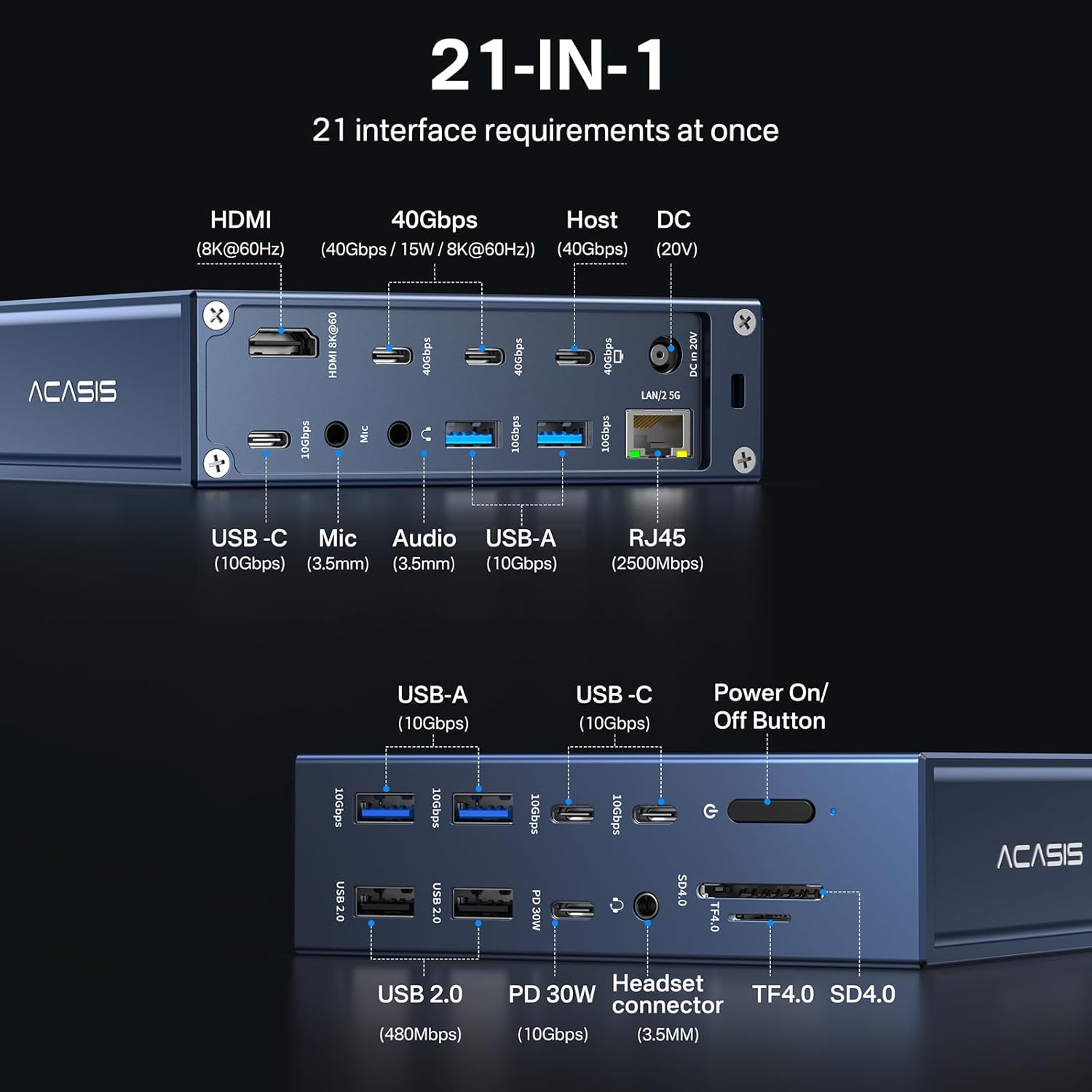
Image: Detailed diagram illustrating the 21 available ports on the ACASIS 40Gbps Docking Station, including USB-C, USB-A, HDMI, Ethernet, and audio jacks.
- 3x Thunderbolt 4 Ports (40Gbps): For ultra-fast data transfer, display output, and power delivery to compatible devices.
- 1x HDMI 2.1 Port (8K@60Hz): Connects to external displays for high-resolution video output.
- 1x 2.5GbE Ethernet Port: Provides stable and high-speed wired network connectivity.
- SD/TF 4.0 Card Readers: For fast access to memory cards (up to 312MB/s).
- 7x USB 3.2 Gen2 Ports (10Gbps): High-speed USB-C and USB-A ports for connecting peripherals and external storage.
- 2x USB 2.0 Ports: Standard USB-A ports for connecting keyboards, mice, and other low-bandwidth devices.
- 3x 3.5mm Audio Jacks: Dedicated ports for microphone, headphone, and combo audio.
- DC In 20V Port: For connecting the included 240W power adapter.
- Power On/Off Button: Controls the power status of the docking station.
4. Setup Guide
Follow these steps to set up your ACASIS 40Gbps Docking Station:
- Connect Power: Connect the 240W power adapter to the DC In 20V port on the docking station and then plug the adapter into a wall outlet.
- Connect to Host Device: Use the provided Thunderbolt 4 cable to connect the docking station's host port (labeled 'Host' or with a computer icon) to a compatible Thunderbolt 4/3, USB4, or USB-C port on your laptop or computer.
- Connect Peripherals:
- Displays: Connect your monitor(s) to the HDMI 2.1 port or the Thunderbolt 4 ports using appropriate cables.
- USB Devices: Plug in your USB devices (external drives, keyboards, mice, etc.) into the available USB-C, USB-A 3.2 Gen2, or USB 2.0 ports.
- Ethernet: Connect an Ethernet cable from your router or modem to the 2.5GbE Ethernet port for wired network access.
- Audio: Connect your headphones, speakers, or microphone to the 3.5mm audio jacks.
- SD/TF Cards: Insert your SD or TF cards into the respective slots for data access.
- Power On: Press the power button on the docking station to turn it on. Your operating system should automatically detect the connected devices.
Video: A demonstration of connecting the ACASIS 40Gbps Docking Station to a laptop and various peripherals, including power, USB devices, and an external monitor.
5. Operating Instructions
5.1 Display Configuration
The docking station supports various display configurations:
- Single 8K@60Hz Display: Connect one 8K monitor to the HDMI 2.1 port or a Thunderbolt 4 port for stunning visual clarity.
- Dual 4K@60Hz Displays: Connect two 4K monitors to the available display outputs for extended desktop productivity.
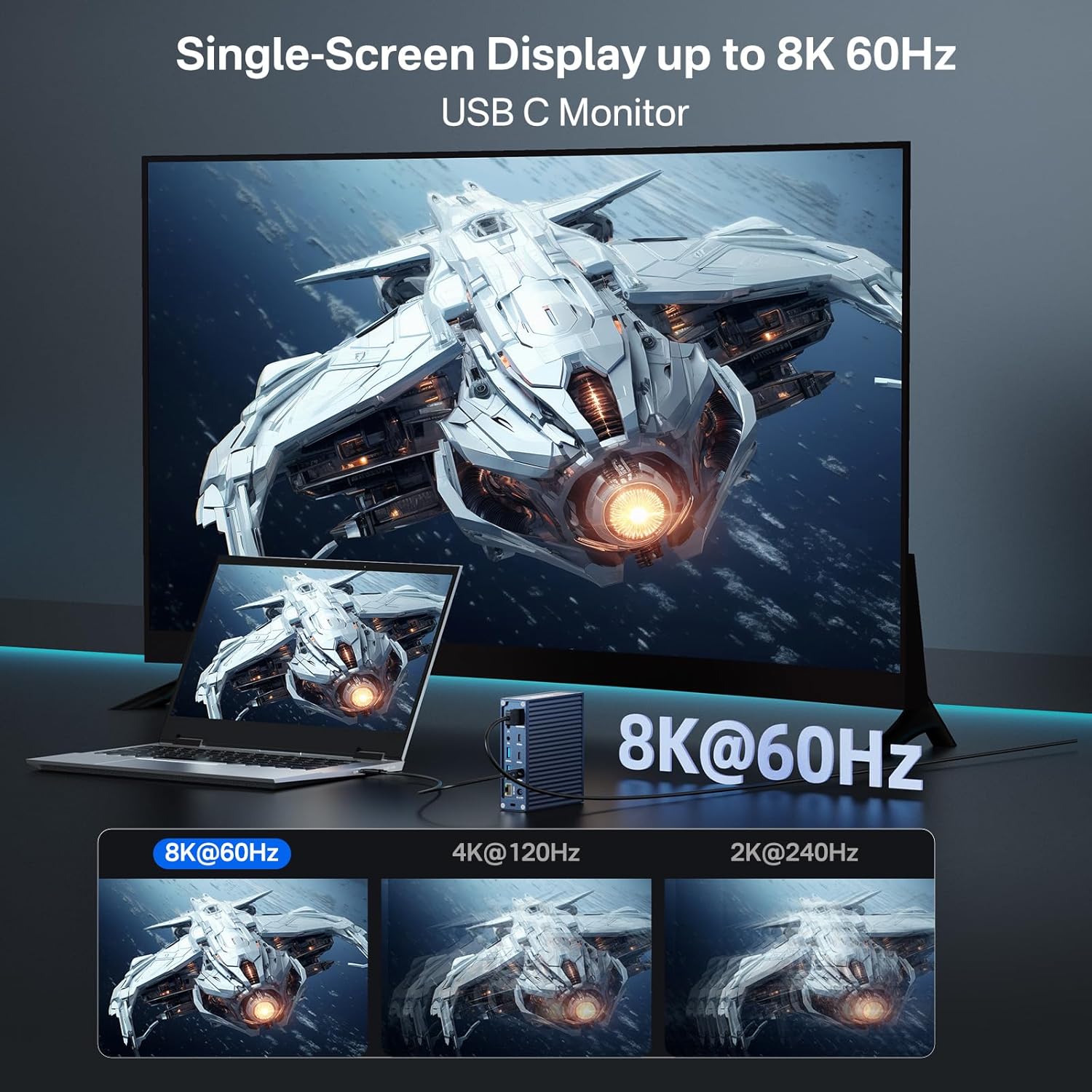
Image: Illustration of a single 8K 60Hz monitor connected to a laptop via the ACASIS docking station, demonstrating high-resolution display capabilities.
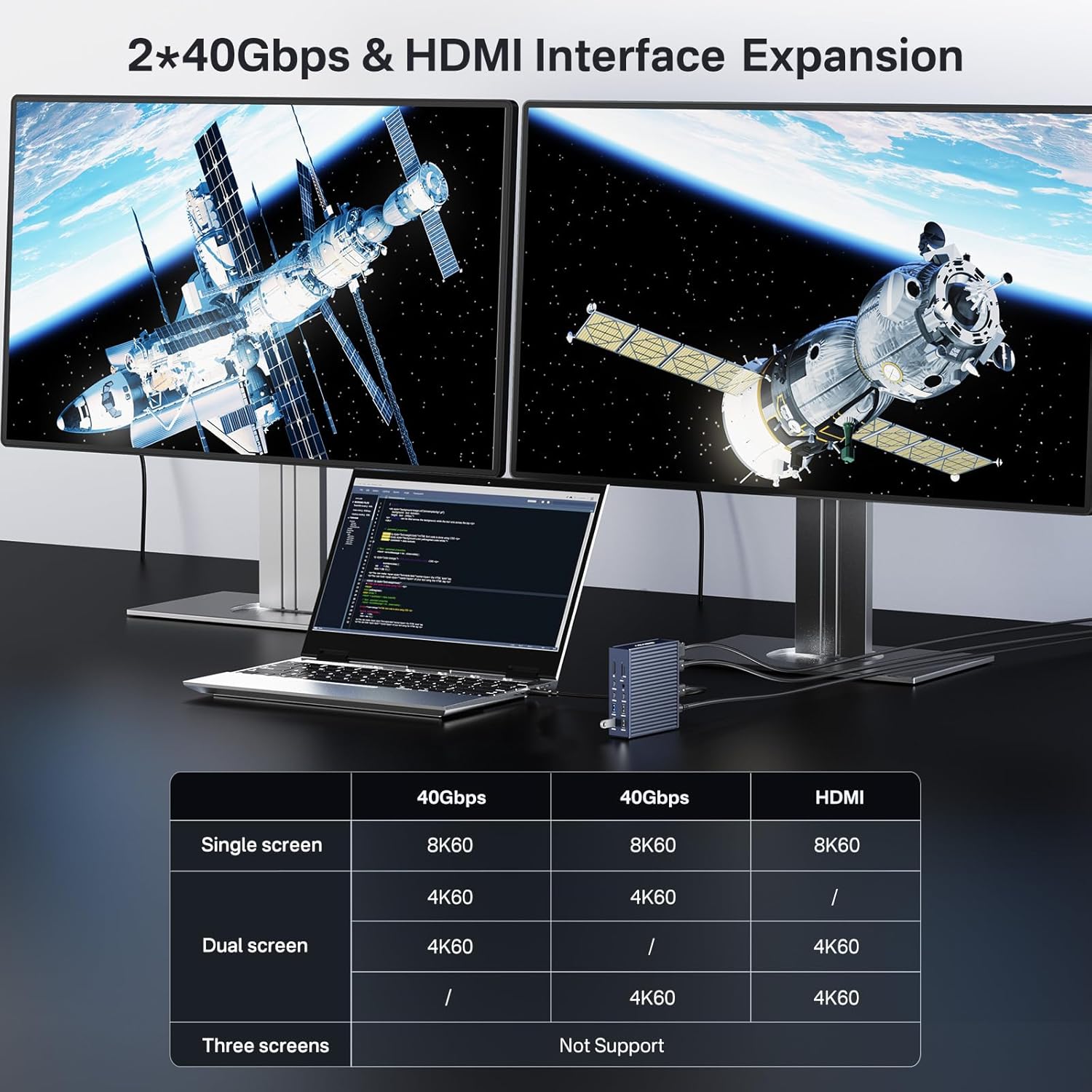
Image: Illustration of a dual 4K 60Hz monitor setup connected to a laptop via the ACASIS docking station, highlighting multi-display support for enhanced productivity.
Note: Display capabilities may vary based on your host device's specifications and operating system. Refer to the compatibility section for details.
5.2 Data Transfer
Leverage the high-speed ports for efficient data transfer:
- 40Gbps Thunderbolt 4 Ports: Ideal for connecting external SSDs, RAID arrays, or other high-bandwidth devices for rapid file transfers.
- 10Gbps USB 3.2 Gen2 Ports: Suitable for most external storage devices, ensuring quick data access and backup.

Image: Visual representation of the 40Gbps data transfer capability of the ACASIS docking station, showing high read and write speeds for connected devices.
5.3 Power Delivery
The docking station provides power to your host device and connected peripherals:
- 90W Power Delivery (PD): Delivers up to 90W to your connected laptop (e.g., MacBook Pro), ensuring it stays charged during use.
- 20W Charging: Provides additional charging power for smartphones, tablets, and other smaller devices.
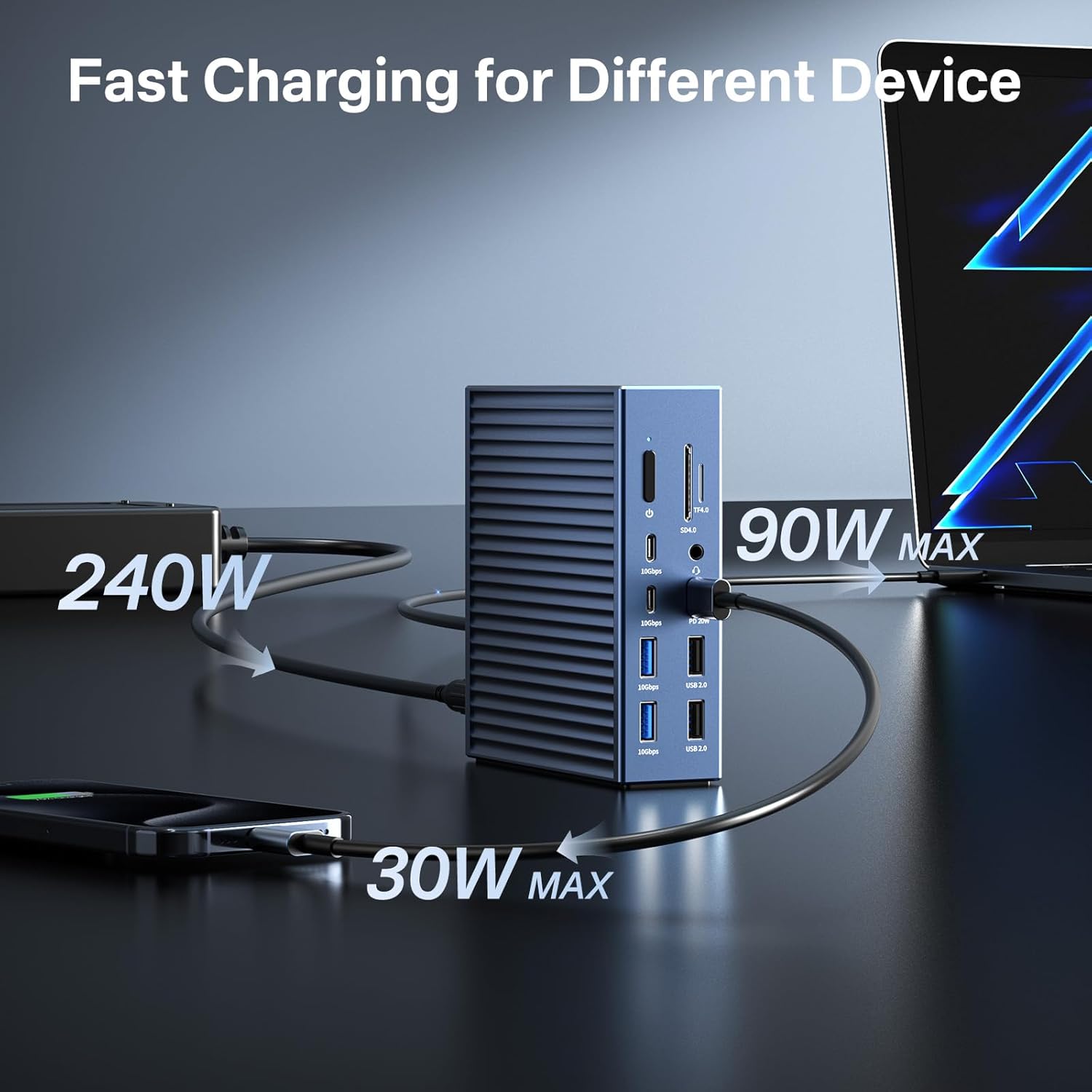
Image: Diagram showing the ACASIS docking station receiving 240W input and delivering 90W to a laptop and 30W to a smartphone, illustrating its fast charging capabilities.
6. Compatibility
The ACASIS 40Gbps Docking Station offers broad compatibility with various devices and operating systems:
- Host Devices: Compatible with laptops and devices featuring Thunderbolt 4/3, USB4, and full-function USB-C ports.
- Operating Systems: Supports Windows 10/11, macOS 11+ (including M1/M2/M3 Apple Silicon and Intel Macs), and Chrome OS.

Image: A visual representation of the wide compatibility of the ACASIS docking station, showing various devices like MacBooks, iPads, Dell XPS, Samsung phones, and operating systems such as Windows, macOS, and Linux.
6.1 Important Compatibility Notes
To ensure full functionality, your host device's USB-C port must support Power Delivery, DisplayPort Alt Mode, and Data Transfer. Not all USB-C ports are full-function.

Image: A diagram showing the difference between a full-function Thunderbolt 3/4/5 or USB-C port with DP Alt Mode (compatible) and USB-C ports that only support data transfer or charging (incompatible for full functionality).
For Apple M1/M2/M3 chip Macs, the dock supports a single external display. For Intel Macs or M1 Pro/Max, M2 Pro/Max, M3 Pro/Max Macs, the dock supports dual external displays.

Image: A diagram illustrating the display output capabilities of the docking station with different Apple Mac chipsets, showing single display support for M1/M2/M3 and dual display support for M1 Pro/Max, M2 Pro/Max, M3 Pro/Max, and Intel Macs.
7. Maintenance and Care
To ensure the longevity and optimal performance of your docking station, follow these guidelines:
- Cleaning: Use a soft, dry cloth to clean the exterior of the docking station. Avoid using liquid cleaners or aerosols.
- Ventilation: Ensure the docking station is placed in a well-ventilated area to prevent overheating. Do not block the ventilation slots.
- Storage: When not in use for extended periods, disconnect the power adapter and store the docking station in a cool, dry place.
- Handling: Avoid dropping or subjecting the docking station to strong impacts.
8. Troubleshooting
If you encounter issues with your ACASIS 40Gbps Docking Station, refer to the common problems and solutions below:
- No Display Output:
- Ensure the docking station is powered on and properly connected to your host device.
- Verify that your monitor cables are securely connected to both the docking station and the monitor.
- Check your host device's display settings to ensure the external display is detected and configured correctly (e.g., extended or mirrored mode).
- Confirm your host device's USB-C port supports DisplayPort Alt Mode.
- No Power Delivery to Laptop:
- Ensure the 240W power adapter is securely connected to the docking station and a working power outlet.
- Verify that your host device's USB-C port supports Power Delivery.
- Check if your laptop requires more than 90W input, as this may lead to unstable charging.
- USB Devices Not Recognized or Slow Speeds:
- Try connecting the USB device to a different port on the docking station.
- Ensure the device drivers are up to date on your host computer.
- If using a high-bandwidth device, ensure it is connected to a 10Gbps or 40Gbps port.
- Ethernet Connection Issues:
- Check the Ethernet cable connection at both ends.
- Verify network settings on your host device.
- Restart your router/modem and the docking station.
9. Specifications
| Feature | Specification |
|---|---|
| Model | B0F6TMJNTG |
| Total Ports | 21 |
| Thunderbolt 4 Ports | 3x (40Gbps) |
| USB 3.2 Gen2 Ports | 7x (10Gbps, USB-C/A) |
| USB 2.0 Ports | 2x |
| HDMI Port | 1x (8K@60Hz) |
| Ethernet Port | 1x (2.5GbE) |
| Card Readers | SD/TF 4.0 (312MB/s) |
| Audio Jacks | 3x (3.5mm Mic, Headphone, Combo) |
| Power Delivery to Host | Up to 90W |
| Power Adapter | 240W |
| Dimensions | 8.54 x 7.4 x 3.9 inches |
| Weight | 3.72 pounds |
10. Warranty and Support
ACASIS products are designed for reliability and performance. For warranty information, technical support, or any inquiries regarding your ACASIS 40Gbps Docking Station, please refer to the official ACASIS website or contact customer support through your purchase platform. Keep your proof of purchase for warranty claims.