
Introduction
Thank you for choosing the Tiardey 3D Hologram Fan. This device is designed to create stunning 3D holographic displays without the need for special glasses, offering a wide viewing angle and clear, vibrant images. This manual provides essential information for the safe and effective use of your new device.
Package Contents
Please verify that all items listed below are included in your package. If any items are missing or damaged, please contact your retailer.
- 1 x Tiardey 3D Hologram Fan
- 1 x Remote Control
- 1 x Micro SD USB 2.0 Adapter
- 1 x Power Cable (integrated)

Image: The main Tiardey 3D Hologram Fan unit with its transparent protective cover.

Image: The white remote control for the 3D Hologram Fan, featuring ON/OFF, playback, and brightness buttons.
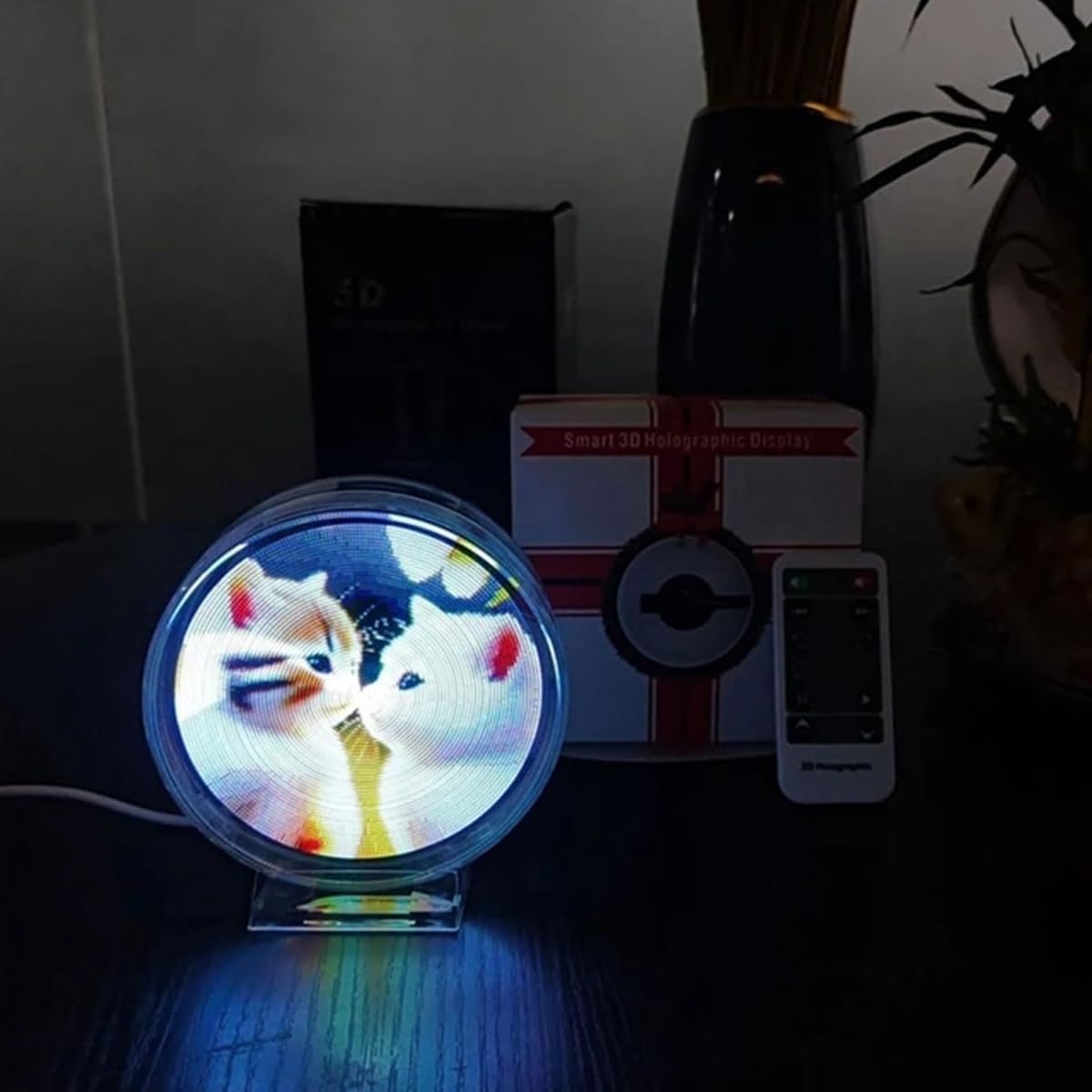
Image: A blue Micro SD USB 2.0 adapter, used for transferring content to the device's memory card.
Setup
- Placement: Place the 3D Hologram Fan on a stable, flat surface such as a desk. Ensure there is adequate space around the device for optimal viewing and ventilation.
- Power Connection: Connect the integrated power cable to a suitable power outlet. The device will typically power on automatically or enter standby mode.
- Initial Content Upload (Optional): If you wish to use custom content immediately, refer to the "Operating Instructions" section for details on uploading media files via WiFi or using the Micro SD card.

Image: The 3D Hologram Fan connected to its power cable, ready for placement and operation.
Operating Instructions
Powering On/Off
- To turn the device ON, press the ON button on the remote control.
- To turn the device OFF, press the OFF button on the remote control.
Uploading Content
The 3D Hologram Fan supports various content formats including MP4, AVI, RMVB, MKV, GIF, JPG, and PNG. You can upload content using two primary methods:
- Via WiFi:
- Ensure the device is powered on and its WiFi function is active.
- Connect your computer, smartphone, or tablet to the device's WiFi network (refer to the device's display or packaging for network name and password, if applicable).
- Use the dedicated application (if provided by the manufacturer) or a web interface to upload your desired 3D images or videos.
- Once uploaded, the files can be retrieved and played directly via WiFi.
- Via Micro SD Card:
- Insert a Micro SD card (not included, but adapter is) into the provided Micro SD USB 2.0 Adapter.
- Connect the adapter to your computer.
- Transfer your desired media files (MP4, AVI, etc.) to the Micro SD card.
- Safely eject the Micro SD card from your computer and insert it into the designated slot on the 3D Hologram Fan (location may vary, consult device for slot).
- The device should automatically detect and play content from the Micro SD card, or you may need to select it via the remote control.
Remote Control Functions
The remote control allows for easy management of the 3D Hologram Fan.
- ON/OFF: Power the device on or off.
- Play/Pause: Start or pause the current display.
- Previous/Next: Navigate between media files.
- Repeat: Loop the current media or playlist.
- Brightness Adjustment: Increase or decrease the display brightness.
- Bluetooth: (If applicable) Activate Bluetooth for audio output or content transfer.

Image: The Tiardey 3D Hologram Fan actively displaying a holographic image, demonstrating its visual effect.
Maintenance
- Cleaning: Ensure the device is powered off and unplugged before cleaning. Use a soft, dry cloth to gently wipe the transparent protective cover and the main unit. Avoid using abrasive cleaners, solvents, or excessive moisture, as these can damage the device.
- Storage: When not in use for extended periods, store the 3D Hologram Fan in a cool, dry place, away from direct sunlight and extreme temperatures.
- Protective Cover: The device features a transparent protective cover for safety and to minimize noise. Do not remove this cover during operation.
Troubleshooting
| Problem | Possible Cause | Solution |
|---|---|---|
| Device does not power on. | Not connected to power; power outlet malfunction; device fault. | Ensure the power cable is securely connected. Try a different power outlet. If the issue persists, contact support. |
| No holographic display. | No content loaded; incorrect file format; device in standby. | Verify content has been uploaded correctly. Ensure files are in supported formats (MP4, JPG, etc.). Press the Play button on the remote. |
| WiFi connectivity issues. | Incorrect WiFi password; device not in WiFi mode; software/app issues. | Double-check WiFi credentials. Ensure the device's WiFi function is active. If using an app, ensure it is up-to-date and compatible. Consider using the Micro SD card for content transfer as an alternative. |
| Remote control not working. | Dead batteries; obstruction; remote not paired. | Replace batteries. Ensure no obstructions between remote and device. If applicable, follow pairing instructions (not provided in product info, assume direct use). |
| Missing components (e.g., remote). | Packaging error. | Immediately contact your retailer or the manufacturer's customer support for assistance. |
Specifications
| Feature | Detail |
|---|---|
| Brand | Tiardey |
| Model Number | 1 |
| Material | PMMA, PC, Hardware |
| Product Dimensions (L x W x H) | 11 x 11 x 11 cm |
| Package Dimensions | 14 x 13.6 x 7.9 cm |
| Weight | 230 grams |
| Supported Content Formats | MP4, AVI, RMVB, MKV, GIF, JPG, PNG |
| Connectivity Technology | HDMI, Wi-Fi |
| Display Resolution | 1920 x 1080 |
| Contrast Ratio | 1000:1 |
| Maximum Projection Distance | 3 Meters |
| Video Encoding | H.264 |
| Compatible Devices | Smartphone, Game Console, Laptop, Tablet |
| Form Factor | Portable |
| Mounting Type | Table Mount |
| Special Feature | 3D Holographic Projection |
Warranty and Support
For information regarding the product warranty, please refer to the documentation provided with your purchase or contact your retailer directly.
For technical support or further assistance, please visit the official Tiardey website or contact their customer service department.