
1. Introduction
This manual provides essential information for the setup, operation, maintenance, and troubleshooting of your iBUYPOWER Element Gaming PC Desktop, model EBI9N57T01. Please read this manual thoroughly before using your new computer to ensure proper functionality and to maximize your user experience.

This image displays the iBUYPOWER Element Gaming PC Desktop, model EBI9N57T01, showcasing its black chassis with tempered glass side panels. The internal RGB fans and components are illuminated, highlighting the aesthetic design of the system.
2. Safety Information
Observe the following safety precautions to prevent damage to your system and ensure personal safety:
- Do not open the computer case unless instructed by qualified personnel.
- Ensure the computer is placed on a stable, level surface with adequate ventilation.
- Keep the computer away from direct sunlight, heat sources, and liquids.
- Use only the power supply unit provided or a compatible replacement.
- Disconnect the power cable before cleaning or performing any maintenance.
3. Package Contents
Verify that all items are present in the package:
- iBUYPOWER Element Gaming PC Desktop (EBI9N57T01)
- Power Cable
- iBUYPOWER Gaming Keyboard
- iBUYPOWER RGB Gaming Mouse
- Documentation (Quick Start Guide, Warranty Information)
4. Physical Overview
Familiarize yourself with the external features and connectivity options of your PC.
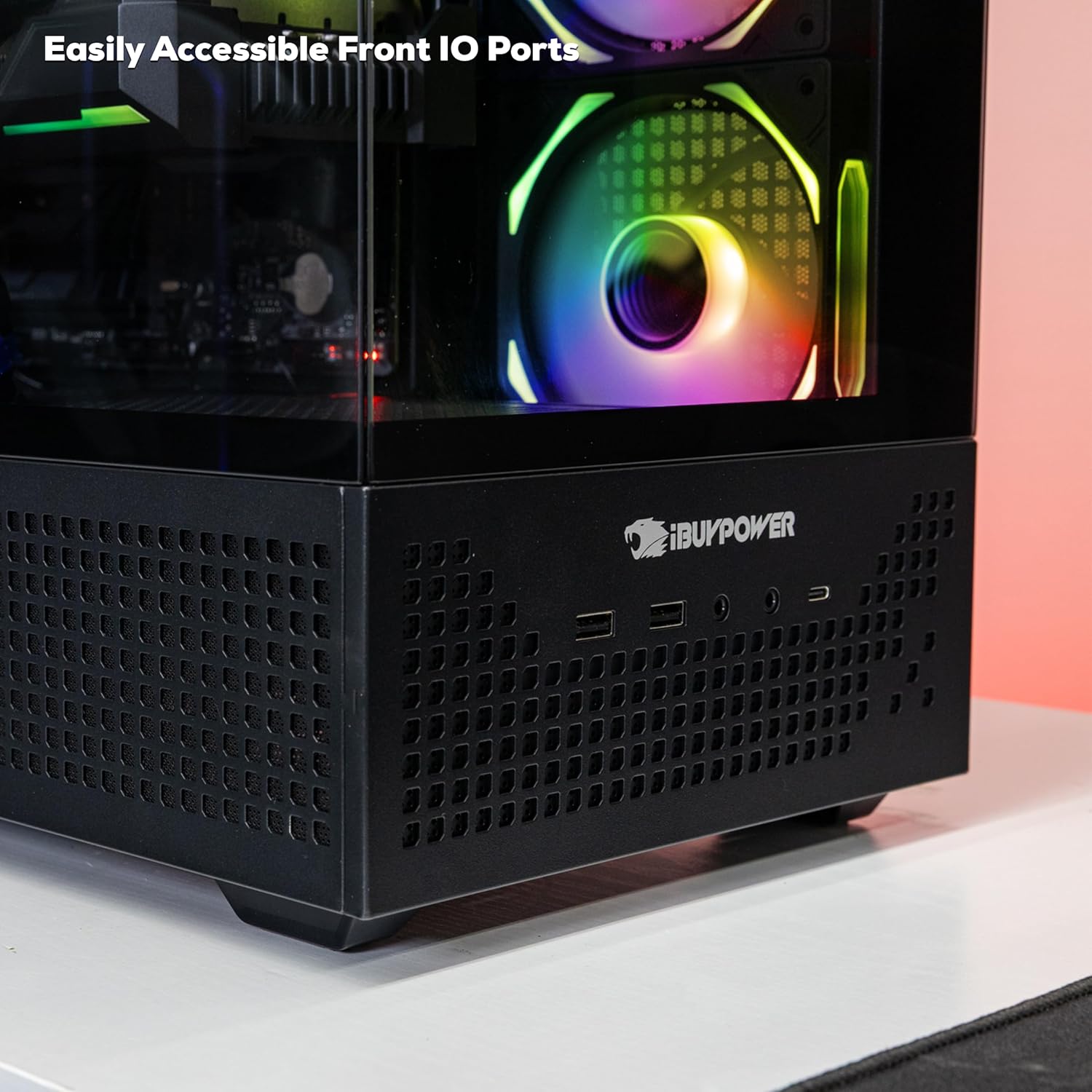
This close-up image shows the easily accessible front input/output (I/O) ports located at the bottom front of the iBUYPOWER Element Gaming PC. These ports typically include USB ports and audio jacks for convenient peripheral connection.
Front Panel
- Power Button: Located at the top corner, often with integrated RGB lighting.
- USB Ports: For connecting peripherals like keyboards, mice, and external drives.
- Audio Jacks: For headphones and microphones.

A detailed view of the unique Chimera Corner Power Button, located at the top front corner of the iBUYPOWER Element Gaming PC. This button features integrated RGB lighting, adding to the system's visual appeal.
Rear Panel
The rear panel contains ports for your monitor, network, and additional USB devices.
- Video Outputs: DisplayPort and HDMI ports for connecting monitors.
- USB Ports: Multiple USB 3.1 ports for various devices.
- Ethernet Port (RJ-45): For wired network connection.
- Audio Ports: For speakers, headphones, and microphones.
- Power Input: For connecting the power cable.
5. Setup
5.1 Initial Connection
- Unpack: Carefully remove the PC and all accessories from the packaging.
- Placement: Place the PC on a flat, stable surface with good airflow.
- Monitor: Connect your monitor to the graphics card's DisplayPort or HDMI output on the rear panel.
- Keyboard & Mouse: Connect the included keyboard and mouse to any available USB ports.
- Network: For a wired connection, connect an Ethernet cable to the RJ-45 port. For Wi-Fi, ensure the Wi-Fi antenna (if included) is attached.
- Power: Connect the power cable to the PC's power input and then to a wall outlet or surge protector.
5.2 Power On
Press the power button on the front panel of the PC. The system will boot up, and you will see the Windows 11 Home setup screen or desktop.
6. Operating
6.1 Windows 11 Home
Your PC comes with Windows 11 Home pre-installed. Follow the on-screen instructions for initial setup, including creating a user account and connecting to a network.
6.2 Connectivity
- Wired Network: Connect an Ethernet cable to the RJ-45 port for a stable internet connection.
- Wi-Fi: Your system is Wi-Fi Ready. To connect to a wireless network, go to Windows Settings > Network & internet > Wi-Fi, and select your desired network.
- USB Devices: Use the available USB 3.1 ports for high-speed data transfer with compatible devices.
6.3 RGB Lighting Control
The PC features customizable RGB lighting for its fans and internal components. Control software for RGB lighting may be pre-installed or available for download from the iBUYPOWER website. Refer to the software's instructions for specific customization options.

An internal view of the iBUYPOWER Element Gaming PC, EBI9N57T01, revealing the organized layout of its components. Key elements visible include the motherboard, NVIDIA GeForce RTX 5070Ti graphics card, DDR5 RGB RAM modules, and the 360mm liquid CPU cooling system.
7. Maintenance
7.1 Cleaning
- Exterior: Use a soft, damp cloth to clean the exterior surfaces. Avoid harsh chemicals.
- Dust: Periodically use compressed air to clear dust from fan vents and internal components. Ensure the PC is powered off and unplugged before cleaning.
7.2 Software Updates
Regularly update your operating system, drivers, and security software to ensure optimal performance and protection. Windows Update can be accessed via Settings > Windows Update.
8. Troubleshooting
If you encounter issues, refer to the following common solutions:
- No Power: Check all power cable connections. Ensure the power supply switch (if present) is in the 'ON' position.
- No Display: Verify that the monitor is connected to the graphics card's output, not the motherboard's integrated graphics ports. Ensure the monitor is powered on and set to the correct input.
- System Slowdown: Check for background applications, malware, or insufficient storage space. Ensure drivers are up to date.
- Peripheral Not Working: Try connecting the peripheral to a different USB port. Reinstall or update drivers for the peripheral.
For more complex issues, consult the iBUYPOWER support website or contact technical support.
9. Technical Specifications
| Component | Specification |
|---|---|
| Model Number | EBI9N57T01 |
| Processor | Intel Core Ultra 9 285K (3.7 GHz) |
| Graphics Card | NVIDIA GeForce RTX 5070Ti 16GB |
| RAM | 32GB DDR5 RGB (5200MHz) |
| Storage | 2TB NVMe SSD |
| Operating System | Windows 11 Home |
| Connectivity | Wi-Fi Ready, 1x RJ-45 Network Ethernet 10/100/1000 |
| USB Ports | 6 x USB 3.1 (Rear), 7 x USB 3.0 (Total, including front) |
| Audio | On board audio |
| Cooling | iBUYPOWER AW4 360mm Liquid CPU Cooling System |
| Case | Premium iBUYPOWER Element Black Tempered Glass RGB Gaming Case |
| Dimensions (LxWxH) | 20 x 9.1 x 17.4 inches |
| Weight | 36 pounds |
10. Warranty and Support
Your iBUYPOWER Element Gaming PC is covered by a manufacturer's warranty. Please refer to the warranty documentation included with your product for specific terms and conditions. For technical assistance, driver downloads, or further support, please visit the official iBUYPOWER website or contact their customer service department.
You can find more information and support resources by visiting the iBUYPOWER Store on Amazon.