1. Introduction
This manual provides essential information for setting up, operating, and maintaining your new Samsung QN48S90FAEXZA 48 Inch 4K OLED Smart TV. Please read it thoroughly to ensure safe and optimal use of your television. Keep this manual for future reference.
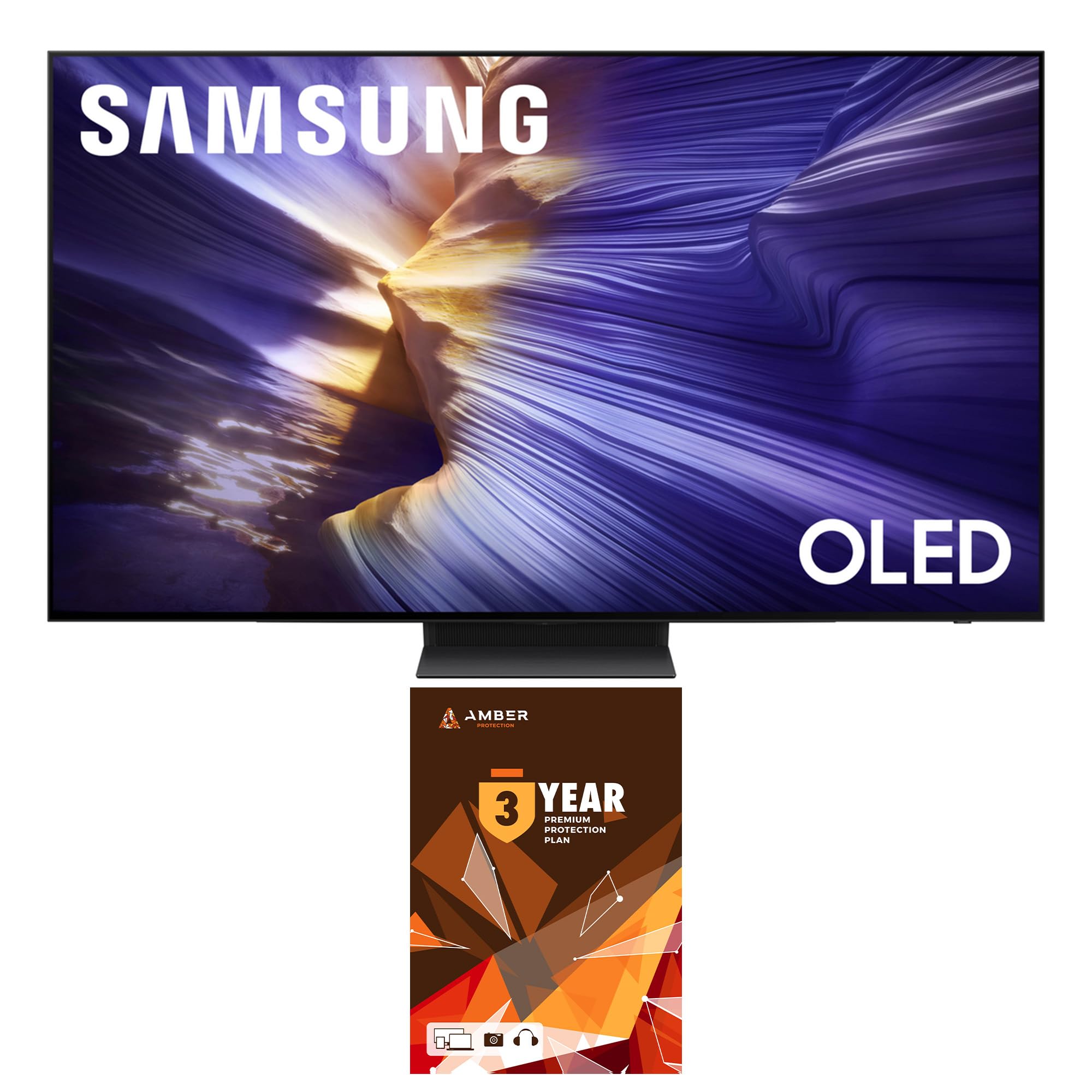
Figure 1: Samsung QN48S90FAEXZA 48 Inch 4K OLED Smart TV.
2. What's in the Box
Carefully unpack your television and check for the following items:
- Samsung QN48S90FAEXZA 48 Inch 4K OLED Smart TV
- Power Cable
- SolarCell™ Remote (Model TM2560E)
- User Manual (this document)
- TV Stand Components
- Amber Protection HDTV Screen Cleaner Kit

Figure 2: Illustration of the TV, remote, and stand components included in the box.
3. Setup
3.1 Physical Setup (Stand or Wall Mount)
Your Samsung TV can be placed on a stand or mounted on a wall. Ensure proper ventilation around the TV.
- Stand Installation: Attach the provided stand components to the TV following the instructions in the separate stand assembly guide. Place the TV on a stable, level surface.
- Wall Mount Installation: For wall mounting, use a VESA-compliant wall mount (300mm x 200mm) and consult a professional installer. Ensure the wall can support the TV's weight (approximately 26.2 pounds).

Figure 3: Side profile of the TV on its stand.
3.2 Connections
Connect your external devices to the TV's ports. The TV features 4 HDMI ports and 2 USB-A ports.
- HDMI: Use HDMI cables to connect devices like Blu-ray players, game consoles, or cable boxes.
- USB: Connect USB storage devices for media playback.
- Network: Connect to your home network via Wi-Fi 5 or an Ethernet cable for smart TV features.

Figure 4: Rear view of TV ports.
3.3 Initial Power On
Plug the power cable into the TV and a wall outlet. Press the power button on the remote control to turn on the TV. Follow the on-screen instructions for initial setup, including network connection and channel scanning.
4. Operating Your TV
4.1 Remote Control
The SolarCell™ Remote (TM2560E) is designed for intuitive control. It charges via solar energy or USB-C. Use it to navigate menus, adjust volume, change channels, and access smart features.
Figure 5: SolarCell™ Remote Control.
4.2 Smart Features (Tizen OS, Voice Assistants)
Your TV runs on the Tizen Smart TV platform, providing access to a wide range of apps like Netflix, Prime Video, Disney+, Hulu, Apple TV, YouTube, HBO Max, Peacock, and Sling. Built-in voice assistants allow for hands-free control and content search.
4.3 Picture Settings
Experience stunning visuals with advanced picture technologies:
- NQ4 AI Gen3 Processor: Utilizes AI-based formulas to upscale content to 4K resolution, enhancing picture and sound.
- 4K AI Upscaling Pro: Transforms everything on screen to impressive 4K resolution using 128 AI neural networks.
- OLED HDR: Delivers powerful brightness and deeper contrast in every pixel for a vibrant viewing experience.
- Motion Xcelerator 144Hz: Enjoy smooth motion, especially for fast-paced content and PC-connected games (4K 144Hz requires a compatible PC graphic card).

Figure 6: NQ4 AI Gen3 Processor.

Figure 7: 4K AI Upscaling Pro in action.

Figure 8: OLED HDR+ for enhanced contrast.

Figure 9: Motion Xcelerator 144Hz for smooth gaming.
4.4 Audio Settings
Immerse yourself in rich audio with:
- Dolby Atmos: Delivers multi-dimensional sound that moves around you.
- OTS Lite (Object Tracking Sound Lite): Sound follows the action on screen for a more dynamic experience.
- Q-Symphony Pro: Synchronizes TV speakers with compatible Samsung soundbars for an enhanced, harmonious soundstage.
Video 1: S90F Features Overview. This video highlights the key features of the Samsung S90F OLED TV, including its picture and sound technologies.
5. Maintenance
5.1 Screen Cleaning
Use the included Amber Protection HDTV Screen Cleaner Kit to keep your screen pristine. The non-ammonia and alcohol-free solution safely removes dust, dirt, and fingerprints without damaging the display.

Figure 10: Amber Protection Screen Cleaner Kit.
5.2 General Care
To ensure the longevity of your TV, avoid placing it in direct sunlight or near heat sources. Keep vents clear for proper airflow. Unplug the TV during lightning storms or when not in use for extended periods.
6. Troubleshooting
If you encounter issues with your TV, refer to the following common solutions:
- No Power: Check if the power cable is securely connected to both the TV and the wall outlet. Test the outlet with another device.
- No Picture/Sound: Ensure all external devices are properly connected and powered on. Verify the correct input source is selected on the TV.
- Remote Not Working: Check the SolarCell remote's charge level. Ensure there are no obstructions between the remote and the TV.
- Network Connection Issues: Restart your router and modem. Reconnect the TV to your Wi-Fi network or try a wired Ethernet connection.
For more detailed troubleshooting, visit the Samsung support website or contact customer service.
7. Specifications
| Feature | Specification |
|---|---|
| Model Name | QN48S90FAEXZA |
| Screen Size | 48 Inches |
| Display Technology | OLED |
| Resolution | 4K (3840 x 2160) |
| Refresh Rate | 120 Hz (Up to 144Hz) |
| Processor | NQ4 AI Gen3 Processor |
| Audio Technology | Dolby Atmos, OTS Lite, Q-Symphony Pro |
| Smart TV Platform | Tizen Smart TV |
| Connectivity | Wi-Fi 5, HDMI x 4, USB-A x 2 |
| Dimensions (with stand) | 10.4"D x 42.1"W x 27"H |
| Dimensions (without stand) | 42.1"W x 24.4"H x 1.6"D |
| Item Weight | 26.2 Pounds |
| Color | Graphite Black |
8. Warranty and Support
This product includes a full 1-year manufacturer's warranty. Additionally, it comes with a 3-Year Amber Protection Plan, providing extended coverage for mechanical and electrical failures, and power surge protection. Benefits such as Power Surge Protection and Mechanical & Electrical Failures begin on Day 1. For warranty claims or technical support, please refer to the contact information provided with your Amber Protection Plan documentation or visit the official Samsung support website.

Figure 11: Amber Protection Plan details.


