
1. Introduction
Thank you for choosing the CungSu KS2000-Z2-USB. This manual provides essential information for the proper installation, operation, and maintenance of your device. Please read this manual thoroughly before using the product to ensure safe and efficient operation. Keep this manual for future reference.
2. Safety Information
- General Safety: Always handle the device with care. Avoid dropping or subjecting it to strong impacts.
- Power Supply: Ensure the power source (if external) meets the device's specifications. Do not use damaged cables or power adapters.
- Environment: Operate the device in a clean, dry environment. Avoid exposure to extreme temperatures, humidity, dust, or direct sunlight.
- Ventilation: Ensure adequate ventilation around the device to prevent overheating.
- Maintenance: Do not attempt to open or repair the device yourself. Refer all servicing to qualified personnel.
3. Package Contents
Please check the package contents upon receipt. If any items are missing or damaged, contact your supplier immediately.
- 1 x CungSu KS2000-Z2-USB Unit
- 1 x USB Connection Cable
- 1 x Quick Start Guide (this document)
4. Product Overview
The CungSu KS2000-Z2-USB is a versatile USB interface device designed for reliable data communication. It features a robust design suitable for various applications.
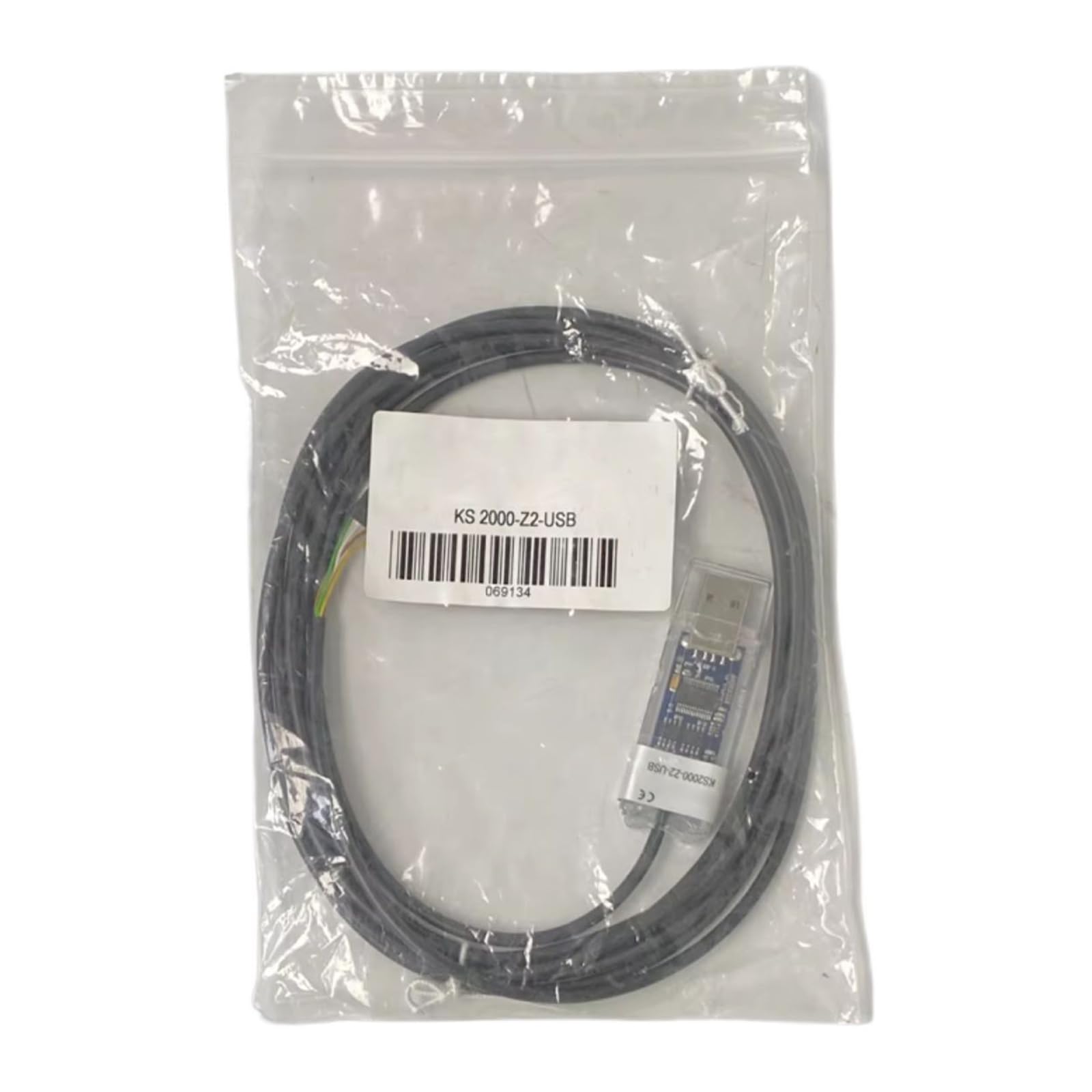
Figure 1: CungSu KS2000-Z2-USB device. This image displays the main unit, highlighting its compact design and the primary USB connection port, which is typically used for connecting to a host computer or system.
4.1. Device Components
- USB Port: For connection to a host computer or compatible device.
- Status Indicator LED: Provides visual feedback on device status (e.g., power, data transfer).
- Mounting Points: (If applicable) For secure installation in industrial or fixed environments.
5. Setup
5.1. Connecting the Device
- Ensure your host computer or system is powered off or in a safe state before connecting.
- Connect one end of the provided USB cable to the USB port on the CungSu KS2000-Z2-USB.
- Connect the other end of the USB cable to an available USB port on your host computer.
- Power on your host computer. The device should be detected automatically.
5.2. Driver Installation
For most modern operating systems (Windows 10/11, macOS, Linux), the CungSu KS2000-Z2-USB is a plug-and-play device and will utilize standard USB drivers. If prompted, allow the operating system to install necessary drivers. In rare cases, specific drivers may be required. Please refer to the CungSu support website for the latest driver downloads if automatic installation fails.
6. Operating Instructions
6.1. Power and Status Indicators
- Solid Green LED: Indicates the device is powered on and ready for operation.
- Flashing Green LED: Indicates active data transmission or reception.
- No LED: The device is not powered or is not functioning correctly.
6.2. Basic Operation
Once connected and drivers are installed, the KS2000-Z2-USB will appear as a standard USB communication port (e.g., COM port on Windows, /dev/ttyUSBx on Linux) in your system's device manager. You can then use compatible software applications to communicate with the device. Refer to your software's documentation for specific instructions on selecting and using the USB communication port.
7. Maintenance
7.1. Cleaning
To clean the device, gently wipe the exterior with a soft, dry cloth. Do not use liquid cleaners, solvents, or abrasive materials, as these can damage the device. Ensure no moisture enters the ports.
7.2. Storage
When not in use, store the KS2000-Z2-USB in a cool, dry place, away from direct sunlight and extreme temperatures. Keep it protected from dust and physical damage.
7.3. Firmware Updates
Periodically check the CungSu support website for any available firmware updates. Firmware updates can improve performance, add features, or resolve issues. Follow the instructions provided with the firmware update package carefully.
8. Troubleshooting
- Device Not Recognized:
- Ensure the USB cable is securely connected to both the device and the host computer.
- Try connecting to a different USB port on your computer.
- Restart your computer.
- Check Device Manager (Windows) or System Information (macOS/Linux) to see if the device is listed, even with an error. Reinstall drivers if necessary.
- No Power (LED Off):
- Verify the USB cable is functional and connected to a powered USB port.
- If using a USB hub, ensure it is a powered hub.
- Intermittent Connection:
- Check for loose cable connections.
- Avoid placing the device near sources of strong electromagnetic interference.
- Try a different USB cable.
If you continue to experience issues, please contact customer support.
9. Specifications
| Feature | Specification |
|---|---|
| Model | KS2000-Z2-USB |
| Interface | USB 2.0 (Type-A connector) |
| Power Supply | USB Bus Powered (5V DC) |
| Operating Temperature | 0°C to 70°C (32°F to 158°F) |
| Storage Temperature | -20°C to 85°C (-4°F to 185°F) |
| Humidity | 5% to 95% RH, non-condensing |
| Dimensions (L x W x H) | Approx. 60mm x 25mm x 15mm |
| Weight | Approx. 30g |
10. Warranty and Support
10.1. Warranty Information
The CungSu KS2000-Z2-USB comes with a standard manufacturer's warranty against defects in materials and workmanship. The warranty period typically begins from the date of purchase. Please retain your proof of purchase for warranty claims. This warranty does not cover damage caused by misuse, accident, unauthorized modification, or improper installation.
10.2. Customer Support
For technical assistance, troubleshooting, or warranty inquiries, please contact Realing US, the company focused on factory automation business and dedicated to providing excellent customer service. You can typically find contact information on their official website or through your point of purchase.
Online Support: Visit the CungSu or Realing US official website for FAQs, driver downloads, and support resources.
Email Support: Refer to the contact section of the official website for email support options.