
1. Introduction
This manual provides detailed instructions for the Nine Otter Lite 3D Scanner. Please read this manual thoroughly before using the device to ensure proper operation and to maximize its capabilities. The Otter Lite is a wireless 3D scanner designed for high-precision 3D printing applications, offering full-color scanning and compatibility across multiple operating systems.
1.1 Product Overview
The Nine Otter Lite 3D Scanner features a built-in wireless Wi-Fi module and can be paired with a battery handle (Lite Bridge) for cable-free scanning. This allows for mobile phone integration, transforming your phone into the scanner's screen for enhanced portability and convenience. It is capable of scanning objects with 0.05mm ultra-high precision, including black and metal objects without the need for spraying. The device also supports full-color 24-bit RGB scanning with a million-pixel camera for lifelike textures.

Figure 1.1: The Nine Otter Lite 3D Scanner, showcasing its design with the Creality logo and a sample scanned object.
1.2 What's in the Box
- 3D Scanner Otter Lite
- (Additional accessories like Lite Bridge handle, cables, and power adapter may be included depending on the package.)
2. Setup
2.1 Initial Device Charging
Before first use, ensure the Otter Lite scanner and any accompanying battery handle (Lite Bridge) are fully charged. Connect the device to a power source using the provided charging cable and adapter. The battery indicator lights will show charging status.
2.2 Software Installation
The Otter Lite 3D Scanner is compatible with Windows, macOS, Android, and iOS operating systems. Download the official scanning software from the manufacturer's website or your device's app store. Follow the on-screen instructions for installation.
2.3 Wireless Connection (Wi-Fi 6)
The scanner features a built-in Wi-Fi 6 module for wireless operation. To connect:
- Power on the Otter Lite scanner.
- On your computer or mobile device, open the scanning software.
- Follow the software prompts to connect to the scanner's Wi-Fi network. The scanner's network name (SSID) will typically be displayed on the device or in the software.
- If using the Lite Bridge handle, ensure it is securely attached and powered on. The handle facilitates wireless communication and provides extended battery life.

Figure 2.1: Wireless scanning setup with the Otter Lite and Lite Bridge, demonstrating mobile phone integration with the Creality software interface.

Figure 2.2: The Wi-Fi 6 and Pogo Pin interface on the Otter Lite, enabling high-speed wireless data transfer, with the Creality logo.
3. Operation
3.1 Preparing for Scanning
- Object Placement: Place the object to be scanned on a stable surface. For optimal tracking, especially in blue light mode, consider using scanning markers around the object.
- Environment: Ensure adequate lighting. The scanner performs well in various conditions, including sunlight (up to 30,000 lux), but consistent, diffused lighting is ideal.
- Software Settings: Open the scanning software and select the appropriate scanning mode (e.g., blue light, NIR/IR) and resolution settings based on your object and desired precision.
3.2 Scanning Process
Hold the scanner steadily and aim it at the object. Begin scanning through the software interface. Move the scanner smoothly around the object, maintaining a consistent distance and angle. The software will provide real-time feedback on tracking and scan quality.
- Real-Time Mobile Preview: When connected wirelessly, your mobile phone can display a real-time preview of the scan, allowing for immediate adjustments and ensuring complete data capture.
- Anti-Shake Technology: The integrated anti-shake technology and 30 FPS scanning speed contribute to smooth and efficient data acquisition, even with slight hand movements.
- Black and Metal Objects: The Otter Lite is designed to scan black and metal objects directly without the need for anti-glare spray, simplifying the process for these challenging materials.
- Full-Color Scanning: The million-pixel camera captures 24-bit RGB color data, enabling the creation of models with lifelike textures and contours.
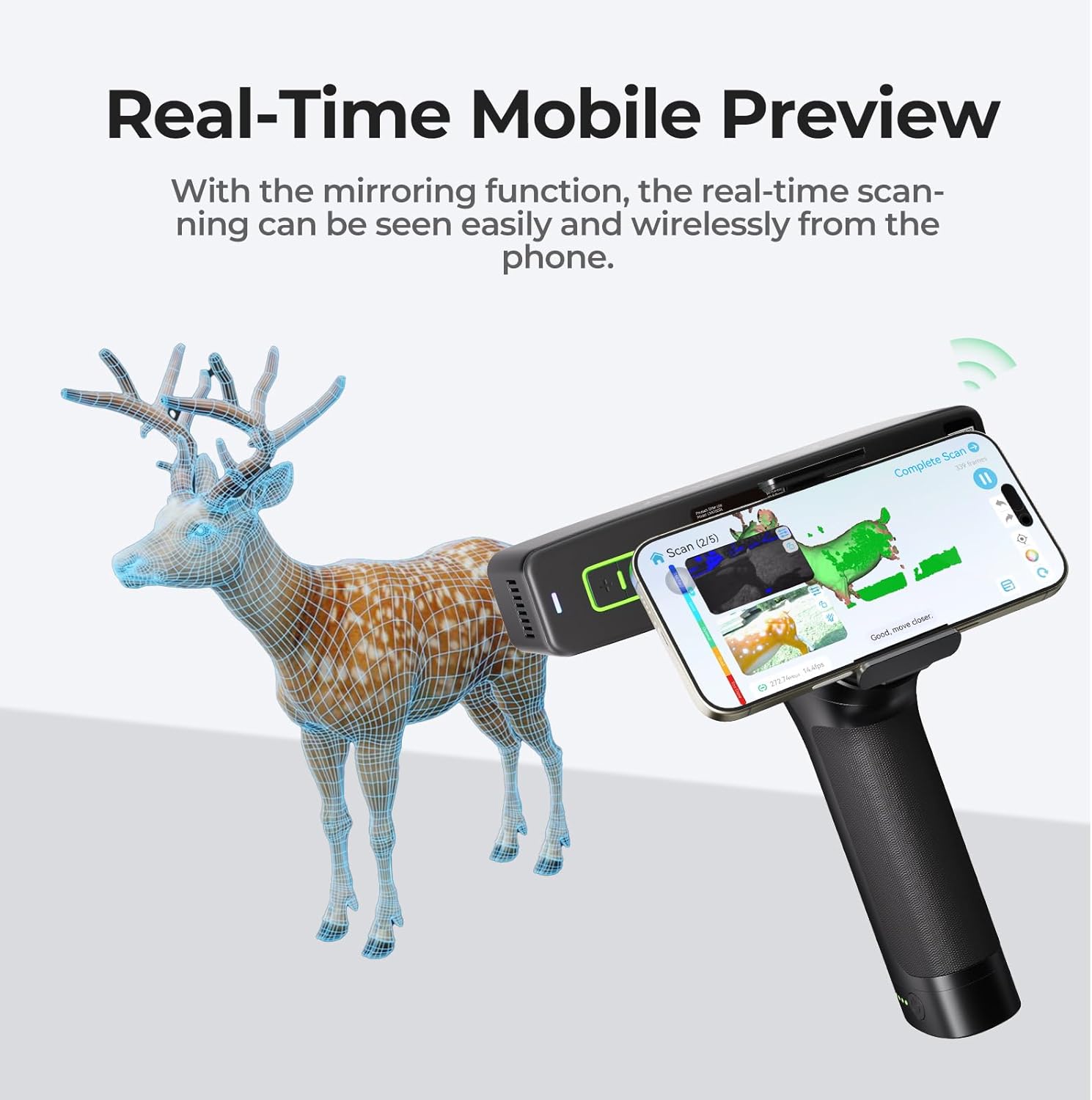
Figure 3.1: Real-time mobile preview of a 3D scan, showing the object being digitized on a smartphone screen, with the Creality-branded scanner.

Figure 3.2: Examples of wider applications for the Otter Lite, including outdoor scanning of a deer statue, scanning a red car model (black/metal object), and scanning a person (face & body algorithm), featuring the Creality scanner.

Figure 3.3: Visual representation of the Otter Lite's high-speed accuracy and efficient workflow, including a detailed scan result, anti-shake scanning on a turntable, and handheld scanning, all featuring the Creality scanner.

Figure 3.4: The Otter Lite performing full-color scanning, capturing intricate details and vibrant colors of a phoenix sculpture, with the Creality logo.
3.3 Post-Scanning Processing
After completing the scan, the software will allow you to process, edit, and export the 3D model. This may include:
- Meshing: Converting point cloud data into a solid mesh.
- Texture Mapping: Applying captured color data to the mesh.
- Editing Tools: Tools for hole filling, smoothing, and alignment.
- Export: Saving the model in various formats compatible with 3D printing or other design software.
4. Maintenance
4.1 Cleaning the Scanner
Regularly clean the scanner's lenses and body to ensure optimal performance. Use a soft, lint-free cloth. For lenses, a specialized lens cleaning solution and cloth are recommended. Avoid abrasive materials or harsh chemicals that could damage the device.
4.2 Software Updates
Periodically check for software and firmware updates from the manufacturer's official website. Updates often include performance improvements, bug fixes, and new features. Ensure your device is fully charged before performing any updates.
4.3 Storage
When not in use, store the Otter Lite scanner in a dry, dust-free environment, preferably in its original packaging or a protective case. Avoid extreme temperatures and direct sunlight.
5. Troubleshooting
This section addresses common issues you might encounter with the Nine Otter Lite 3D Scanner.
| Issue | Possible Cause | Solution |
|---|---|---|
| Scanner not connecting wirelessly. | Weak Wi-Fi signal, incorrect network selection, or temporary software glitch. |
|
| Poor tracking or lost tracking during scan. | Insufficient features on the object, rapid movement, or environmental interference. |
|
| Software crashes or freezes. | System resource limitations, outdated drivers, or software bugs. |
|
| Inaccurate or distorted scan results. | Improper calibration, scanning too fast, or environmental factors. |
|
6. Specifications
The following table outlines the key technical specifications for the Nine Otter Lite 3D Scanner.
| Feature | Detail |
|---|---|
| Model | Otter Lite |
| Precision | Up to 0.05mm |
| Scanning Speed | Up to 30 FPS |
| Scanning Range | Objects between 20mm and 2000mm |
| Color Scanning | 24-bit RGB, Million-pixel camera |
| Connectivity | Wireless Wi-Fi 6, Pogo Pin for fast data transmission |
| Compatibility | Windows, macOS, Android, iOS |
| Special Features | Scans black & metal objects without spraying, Anti-Shake technology, 4-lens Stereo Vision |
| Product Dimensions | 3 x 2 x 5 inches |
| Item Weight | 5.72 pounds |
| Batteries | 1 Lithium Ion battery required (included) |
| Manufacturer | Nine |
| ASIN | B0F6NCMPX9 |

Figure 6.1: Summary of key features including wireless scanning, 4-lens stereo vision, 0.05mm accuracy, 30fps scanning, intuitive software, black/metal object scanning, and 24-bit full-color scanning, presented with Creality branding.

Figure 6.2: Illustration of the innovative four-lens stereo vision system (short-focal and long-focal lenses) and the scanner's versatility in capturing objects ranging from small to large, featuring the Creality logo.
7. Warranty and Support
7.1 Warranty Information
Specific warranty details for the Nine Otter Lite 3D Scanner are typically provided with your purchase documentation or available on the manufacturer's official website. Please refer to these resources for information regarding warranty duration, coverage, and terms.
7.2 Technical Support
For technical assistance, software issues, or any questions not covered in this manual, please contact Nine customer support. Contact information can usually be found on the manufacturer's website or within the scanning software's help section.
You can visit the Nine Store on Amazon for additional product information and support resources.