
1. Overview
This manual provides detailed instructions for the installation, operation, and maintenance of your EWLSAC QJ1360X-C Android 14.0 Double Din Car Stereo. This multimedia receiver features a 9-inch HD capacitive touch screen, Android 14.0 OS, 4GB RAM, 64GB ROM, a 4-core processor, built-in GPS navigation, Wi-Fi, Bluetooth, Wireless CarPlay, and Android Auto. It is designed for Dodge RAM ProMaster City models from 2015 to 2021 and includes a rear-view backup camera.
2. Safety Information
- Professional Installation Recommended: Due to the complexity of car electrical systems, professional installation is highly recommended to prevent damage to the unit or vehicle.
- Power Supply: Ensure the unit is connected to a 12V DC power supply with a negative ground. Incorrect voltage can cause damage.
- Wiring: Connect all wires correctly according to the wiring diagram. Improper wiring can lead to malfunctions or damage.
- Driving Safety: Do not operate the unit in a way that distracts you from driving. Always prioritize road safety.
- Temperature: Avoid exposing the unit to extreme temperatures or direct sunlight for prolonged periods.
- Moisture: Keep the unit away from water and moisture to prevent electrical hazards.
3. Package Contents
Verify that all components are present in the package:
- Car Radio Unit
- Power Cable
- RCA Input/Output Cables
- 2 USB Cables
- Camera Input Cable
- Radio Adapter
- GPS Antenna
- Instruction Manual
- USB Adapter Cable
- Canbus Box (if applicable for vehicle model)

The image above displays the various components included in your car stereo package, such as the main unit, wiring harnesses, GPS antenna, and backup camera.
4. Product Features
- Operating System: Android 14.0 OS
- Memory: 4GB RAM + 64GB ROM
- Processor: Powerful 4-core processor
- Display: 9-inch HD capacitive touch screen (1024x600 resolution)
- Connectivity: Built-in Wi-Fi, GPS, Bluetooth
- Smartphone Integration: Built-in Wireless and Wired Apple CarPlay & Android Auto
- Navigation: Supports online maps (Google Maps, Waze, Here Maps) and offline map downloads
- Audio: Bluetooth hands-free calls and music playback, FM/RDS Radio, HiFi Audio & 16-band EQ
- Safety Features: Includes rear-view backup camera, supports steering wheel controls
- Multitasking: Split Screen functionality
- Mirror Link: Sync smartphone screen to car radio
5. Installation
Proper installation is crucial for optimal performance. It is highly recommended to have the unit installed by a qualified professional.
5.1 Wiring Connections
Refer to the wiring diagram provided with your unit for specific connections. Ensure all cables are securely connected to their corresponding ports.

The image above illustrates the rear panel of the car stereo, detailing the various input and output ports for power, speakers, camera, and other accessories. Ensure each connection is made correctly.
5.2 Vehicle Integration
This unit is specifically designed for Dodge RAM ProMaster City 2015-2021. Ensure the mounting brackets and trim fit correctly into your vehicle's dashboard. Some minor adjustments may be required for a perfect fit, as noted in customer feedback regarding AC vents and button fitting.
6. Operation
6.1 Bluetooth Connection
To connect your mobile device via Bluetooth for hands-free calls and music playback:
- On the car stereo, navigate to the 'Apps' menu and select 'BT' or 'Bluetooth'.
- Go to 'Bluetooth Settings' and note the 'Device name' (e.g., CarBT) and 'Device pin' (e.g., 0000).
- On your mobile device, enable Bluetooth and search for available devices.
- Select the car stereo's device name (e.g., CarBT) from the list.
- Enter the device pin (e.g., 0000) on your mobile device when prompted.
- Once connected, the car stereo will display "Phone audio, music audio" under 'Paired devices'. If not, restart the Bluetooth on both devices.
6.2 ZLINK (Wireless CarPlay & Android Auto)
To use Wireless CarPlay or Android Auto for seamless smartphone integration:
- On the car stereo, navigate to the 'Apps' menu and select 'ZLINK'.
- The ZLINK interface will appear, showing a 'Connecting' status.
- Ensure your phone's Wi-Fi and Bluetooth are enabled. The system will attempt to connect automatically.
- If the connection is not successful, you may need to manually connect to the car stereo's Wi-Fi hotspot.
- To manually connect Wi-Fi: Go to 'Android Settings' > 'Network & Internet' > 'Hotspot & tethering' > 'Wi-Fi hotspot'. Turn on the Wi-Fi hotspot and note the network name (e.g., AndroidAP_B442) and password.
- On your mobile device, go to Wi-Fi settings, find the car stereo's hotspot network, and connect using the password.
- Once connected, return to the ZLINK app. If the connection still fails, clear the history record in the car stereo's Wi-Fi settings and retry ZLINK.

The image above demonstrates the user interface for both Apple CarPlay and Android Auto, allowing access to navigation, music, calls, and voice control directly from the car stereo screen.
6.3 GPS Navigation
The unit features built-in GPS and supports various online and offline navigation applications.
- Online Maps: Connect to Wi-Fi and use pre-installed apps like Google Maps, Waze, or download others from the app store.
- Offline Maps: Download map data for offline use to navigate without an internet connection.

This image shows the navigation interface, highlighting the built-in GPS module and support for both online and offline maps, along with the Wi-Fi connection status.
6.4 Wi-Fi Connection
Connect the car stereo to a Wi-Fi network to access online features, download apps, and browse the internet.
- Go to 'Android Settings' > 'Network & Internet' > 'Wi-Fi'.
- Select an available Wi-Fi network and enter the password if required.
- You can also share your phone's hotspot to provide internet access to the car stereo.
The image above illustrates the Wi-Fi connection feature, enabling the car stereo to access online content, stream videos, and download applications.
6.5 FM/RDS Radio
Access local radio stations and receive traffic information.
- Select the 'Radio' app from the main menu.
- Use the on-screen controls to scan for stations, adjust frequency, and save presets.
- RDS (Radio Data System) provides additional information like station name and traffic announcements where available.

This image displays the radio interface, showing frequency selection and the capability to receive FM and RDS broadcasts for news and traffic updates.
6.6 Steering Wheel Control
Control basic functions of the car stereo using your vehicle's existing steering wheel buttons.
- Navigate to 'Car Settings' or 'Steering Learn' in the system settings.
- Follow the on-screen instructions to program each steering wheel button to its corresponding function (e.g., volume up/down, track skip, mode).
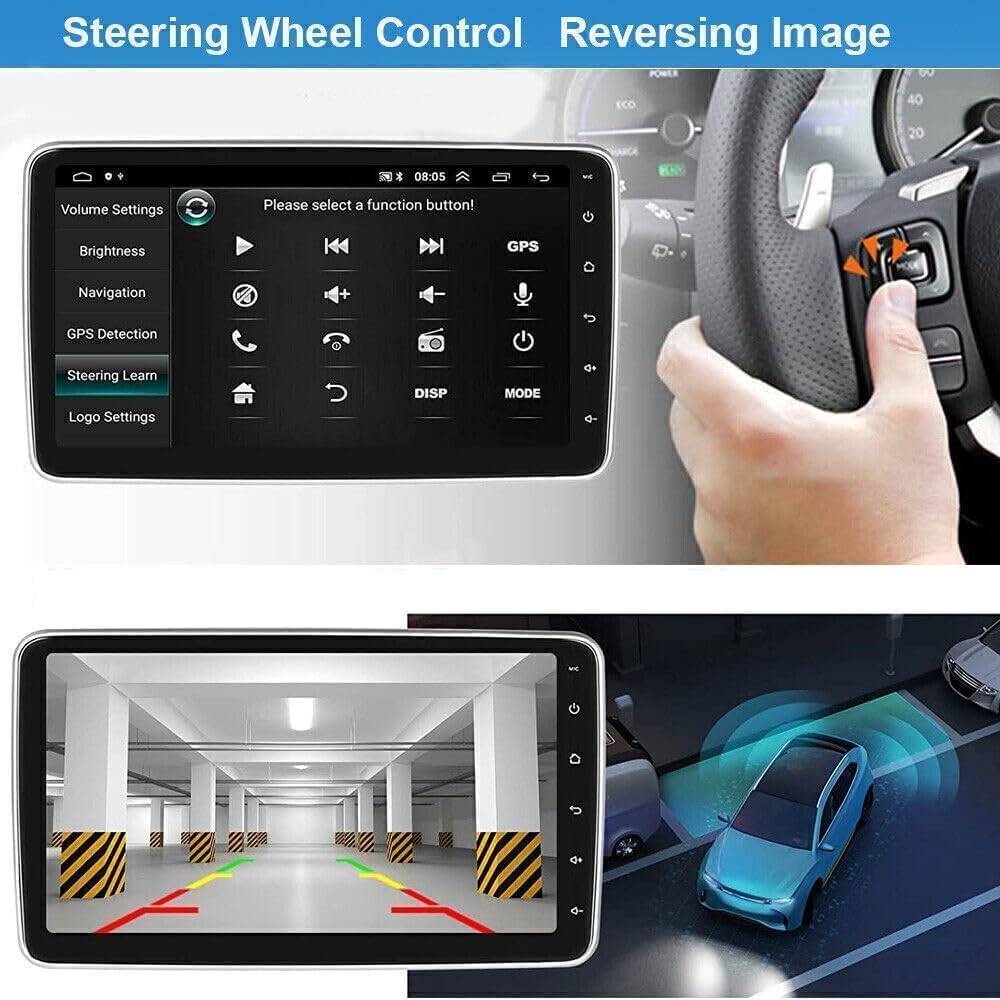
The image above shows the interface for setting up steering wheel controls, enabling convenient operation of the stereo without diverting attention from the road.
6.7 Rear View Camera
The included backup camera automatically displays the rear view when the vehicle is in reverse gear.
- Ensure the backup camera is correctly installed and wired to the car stereo's camera input.
- In 'Factory Settings', you may need to adjust the camera input type to NTSC if the image is not displayed correctly.
This image illustrates the automatic display of the rear view camera when reversing, providing visual assistance for parking and maneuvering.
6.8 Mirror Link
Mirror Link allows you to display your smartphone's screen directly onto the car stereo.
- Access the Mirror Link application on the car stereo.
- Follow the on-screen instructions to connect your smartphone, typically via USB or Wi-Fi.
- Once connected, your phone's display will be mirrored, allowing you to interact with apps on the larger screen.

The image above shows the Mirror Link feature in action, allowing users to project their smartphone's display onto the car stereo for enhanced viewing of navigation, videos, and other content.
6.9 Split Screen
The split screen function allows you to run two applications simultaneously on the display.
- While an app is open, press and hold the recent apps button or drag an app to one side of the screen (depending on Android version).
- Select a second app to occupy the other half of the screen.
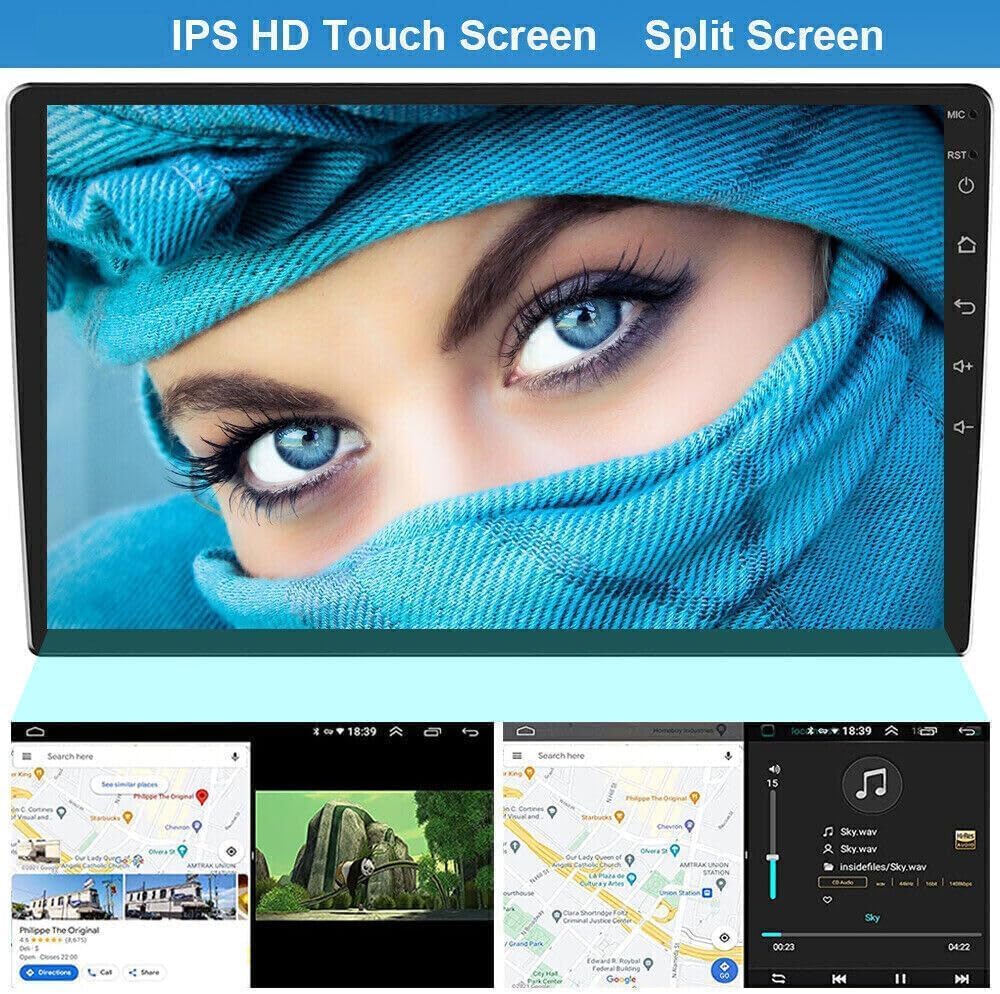
This image demonstrates the split screen capability, allowing for simultaneous use of two applications, such as navigation and music, for improved multitasking.
6.10 HiFi Audio & EQ
Customize your audio experience with the built-in equalizer.
- Access the 'Sound Effects' or 'EQ' app from the main menu.
- Adjust the 16-band equalizer settings to fine-tune the audio output to your preference.
- Select from various preset sound modes (e.g., Pop, Rock, Jazz) or create custom profiles.

The image above shows the HiFi audio and equalizer settings, providing extensive options to customize the sound output for an immersive listening experience.
6.11 Screen Calibration
If the touch screen responsiveness is inaccurate, you may need to calibrate it.
- Press the screen with five fingers simultaneously to enter calibration mode.
- Follow the on-screen prompts to click the corresponding icons at the corners of the screen.
- After calibration, set the corresponding buttons on the left side of the screen (e.g., power, home, back, volume up/down) by tapping them and confirming their function.
7. Troubleshooting
- No Power: Check all power connections and fuses. Ensure the unit is receiving 12V DC.
- No Sound: Verify speaker connections. Check volume levels and audio output settings.
- Bluetooth/CarPlay/Android Auto Connection Issues: Refer to Section 6.1 and 6.2. Ensure Wi-Fi and Bluetooth are enabled on both devices. Try restarting both the car stereo and your mobile device. Clear Wi-Fi history on the car stereo if manual Wi-Fi connection was used.
- Unresponsive Touch Screen: Perform screen calibration as described in Section 6.11.
- Backup Camera Not Displaying: Check camera wiring. Ensure the camera input type is correctly set in 'Factory Settings' (e.g., NTSC).
- Steering Wheel Controls Not Working: Re-program the steering wheel buttons in the system settings (Section 6.6).
- System Slow/Freezing: Close unnecessary applications. Clear cache or perform a factory reset if issues persist (note: factory reset will erase all user data).
8. Specifications
| Feature | Specification |
|---|---|
| Item Weight | 4 pounds |
| Package Dimensions | 15 x 10 x 4.7 inches |
| Item Model Number | QJ1360X-C |
| Display Size | 9 Inches |
| Operating System | Android 14.0 |
| RAM | 4GB |
| ROM | 64GB |
| Connectivity Technology | Bluetooth, Wi-Fi |
| Special Feature | Touchscreen, GPS Navigation, Android Auto, CarPlay, Backup Camera |
| Vehicle Service Type | Minivan (Dodge RAM ProMaster City 2015-2021) |
| Audio Output Mode | Stereo |
| Mounting Type | Dashboard Mount |
9. Warranty and Support
This product comes with a 1-year warranty as per manufacturer specifications.
For any questions, technical assistance, or troubleshooting not covered in this manual, please contact the EWLSAC customer service team through Amazon. They are committed to providing support and resolving any issues you may encounter.
Return Policy: The product is eligible for a 30-day return for refund or replacement, as per Amazon's policy.