Introduction
Thank you for purchasing the Levieny 34-Key Programmable Mechanical Numeric Keypad. This manual will guide you through the setup, operation, and maintenance of your new device. This keypad is designed for efficiency and customization, featuring QMK/VIA compatibility, RGB backlighting, hot-swappable switches, and durable PBT keycaps. It connects via a stable wired USB-C connection and is compatible with both Windows and Mac OS.
Key Features
- 34-Key Layout: Includes numeric keys, arrow keys, and frequently used keys like 'Delete' and parentheses for enhanced productivity. Ideal for laptop users, finance professionals, and cashiers.
- Mechanical Switches: Equipped with red mechanical switches for a comfortable tactile feel, high input speed, and accuracy. Suitable for data entry, spreadsheets, and database work.
- Hot-Swappable & QMK/VIA Compatible: Supports hot-swappable 3-pin and 5-pin switches, allowing users to easily change keycaps and switches. Full key function customization is possible via QMK/VIA software. Access VIA at https://usevia.app/.
- RGB Backlight & PBT Keycaps: Features customizable RGB backlighting with adjustable brightness, effects, speed, and color via software. The PBT keycaps are durable, heat-resistant, and processed with dye-sublimation printing to prevent legends from fading or shining over long-term use.
- Wired USB-C Connectivity: Ensures stable connection, avoiding input loss or data errors common with unstable Bluetooth connections. The detachable cable design makes it easy to store and transport.
- Wide Compatibility: Compatible with Windows (XP and above) and Mac OS systems.
- Comprehensive Accessory Set: Includes a USB-A to Type-C adapter for broad device compatibility and a keycap/switch puller for easy customization.
Package Contents
- Levieny 34-Key Mechanical Numeric Keypad
- USB-A to Type-C Cable
- USB-A to Type-C Adapter
- Keycap/Switch Puller Tool
- User Manual (this document)

Image: Keypad accessories including USB-A to Type-C cable, USB-A to Type-C adapter, and a keycap/switch puller tool.
Setup
1. Connecting the Keypad
The Levieny 34-Key Keypad uses a wired USB-C connection for stable performance.
- Connect the provided USB-A to Type-C cable to the USB-C port on the keypad.
- Plug the USB-A end of the cable into an available USB port on your computer. If your computer only has Type-C ports, use the included USB-A to Type-C adapter.
- The keypad will be automatically recognized by your operating system.
Video: Demonstrates connecting the 34-key mechanical keypad via USB-C and its VIA compatibility for key remapping and macro settings. Shows the keypad in use with RGB backlighting.
Video: Illustrates the RGB backlight effects of the 34-key keypad and how to switch or turn them off using VIA software.
2. System Compatibility
The keypad is compatible with:
- Windows operating systems (Windows XP and later versions)
- Mac OS
Operating Instructions
1. Keypad Layout and Basic Functions
The 34-key layout includes a full numeric section, dedicated arrow keys, and additional function keys for common operations. This design aims to maximize efficiency for various tasks.

Image: Overview of the 34-key mechanical numeric keypad, highlighting its comprehensive layout including numeric, arrow, and function keys.
2. Num Lock Functionality
To enable or disable numeric input, press the Num Lock key. When Num Lock is active, the numeric keys will function as numbers. When inactive, they may function as navigation keys (Home, End, PgUp, PgDn, etc.).
Video: Demonstrates the Num Lock functionality on a mechanical keypad, showing how to enable numeric input.
3. QMK/VIA Customization
The keypad is fully compatible with QMK/VIA software, allowing for extensive customization of key functions, layers, and macros. This enables you to tailor the keypad to your specific workflow and preferences.
- Key Remapping: Change the function of any key to suit your needs.
- Macro Creation: Program complex sequences of key presses into a single key.
- Layer Management: Create multiple layers of key assignments for different applications or tasks.
To access the VIA configurator, visit https://usevia.app/. Ensure your keypad is connected when using the software.

Image: Screenshot of the VIA software interface, showing how to customize key assignments and macros for the keypad.
Video: Demonstrates the macro compatibility of the 34-key mechanical keypad, showing how to program custom key sequences.
4. RGB Backlight Control
The keypad features dynamic RGB backlighting. You can adjust various aspects of the lighting through the VIA software:
- Brightness: Increase or decrease the intensity of the backlight.
- Effects: Choose from various lighting patterns (e.g., static, breathing, wave, reactive).
- Speed: Adjust the speed of dynamic lighting effects.
- Color: Select specific colors for static lighting or color palettes for dynamic effects.

Image: The keypad displaying various RGB backlight effects, showcasing customizable lighting options.
5. Hot-Swappable Switches
The keypad supports hot-swappable 3-pin and 5-pin mechanical switches. This allows you to easily change switches without soldering, enabling you to customize the typing feel to your preference.
- Use the included keycap puller to carefully remove the desired keycap.
- Use the included switch puller to gently remove the switch from the PCB.
- Align the pins of the new switch with the sockets on the PCB and press firmly until it clicks into place.
- Replace the keycap.

Image: A hand demonstrating the hot-swappable feature by removing a switch from the keypad using a switch puller.
6. PBT Keycaps
The keypad features PBT (Polybutylene Terephthalate) keycaps, known for their durability and resistance to shine over time. The legends are applied using dye-sublimation printing, ensuring they will not fade even with prolonged use.
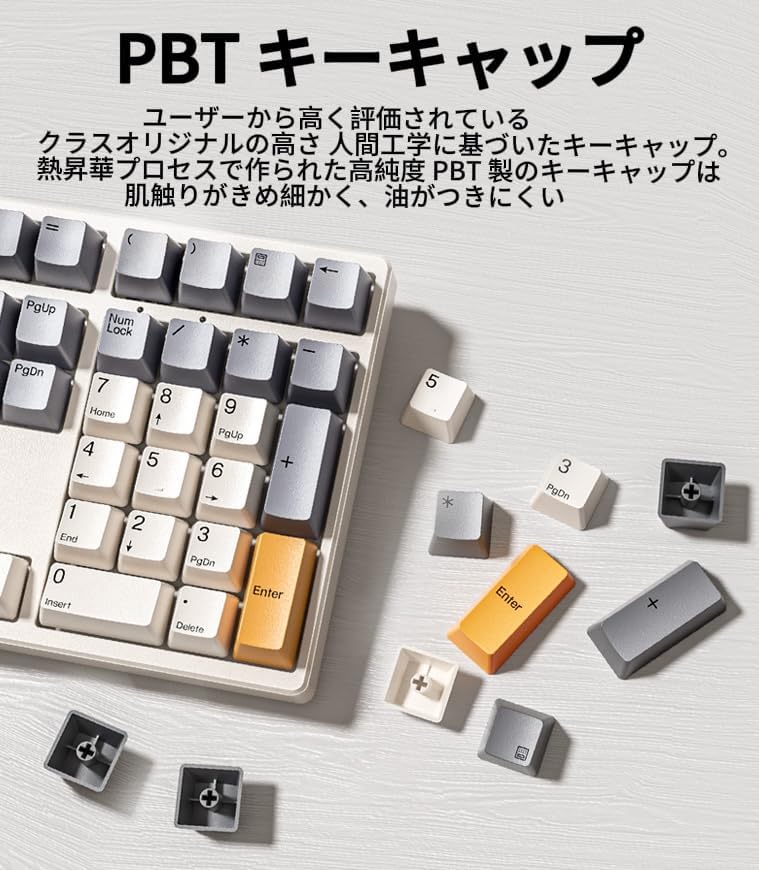
Image: Close-up of the keypad's PBT keycaps, highlighting their texture and durability.
7. Adjustable Tilt Angle
The keypad features adjustable feet on the underside, allowing you to set the tilt angle to three different positions for ergonomic comfort during use.

Image: Side view of the keypad demonstrating its adjustable tilt angles for ergonomic customization.
Maintenance
To ensure the longevity and optimal performance of your keypad, follow these maintenance tips:
- Regular Cleaning: Use a soft, dry cloth to wipe down the keycaps and casing. For deeper cleaning, you can remove keycaps using the provided puller and clean underneath.
- Dust Removal: Use a can of compressed air or a small brush to remove dust and debris from between the keys.
- Cable Care: Avoid sharp bends or excessive pulling on the USB-C cable to prevent damage.
Troubleshooting
- Keypad Not Responding: Ensure the USB-C cable is securely connected to both the keypad and your computer. Try connecting to a different USB port or using the included adapter if necessary.
- Numeric Keys Not Working: Press the Num Lock key to activate numeric input. The Num Lock indicator light should be on.
- Double Input or Missed Inputs: This can sometimes occur due to software conflicts or switch issues. Try restarting your computer. If the issue persists, consider replacing the affected switch using the hot-swappable feature.
- Backlight Not Working/Incorrect: Check the RGB backlight settings in the VIA software (https://usevia.app/) to ensure the desired effect and brightness are selected.
- Custom Key Assignments Not Working: Ensure you have saved your keymap changes in the VIA software and that the keypad is properly authorized.
Specifications
| Feature | Detail |
|---|---|
| Brand | Levieny |
| Model Number | RGB-MF34 |
| Product Dimensions | 7 x 18 x 19 cm |
| Item Weight | 600 g |
| Color | Red Axis (Red Switch) |
| Connectivity Technology | USB-A, USB-C (Wired) |
| Compatible Devices | Mac OS, Windows, Laptops, PCs |
| Keyboard Description | Mechanical |
| Special Features | Backlit, Programmable Keys, Mechanical Keyboard |
| Backlight Color | RGB |
Warranty and Support
Levieny products are designed for quality and reliability. For any issues or questions regarding your 34-Key Programmable Mechanical Numeric Keypad, please refer to the seller's support channels on the platform where you purchased the product. Keep your purchase receipt for warranty claims.