
1. Setup
This section guides you through the initial setup and installation of your Pahaa X18 Dual Dash Cam.
1.1 What's in the Box
Verify that all components are present in your package:
- Pahaa X18 Front Dash Cam
- Rear Camera
- Car Mount (Suction Cup)
- Car Charger (Power Cable)
- Rear Camera Cable
- Adhesive Mounts for Rear Camera
- Cable Clips
- Trim Tool
- 64GB Micro SD Card
- User Manual

Image: All components included with the Pahaa X18 Dual Dash Cam.
1.2 Installation
Follow these steps to install your dash cam:
- Insert Micro SD Card: Insert the provided 64GB Micro SD card into the front dash cam's card slot. Ensure it clicks into place.
- Mount Front Camera: Attach the suction cup mount to the front dash cam. Clean a spot on your windshield, preferably behind the rearview mirror, and firmly press the suction cup to secure the front camera. Adjust the camera angle to ensure a clear view of the road ahead.
- Connect Power: Plug the car charger into your vehicle's cigarette lighter socket and connect the other end to the front dash cam. Route the cable neatly along the windshield trim using the provided cable clips and trim tool to avoid obstructing your view.
- Mount Rear Camera: Identify a suitable location on your rear window for the rear camera. Clean the surface and use the adhesive mount to secure it.
- Connect Rear Camera: Connect the rear camera cable to the rear camera and route it to the front dash cam. Plug the cable into the designated port on the front dash cam. Use the trim tool and cable clips to hide the cable along the vehicle's interior trim for a clean installation.

Image: Easy installation guide for the Pahaa X18 Dash Cam.
Video: This video demonstrates the simple installation steps for the Pahaa X18 dual dash camera, showing how to mount the front and rear cameras and route the cables.
1.3 Initial Setup & Formatting
After installation, perform these initial setup steps:
- Power On: The dash cam will automatically power on when your vehicle starts.
- Format SD Card: It is crucial to format the Micro SD card before first use and periodically thereafter to ensure optimal performance and prevent data corruption. Navigate to the settings menu on the dash cam's 3.0" IPS screen and select the 'Format' option. Confirm to proceed.
- Set Date/Time: Adjust the date and time settings in the menu for accurate timestamping of recordings.
- Connect to App (Optional): Download the 'Viidure' app from your mobile app store. Enable 5.8GHz Wi-Fi on the dash cam via the settings menu and connect your phone to the dash cam's Wi-Fi network (SSID and password displayed on screen). This allows for real-time viewing, downloading, and sharing of footage.
2. Operating Instructions
Understand the various features and how to operate your Pahaa X18 Dash Cam.
2.1 Recording Modes
- Loop Recording: The dash cam continuously records video in segments (e.g., 1, 2, or 3 minutes). When the Micro SD card is full, the oldest unlocked video segments are automatically overwritten by new recordings. This ensures continuous recording without manual intervention.
- G-Sensor (Emergency Recording): The built-in G-sensor detects sudden impacts or abrupt braking. In such events, the current video segment is automatically locked and saved to a protected folder, preventing it from being overwritten by loop recording. The sensitivity of the G-sensor can be adjusted in the settings (High, Middle, Low, or Off).
- 24H Parking Mode: This feature provides continuous surveillance when your vehicle is parked. It requires a hardwire kit (ASIN: B0FCS616L6, sold separately) to ensure constant power. When motion or impact is detected while parked, the dash cam will automatically start recording.
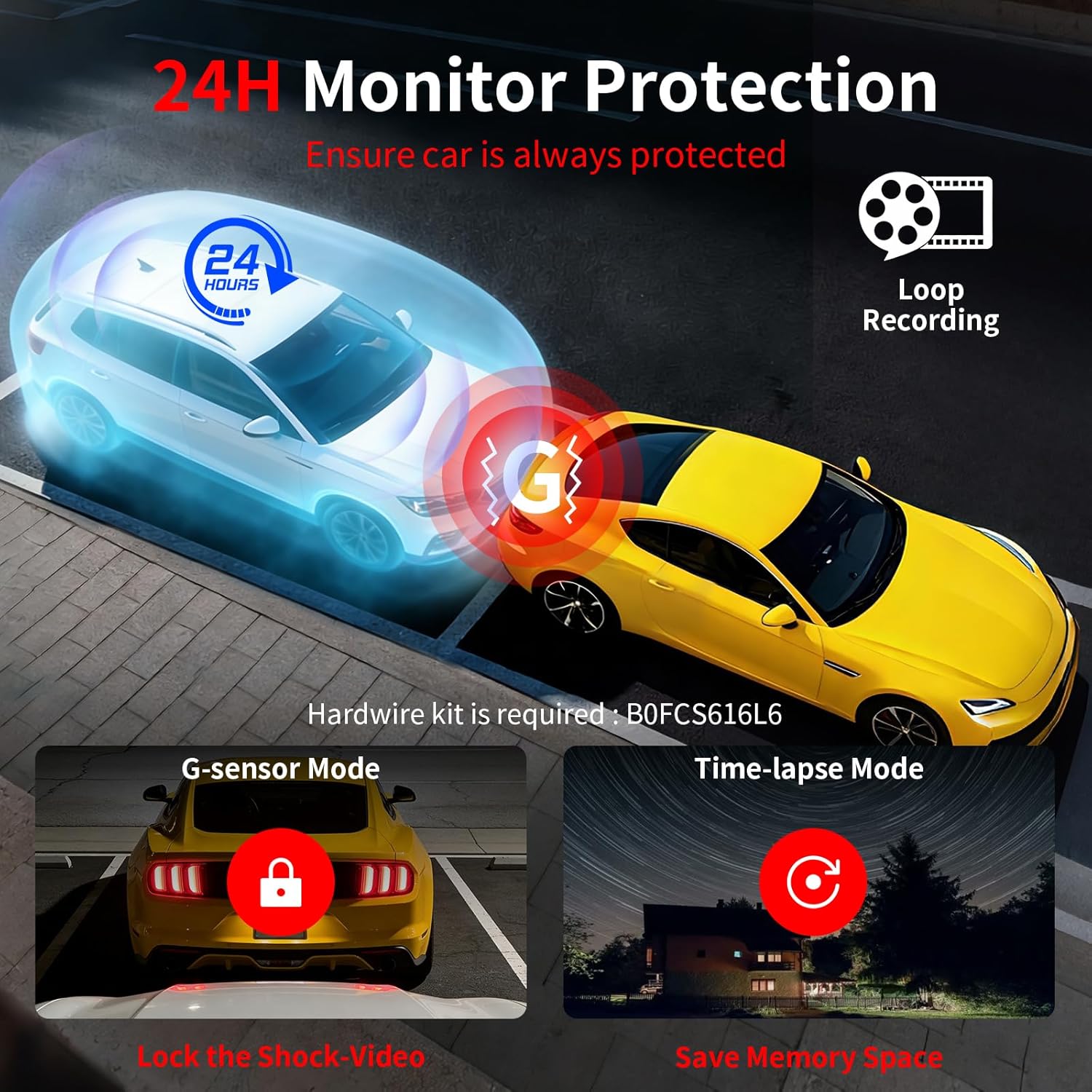
Image: G-Sensor and 24H Parking Mode for vehicle protection.

Image: Auto Overwrite and Loop Recording ensures continuous video capture.
2.2 Display & Controls
The Pahaa X18 features a 3.0" IPS screen for easy navigation and viewing. The buttons on the device allow for direct control:
- OK Button: Confirms selections or starts/stops recording.
- MODE Button: Switches between video recording, photo mode, and playback mode.
- MENU Button: Accesses the settings menu.
- UP/DOWN Buttons: Navigates through menu options or adjusts settings.
2.3 Wi-Fi & App Connectivity
The dash cam supports 5.8GHz Wi-Fi for fast and convenient connectivity with your smartphone.
- Fast Downloads: Enjoy 5 times faster download speeds compared to 2.4GHz Wi-Fi, allowing quick transfer of video files to your phone.
- Real-time Playback: View live footage from your dash cam directly on your smartphone.
- Easy Sharing: Share your driving videos with family, friends, or on social media platforms directly from the app.
- App Control: Adjust settings, manage recordings, and perform other functions through the intuitive 'Viidure' mobile application.

Image: 5.8GHz Wi-Fi for fast app connectivity and video management.
Video: This video demonstrates how to use the Pahaa X18 Dash Cam with its mobile app, highlighting the ease of control and access to 4K front and rear footage on your iPhone or Android device.
3. Maintenance
Proper maintenance ensures the longevity and optimal performance of your dash cam.
3.1 Cleaning
- Lenses: Regularly clean the front and rear camera lenses with a soft, lint-free cloth to ensure clear video quality. Avoid abrasive materials that could scratch the lenses.
- Screen: Wipe the 3.0" IPS screen with a soft, dry cloth. Do not use liquid cleaners directly on the screen.
- Body: Keep the dash cam body free from dust and debris.
3.2 SD Card Management
- Regular Formatting: To maintain optimal recording performance and prevent potential errors, it is recommended to format the Micro SD card every 2-4 weeks. This clears old, unnecessary files and refreshes the card's file system.
- Card Replacement: Micro SD cards have a limited lifespan due to continuous read/write cycles. If you notice recording issues or error messages, consider replacing the SD card. The Pahaa X18 supports up to 256GB cards.
4. Troubleshooting
Here are solutions to common issues you might encounter with your Pahaa X18 Dash Cam.
- Dash Cam Not Powering On:
- Ensure the car charger is securely plugged into both the dash cam and the vehicle's cigarette lighter socket.
- Check if the vehicle's cigarette lighter socket is receiving power (test with another device).
- Verify the power cable is not damaged. - Recording Issues (e.g., footage failed, not recording):
- Format the Micro SD card regularly (see Maintenance section).
- Ensure the Micro SD card is inserted correctly.
- Use a branded U3 speed class Micro SD card (up to 256GB is supported). Lower speed cards may cause recording failures.
- Check if the card is full and loop recording is enabled. If not, older files might not be overwritten. - Wi-Fi Connectivity Problems:
- Ensure Wi-Fi is enabled on the dash cam via the settings menu.
- Verify you are connecting to the correct Wi-Fi SSID and using the correct password (displayed on the dash cam screen).
- Try restarting both the dash cam and your smartphone. - App Not Connecting or Showing Live View:
- Make sure your phone is connected to the dash cam's Wi-Fi network, not your home Wi-Fi or mobile data.
- Ensure the 'Viidure' app has necessary permissions on your phone.
- Update the app to the latest version. - Poor Night Vision:
- Ensure the camera lenses are clean.
- Verify WDR (Wide Dynamic Range) is enabled in the settings for improved low-light performance. - G-Sensor Too Sensitive/Not Sensitive Enough:
- Adjust the G-sensor sensitivity setting (High, Middle, Low) in the dash cam's menu to suit your driving conditions.
5. Specifications
| Feature | Description |
|---|---|
| Model Name | X18 |
| Front Camera Resolution | 4K (2160p) |
| Rear Camera Resolution | FHD 1080P |
| Screen Size | 3.0" IPS Screen |
| Wide Angle | Dual 170° |
| Wi-Fi Connectivity | 5.8GHz Built-In Wi-Fi |
| Night Vision | UHD Night Vision with WDR & F1.6 Aperture 6-layer lens |
| Parking Mode | 24H Parking Monitoring (requires hardwire kit, ASIN: B0FCS616L6) |
| G-Sensor | High-performance G-sensor for collision detection |
| Loop Recording | Automatic overwrite of old videos when memory is full |
| Storage | Supports up to 256GB Micro SD Card (64GB card included) |
| Product Dimensions | 1.38 x 3.35 x 1.97 inches |
| Item Weight | 14.4 ounces |
| Power Source | Car Charger (1 Lithium Polymer battery included) |
6. Warranty & Support
Pahaa is committed to customer satisfaction. We offer comprehensive support for your dash cam.
6.1 After-Sales Support
Our dedicated customer service team provides 7x24 technical support and assistance for any inquiries or issues you may encounter. Please do not hesitate to contact us via email for prompt resolution of your questions or concerns.
6.2 Contact Information
For support, please refer to the contact details provided in the user manual included in your product package or visit the official Pahaa website.


