
Introduction
This manual provides essential information for the proper setup, operation, and maintenance of your Gawfolk 27-inch QHD IPS Gaming Monitor. Please read this manual thoroughly before using the product to ensure optimal performance and safety.

Figure 1: Gawfolk 27-inch QHD IPS Gaming Monitor (Model GF270A)
What's in the Box
Verify that all components are present and in good condition upon unboxing:
- Monitor x1
- DisplayPort (DP) cable x1
- User Manual x1
- Power Adapter x1
- Stand Base x1
Setup
1. Assembling the Stand
- Carefully remove the monitor and stand components from the packaging.
- Attach the stand base to the stand neck using the provided screws.
- Securely attach the assembled stand to the back of the monitor. Ensure it clicks into place or is fastened with screws as per the stand design.
2. Connecting to a Device
The monitor supports DisplayPort (DP 1.4) and HDMI (2.1) inputs for high-quality image transmission.
- DisplayPort (DP) Connection: Connect one end of the DP cable to the DP port on your computer/device and the other end to the DP 1.4 port on the monitor.
- HDMI Connection: Connect one end of the HDMI cable to the HDMI port on your computer/device and the other end to one of the HDMI 2.1 ports on the monitor.
- Audio Output: For external speakers or headphones, connect your audio device to the 3.5mm audio output jack on the monitor.
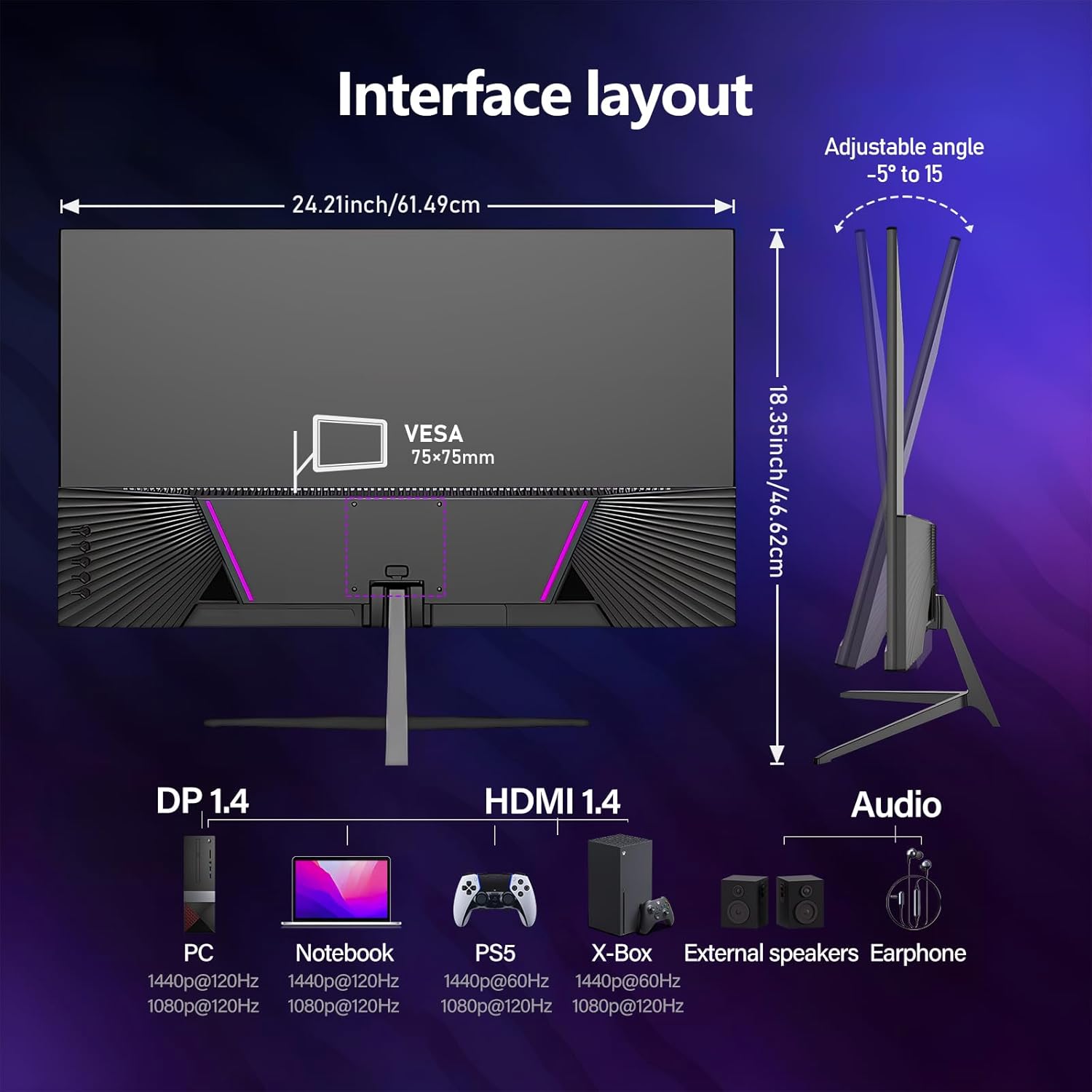
Figure 2: Rear Interface Layout showing DP, HDMI, and Audio ports, and VESA mount points.
3. Power Connection
- Connect the power adapter to the DC input port on the monitor.
- Plug the power adapter into a wall outlet.
4. Adjusting the Viewing Angle
The monitor supports an adjustable tilt feature. Gently tilt the monitor screen to find your preferred viewing angle. The monitor also supports 75x75mm VESA wall mounting for alternative positioning.
Operating
1. Powering On/Off
Press the power button located on the monitor to turn it on or off.
2. On-Screen Display (OSD) Menu
The OSD menu allows you to adjust various monitor settings. Use the control buttons (usually located on the back or bottom right of the monitor) to navigate the menu.
Key OSD Functions:
- Input Source: Manually switch between DP and HDMI inputs.
- Brightness/Contrast: Adjust image luminance.
- Color Settings: Modify color temperature, gamma, and individual RGB levels.
- Picture Mode: Select preset display modes (e.g., Standard, Game, Movie).
- Refresh Rate: Ensure your device is set to 120Hz for optimal performance. The monitor's default refresh rate is 60Hz; if your computer supports 120Hz, connect via DP and adjust display settings.
- FreeSync: Enable or disable FreeSync for smoother gaming experience, reducing screen tearing and stuttering.

Figure 3: Visual comparison of FreeSync enabled (smooth) versus disabled (stutter/motion blur).

Figure 4: Illustration of the difference between 120Hz and 60Hz refresh rates, highlighting smoother motion at higher refresh rates.
3. Display Quality and Features
- QHD Resolution (2560x1440P): Provides crystal-clear visuals and sharp details.
- IPS Panel: Offers stunning color accuracy, 99% sRGB coverage, and wide 178-degree viewing angles.
- Ultra-Thin Zero Frame: Minimizes visual distractions for an immersive viewing experience.
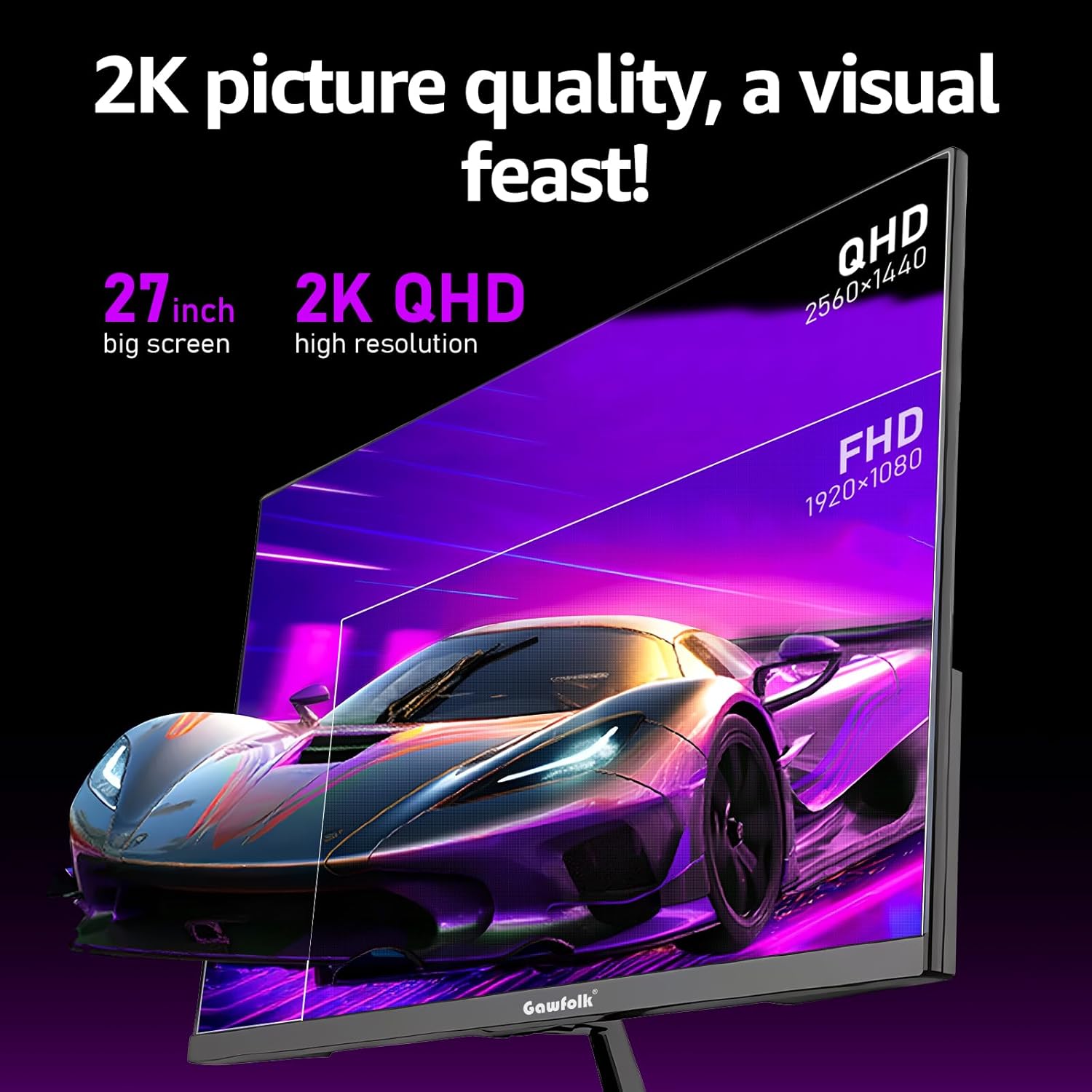
Figure 5: Visual representation of 2K QHD (2560x1440P) resolution clarity compared to FHD (1920x1080P).
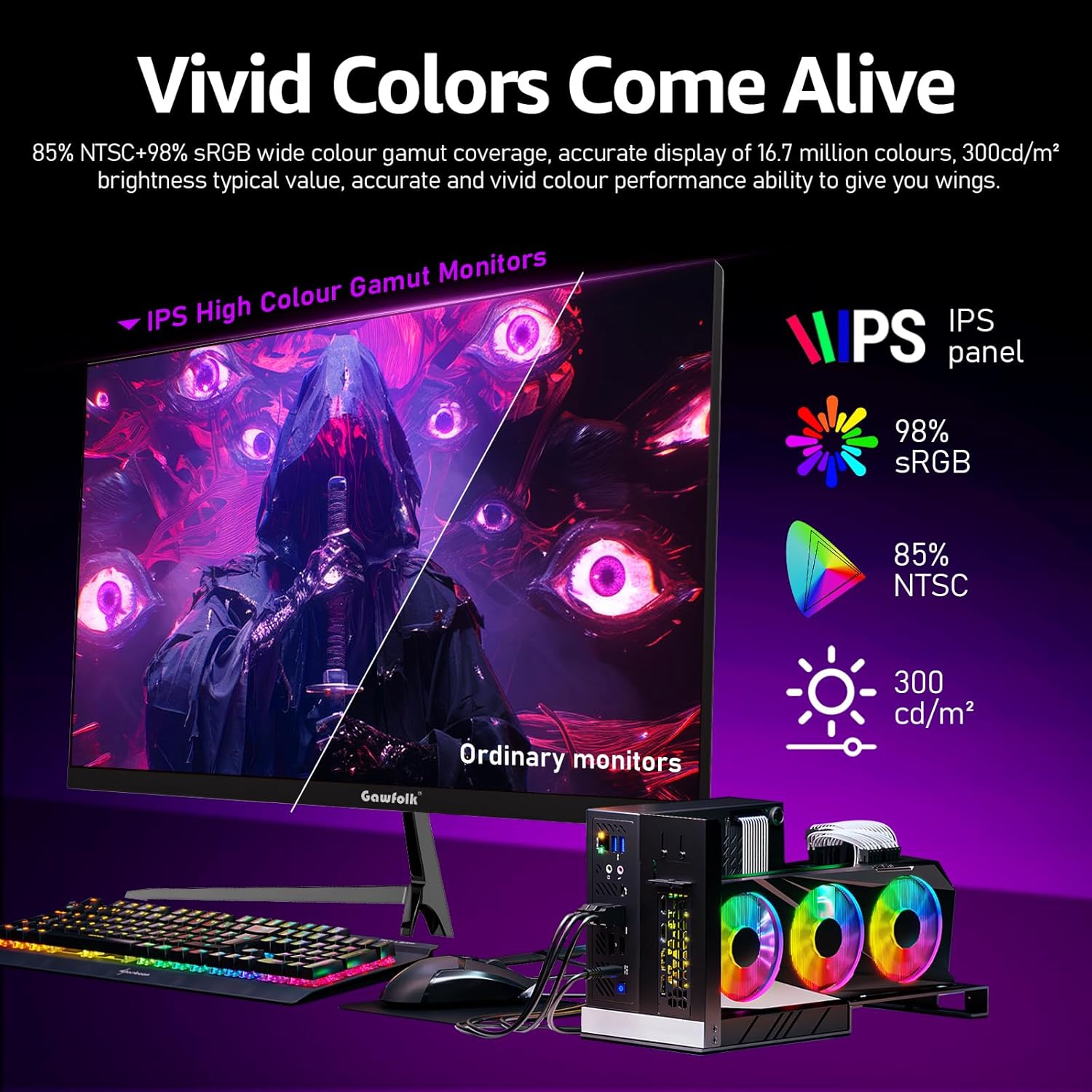
Figure 6: Diagram illustrating the vivid color performance of the IPS panel, including 98% sRGB, 85% NTSC, and 300 cd/m² brightness.
Maintenance
1. Cleaning the Screen
- Turn off the monitor and unplug the power cord.
- Use a soft, lint-free cloth lightly dampened with water or a non-abrasive screen cleaner.
- Gently wipe the screen surface. Avoid applying excessive pressure.
- Do not spray liquid directly onto the screen.
2. Cleaning the Monitor Casing
- Use a soft, dry cloth to wipe the casing.
- For stubborn marks, use a cloth lightly dampened with mild detergent solution, then wipe dry.
3. Storage
When not in use for extended periods, store the monitor in a cool, dry place, away from direct sunlight and extreme temperatures.
Troubleshooting
| Problem | Possible Cause | Solution |
|---|---|---|
| No image on screen | Power cable disconnected; Input source incorrect; Device not powered on. | Check power connections; Select correct input source via OSD; Ensure connected device is on. |
| Image is blurry or distorted | Incorrect resolution; Cable not fully connected; Graphics driver issue. | Set display resolution to 2560x1440P; Reconnect display cable; Update graphics drivers. |
| Screen tearing or stuttering (in games) | FreeSync is off; Refresh rate is too low. | Enable FreeSync in OSD and graphics card settings; Set refresh rate to 120Hz in display settings. |
| No audio from external speakers/headphones | Audio cable disconnected; Volume too low; Incorrect audio output selected on device. | Check audio cable connection; Increase volume; Select monitor as audio output device on your computer. |
| Buttons not responding (as reported by some users) | Temporary software glitch; Physical button issue. | Unplug the monitor from power for 30 seconds, then plug back in. If issue persists, contact customer support. |
Specifications
| Feature | Detail |
|---|---|
| Screen Size | 27 Inches |
| Panel Type | IPS |
| Resolution | 2560 x 1440 Pixels (QHD Wide 1440p) |
| Refresh Rate | 120Hz |
| Aspect Ratio | 16:9 |
| Color Gamut | 99% sRGB, 85% NTSC |
| Viewing Angle | 178° (Horizontal/Vertical) |
| Screen Surface | Matte |
| Inputs | 2x HDMI 2.1, 2x DisplayPort 1.4 |
| Audio Output | 3.5mm Audio Jack |
| VESA Compatibility | 75x75mm |
| Item Model Number | GF270A |
| Item Weight | 7.28 pounds |
| Product Dimensions (LxWxH) | 8.26 x 24.17 x 21.65 inches |
| Voltage | 12 Volts |
Warranty and Support
Gawfolk provides a standard warranty for this product. For detailed warranty terms and conditions, please refer to the warranty card included in your product packaging or visit the official Gawfolk website. For technical support, troubleshooting assistance beyond this manual, or warranty claims, please contact Gawfolk customer service through the contact information provided on the official website or your purchase platform.
You can visit the official Gawfolk Store on Amazon for more information: Gawfolk Store


